Plays, Prospecting, and Task Best Practices
Last updated: May 5, 2026
Audience: Reps & anyone setting up or running plays
Goal: Maximize deliverability, coverage, and personalization while avoiding common pitfalls.
Glossary
What is a Play?
A play in Unify is a workflow or automation that combines multiple actions to execute your outbound campaigns.
Think of it as a playbook that defines what happens when certain conditions are met.
What is Prospecting?
Prospecting in Unify refers to the automated process of finding and enriching contact information for people at target companies based on your specified criteria.
What is a Task?
A task in Unify is a manual action item assigned to a sales rep that needs to be completed as part of a sequence or play.
Tasks serve as the bridge between automated workflows and human execution.
Play Setup Best Practices
1. One Play Per Rep (Mailbox-Level Routing)
Each rep should have their own play.
Plays should route directly to the rep’s mailbox
Avoid routing by company owner
Why? It’s brittle and error‑prone - owner fields are often outdated or inconsistent, which leads to misrouting, missed tasks, and duplicate outreach. Direct mailbox or round‑robin routing is more reliable, easier to maintain, and ensures consistent ownership end‑to‑end.
Exception: Routing to Salesforce Contact Owner
If you need to align email sending with the Salesforce Contact Owner’s inbox, follow these steps before the Sequence step in your Play:
Add an Assign owner action.
In the Sequence routing settings, select “Use a mailbox associated with the company/person record owner”.
Verify each rep has a mailbox configured under Settings → Deliverability → Mailboxes and set appropriate fallbacks.
Keep the Assign owner and Sequence steps in the same branch, with Assign owner first.
Important requirements:
Mailboxes must be mapped to each owner.
Users must have logged in at least once.
The Assign owner step must be placed before the Sequence step in the Play.
Example 1: Direct Mailbox Routing
You have a play targeting enterprise accounts and want all prospects to go to your enterprise AE, Sarah. You would:
Select "Manually select mailboxes" in the routing settings
Choose only Sarah's mailboxes (e.g., sarah@company.com, s.johnson@company.com)
All prospects from this play will be assigned to Sarah and emails will send from her mailboxes.
Example 2: Round-Robin Routing
You have website visitors that should be distributed equally across your 3 SDRs (Tom, Jake, and Maria). You would:
Select "Manually select mailboxes"
Choose all mailboxes from Tom, Jake, and Maria's groups
Unify will automatically rotate prospects: first prospect goes to Tom, second to Jake, third to Maria, fourth back to Tom, etc.
Why this matters:
All records run through the play are automatically assigned
Prevents conflicts, delays, and ownership confusion
Ensures consistent task ownership and follow-up
2. Use the Recommended Prospecting Node by Default
Always start with the recommended prospecting node
Treat it as the baseline configuration
Start with 2-4 prospects per company, then scale up based on results
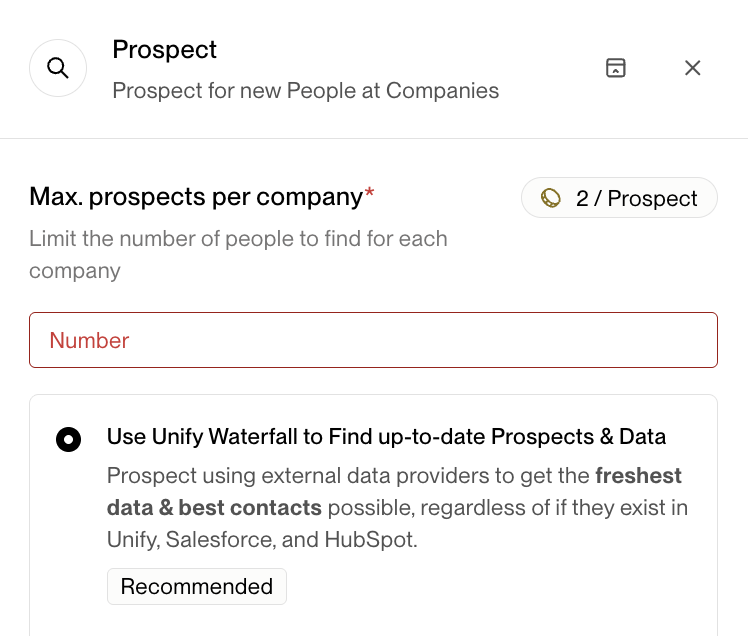
3. Finding More Than 10 People at a Company
Do not rely on a single prospecting node
Use multiple prospecting nodes to expand coverage
Pro Tip: Using parallel prospecting nodes for different personas can reduce the number of duplicate plays needed by 3-5x compared to creating separate plays for each persona.
Example approaches:
Split by function (e.g., Sales, RevOps, Marketing)
Split by seniority tiers
Use separate nodes for each persona to control allocation
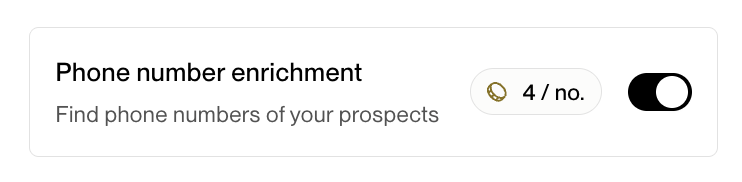
4. Always Enrich Phone Numbers
Enable “Enrich phone number” in all prospecting nodes
Always keep it on when using the Chrome extension
Important: Only enrich when sequences include call tasks to avoid wasting credits
Why this matters:
Improves call task usability
Prevents dead-end tasks later in the workflow
Important limitation: Enabling phone enrichment in a play only applies to newly prospected contacts. It does not retroactively enrich contacts already in audiences or enrolled in sequences. If you need to enrich phone numbers for existing contacts, use one of the workarounds below depending on your scenario.
Note: Enrichment is only available in prospecting nodes, not as standalone enrichment steps
Enriching Phone Numbers for Existing Contacts
If you have contacts already in an audience or enrolled in sequences that need phone enrichment for call tasks, use the export and re‑import method:
Export the audience or sequence participants as CSV (see How to Export Sequence Participants to CSV)
Re‑upload the CSV via People and toggle on Enrich phone numbers (requires First Name, Last Name, and Company Domain)
The enriched contacts will then be available for your play
For contacts already enrolled in sequences with call tasks, after enrichment is complete:
Create a new call‑focused play and enroll these newly enriched contacts
Ensure re‑enrollment is allowed in Settings > Sequences > Rulesets
See How to enrich existing audiences with phone numbers for detailed steps.
5. Persona Strategy: Use Tiers, Not One Long List
Avoid one massive persona list
Use multiple persona tiers instead
Important: Personas are processed in priority order - first persona gets filled before moving to second.
Example Use Case:
Single Persona Problem: If you create one broad "Product Team" persona with titles like:
Chief Product Officer
VP of Product
Director of Product
Product Manager
Associate Product Manager
When Unify prospects for 3 people, it might find 3 Associate Product Managers first (since they're most common) and never reach the CPO you actually want to target.
Multiple Tier Solution: Instead, create separate tiered personas:
Tier 1 - Product Leadership:
Chief Product Officer
VP of Product
Head of Product
Tier 2 - Product Management:
Director of Product
Senior Product Manager
Product Manager
Tier 3 - Product ICs:
Associate Product Manager
Junior Product Manager
How It Works: Set your prospecting to find 2 people per persona. Unify will:
1. First look for 2 people from Tier 1 (leadership)
2. Then look for 2 people from Tier 2 (management)
3. Finally look for 2 people from Tier 3 (ICs)
This ensures you get the right seniority mix instead of just whoever is easiest to find.
Benefits:
Better targeting
Cleaner prioritization
Easier iteration and debugging
Prevents one persona from consuming all available prospects
Task Best Practices
1. Skip Call Tasks Without Phone Numbers
If no number exists, skip the task or use enrichment
Don’t burn time on non-actionable calls
Tip: You can enrich phone numbers directly from the task view.
2. Keyboard Efficiency
Press “K” to move quickly from task to task
Use filtered task views by assignee for better organization

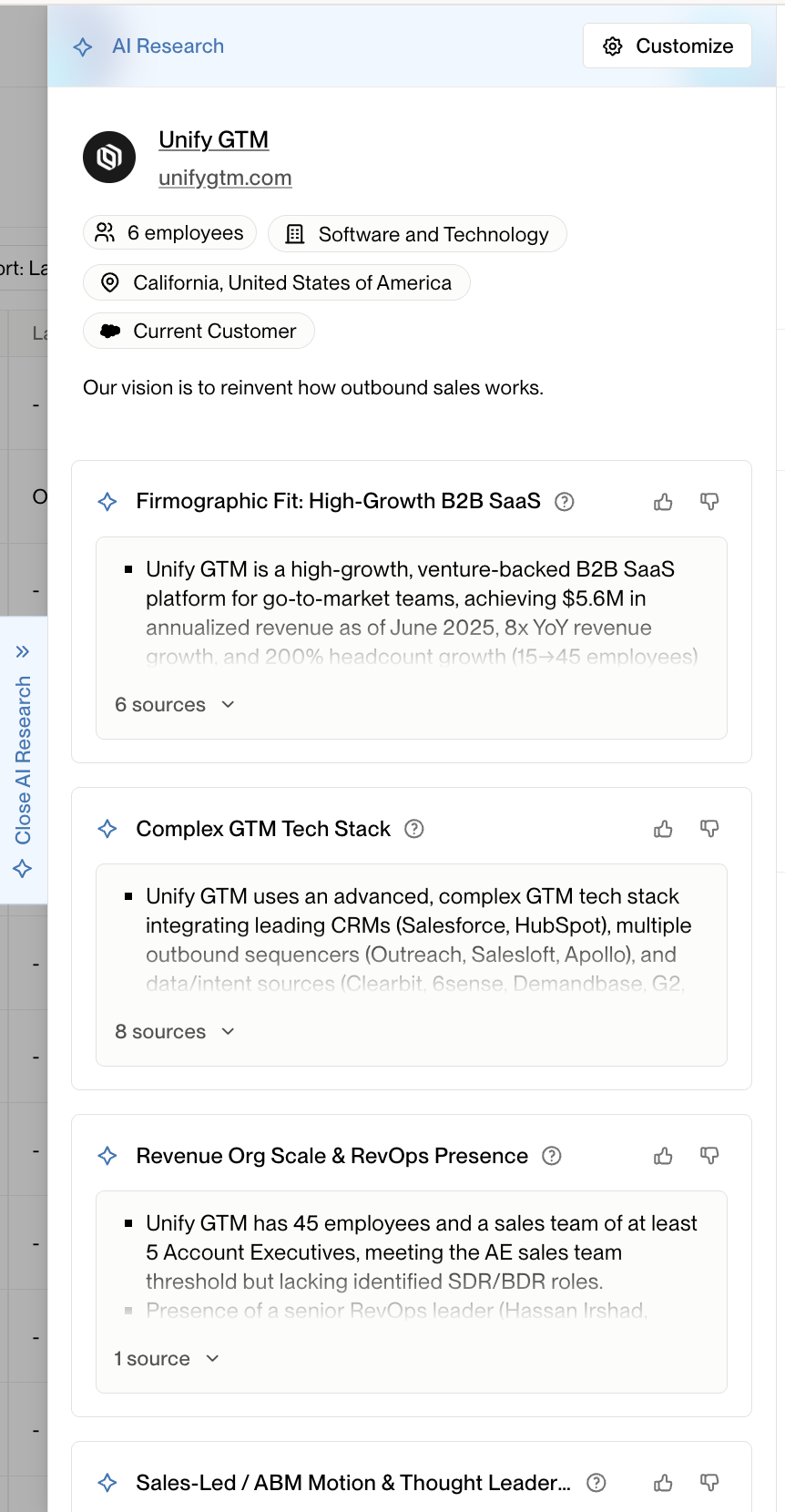
3. Manual Personalization Using Research Panel
Use the research panel on the left to personalize emails
Reference recent activity, role context, or company signals
Leverage AI agents for research insights before outreach
Best used for:
High-value accounts
First-touch emails
4. Reassigning Task Ownership
Task ownership and mailbox ownership are independent – you can reassign tasks without changing who sends emails.
To reassign existing tasks (including specific task types like call tasks):
Navigate to the Tasks tab and use filters to find the relevant tasks
Filter by task type (e.g., Call, Email, LinkedIn) to reassign only specific types
Optionally filter by sequence to narrow results
Select all tasks that need reassignment
Click "Assign Owner" to bulk reassign to the correct owner
To route future tasks from a sequence to a different owner:
Open the sequence → Edit → Advanced Settings
Enable "Manually assign tasks" and select the desired owner
Save the sequence
Note: This assigns all new sequence-generated tasks to the selected owner while emails continue sending from the existing mailbox owner. This only affects new enrollments - existing enrollments keep their current task assignment.
Preventing task assignment mismatches with round-robin mailbox distribution:
When using plays with manual mailbox selection and round-robin distribution, task assignment settings in sequences must match the routing method to prevent the email sender and task assignee from being different people.
Ensure all manual task steps (LinkedIn tasks, call tasks, etc.) in your sequences are set to “Assign to: Sender” rather than “Mailbox owner”
If tasks are assigned to “Mailbox owner” while emails rotate through multiple mailboxes via round-robin, the email sender and task assignee will be different people
To verify and fix task assignment settings:
Open each sequence used in plays with round-robin routing
Check every manual task step (LinkedIn tasks, call tasks, etc.)
Ensure the “Assign to” setting is set to the sender option, not “Mailbox owner”
For existing misassigned tasks, use the bulk reassignment process described above
Note: Changing task assignment settings only affects new enrollments. Existing enrolled contacts retain their original task assignments and must be manually reassigned.
Navigate to the Tasks tab and use filters to find the relevant tasks
Select all tasks that need reassignment
Click "Assign Owner" to bulk reassign to the correct owner
Note: This is useful when you've changed routing in a play and need to update task ownership for contacts already enrolled in sequences.
What to Avoid
1. Prospecting Issues
Problem: Play prospecting 0 people despite large companies
Solution: Broaden persona titles, check location filters, verify company data quality
1a. List Count vs. Play Trigger Preview Discrepancies
Problem: List shows more contacts (e.g., 92) than appear in play trigger criteria preview (e.g., 64)
Solution: The difference typically comes from filters or protections applied at the play/audience level before sequence enrollment:
Exclusions - Global exclusions filter out contacts even if they're in the list. Temporarily toggle exclusions off in the audience/trigger preview to see if the count increases
Enrollment protections - Contacts may not qualify because they're opted out, already in another active sequence, hit daily caps, or fail sequence‑specific rules
Dynamic criteria - If your trigger uses additional filters beyond “exists in list,” only the subset meeting those filters will show in the preview
Note: Check the Play's Metrics tab to review “Not Enrolled” reasons for specific contacts. See Understanding and Resolving Audience Discrepancies for details.
2. Low Sequence Enrollment Counts
Problem: Prospecting finds contacts but far fewer enroll in sequences than expected (e.g., averaging 0.9 enrollments when max is set to 10 per account)
Solution: Check these common causes:
Company enrollment limits shared across plays - The per-company sequence cap is shared globally, so other plays can consume the limit and block additional enrollments from this play
Daily sending caps reached - Check if daily sending limits have been hit, which can cause contacts to queue rather than enroll immediately
Contact ineligibility - Open the Play → go to Metrics → click the Sequence node (or click the “Not Enrolled” count) to see who was enrolled vs. not enrolled and the specific reason per contact. Check the “Not Enrolled” breakdown for reasons like: Already enrolled, Recently enrolled, Max enrollments reached, or No routing target
Simultaneous enrollment blocked - Contacts cannot be enrolled in multiple active sequences at the same time; if already enrolled elsewhere, they will be blocked from this sequence
Exclusions blocking enrollment - Review Settings → Organization → Exclusions for any with “Exclude from Sequences” toggle enabled, which can prevent enrollment or proactively unenroll contacts
Execution Logs - Check per-contact records for specific error or status messages
Audience propagation delay - If you recently updated the audience, allow 15‑30 minutes for changes to fully propagate before contacts can be processed
3. Sequence Assignment Problems
Problem: Wrong rep getting tasks or emails
Solution: Use mailbox groups and verify routing logic in play setup
3a. Reassigning Emails Mid-Sequence
Problem: Need to change email sender after sequence has started
Solution:
Queued emails (Step 1 only): Can be bulk reassigned via Dashboard → Leading → Email Backlog → Reassign Sequence Enrollments. See How to Reassign Emails in the Backlog
Mid-sequence scheduled emails: Cannot be bulk reassigned and must be updated manually
After Step 1 has sent: Mailboxes cannot be switched mid-sequence to maintain consistent sender experience for recipients
4. Duplicate Outreach
Problem: Multiple people at same company getting identical emails
Solution: Use A/B nodes to ensure single rep per company
5. Credit Waste
Problem: Excessive prospecting credit usage
Solution: Set proper ICP filters, use existing contacts first, monitor usage by play
6. Prevent Outreach During Active Deals
Audience: Sales Operations, RevOps, and Sales Leaders
Goal: Prevent embarrassing outreach to companies with active deals or ongoing conversations
Problem
Unify's "Max enrollments per company" setting is purely count‑based and does NOT consider:
CRM deal status or opportunity stages
Active conversations or engagement history
Lifecycle stages or lead scoring
Custom fields indicating "do not contact" status
This can lead to awkward situations where prospects receive cold outreach while actively evaluating your solution or during ongoing sales conversations.
Solution: Company-Level CRM Exclusions
Create dynamic company‑level exclusions that automatically prevent outreach based on your CRM data:
Step 1: Set Up CRM-Based Company Exclusion
Navigate to Settings → Organization → Exclusions
Create a new company‑level exclusion
Set criteria based on your CRM fields:
Deal/Opportunity Status: Open opportunities, specific stages (e.g., "Demo Scheduled", "Proposal Sent")
Account Status: Active customer, churned customer, do‑not‑contact
Engagement Recency: Recent meeting activity, email replies, form submissions
Enable "Exclude from Sequences" toggle
Step 2: Configure Automatic Unenrollment
With "Exclude from Sequences" enabled, the exclusion will:
Block new sequence enrollments for matching companies
Automatically unenroll contacts already in active sequences
Prevent task creation for excluded companies
Example Exclusion Criteria
Company has:
- Open Opportunity = True
OR
- Opportunity Stage = "Demo Scheduled", "Proposal Sent", "Negotiation"
OR
- Account Status = "Customer", "Do Not Contact"
OR
- Last Meeting Date within 30 days
Advanced: Multi‑Layered Protection
For comprehensive protection, combine multiple exclusion types:
Company‑level: Active deals, customer status
Contact‑level: Individual opt‑outs, recent replies
Domain‑level: Competitor domains, partner companies
Monitoring and Maintenance
Review exclusion performance monthly
Update criteria as your sales process evolves
Monitor "Not Enrolled" metrics to ensure exclusions aren't too broad
Coordinate with sales team on exclusion criteria changes
Common Pitfalls to Avoid
Over‑broad exclusions: Don't exclude entire companies for single contact interactions
Stale data: Ensure CRM sync is working and data is current
Missing edge cases: Consider all deal stages, not just "Closed Won"
Lack of coordination: Align exclusion criteria with sales team expectations
Scaling Plays to Multiple Similar Targets
When expanding a successful play to additional targets (e.g., multiple competitors, different market segments, or regional variations), you need to decide between duplicating or reusing plays.
When to Duplicate vs. Reuse Plays
Duplicate the play when you need:
Separate tracking and performance metrics per target
Different routing or sequences for each target
Independent control over each play's configuration
Reuse the same play when:
You want unified tracking across all targets
The sequence and routing logic are identical
You're comfortable with combined metrics
Best Practices for Scaling
For duplicating plays:
Duplicate the original play for each new target
Update the audience filter to target the new competitor/segment
Set the prospecting node to "prospect for net new people only" before publishing to avoid re‑prospecting existing contacts
Adjust sequence or routing if needed for the specific target
Use clear naming conventions (e.g., "LinkedIn Competitor - [Company Name]") to track performance separately
For reusing plays:
Update the existing play's audience to include the new target
Republish the play to automatically enroll new companies matching the updated criteria
How to Stay Organized
1. Use Folders for Scale
- Create folders per rep for audiences, sequences, and plays
- Organize plays by type (LinkedIn, Website Intent, Cold Outbound)
2. Testing and Iteration
- Start with small audiences to test play logic
- Use duplicate-and-modify approach for testing variations
- Monitor metrics and adjust persona/prospect limits based on performance
3. Maintenance (every 2 weeks)
- Regularly review and update persona titles
- Clean up old/unused plays and sequences
- Update exclusions as your customer base grows
Final Notes
Defaults exist for a reason - use them unless you have a strong reason not to
Most issues come down to data hygiene, routing, or exclusions.