How to reassign emails in the backlog
Last updated: May 5, 2026
Context
At times, you may need to reassign emails that are currently in your backlog. This could occur for several reasons, such as when a team member leaves the company and must be removed from the mailbox group, or when newly warmed mailboxes are available and you want to utilize them to enhance sending capacity. Note: Warmed mailboxes must be manually added to your sequence routing in the Play Builder to be utilized for sending. Simply having warmed mailboxes available doesn't automatically increase your sending capacity - they need to be activated in each sequence's routing configuration. Rest assured, any queued emails in your backlog can be efficiently reassigned.
Answer
To reassign mailboxes in your backlog:
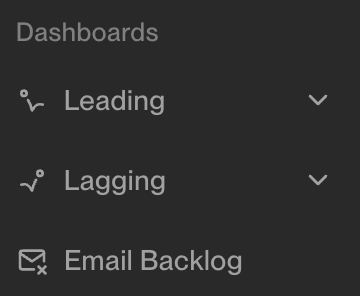
1) Navigate to the Email Backlog dashboard
2) Scroll to the "Reassign Sequence Enrollments" section in the email backlog tab and select "Reassign Enrollments" for the desired sequence.

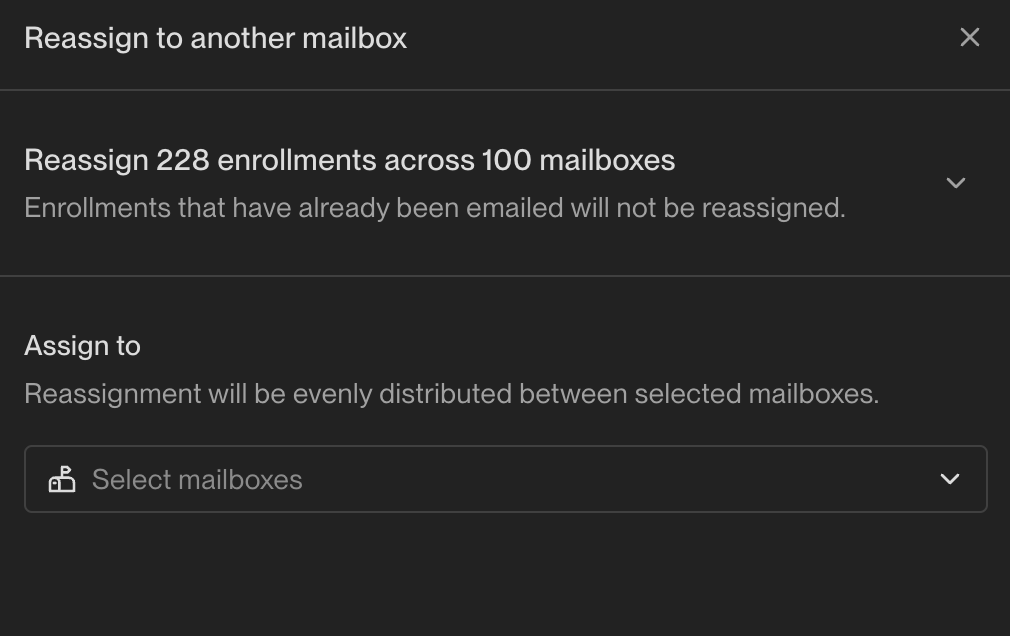
3) To select multiple mailboxes, follow these steps:
Click on the checkbox next to each mailbox you would like to include in your selection.
Ensure all desired mailboxes are highlighted to confirm they are selected.
Note that only enrollments with a status of "queued" can be reassigned. No enrollments past Step 1 can be reassigned.
The email backlog operates on a first-in, first-out (FIFO) system, meaning emails are sent in the order they were queued. Important: Reassigning emails to different mailboxes does not change their position in the queue—it only changes which mailbox will send them when their turn comes up.
Warning: Reassigning emails will cancel the current queue for those enrollments, requiring you to manually re‑enroll the contacts after reassignment is complete.
Direct Reassignment from Sequence View
Navigate to your desired sequence
Bulk select the enrollments you want to reassign
Click “Reassign to mailbox” in the bottom right
If you need to expedite specific emails without full reassignment, temporarily pause all other active sequences. This pushes emails from your target sequence to the top of the queue, allowing them to send sooner without the complications of reassignment and re‑enrollment.
Since the email backlog operates on a FIFO basis, reassignment alone will not change the sending order of your emails. If you need to prioritize a specific sequence, temporarily pausing other active sequences is more effective than reassignment for achieving faster delivery.
When you pause a sequence, queued emails remain in the backlog and will be rescheduled to send in the next available slots when you resume the sequence. Pausing does not unenroll contacts from the sequence.
While pausing sequences provides temporary prioritization, the paused sequences keep their emails queued—they don’t disappear from the backlog. When you resume a paused sequence, those queued emails will be rescheduled to send in the next available sending slots. Plan your sequence resumption timing accordingly to avoid creating new backlog conflicts.
Why Emails End Up in Backlog
Each mailbox has a daily sending limit of 25 emails, and the system prioritizes active sequences over newly queued enrollments. When a mailbox reaches its capacity, new enrollments queue for the next available sending slot rather than sending immediately. This prioritization system ensures ongoing sequences maintain their cadence while new enrollments wait their turn.
Additionally, emails may be queued even when capacity is available if they're enrolled outside your configured send schedule—for example, if your send schedule prevents sends after 4 pm ET and you enroll a contact at 6 pm, that email will be queued for the next available sending window the following day, regardless of sequence delays or available capacity.
Understanding Blocked vs Queued Emails
The "total emails in backlog" metric includes both queued and blocked emails. Blocked emails are enrollments that cannot send due to missing required data (such as template variables like company name that weren't populated at enrollment time). These blocked emails inflate your backlog numbers but don't actually affect your sending capacity or prevent new enrollments from sending immediately. To identify blocked enrollments, navigate to the sequence and filter by enrollment status "Blocked".
Strategic Considerations Before Reassigning
Assess target mailbox capacity: Reassigning to mailboxes that also have backlogs won't resolve delays. In the Email Backlog dashboard, review the backlog table to identify which mailboxes have smaller backlogs and remaining daily send capacity. Note that backlog numbers include both queued emails and blocked enrollments (those with missing required data like template variables). Blocked emails don't actually affect sending capacity, so focus on queued email counts when assessing true capacity constraints. When adding new team members to provide additional mailbox capacity, ensure they have signed into the platform before their mailboxes can be used for sending—check that invitation emails haven't been caught in spam filters if mailboxes aren't becoming active. Additionally, if mailboxes are added to a sequence after emails are already queued in the backlog, those queued emails will continue using the originally assigned mailboxes until you manually reassign them.
Consider sequence priority: Lower‑priority sequences can be paused or unenrolled to free up capacity for higher‑value campaigns.
Review sending distribution: Uneven distribution across mailboxes may indicate routing configuration issues in Play Builder.
Understanding Unify's Email Priority System
All sequence emails are assigned LOW priority and cannot be manually reordered or prioritized within the queue. The “urgent” tag only affects the ordering of manual tasks in BDR task lists; it does not influence the sending priority of automated sequence emails. Manual reordering of contacts or steps in the sending queue is not supported.
Strategic Prioritization Tactics
When you need to prioritize critical emails without manual reordering capabilities, use these tactics in order of effectiveness:
Pause lower‑priority sequences so only the critical sequence is actively sending.
Dedicate mailboxes exclusively to high‑priority sequences by editing routing in Play Builder.
Distribute sends across more mailboxes to increase daily throughput (each mailbox sends ~25 emails per day).
Unenroll lower‑priority contacts from sequences to immediately free up sending capacity.
Key Insight: These strategies reduce competition for sending slots rather than changing queue order, because Unify's FIFO system does not support manual prioritization.
Alternative Solutions to Reassignment
Refresh template variables for blocked enrollments to resolve missing data issues. Right-click individual enrollments and select "Refresh", or use the bulk refresh feature to update multiple enrollments at once. This can significantly reduce blocked email counts when contact data has been updated since enrollment.
Unenroll from lower‑priority sequences to immediately free up daily sending slots.
Pause non‑critical sequences temporarily to clear backlogs faster.
Adjust sequence routing in Play Builder to better distribute load across available mailboxes.
Schedule new enrollments during periods when existing sequences have lower activity.
Monitoring Backlog Health
Consistently backlogged mailboxes may need routing adjustments.
Sudden backlog increases could indicate sequence conflicts or capacity planning issues.
Monitor which sequences contribute most to backlogs to inform priority decisions.
Distinguish between queued and blocked emails when assessing backlog impact—blocked enrollments don't consume sending capacity and won't delay new enrollments, but may require manual data fixes or template variable updates to resolve.
How to Assign Mailboxes to Sequences in Play Builder
While the Email Backlog dashboard allows you to reassign queued emails, you’ll also need to configure mailbox routing in Play Builder to ensure new enrollments use the correct mailboxes.
Steps to Assign Mailboxes to Sequences
Open the Sequence action in Play Builder
Click Edit persona routing
Add the desired warmed mailboxes
Remove them from routing in other sequences if you want them exclusive to this campaign
Critical Timing Considerations
When you update mailbox routing in a Sequence node and republish, the changes only apply to net‑new enrollments. Existing queued enrollments retain their originally assigned mailbox, which is why you may need to use the reassignment feature for emails already in your backlog.
Important: Finalize mailbox assignments before queuing any manual emails to avoid re‑enrollment of steps.
Complete Workflow for Team Member Departures
This guide covers the additional critical steps needed for a complete transition when a team member leaves.
Handle In-Flight Sends
Contacts already in active sequences (past Step 1) cannot be reassigned through the backlog interface. You have two options:
Allow completion: Let active sends finish before making mailbox changes
Prevent new sends: Remove the old mailbox from sequence routing immediately
Important: If you change mailbox ownership or delete the mailbox before active sends complete, those contacts will be automatically unenrolled.
Renaming vs. Reassigning Mailboxes
Important distinction: There are two different approaches when a team member leaves:
Reassigning ownership: Transfer the existing mailbox to a new owner while keeping the same email address
Renaming the mailbox: Change the actual email address (e.g., from prince@company.com to will@company.com)
If you need to rename mailboxes, be aware of these requirements:
All existing enrollments on those mailboxes must be canceled or reassigned first
Mailboxes must be temporarily disconnected from Unify during the name change
A 1‑week rewarm period is required after renaming
You will lose mailbox capacity during this rewarm period
Consider a phased approach when renaming multiple mailboxes to avoid losing entire mailbox capacity at once.
Rewarm Reassigned Mailboxes (If Renaming)
If you renamed mailboxes during this transition, those mailboxes will need to be rewarmed to maintain optimal deliverability. This process typically takes approximately 1 week.
Important: Rewarming is only necessary when mailboxes have been renamed (email address changed). If you only reassigned ownership to a new team member while keeping the same email address, rewarming is not required. Contact support to initiate the rewarming process for renamed mailboxes.
Manually Unenroll Filtered Contacts
For sequences where the departing user was actively filtering contacts:
Navigate to each affected sequence
Filter contacts by the departing user
Unenroll those contacts from the sequence
This prevents contacts from being stuck in sequences they can no longer progress through.
Update Mailbox Ownership
After handling active sends and reassigning queued emails:
Go to Settings → Deliverability → Mailboxes
Assign the mailbox to the new owner
This ensures sender variables and email signatures display correctly for the new owner rather than showing the departed team member's information.
Optional: Set Up Transition Monitoring
During the transition period:
Add a secondary forward so another user can receive copies of replies
Monitor the mailbox for any issues with sender information display
Verify that new enrollments are properly routed to active team members
Timing Considerations
Plan the transition sequence carefully:
First, handle or allow completion of in‑flight sends
Then reassign queued enrollments using the backlog interface
Finally, update mailbox ownership and routing configurations
This order prevents contacts from being automatically unenrolled due to ownership changes during active sequences.