Debug: CRM
Last updated: May 5, 2026
Why does this record not appear in Unify?
If this is an account record, verify with the customer that the account in their CRM has a domain associated. If no domain is present, Unify will not sync the record.
If this is a contact record, confirm with the customer that the account in their CRM has an email associated. If no email is present, Unify will not sync the record.
If you're viewing records in an audience and expecting to see more records than are currently displayed, check whether exclusions are being applied. By default, exclusions (such as accounts with open opportunities or other criteria configured by your team) are applied to all audiences. To view all records without exclusions for reporting purposes, edit the audience, scroll to the bottom, click “modify exclusions,” and toggle them off. Note that exclusions help prevent automated sequencing of accounts you want to avoid targeting, but can be safely disabled for audiences used only for visibility and reporting.
Note: Even if a company record doesn't appear in Unify due to missing domain information, you can still add the domain to exclusions (such as competitor exclusions) and it will effectively block contacts from that domain from receiving sequences.
Why doesn't this custom field appear in the audience builder?
Verify that the CRM integration is not paused and has completed at least one read sync. Unify needs to perform at least one successful sync to learn the available fields from your CRM. Check the integration status in your CRM settings to confirm syncing is active.
After verifying the above, check with the customer whether the field is a Campaign field or a multi-select picklist. Unify cannot process multi-select fields or Campaign fields, so they will not appear in the audience builder. Note that single checkbox fields (boolean fields) in HubSpot are supported and will sync correctly to Unify.
To verify if a HubSpot field is multi-select: Navigate to Settings → Properties → select the property → check if "Type" shows "Multiple checkboxes" or similar multi-select designation
Workaround: If the customer needs to filter on this data, they can create a new single-select version of the property in their CRM, populate at least one record with a value, and wait ~30 minutes for sync. The new single-select field will then appear in the audience builder.
Note: Even when a custom HubSpot field successfully syncs to Unify, it may not appear as a visible column in the audience view. However, the field data is still available in Unify and can be used to create audience filters and conditions. For example, you can create an audience filtered by “Custom Field: specific value” even if that field doesn’t display as a column in the audience list.
Why isn't Unify writing back?
Verify that both read and write permissions are enabled for the Company and Person records within Unify.
For Salesforce, review the "skipped records" module in the Salesforce settings:
This module will display the reasons why writebacks are failing.
If the error is related to FIELD VALIDATION or REQUIRED VALUE, it indicates that the customer's CRM requires a specific field to be filled for an external record to write back. The error message will specify the field. Share this information with the customer and ask for acceptable values for writeback in their CRM. Then, set default values in the mapping page.
Failed dependency resolution: When you see “Failed dependency” errors, follow these steps:
Open the error detail drawer and locate the link to the parent Company/Account record.
In Salesforce, merge any duplicate accounts so there is a single record with a populated website/domain.
Retry writing the parent Company/Account record first.
After the parent succeeds, retry the child record writes (Tasks, Contacts, etc.).
Allow up to 15 minutes for the write cycle to complete. If these accounts are not needed in Salesforce, the errors can be safely ignored.
Note: When syncing contacts to Salesforce, Unify will automatically create associated accounts if they don't already exist in your CRM. Missing accounts will not cause sync errors.
For Hubspot, if read and write permissions are correctly set, escalate the issue to Anne.
Unify cannot overwrite existing fields in HubSpot after the initial write. To update existing field values (such as company owners), export the affected records and re‑import them into Unify to override the existing values.
Sync Timing and Credential Troubleshooting for CRM Records
When should I expect new CRM records to appear in Unify?
For newly created records in Salesforce, allow 15-30 minutes for regular sync cycles under normal conditions. Initial CRM connections can take up to 24 hours to complete the first full sync.
Large recent data changes may temporarily extend sync cycles beyond the normal 15-30 minute window.
If records haven't appeared after the expected timeframe, check Settings → Integrations → Salesforce for connection or credential warnings. Expired integration credentials can silently stop updates without obvious error messages.
If prompted with credential issues, select "Change User" to reconnect, then allow 15-30 minutes for a full sync to complete.
Salesforce Writeback Limitations
Unify does not overwrite existing field values in Salesforce. Unify only writes to empty fields, except for Unify-specific fields (prefixed with "Unify"), which can be updated even if already populated.
If duplicate records exist (multiple Contacts/Leads with the same email), Unify updates only the most recently modified record in Salesforce.
If you need to update fields that already contain data, you'll need to clear those fields in Salesforce first, or use Unify-prefixed custom fields instead.
Why does this record appear in the audience?
Unify evaluates audience criteria differently depending on whether your play is running on companies or people:
For plays running on companies (using “Record enters an Audience” trigger):
Only company‑level criteria determine which records enter the audience node.
Person‑level criteria in the audience definition do NOT affect which companies enter the play.
Person‑level criteria only apply during the prospecting/sequencing loop to determine which contacts get sequenced.
This means a company can appear in the audience even if none of its contacts match the person‑level filters.
For plays running on people:
Both company‑level AND person‑level criteria must be met for records to enter the play.
Why does a company appear in my audience when the record I'm viewing doesn't match the criteria?
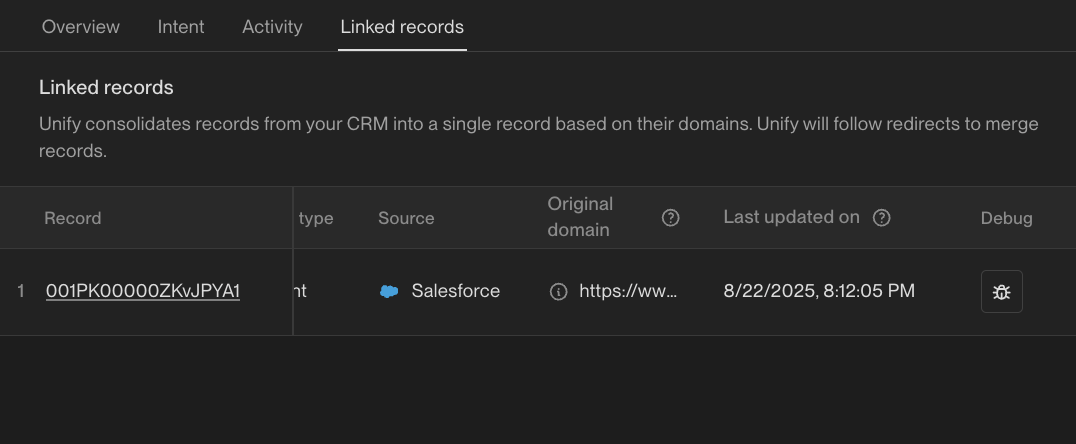
When a company has multiple linked CRM records sharing the same domain, Unify groups them by domain and evaluates each linked record individually. If any linked record matches the audience criteria, the company will appear in the audience even if other linked records show different values.
Navigate to the company in Unify and open the "linked records" tab.
Check the field values on each linked CRM company record.
Look for duplicates with differing values for the fields you're filtering on.
If you find inconsistent data across linked records, merge or align the records in your CRM so the key fields are consistent.
This domain‑based grouping behavior is common when companies have been created multiple times or data imported from different sources with varying field values.
Why doesn’t this record appear in the audience despite meeting the criteria?
Check if audience exclusions are filtering out the record. Exclusions (such as "Internal Employees", "contacts with activity in the last 30 days", "Open Opps", or "Outbound Stage: Paused") are applied by default to all audiences. This commonly affects testing when using your own contact information, as internal employee exclusions will filter out your test records even if they meet all audience criteria. Even if a record meets the base audience criteria, it will not appear in the audience view if it matches any exclusion rules.
To verify if exclusions are the cause, toggle off exclusions in the audience view. If the record appears after disabling exclusions, review which specific exclusion rules are filtering it out (e.g., “contacts with activity in the last 30 days”, “Open Opps”, “Outbound Stage: Paused”).
Note that contacts may have been enrolled in sequences based on criteria at enrollment time, but current exclusions can filter them from the audience view afterward.
To verify this, navigate to "linked records" and click the "debug" button. Review the linked records one by one and use Command+F to search for the field being filtered on. Identify which record has the field populated, and share the link to the associated record with the customer.