Using the Revamped Filter Builder
Last updated: May 4, 2026
We recently shipped a completely revamped version with a redesigned interface and new capabilities. These allow you to execute more robust and precise targeting, in an easier and faster way. This article covers how to use the new experience.
What changed
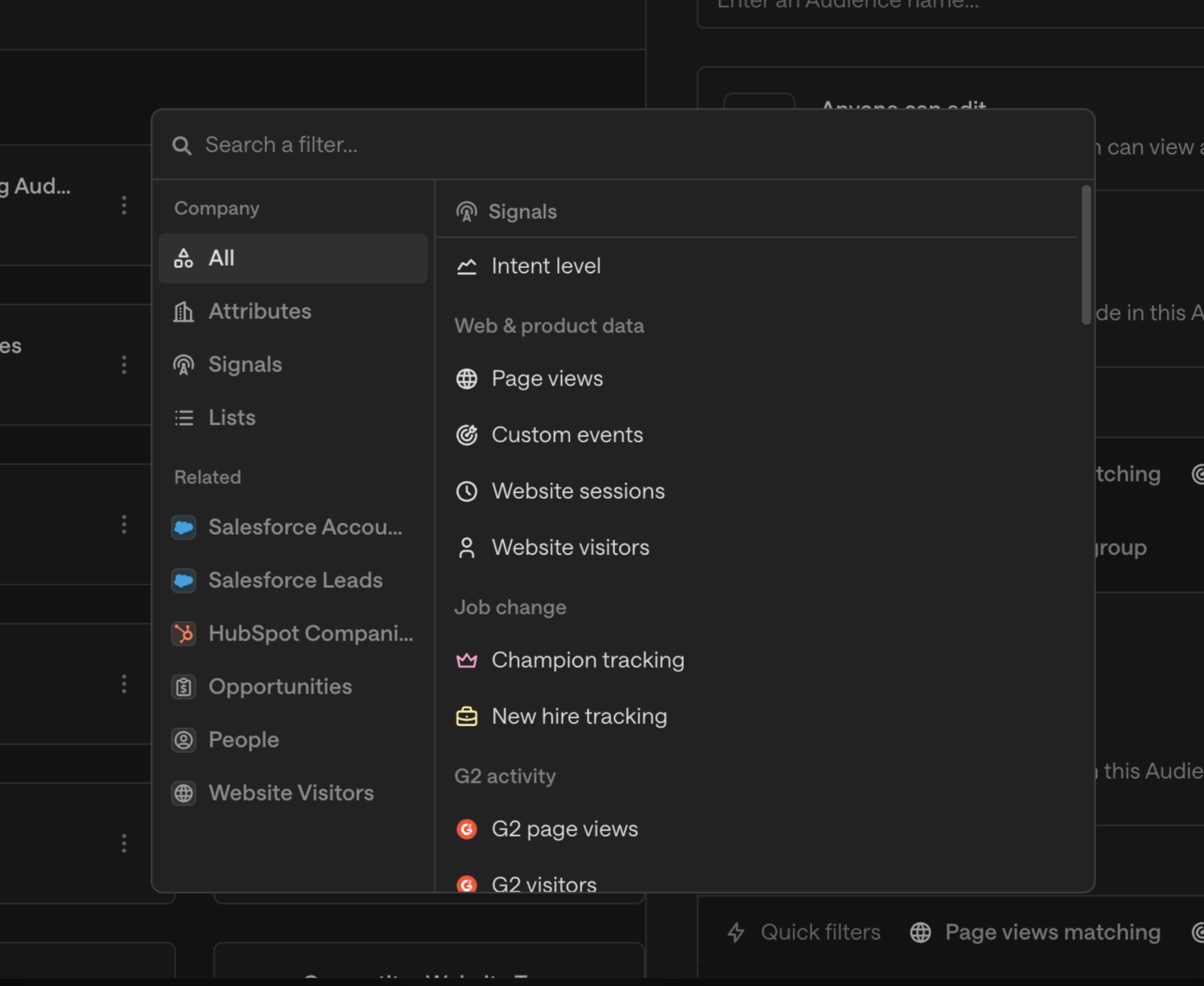
The new filter builder replaces the previous filter modal across all surfaces in Unify — Audiences, Lists, Plays (trigger and if/else nodes), and Exclusions. Here's what's new:
Redesigned interface
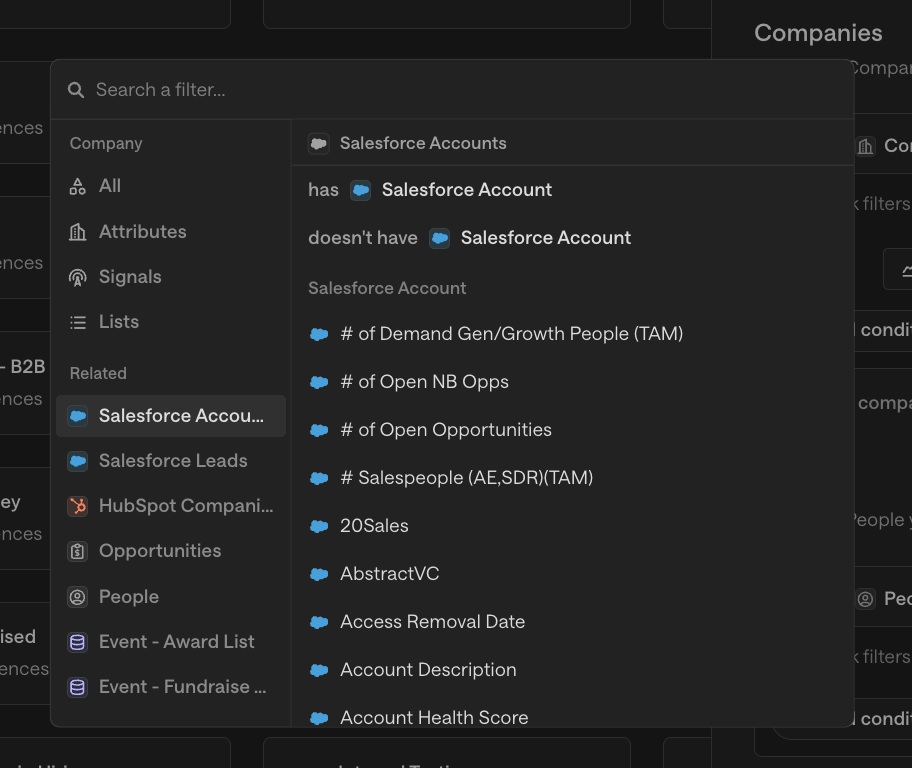
Fuzzy search: Type a few letters into the search bar at the top of the filter modal to jump directly to any field across all connected data sources. No more scrolling through nested dropdowns.
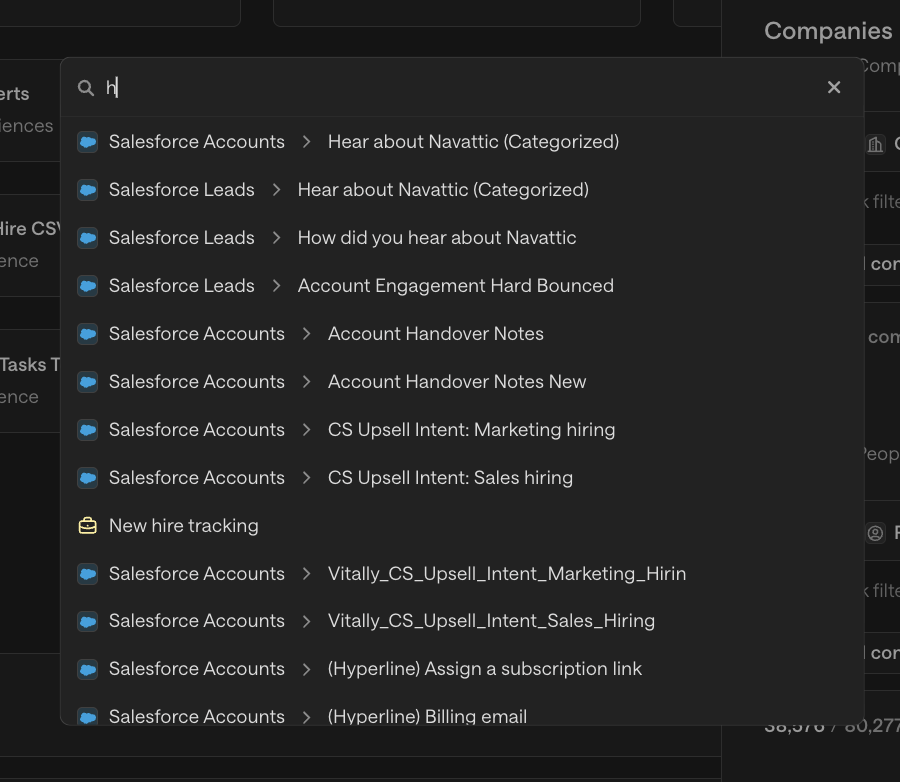
Arrow key navigation: Move through fields and options using your keyboard — no mouse needed.
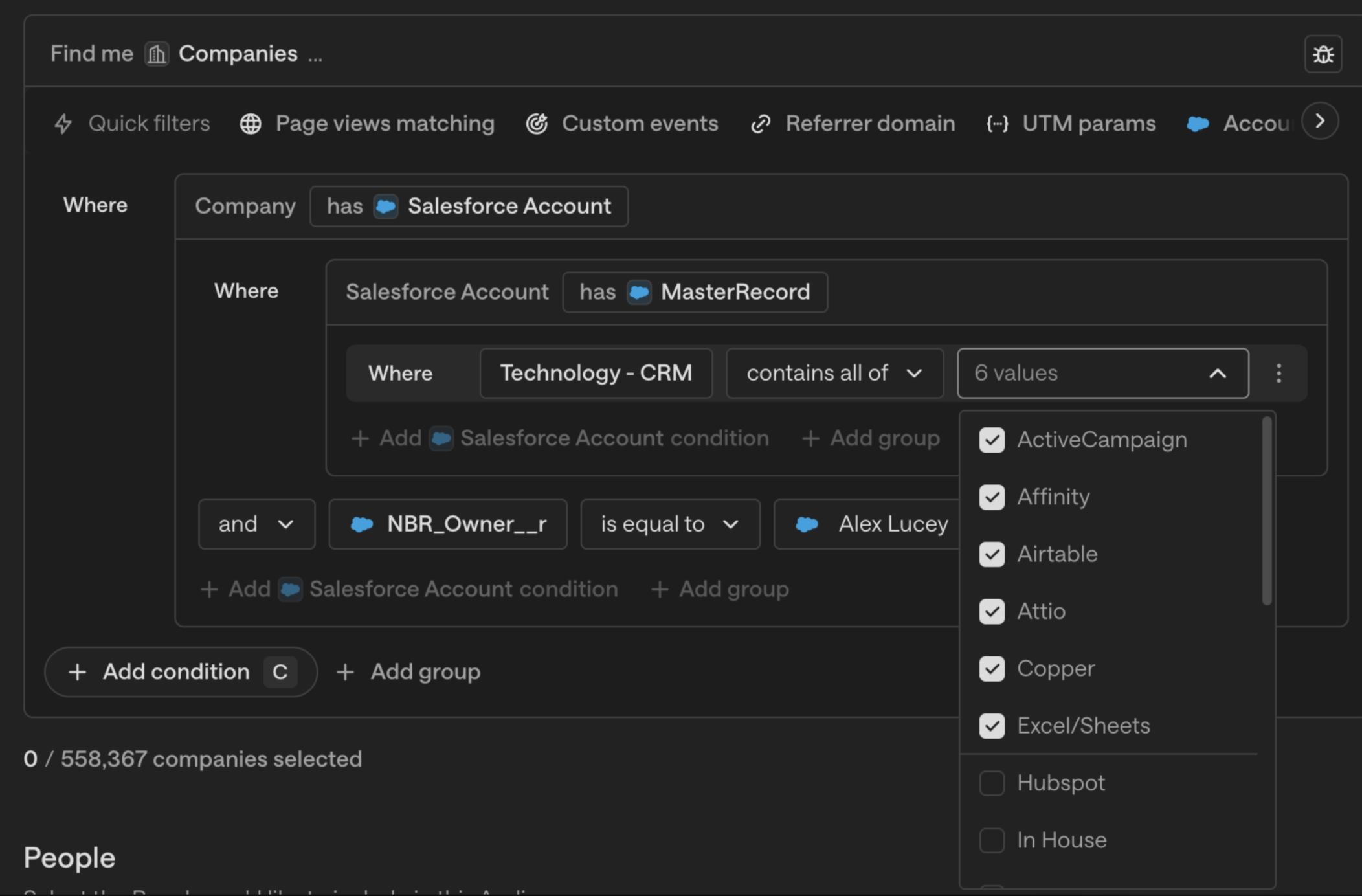
Multi-select support: Select multiple values in a single condition. This includes HubSpot multi-select picklist fields, which are now supported for the first time.
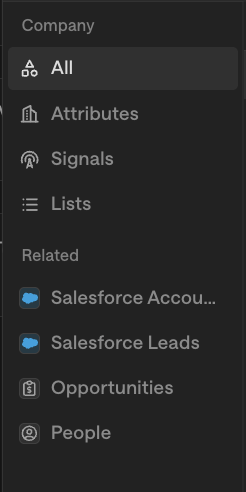
Organized by data source: Fields are grouped by source (Company, People, Signals, Salesforce, HubSpot, Custom) via tabs on the left side of the selector. You can browse by tab or search across all of them at once.
New capabilities
Nested relation filters (up to 3 levels deep): Filter across related objects without needing rollup fields. For example, you can now build a filter like: "Companies whose related Salesforce Account has an Opportunity where Amount > $50K." Previously, this required custom rollup fields or a data team query.
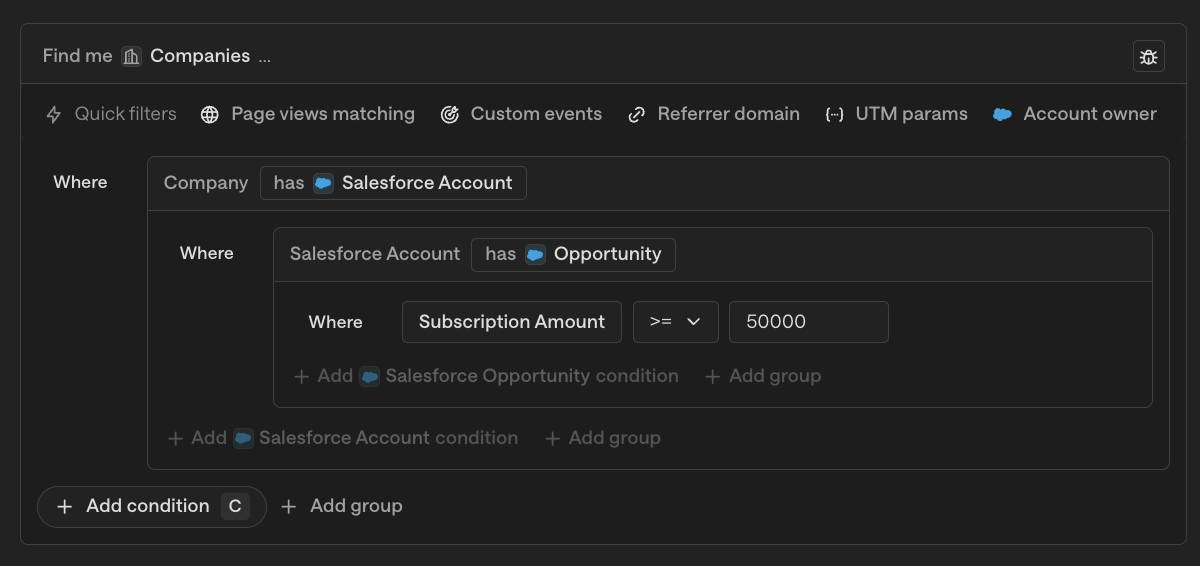
Data Objects from non-CRM tools: If you've brought in Data Objects from your data warehouse or other tools (e.g., via Hightouch), those objects and their attributes now appear in the filter builder alongside Unify-native and CRM objects.
Relative date operators: Use conditions like "added to book within the last 7 days" or "created in the last 14 days" so your audiences stay fresh automatically.
Data Management settings page
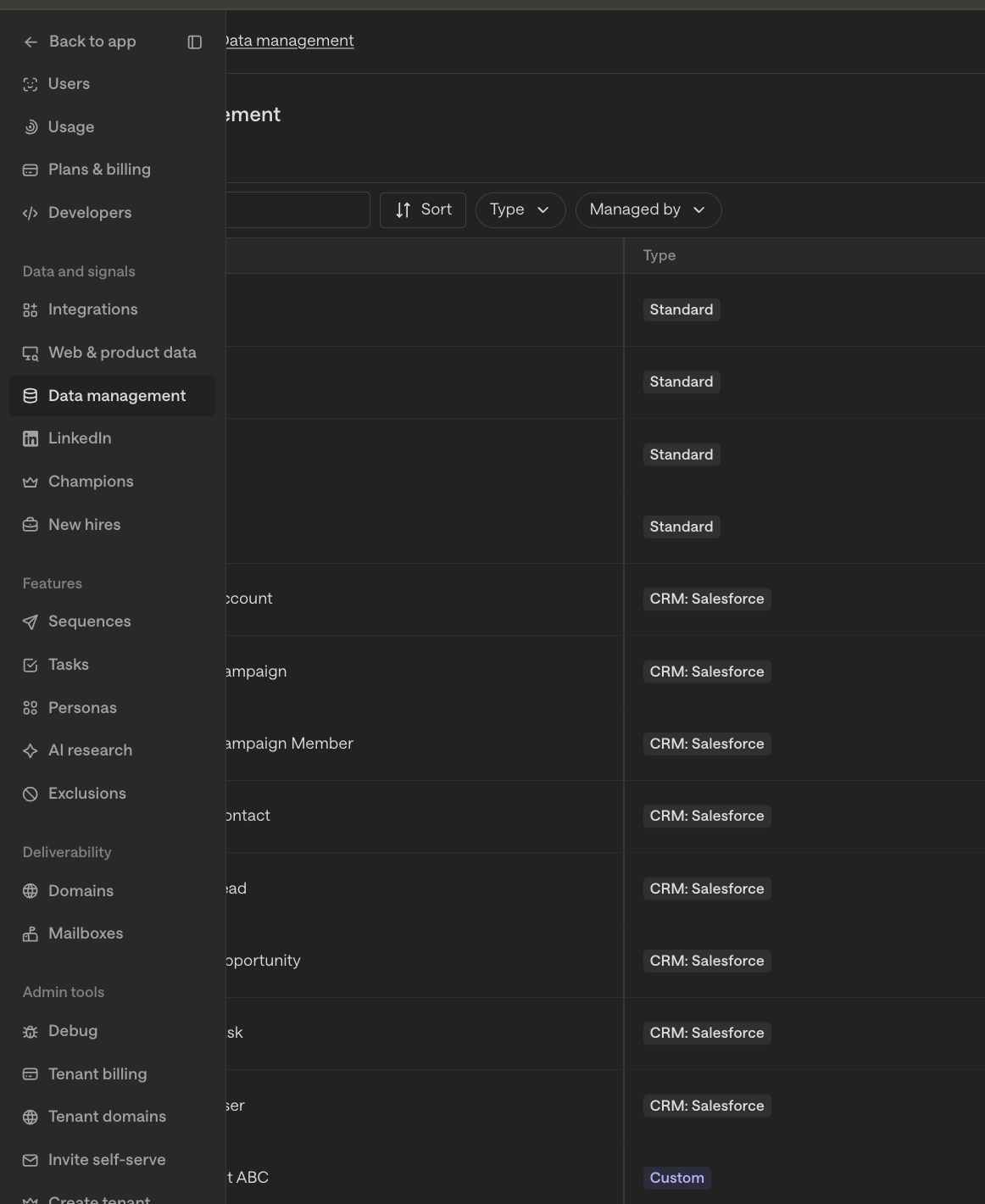
A new settings page at Settings → Data Management shows every Unify-native, CRM, and non-CRM Data Object available in your workspace, along with their attributes. This gives you full visibility into what data you can filter on.
How to use the new filter builder
The new experience is available wherever you build filters in Unify. No setup is required — it's enabled automatically.
Step 1: Navigate to any filter surface — Audiences, Lists, Exclusions, or a Play's trigger/if-else node.
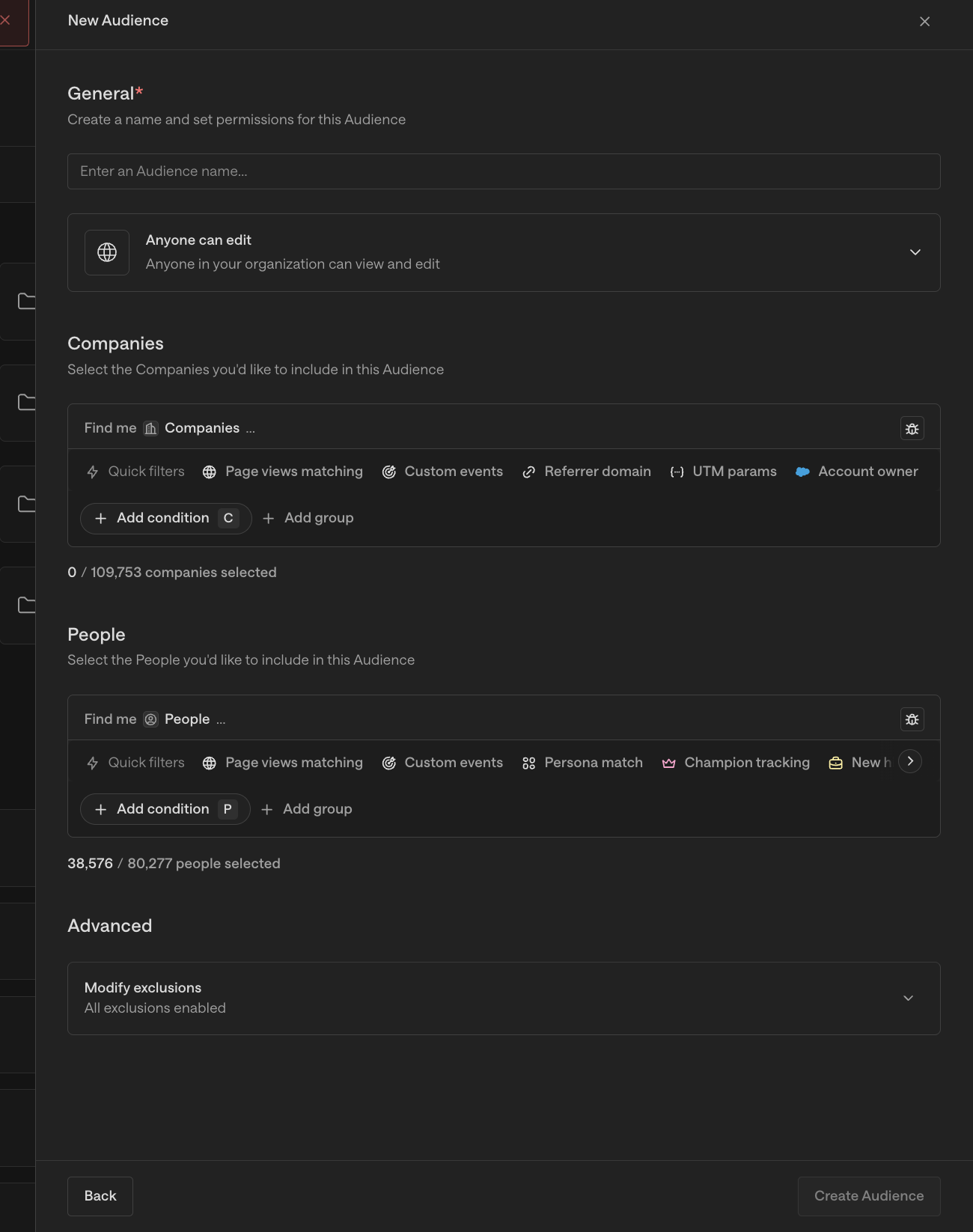
Step 2: Click "Add condition" to open the filter selector. You'll see tabs on the left (Company, People, Signals, Salesforce, HubSpot, Custom) and a search bar at the top.
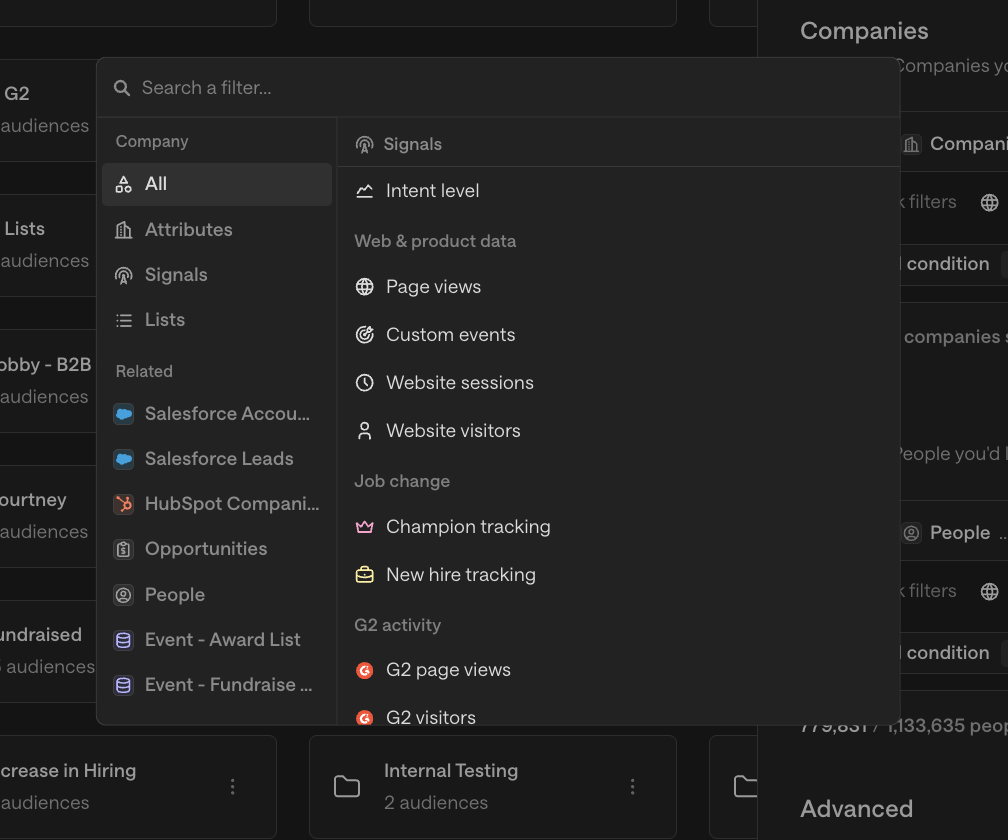
Step 3: Select a field and choose an operator. You can search by typing a field name, or browse through the tabs.
Step 4: To filter on related objects, click into the object type (e.g., Salesforce Account) and add conditions using "Has [Object] where..." to build nested filters. You can nest up to 3 levels deep.
Step 5: Group conditions using AND/OR toggles. You can create multiple groups for complex logic (e.g., "Company size > 100 AND [has an open Opp > $50K] OR [visited website in last 7 days]").
Step 6: Save your audience or filter and verify the record count matches your expectations.
Common examples
Build an audience using CRM relationships
"Show me companies whose Salesforce Account has an open Opportunity worth more than $50K, where the contact was added in the last 14 days."
Add a Company condition → click into Salesforce Account
Select "Has Opportunity where..." → add Amount > $50,000 and Stage ≠ Closed Won
Add a second condition at the top level: Added to Book → is within last 14 days
Save the audience
Filter using Data Objects from your data warehouse
"Target companies where Subscription Status = Trial and Trial Start Date is within the last 14 days."
Add a Company condition → navigate to the Custom tab or search for your Data Object name
Select the Subscription Status attribute → set to "Trial"
Add another condition on Trial Start Date → is within last 14 days
Use this as play trigger criteria so enrollment runs automatically
Use multi-select picklist fields (HubSpot)
"Find companies tagged with both 'SaaS' and 'Enterprise' in a HubSpot multi-select industry field."
Add a Company condition → navigate to HubSpot fields
Select your multi-select picklist field
Choose the "contains" operator and select the values you need
Frequently asked questions (FAQ)
Will my existing filters break?
No. All existing filters were automatically migrated to the new format. Your saved audiences, exclusions, and play triggers carry over without any action on your part.
Can I filter on Data Objects from non-CRM tools?
Yes. If you've brought in Data Objects from other tools (like your data warehouse via Hightouch), they appear in the filter selector alongside Unify-native and CRM objects. Note: CRM custom objects are not yet supported in the filter builder — this applies to non-CRM data sources only.
Why does it take an extra click to reach Salesforce Account fields compared to before?
The new modal organizes fields by data source for clarity, which can add a click compared to the old flat dropdown. However, the search bar at the top lets you type any field name and jump directly to it — which is faster for most users.
Is there a limit on filter conditions?
Text input values are capped at 20 items per condition to prevent performance issues. If you need to filter by hundreds of values (e.g., a long list of domains), we recommend creating a List and filtering by list membership instead.
What about person-level website visitor filters?
Person-level website activity and session filters are coming in a subsequent release and are not included in the current version.