How do I export contacts enrolled in a sequence or companies that have received outreach ?
Last updated: April 29, 2026
Context
When managing sequences, you may need to export a list of contacts who are enrolled in a particular sequence to share with your team or track engagement.
Answer
You can export contacts enrolled in a sequence by creating an audience with sequence enrollment criteria and downloading the results as a CSV file.
Follow these steps to export sequence contacts:
Navigate to the Audience Builder
Set up a people condition with the following criteria:
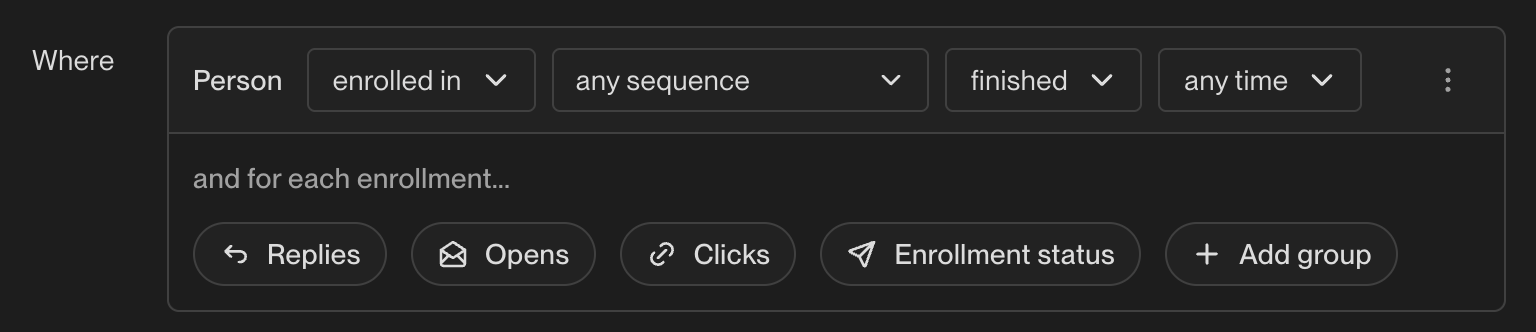
Click Attribute and select Sequence Activity (this is a native condition, not a HubSpot field)
Configure as: Enrolled in → select your sequence
Optional: Add Most Recent Sequence Status → select statuses like Active, Completed, or Completed: Replied
Click "Create Audience"
Note: If your CSV export hangs indefinitely with "Exporting..." status, fails to download, or downloads as an empty file, remove special characters from your audience name. Avoid using symbols such as
|,-,:,/,*,?, or"in audience names, as these can cause export failures across all platforms. Use only letters, numbers, and spaces in your audience name.Once the audience is created, click the "Export to CSV" button in the top right corner
Important: Toggle exclusions off at the bottom of the audience builder to ensure you capture all enrolled contacts in your export.
The exported CSV file will contain all contacts and companies currently enrolled in your selected sequence, which you can then share with your team.
Exporting Companies That Have Received Outreach
Navigate to the Audience Builder
Create a new audience scoped to Companies (instead of People)
Set up the condition: Enrolled in → Any sequence → At any time
Click "Create Audience"
Once the audience is created, click the "Export to CSV" button in the top right corner
Export Limitations and Workarounds
Note: CSV exports do not include the 'record owner' column. If you need to distribute contacts based on account ownership, create separate audiences for each owner (e.g., one audience where you're the account owner, another where your teammate is the owner) and export them separately.
Advanced Filtering for Response Status
To export contacts who haven't responded to a sequence:
In your audience criteria, add filters for:
Sequence activity: "Enrolled in" [your sequence]
Finished more than X days ago
Did not reply to any sequence
Export this filtered audience to identify non-responders for manual follow-up
Working with Record Owner Limitations
Since record owner isn't exportable from Unify audiences:
Reference account ownership from your CRM and match it with exported data using VLOOKUP
Use Unify's play functionality to automatically assign tasks to record owners instead of manual distribution
Filter the audience by company ownership within Unify (add rep names in the company section) to view which companies have finished sequences
Viewing Company-Level Data
While sequence enrollment audiences are people-based:
View the Companies tab within your created audience to see company-level groupings
Add company ownership filters to identify which companies have had contacts finish sequences
Use your CRM to build reports around sequence activity, as Unify writes play and sequence activity back to your CRM through configured mappings