Why are contacts getting unenrolled from sequences during mailbox ownership changes?
Last updated: May 4, 2026
Context
When ownership of a mailbox changes in the system, contacts who are already enrolled in sequences from the previous owner's mailbox will be automatically unenrolled. This is because sequences cannot continue with a different mailbox owner mid-sequence.
Answer
If contacts have been unenrolled due to mailbox ownership changes, you can re-enroll them by following these steps:
Create a CSV file containing the unenrolled contacts
Upload the CSV into a new audience
Duplicate the original Play and set the new audience as the trigger event
Enable re-enrollment in sequence settings:
Navigate to Sequence Settings
Enable "Allow re‑enrollment into Sequences"
Specify the waiting period between enrollments
Important: Re‑enrolled contacts will resume at their next step in the sequence, not from the beginning. If you need contacts to start over from step 1, you must enroll them in a new or duplicated sequence instead.
Understanding Re‑enrollment Setting Types
When configuring re‑enrollment in Settings > Organization > Sequences > Rulesets, there are two distinct options that serve different purposes:
“Allow re‑enrollment into the same Sequence” – Permits contacts to be re‑enrolled in the same sequence they previously completed
“Allow re‑enrollment into Sequences” – Allows contacts to be enrolled in new sequences even if they were previously part of other sequences
For immediate re‑enrollment without waiting periods, set the days configuration to 0 days.
Play Re‑run Cool‑down Periods
Play Re‑run Cool‑down Periods: Unlike sequence re‑enrollment settings (which can be set to 0 days), Play re‑run cool‑down periods have a minimum of 1 day and cannot be set to 0. This limitation can cause errors when attempting to re‑execute a Play immediately after enabling re‑enrollment.
Workaround for immediate Play execution: duplicate the Play and run the duplicate instead of re‑running the original.
Follow the re‑enrollment procedures outlined in the main article
Move contacts between active sequences
After enabling re‑enrollment settings, run the duplicated Play to test enrollment instantly
Moving Contacts Between Active Sequences
When contacts are already enrolled in another active sequence, the system will block enrollment in new sequences until the current sequence completes. To move contacts from one sequence to another:
Go to the source sequence's settings
Enable “Allow re‑enrollment into Sequences”
Set the waiting period to 1‑5 days (or your preferred timeframe)
Re‑run your enrollment play
Troubleshooting Incomplete Re-enrollment
If not all contacts from your audience are enrolled after following the re-enrollment steps above, check the Play metrics to identify why some contacts were excluded:
Navigate to your Play in the Play Builder
Go to the Metrics tab
Click on the "unenrolled" number to see the breakdown of exclusion reasons
Common reasons contacts may not enroll include:
Recent enrollment restrictions: Contacts cannot be re‑enrolled in sequences within a specified timeframe (default is 75 days). To override this:
Go to Settings > Organization > Sequences > Rulesets
Temporarily disable the re‑enrollment waiting period rule
Re‑run your enrollment play
Re‑enable the rule after enrollment is complete
Already enrolled: Contacts are currently enrolled in another active sequence
Opted out: Contacts have opted out of email communications
Exclusion rules: Contacts match existing exclusion criteria in your organization settings. To check and modify exclusion settings:
Go to Settings > Features > Exclusions
Review your global exclusion rules (e.g., customers, competitors)
Check if the sequence exclusion toggle is enabled for relevant rules
Note that exclusion rules have separate toggles at both the audience level and the sequence level. Even when exclusions are disabled at the audience level, if they are enabled at the sequence level (in Settings > Features > Exclusions), contacts will still be excluded from enrollment when they reach the sequence node.
If you need to temporarily disable sequence exclusions for specific rules during re‑enrollment:
First, go to Settings > Organization > Exclusions and toggle off "Exclude from Sequences" for the relevant exclusion rules (this is the global exclusion toggle)
Then, if needed, also toggle off the exclusion in your Ruleset at Settings > Features > Sequences > Rulesets (this is the sequence‑level toggle)
Wait 30 minutes before re‑running your enrollment play for the changes to take effect
Keep the exclusion disabled until all contacts have completed the entire sequence (not just enrollment)
Only re‑enable the exclusion after contacts finish the sequence
Note: Evaluate exclusion rule matches on a case-by-case basis to determine if you actually want to reach out to those contacts, as they may have been excluded for valid business reasons.
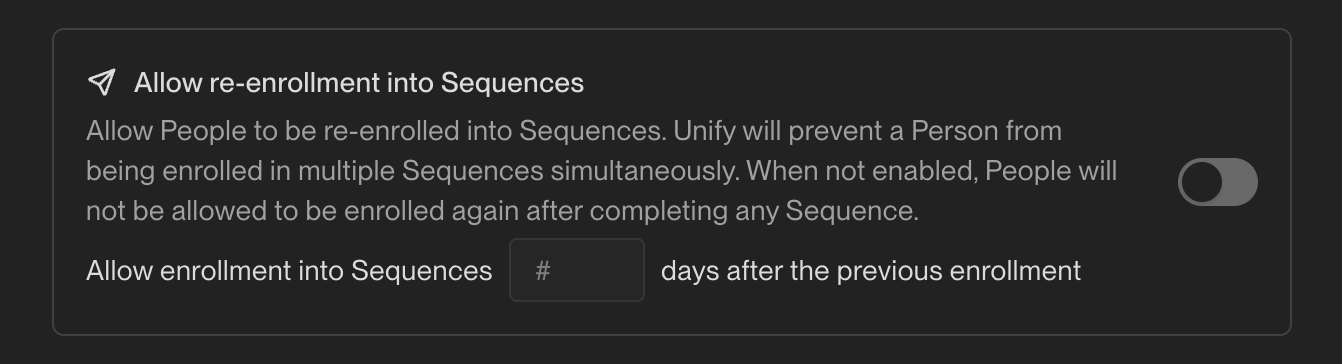
Note: You can disable the re-enrollment setting once all contacts have been successfully re-enrolled in their sequences.
Alternative Manual Re-enrollment Method
For individual contacts or smaller groups, you can manually re-enroll contacts directly from their profile.
Navigate to the People tab
Click on the contact's name to open their profile
Click Enroll at the top right of the contact profile
Select the appropriate sequence for re‑enrollment
Note: After enabling re‑enrollment settings, wait approximately 1 hour before attempting to re‑enroll contacts to ensure the settings changes have fully propagated through the system.
Enhanced Understanding of Sequence Enrollment Rules
Understanding When Re‑enrollment Settings Are Actually Required
Key Distinction: The "Allow re‑enrollment into Sequences" setting is only needed when contacts were previously enrolled in a sequence. If a contact was excluded from enrollment but never actually enrolled, they will automatically enroll once they no longer meet the exclusion criteria and match the audience—no re‑enrollment setting is required.
Common Error Messages and Solutions
"Prospect is already sequenced" Error: This indicates the appropriate re‑enrollment setting is not enabled in your ruleset. Enable "Allow re‑enrollment into the same Sequence" if re‑enrolling in the same sequence, or "Allow re‑enrollment into Sequences" if enrolling in a different sequence.
Permission Requirements for Ruleset Modifications
Important: Modifying re‑enrollment settings in Settings > Organization > Sequences > Rulesets requires admin permissions. If you cannot access these settings, contact your organization administrator.
Call Disposition Limitations
Important: Unify does not currently read call dispositions from the dialer and cannot automatically determine whether a call connected or not. This means that call outcomes do not automatically trigger sequence actions like unenrollment—you must manually manage enrollment status based on call results.
Timing Considerations for Exclusion Changes
After disabling a global exclusion rule, wait approximately 15–45 minutes (not just 30 minutes) for the change to take effect before re‑running enrollment, as propagation times can vary.
Alternative Approach to Avoid Unenrollment
Pro Tip: If you need to make changes to an active sequence, consider editing the sequence directly and upgrading all enrollments (active and queued) to the new version instead of unenrolling and re‑enrolling contacts. This maintains enrollment continuity and avoids triggering re‑enrollment restrictions.
Advanced Debugging Techniques for Sequence Enrollment Issues
Visibility Requirements for Exclusion Logs
Important: Exclusion information will only appear in the activity log and Play logs if your Play allows re‑runs on contacts. If the Play is set to only run once per contact, contacts who were previously triggered will not generate new activity log entries when they hit the audience again. To see exclusion reasons in the logs, ensure your Play settings allow re‑runs.
Detailed Exclusion Identification Methods
Check the Exclusion tab: Go to Contacts, search for the contact by email, click on their record, and navigate to the Exclusion tab to see which exclusion rule they fall under.
Create a test audience: Copy a specific contact's email and create an audience with
emailis equal to[contact email], then toggle exclusions on/off at the bottom of the audience settings to identify which rule excludes the contact.Check execution logs: In your Play, navigate to Execution Logs or Metrics > Enrollments to see the specific exclusion reason for each contact. You can also check the Logs tab in the Play or the contact's activity log to see “not enrolled” entries with specific failure reasons like “already enrolled” or “recently enrolled.”
Verify exclusion rule behavior: Each exclusion rule has a toggle that controls whether it removes contacts mid‑sequence or only prevents new enrollments:
When the toggle is enabled at the sequence level (in Settings > Features > Exclusions): contacts will be prevented from enrolling in sequences, and contacts already in sequences will be removed if they meet the exclusion criteria. This sequence-level toggle takes precedence over audience-level exclusion settings.
When the toggle is disabled at the sequence level: the exclusion only prevents new contacts from enrolling if enabled at the audience level, but does not remove contacts already in active sequences.
When to enable vs. disable the sequence-level toggle: In most cases, you'll want the sequence-level toggle enabled to prevent contacts from receiving irrelevant outreach (e.g., automatically removing contacts who become opportunities or customers). However, for certain exclusion rules like "last sales activity," you may want to keep the toggle disabled. This prevents contacts from being removed mid-sequence when Unify itself triggers the sales activity (such as sending a sequence email), which would otherwise stop the sequence prematurely and defeat its purpose.
Critical Timing Considerations for Exclusion Rule Changes
After disabling a global exclusion rule, wait approximately 30 minutes for the change to take effect before re‑running enrollment.
Global exclusions (the "Exclude from Sequences" toggle in Settings > Organization > Exclusions) take precedence over ruleset‑level exclusion toggles. Even if you disable an exclusion in a specific Ruleset, contacts will still be excluded if the global "Exclude from Sequences" toggle remains enabled for that exclusion rule.
Re‑enable exclusion rules after enrollment is complete to maintain proper filtering.
Preventing Future Task Assignment Disruption During Mailbox Ownership Changes
Reassigning Existing Tasks and Emails After Ownership Changes
If mailbox ownership has already changed and you need to reassign existing tasks and emails to new owners:
Bulk Reassign Tasks:
Navigate to the Tasks tab
Filter or search for the relevant tasks
Select all tasks that need reassignment
Click Assign Owner and choose the new owner
Individual Task Reassignment Method
For reassigning tasks one at a time when bulk reassignment isn’t suitable:
Navigate to the specific task you want to reassign
Select the correct person in the “Assign To” field
Save the changes
Important: Reassigning a task only changes the task assignee—it does not change the mailbox used for any associated emails in the sequence.
Bulk Reassign Queued Emails (Step 1 only):
Navigate to Dashboard > Leading > Email Backlog
Locate the Reassign Sequence Enrollments section
Click Reassign Enrollments for your specific sequence
Select the new mailbox(es) from the dropdown
Click Save to apply changes
Critical Timing Considerations for queued reassignments:
This method only works for enrollments that are still in “queued” status.
Once Step 1 of a sequence has been sent, the enrollment becomes “active” and cannot be reassigned.
Check enrollment status in the sequence metrics before attempting reassignment.
Queued enrollments typically remain reassignable for a brief window after enrollment.
For detailed instructions, see How to Reassign Emails in the Backlog.
Note: The Email Backlog method is more reliable than attempting to change mailboxes directly in the Play Builder sequence node, which may not always reflect current enrollment states accurately. The Email Backlog shows real‑time queued enrollments and their reassignment eligibility.
Important: Mid‑sequence scheduled emails (beyond Step 1) cannot currently be bulk reassigned and must be updated manually on each contact’s profile. Once Step 1 of a sequence has sent, mailboxes cannot be switched mid‑sequence to maintain a consistent experience for recipients.
Configure Manual Task Assignment
Edit your sequence and navigate to Advanced Settings
Enable “Manually assign tasks”
Select the specific user who should receive all tasks from this sequence
Save the sequence settings
When configuring manual task assignment in your sequence’s Advanced Settings, you have several options that determine who receives tasks:
Mailbox owner (static assignment) – assigns tasks to the mailbox owner regardless of who sends the emails. Using mailbox pools with rotation can cause mismatches.
Assign to Sender (dynamic assignment) – tasks are assigned to whoever sent the email. Recommended for mailbox pools with rotation.
The person who manually enrolled the contact – assigns tasks to the user who triggered the enrollment.
Record owner – assigns tasks based on the contact or company record ownership.
Note: If you need to reassign sequences to a different mailbox before contacts become actively enrolled, only queued enrollments can be reassigned directly in the Play Builder by selecting a different mailbox in the sequence node.
Troubleshooting Unexpected Task Assignments
If tasks are being assigned to unexpected users, follow these diagnostic steps:
Check Manual Task Assignment Setting: Navigate to your sequence, open Advanced Settings, and verify “Manually assign tasks” is configured as intended. Disable it or set to assign to mailbox owner to enable owner‑based routing.
Verify Mailbox Ownership Configuration: Ensure the sequence is set to use the mailbox associated with the record owner and that the account owner has an assigned mailbox in Settings → Deliverability → Mailboxes. Consider “Assign to Sender” when using mailbox pools.
Consider Timing of Settings Changes: Settings changed after contacts were enrolled will only affect new enrollments; existing enrollments retain previous task assignment behavior.
Remember that tasks assigned to “the person who manually enrolled the contact” go to the enrollment triggerer, not necessarily the mailbox or record owner.
Best Practices for Task Assignment Configuration
Set up manual task assignment for all critical sequences before any anticipated ownership changes
Choose task assignees based on role responsibility rather than current mailbox ownership
Review and update task assignments when team structures change
Document task assignment decisions for future reference during ownership transitions
Consider reassigning queued enrollments to a different mailbox before they become active if you need to transfer sequences without unenrollment