Filtering an Audience by Both Account and Contact Owner
Last updated: April 27, 2026
To target contacts where both the Account and the Contact are owned by the same rep, you can apply ownership filters in both the Companies and People sections of the audience builder simultaneously.
How to Set It Up
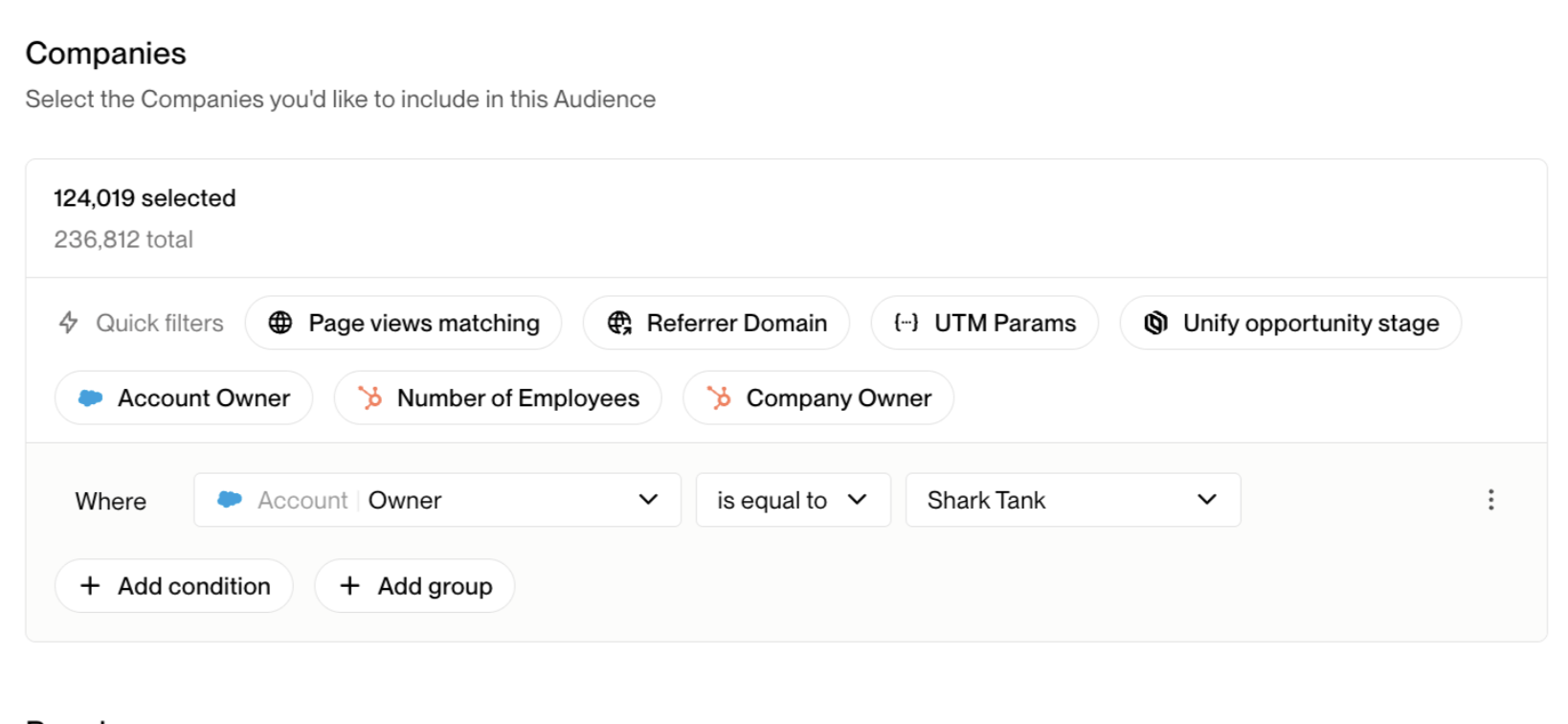
Open the Audience builder and navigate to the Companies section.
Add a filter:
Account Owner→is equal to→ (rep name, e.g. "Shark Tank")
In the People section, add a matching filter:
Add a filter:
Contact Owner→is equal to→ (same rep name)
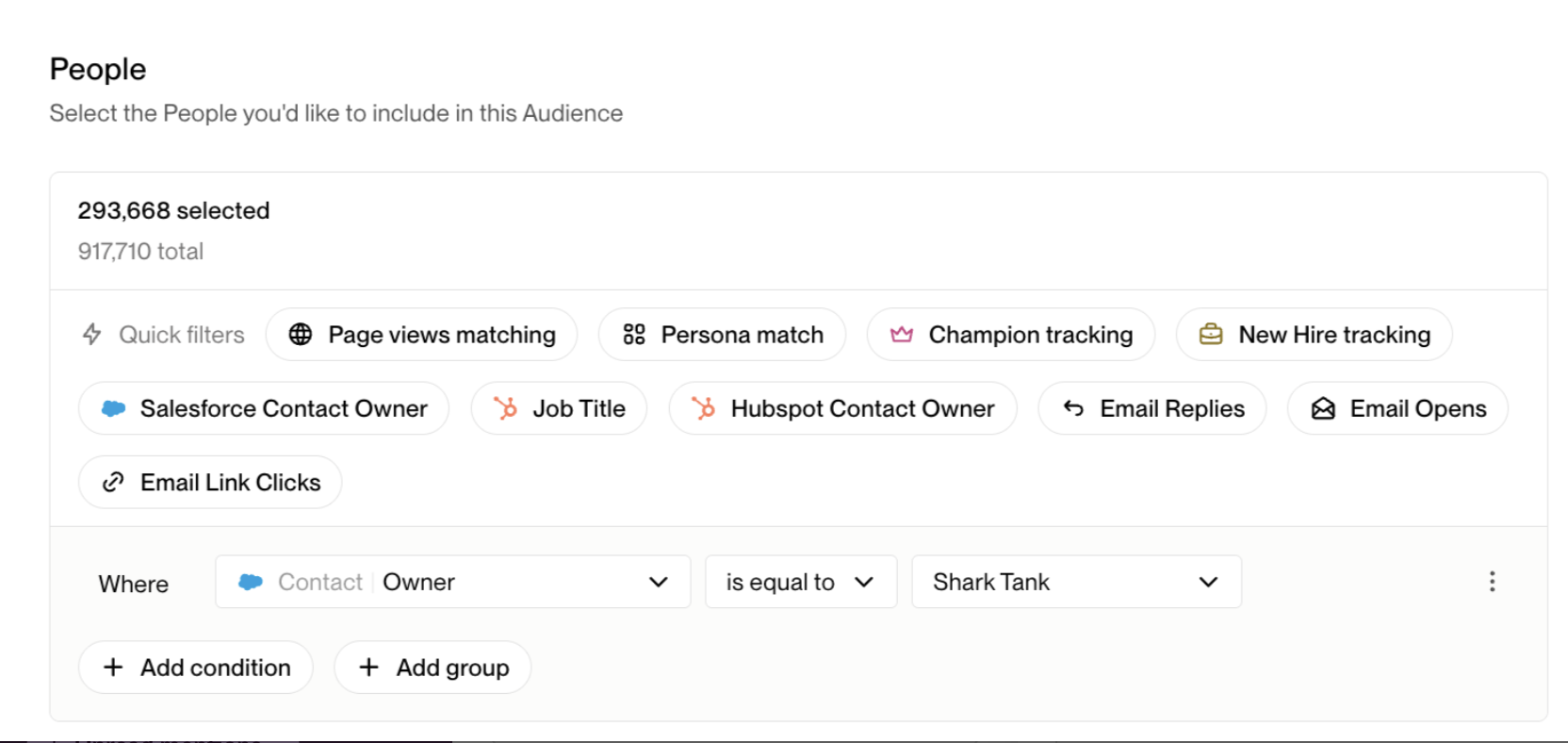
With both filters applied, Unify will return only contacts where both the account and the contact are owned by that rep — not a combined list of accounts owned by the rep and contacts owned by the rep separately.
Why This Works
Setting ownership filters in both sections independently might seem like it would pull two separate lists, but Unify intersects them — the People results are scoped to the Companies that match, so only contacts satisfying both conditions are included.
Important: Unify evaluates filters against all linked HubSpot records associated with a company's domain, not just the primary record. If a company has multiple HubSpot account records linked to the same domain in Unify, and any one of those records satisfies your filter conditions (even an older or secondary record), the company will be included in the audience. To troubleshoot unexpected results, click into the company in Unify and check its Linked Records tab. If you see multiple HubSpot records attached, one of them may have field values matching your filters unintentionally. The solution is to clean up duplicate records in HubSpot so only one accurate record is linked per company.