How do I re-enroll leads in a sequence after manual unenrollment?
Last updated: May 5, 2026
Context
When leads are manually unenrolled from a sequence, you may need to re-enroll them back into the same sequence. This requires specific settings to be enabled and can be done either individually or in bulk.
Answer
To re-enroll leads that were manually unenrolled from a sequence, first ensure that re-enrollment is enabled in your settings:
Navigate to Settings > Sequences > Rulesets
After clicking into your Ruleset, locate the “Re‑enrollment” section and enable the “Allow re‑enrollment into Sequences” toggle
Set your desired re-enrollment time frame (set to 0 days for immediate re-enrollment) and click the “Update” button to save your changes
Individual Re-enrollment Method
Navigate to the People tab
Click on the contact's name to open their profile
Click "Enroll" at the top right of the contact page
Select the desired sequence
Note: Re-enrolled contacts will start from their next step in the sequence, not from the beginning.
For bulk re-enrollment of leads:
Create an audience of the unenrolled leads:
Go to Audience Builder
Set up people condition with sequence enrollment criteria with the status set to Canceled
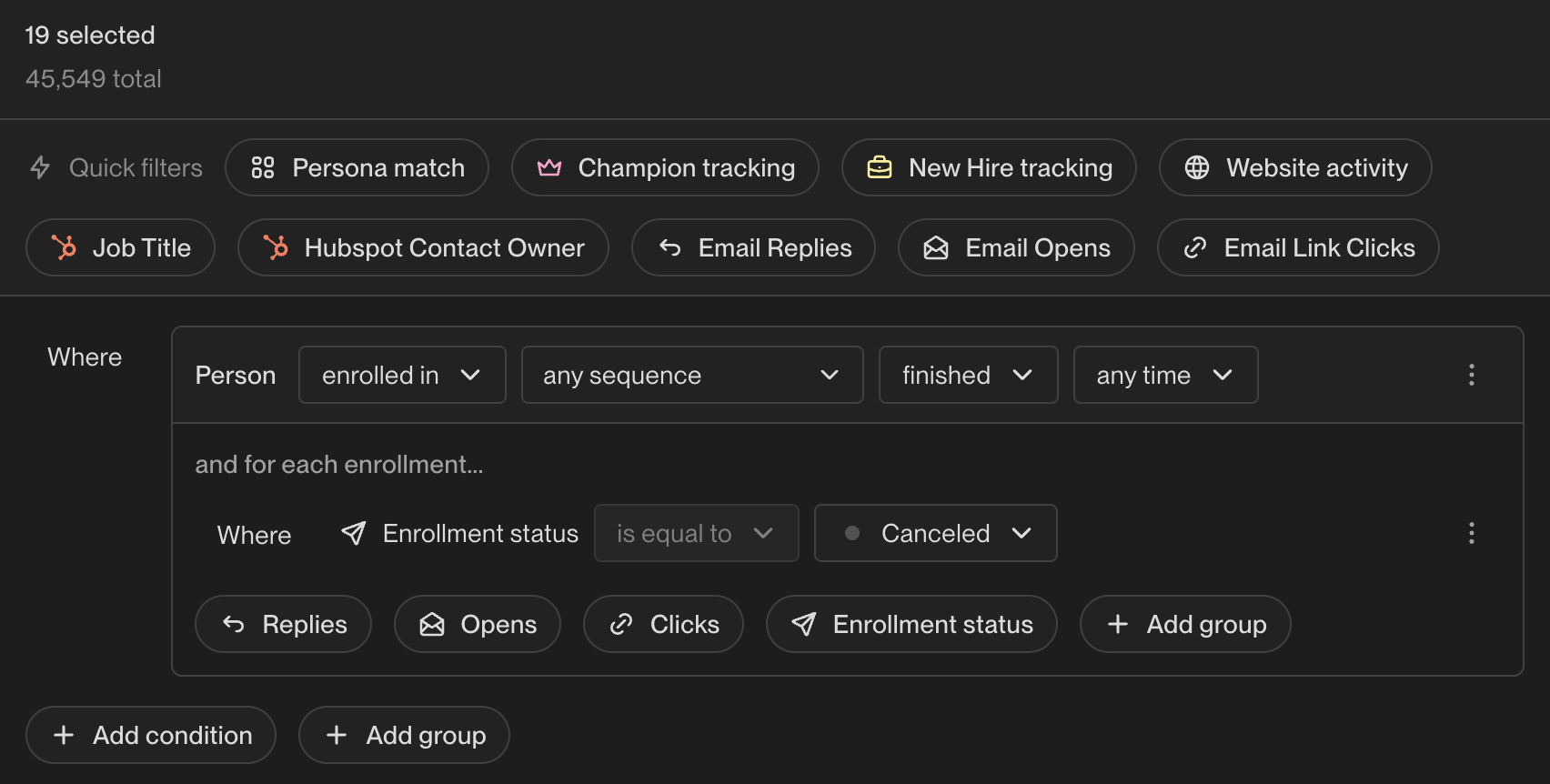
Click "Create Audience"
Create a new Play (since plays cannot be re‑run after 0 days - the minimum is 1 day)
Set the new audience as the trigger event in the duplicated Play
Run the duplicated Play to re‑enroll the contacts
Wait approximately 1 hour after changing settings before running the new Play to allow the system to process the changes. If you've toggled off exclusions, wait at least 30 minutes before re‑running the play.
Troubleshooting Re-enrollment Issues
If not all contacts are being re-enrolled as expected, check the Play metrics to see why specific contacts weren't enrolled. Common reasons include:
Recently enrolled: Contacts may be blocked by the re‑enrollment waiting period (default 75 days), calculated from their last enrollment date. This can occur even when contacts appear to not be in any active sequence, and affects both manual re‑enrollment and Play‑triggered re‑enrollment attempts.
Already enrolled: Contacts are currently in another sequence (including paused sequences). Contacts can only be enrolled in one sequence at a time, so they must be completely removed from their current sequence, not just paused, before re‑enrollment is possible.
Opted out: Contacts have opted out of communications
Exclusion rules: Contacts match existing exclusion criteria. If a contact is unexpectedly blocked by an exclusion (such as an “Active Opportunities” exclusion), check for duplicate company records with the same domain across all connected CRMs. Even if the primary company record shows no active opportunities, a duplicate record in Salesforce, HubSpot, or another connected system may have an active opportunity that triggers the exclusion. To investigate: search your CRM(s) for all accounts matching the company’s domain and verify the opportunity stages on each record. You can also view all active opportunities associated with a company by scrolling down on the account record in Unify. Additionally, contacts may appear as “queued” in a sequence even if they match exclusion criteria. This is expected behavior — exclusions are evaluated at send time, not when contacts are queued. Contacts matching exclusion criteria will be automatically skipped when the sequence attempts to send, so no manual action is needed to prevent them from receiving emails.
List-based plays and exclusions: When using a list as the trigger in a Play, exclusions do not apply to the list itself but do apply at the sequence enrollment step. To see all contacts from your list and identify which ones are blocked by exclusions, temporarily toggle off exclusions in the Play's sequence node — this will show the full count of contacts that would be enrolled without exclusion filtering.
Entry vs. exit-level exclusions: Exclusions can work at two levels - entry (blocking initial enrollment) and exit (removing contacts mid-sequence). By default, contacts who meet exclusion criteria after enrollment will continue receiving sequence emails. To automatically unenroll contacts when their exclusion criteria change mid-sequence (e.g., when an opportunity is opened), enable the “unenroll automatically from sequence” toggle for that exclusion. However, some exclusions like “last sales activity” should NOT have auto-unenroll enabled - if your organization uses other tools that trigger sales activities, enabling auto-unenroll would remove contacts from sequences when those external activities occur, defeating the purpose of the sequence.
Sequence conflicts: If contacts were not enrolled due to being in another sequence, you'll need to remove them from their current sequence first. Pausing a sequence does not free up contacts for re‑enrollment - they must be actively removed from the sequence.
Advanced exclusion settings: Even with audience-level exclusions disabled, advanced exclusion settings may still block enrollment. Exclusions can be toggled on/off at two levels: organization-wide in Settings > Organization > Sequences > Rulesets, or within individual exclusions in the sequence itself. Each exclusion also has an “unenroll automatically from sequence” toggle that controls whether contacts are removed mid-sequence when they meet the exclusion criteria. To resolve exclusion-related enrollment failures, toggle off the specific exclusions within the sequence, wait 30 minutes for the system to process the changes, then re‑run the play. Verify that exclusions are enabled at both the organization level (Settings → Organization → Exclusions) and within the sequence itself for them to take effect.
Configure Exclusions to Block New Enrollments While Preserving Active Sequences
To prevent recently contacted leads from being enrolled in new sequences while allowing those already active in a sequence to keep receiving emails, adjust the exclusion settings as follows:
Navigate to your sequence exclusion settings.
Set the “Exclude from Sequences” toggle OFF. This stops matching contacts from being added to new sequences but leaves contacts already in a sequence unaffected.
Leave the “Unenroll automatically from sequence” toggle OFF unless you specifically want contacts removed mid‑sequence.
This configuration respects recent touchpoints for new outreach while preserving momentum for contacts currently in nurture flows.
Additional Re-enrollment Limitations
Sequence marked complete: Contacts whose sequences were marked "complete" due to automated replies (such as out-of-office responses) cannot be re‑enrolled until this system behavior is updated.
Different sequence enrollment clarification: Manually unenrolled contacts should not be blocked from entering a different sequence - only re‑enrollment into the same sequence is subject to the re‑enrollment waiting period.
Re-enrollment Setting Clarification
The re‑enrollment waiting period setting only controls how long to wait after a sequence completes before allowing re‑enrollment into the same sequence - it does not allow contacts to be enrolled in multiple sequences simultaneously. If contacts are blocked from entering a different sequence after being unenrolled, verify that they are not currently active in another sequence.
When the Original Sequence Has Been Deleted
If you deleted the original sequence but enrollments remain active (blocking re‑enrollment), you have two options:
Option A - Using enrollment history (if the old sequence can still be referenced):
Create an audience: Person Enrolled in "[Old Sequence]" (Anytime) where Status = Canceled
Ensure re‑enrollment settings are enabled with 0 days wait time
Duplicate or create a Play that enrolls into the new sequence
Set the audience from step 1 as the trigger and run the Play
Option B - Using CSV upload (if the old sequence cannot be referenced):
Export or compile a CSV of the contacts you want to move
Upload the CSV - this will create a new list (note: CSV uploads now create lists rather than audiences) and wait for processing
Open the newly created list and select all contacts using the top-left checkbox
Click "add to sequence" at the bottom right of the screen
Select your desired sequence to enroll the contacts
Note: Ensure re‑enrollment settings are enabled with 0 days wait time before enrolling contacts. If contacts still won’t enroll, check the Play’s Sequence metrics > “Not Enrolled” breakdown for the exact reason and adjust accordingly.
For exclusion‑related enrollment failures, you may need to disable exclusions at multiple levels. In addition to audience‑level exclusions, check your advanced exclusion settings and temporarily disable them during re‑enrollment.
Remember that exclusions must remain disabled until the entire sequence is complete, not just during initial enrollment, as re‑enabling them will block subsequent sequence steps.
Remember that exclusions must remain disabled until ALL contacts have completed the ENTIRE sequence, not just during initial enrollment. Re‑enabling exclusions before sequence completion will block subsequent sequence steps for enrolled contacts.
Once these steps are completed, the leads will be re-enrolled in the sequence according to your specified time frame.