How to resend expired user invites
Last updated: March 23, 2026
User invites to Unify expire after 24 hours. If an invite has expired, you'll need to resend it to allow the user to join your organization.
Resending invites yourself
You can resend expired invites by deleting the pending user and sending a new invite:
Find the user with "Invitation pending" status
Delete the pending user
Click "Invite team members" and send a new invite to their email address
What if you can't send invites?
If you see an error message saying "You have reached the max amount of users for your plan," you'll need to either:
Remove unused pending invites to free up seats
Contact Unify support to adjust your user limit
Getting help from support
If you're unable to resend invites yourself, you can contact Unify support with:
The email address that needs a new invite
Whether the user should be invited as an admin or regular user
Support can quickly resend the invite for you.
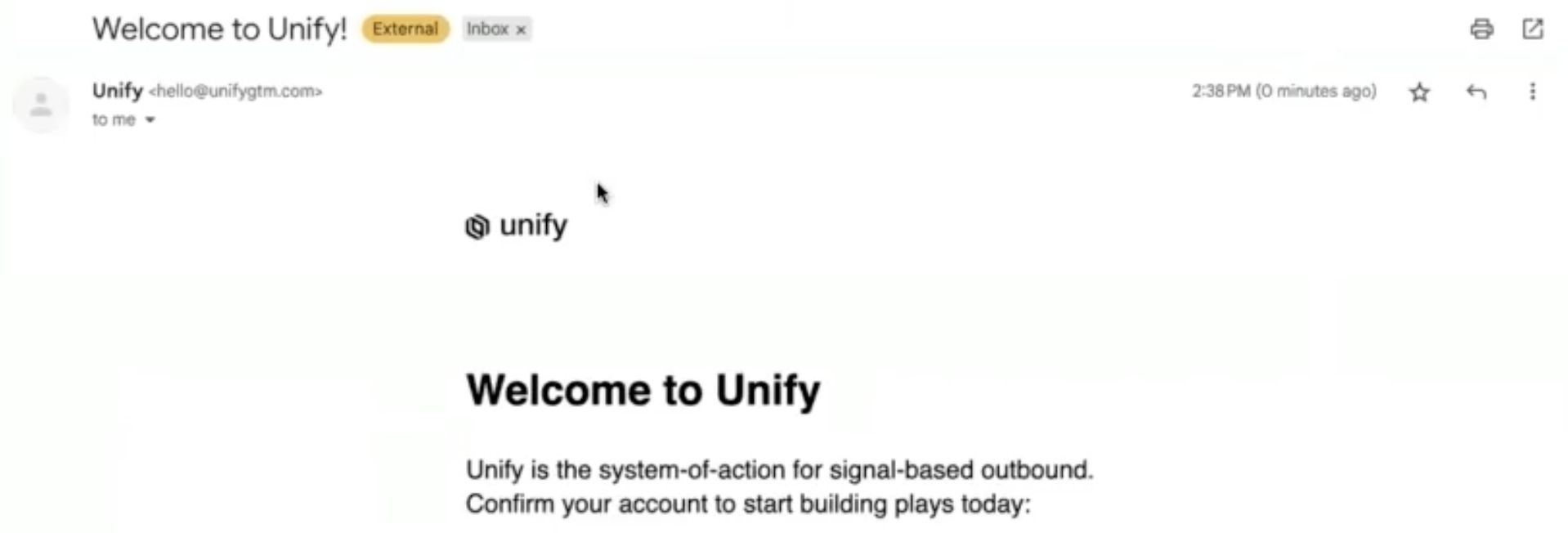
What the invite email looks like
Users should look out for an email from Unify with the subject line "Welcome to Unify!" The email will contain a link to confirm their account and join your organization.