How to upgrade legacy mailboxes
Last updated: May 5, 2026
When upgrading legacy mailboxes, it is essential for users to carefully manage enrollments to avoid interruptions. Users may prefer to transition from old mailboxes to new Google Workspaces. To perform this task seamlessly without losing current enrollments, follow the outlined steps below.
Understanding Email Backlogs: The system has a limit of 25 emails per day per mailbox. When this limit is exceeded, additional enrollments are queued for future sending. Active sequences are prioritized over new queued enrollments. However, blocked emails (such as those missing required template variables) are included in the backlog count but do not prevent new enrollments from sending immediately.
Note: The "total emails in backlog" metric includes both queued and blocked emails. Blocked emails occur when enrollments are missing required data (e.g., template variables like company name). These blocked emails will not clear automatically and require manual intervention, but they do not impact your ability to send new sequences.
Step-by-Step Answer
Reassigning Queued Enrollments
Access your email backlog through the provided dashboard link.
Locate the "Reassign Sequence Enrollments" section by scrolling down.
Note: Reassigning enrollments to new mailboxes may not resolve backlog issues if the majority of your sequences already have backlogs. Before taking action, review your backlog to identify blocked emails (enrollments missing required data like template variables), as these are included in your backlog count but do not prevent new enrollments from sending. If you have significant queued (not blocked) emails, consider unenrolling recipients from high-volume, lower-priority sequences to reduce the overall backlog. Sequences with 3-4 emails are optimal for preventing backlogs, as longer sequences (6+ emails) can create a snowball effect when adding new enrollments daily.
Navigate to the "reassign enrollments" option by scrolling right. Clicking this will direct you to a section with an active sequence displaying queued enrollments.
In the pop-up window, select all the new mailboxes to reassign all queued enrollments accordingly.
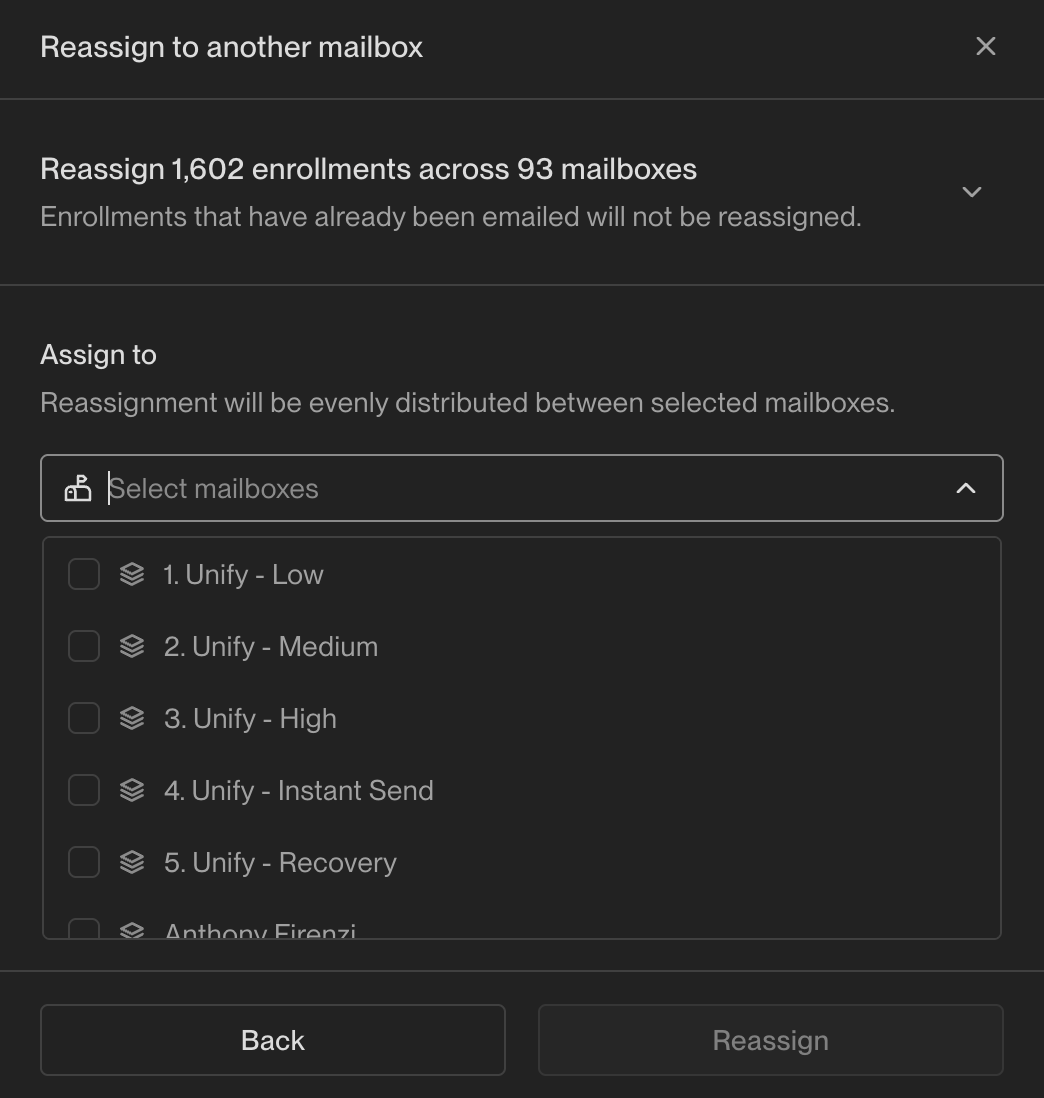
Repeat the steps (3 and 4) for each sequence that contains backlogged enrollments.
Important: This process only reassigns enrollments that are queued. Any enrollments past step one on legacy mailboxes will be cancelled if old mailboxes are deleted prematurely. To avoid this, ensure legacy mailboxes are removed from sequence routing in Plays, and allow enrollments on legacy mailboxes to complete fully before deleting the mailboxes.
Renaming or Reassigning Mailboxes
When renaming mailboxes that are already warmed (for example, when an employee leaves the company), a 1‑week rewarm period is required. The process involves:
Cancel or reassign all existing enrollments on those mailboxes
Temporarily disconnect the mailboxes from Unify
Change the mailbox names in your email provider
Rewarm the mailboxes for 1 additional week before reconnecting to Unify
Note: Consider using a phased approach when renaming multiple mailboxes to avoid losing entire mailbox capacity at once. This ensures you maintain sending capacity for active sequences during the transition period.
Deleting Old Mailboxes
To delete a legacy mailbox, navigate to the "Mailbox" tab within the Settings section. Select the mailbox you wish to remove, then click on "Disconnect" located at the bottom-left corner of the mailbox pop-up window to complete the removal process.