How to Troubleshoot Play Enrollments
Last updated: May 5, 2026
Context
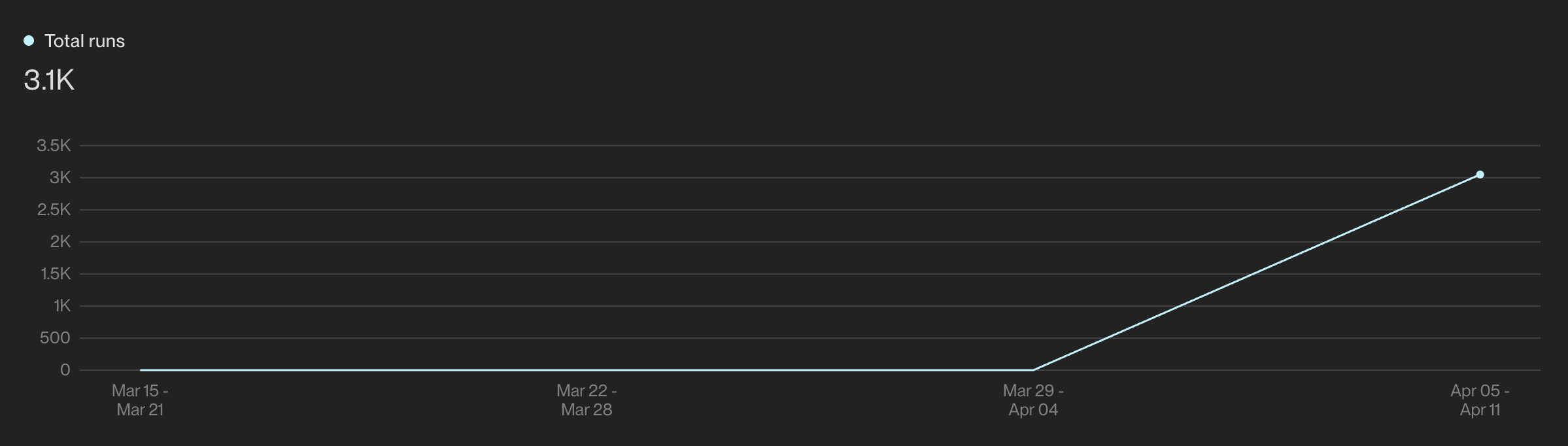
When a user publishes a Play, they may want to analyze how specific companies or individuals engaged with the Play. This can include identifying who was prospected, sequenced, or synced back into Salesforce. To access detailed insights about these outcomes, users can navigate to the "Play Metrics" tab within the Play Builder. This section provides a comprehensive overview of the Play’s performance and results, including:
How many Records/Contacts ran through the Play
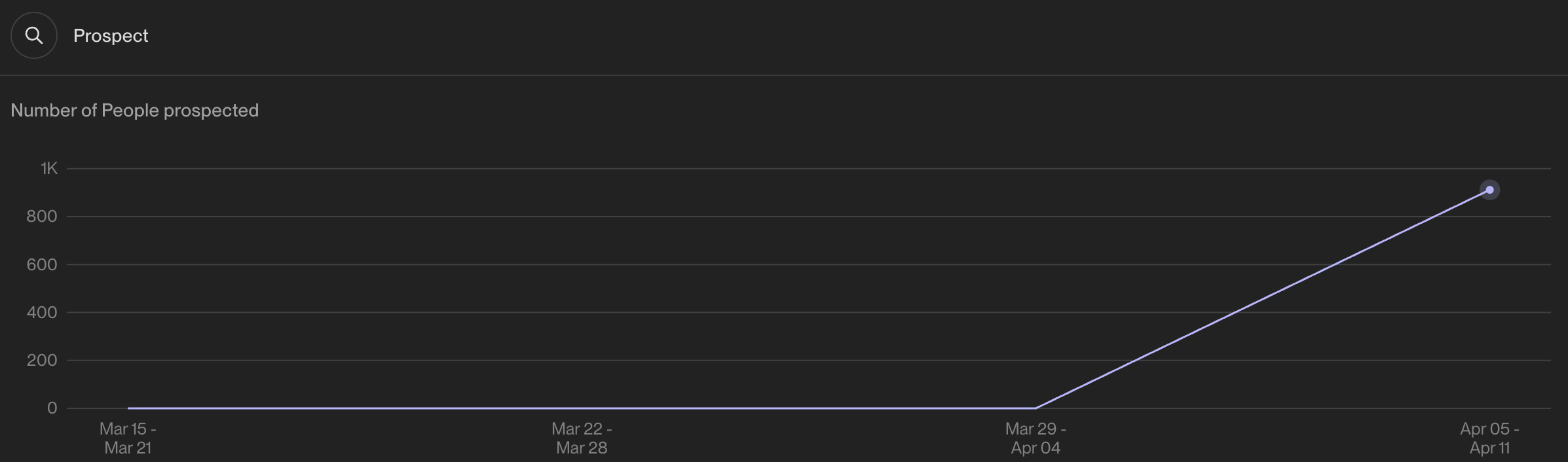
Number of people Prospected
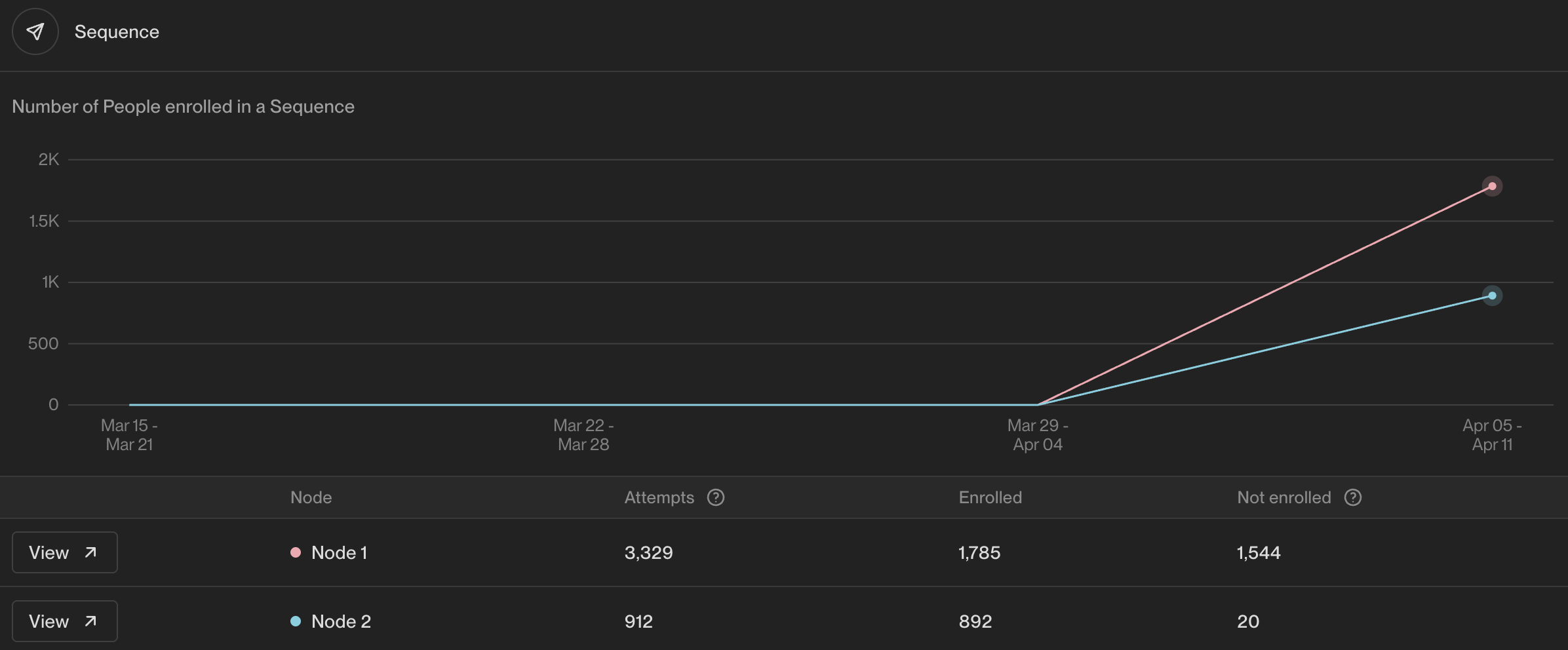
Number of people enrolled in a Sequence
Number of records qualified by the AI Agent
Answer
Once a Play has been published, you can access and review important Play metrics by navigating to the "Metrics" tab located at the top left section of the Play builder.

In the Metrics tab, you can view essential metrics such as the number of people enrolled, people prospected, and people sequenced.
Understanding Total Audience Numbers
The "total" audience number shown in Play metrics represents all records that Unify can evaluate for your workspace within that specific Play type, not everyone in your CRM. For New Hire plays, this includes all new‑hire records from Unify's tracking system that could potentially be evaluated against your Play's criteria.
Troubleshooting Zero or Low Total Audience Numbers
If your total audience number is 0 or unexpectedly low, especially for New Hire plays, the issue may be with your New Hire Tracking configuration rather than your Play criteria.
Navigate to Settings > New Hire Tracking
Check that at least one New Hire tracking option is enabled. Note that selecting “Find new hires at companies that don’t exist in Unify” will return new hires at both new companies and companies that already exist in your Unify workspace, as long as they match your configured filters (industry, headcount, etc.). You don’t need to enable both options to track new hires at existing companies.
Ensure your criteria are broad enough to identify new hires (e.g., tracking companies that exist in your CRM or Unify)
Verify that your data sources (such as your CRM) are properly connected
Confirm that personas you want to track are enabled in the New Hire settings
Important: New Hire Tracking only identifies net‑new hires detected from external data sources within the configured timeframe. It will not retroactively flag existing CRM contacts or identify job changes that occurred before the tracking window.
If your New Hire Tracking settings are too restrictive or not properly configured, contacts will not be identified as new hires in the first place, resulting in a misleadingly low total audience number and preventing enrollment in New Hire sequences regardless of other criteria being met.
Understanding Why Audience Sizes Change Over Time
How Audiences Update Dynamically
CRM data updates and field changes
New exclusion rules being triggered after initial Play execution
Time-based criteria shifts (like “hired in last 30 days” rolling windows)
Contact or company information updates from external data sources
Interpreting Audience vs. Execution Discrepancies
When current audience is smaller than historical execution numbers:
Exclusions triggered after the original Play run (such as recent activity updates)
Contacts no longer meeting time-sensitive criteria
CRM field updates that disqualify previously eligible contacts
When current audience is larger than historical execution numbers:
New contacts added to your CRM or data sources
Previously excluded contacts now qualifying again
Expansion of audience criteria since the last Play execution
Monitoring Best Practices
Track audience size trends over time to identify patterns in data changes
Document when you make audience criteria adjustments to correlate with size fluctuations
Use execution metrics rather than current audience size for performance analysis
Consider scheduling regular Play re‑runs if your audience grows significantly due to new qualifying contacts
Number of People Prospected
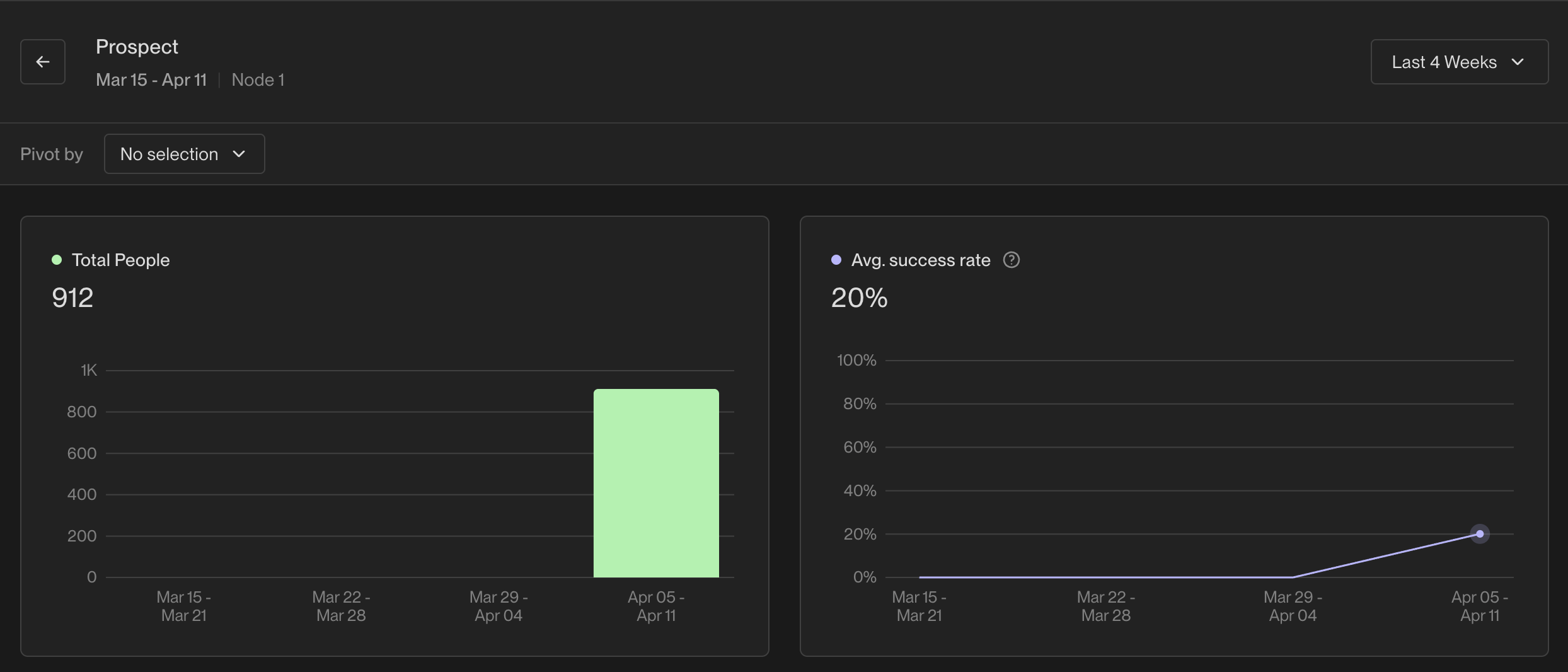
To investigate who was prospected, click the "View" button next to the respective Node in the Prospecting graph. This will provide details such as the total number of people prospected and the average success rate.
When Prospecting Returns Zero Results
If your prospecting node shows "None found" or zero results, investigate these potential causes:
Review persona title variations: Ensure your personas include sufficient title variations (60+ titles recommended) to match how companies list roles. Add common variations and synonyms if needed.
Check the Logs tab: Open the Prospect action in Logs to see exact inputs/outputs and any messages explaining why no matches were found.
Verify "Include existing People" setting: If disabled, the prospecting node will only search for new contacts not already in your Unify account or CRM.
Consider data coverage: Some companies may have limited data provider coverage or genuinely lack certain specialized roles (e.g., sustainability-specific positions at smaller organizations).
To troubleshoot individuals enrolled, click the "View" button next to the Node in the Sequence graph. For graphs with multiple nodes, click each one to review its details. The Sequence metrics page will display the total enrollment attempts made (the number of contacts Unify attempted to enroll in the Sequence) along with details of contacts enrolled and not enrolled.
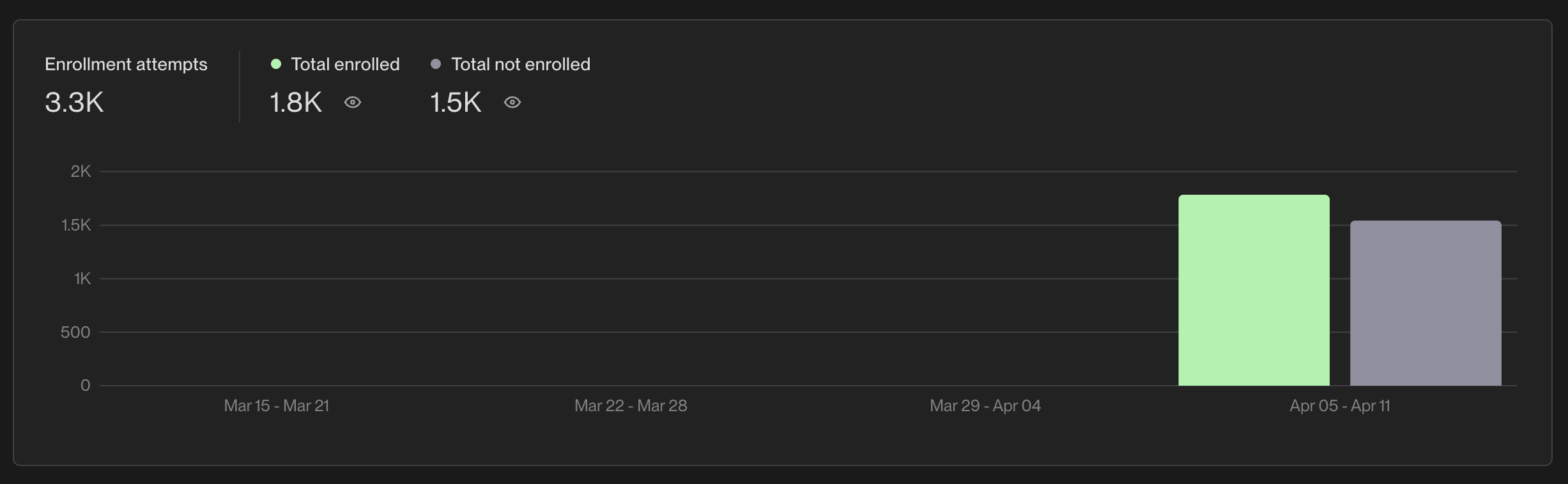
To identify contacts that were not enrolled, refer to the chart titled "Not Enrolled." This chart lists the reasons contacts may not have been enrolled in the sequence. Common reasons include:
Click on individual contact names in the “Not Enrolled” list to see which specific sequence they are currently enrolled in.
Before attempting re‑enrollment, check the enrollment failure reasons in the Metrics tab by clicking “View” next to the Sequence node.
Removed mid-sequence by exclusion: The contact was enrolled successfully but later removed from the sequence because they met exclusion criteria (such as an open opportunity being created) and the exclusion has “Exclude from Sequences” enabled. Company-level exclusions (like open opportunities) will remove all contacts from that company when triggered. Note: For activity-based exclusions (such as “last sales activity”), consider keeping the “Exclude from Sequences” toggle disabled to prevent Unify’s email writeback from triggering the exclusion and removing contacts from sequences.
Max Enrollments Per Company Configuration
When you encounter “Max enrollments reached” errors in Play metrics, adjust the company‑level enrollment limit in the appropriate settings.
Configuration locations:
Prospecting nodes: check the “max prospects per company” setting within each Prospecting node configuration.
Sequence enrollment settings: review company‑level limits in your sequence enrollment configurations.
Best practice recommendations:
Start with 2–4 people per company as a baseline.
Avoid exceeding roughly 7 contacts per company to protect deliverability.
Adjust the setting proactively based on outreach strategy and company size.
Play Re-run Behavior
Can companies run through the same Play multiple times? Yes, companies can run through a Play multiple times if you manually trigger the Play or republish it with updated audiences/triggers. However, sequence enrollment rules (cooldowns, already enrolled status, exclusions) still apply to prevent duplicate enrollments even when the Play runs again.
Already enrolled: The person already has an active Sequence enrollment (even if the sequence is paused), so they must be actively removed to enroll elsewhere.
Navigate to your sequence page.
Check the top‑right corner for a pause indicator.
If paused, click to unpause and resume sending.
Note: Exclusions can be configured at two levels: (1) at the audience level within your Play, and (2) at the organization level in Settings → Organization → Exclusions. The organization-level "Exclude from Sequences" toggle takes precedence – if this toggle is enabled for an exclusion in your organization settings, contacts will be excluded from sequences even if you've toggled off that exclusion at the audience level. To ensure successful enrollment when exclusions are preventing contacts from enrolling, verify that exclusions are disabled at both levels. After disabling exclusions, wait 30 minutes before the entire sequence completes. If you disable exclusions, keep them disabled until the entire sequence completes.
CRM Sync Timing Limitation: Play triggers evaluate exclusions against data that has already been synced from your CRM into Unify. Both CRM sync and Play triggers run on approximately 15‑minute cycles. If a CRM field changes (such as an opportunity being created) close to when a Play fires, the exclusion data may not be in Unify yet at evaluation time, causing contacts to enroll despite meeting exclusion criteria. To mitigate this timing race condition, add a short delay node (5‑15 minutes) at the start of time‑sensitive Plays to give CRM data more time to sync before exclusions are evaluated.
Sequence Ruleset Settings: Sequences also have their own ruleset settings that can override exclusions. If contacts are enrolling despite matching exclusion criteria, verify the sequence's ruleset configuration by navigating to the sequence → Settings → Ruleset and ensuring exclusions are enabled. You can also modify the default ruleset for all new sequences by going to Settings → Organization → Sequences → Ruleset.
Multi-CRM Opportunity Evaluation: If you have multiple CRMs connected (e.g., both Salesforce and HubSpot), Unify evaluates opportunities from ALL connected systems when determining exclusions. A company may appear in your “Active Opportunities” exclusion even if your primary CRM shows only closed opportunities, because an active opportunity exists in your secondary CRM. To verify, check the company record in Unify and scroll down to view all associated opportunities across all connected systems.
Understanding Company vs. People Exclusions: Company-level exclusions automatically exclude all people associated with those companies, while people-level exclusions only exclude the specific contacts you select. This means if you exclude 86 companies, you may see thousands of people excluded because every contact at those companies is also excluded. If your goal is to exclude only specific contacts at certain companies (rather than everyone at the company), use a people-level exclusion for that subset and reserve company-level exclusions only for companies you want fully excluded.
Targeted Exclusion Exceptions
When you need to enroll specific contacts or companies that match an exclusion rule without disabling the exclusion globally, create targeted exceptions directly inside the rule:
Company‑level exceptions: Add an
ANDcondition withdomainis not equal to[company domain].Contact‑level exceptions: Add an
ANDcondition withemailis not equal to[contact email].
These additions keep the exclusion active for all other records while allowing the specified contacts or companies to pass through.
Diagnosing Which Exclusion Rule Is Blocking Enrollment
Before creating an exception, identify the exact exclusion rule that is preventing enrollment:
Open the person record and go to the **Exclusions** tab to see all matching rules.
In the sequence, navigate to **Enrollments → Not Enrolled** and view the failure reason for the contact.
Review the **Play Execution Logs** for details on which exclusion fired during the Play run.
Once the rule is identified, apply a targeted exception as described above.
Configuring CRM‑Based Company Exclusions
When building company‑level exclusions using CRM properties (e.g., HubSpot lifecycle stage), follow these guidelines for reliable filtering:
Use the property's **internal name value** (e.g.,
customer) rather than the display label (“Customer”).If the property is multi‑select, create a single‑select version for use in exclusions, as multi‑select fields may not work reliably.
Check for duplicate company records in your CRM, because duplicates can bypass lifecycle‑stage or property‑based filters and cause unexpected enrollments.
Applying these steps ensures the exclusion behaves as intended and reduces the risk of accidental enrollments.
Note: Definitions for each reason can be accessed by hovering over the "?" icon next to the respective text.
Troubleshooting Timing-Related and Field-Based Enrollment Issues
If contacts are enrolling in Plays despite meeting exclusion criteria (such as having open opportunities, recent activity, or specific field values), this may be caused by a timing race condition between CRM sync and Play execution, missing/unpopulated CRM fields in your records, or sequence ruleset settings that override exclusions.
Root Cause - Timing Race Condition: Play triggers evaluate exclusions against data that has already been synced from your CRM into Unify. Both processes run on approximately 15‑minute polling cycles. If a CRM field changes (like an opportunity being created or activity being logged) shortly before a Play fires, that updated data may not have synced into Unify yet when the Play evaluates exclusion criteria.
Root Cause - Missing or Unpopulated Fields: Exclusions cannot trigger on CRM fields that don't exist or aren't populated on the contact or company record. For example, an exclusion rule filtering for "ARR - Enterprise = Yes" will not block a company if that company record doesn't have the "ARR - Enterprise" field populated, even if the company should logically be classified as enterprise.
Root Cause - Sequence Ruleset Configuration: Sequences have their own ruleset settings that can override organization-level and audience-level exclusions. Even with proper exclusion configuration at higher levels, a sequence may have exclusions disabled in its ruleset.
Diagnostic Steps:
Verify sequence ruleset settings: Navigate to the sequence → Settings → Ruleset and confirm that exclusions are enabled. If disabled, enable them and republish the sequence.
Check default ruleset configuration: Go to Settings → Organization → Sequences → Ruleset to review and modify the default ruleset applied to all new sequences.
Verify CRM field existence and population: Navigate to the specific company or person record in Unify and verify that the field used in your exclusion rule (e.g., "ARR - Enterprise", "Customer Status") is visible and populated with the expected value.
Check your CRM directly: If the field is missing in Unify, verify it exists and is populated in your CRM (Salesforce, HubSpot, etc.). Exclusions cannot trigger on fields that don't exist or aren't synced to Unify.
Review field mapping: Ensure the CRM field is properly mapped in your Unify integration settings and has sync permissions enabled.
Check for duplicate records: Look for duplicate company records with different field values or missing fields, as contacts may be associated with the wrong record.
Important: Exclusions behave differently depending on the "Exclude from Sequences" toggle setting. When this toggle is enabled for an exclusion, contacts who meet the exclusion criteria will be removed from active sequences immediately. When disabled, the exclusion only prevents new enrollments but does not affect contacts already enrolled in sequences. This toggle is found in Settings → Organization → Exclusions and takes precedence over audience-level exclusion settings – contacts will be excluded if the organization-level toggle is enabled, regardless of audience-level configuration. Check your exclusion settings to understand which behavior applies.
Additional enrollment failure reason: Exclusion rule without sequence toggle – the contact matches an exclusion rule, but the “Exclude from Sequences” toggle is not enabled. Verify exclusions in Settings → Organization → Exclusions. Note that the "Exclude from Sequences" toggle at the organization level takes precedence over audience-level exclusion settings.
Note: Definitions for each reason can be accessed by hovering over the "?" icon next to the respective text.
People-Level Exclusions (Do Not Sequence Again)
To permanently prevent specific contacts from being enrolled in any future sequences:
Navigate to Settings → Organization → Exclusions → New Exclusion
Select People as the exclusion type
Define your exclusion criteria using one of these approaches:
Direct email filtering: Add specific email addresses you want to exclude
Field-based filtering: Use a custom field (e.g.,
Status = "Exclude") that you can update via CSV uploads or CRM sync
Enable the Exclude from Sequences toggle to prevent future enrollments and remove contacts from active sequences
Click Create Exclusion
For the field‑based approach, upload a CSV through the People tab with a column marking contacts to exclude (e.g., “Status” = “Exclude”), then create a People exclusion filtering for that field value. This allows you to maintain an ongoing list of excluded contacts by updating the CSV.
Important timing consideration: Exclusion changes can take 30‑45 minutes to propagate through the system.
Use Cases for Permanent Contact Exclusions
Contacts who have explicitly requested to be removed from outreach
Former customers or partners who should not receive prospecting sequences
Contacts who have had negative interactions requiring permanent exclusion
Maintaining compliance with specific contact preferences or legal requirements
Note: For New Hire sequences specifically, verify that persona tracking is enabled in your new hire settings. If personas are not being tracked, contacts will not enroll in New Hire sequences regardless of other criteria being met.
Important Technical Limitation: When using CRM-based exclusions (such as “last activity date”), be aware that Unify's email activity writeback can trigger CRM automations that update these fields, potentially causing contacts to be excluded during sequence execution. This can happen even when your CRM field mapping is set to “read only” in Unify. Exclusions are evaluated during sequence execution, not just at enrollment. To prevent this, consider toggling off “Exclude from Sequences” for activity-based exclusions or adjusting your CRM automation settings. For activity-based exclusions specifically, keeping the toggle disabled prevents Unify's own actions from triggering exclusions that would remove contacts mid-sequence.
Steps to Re-Enroll Contacts in a Sequence:
To re-enroll contacts who were already enrolled or recently enrolled, follow these steps:
Unenroll any contacts that are actively enrolled in another Sequence.
Navigate to your Sequence settings and modify the re‑enrollment setting to allow re‑enrollment into Sequences after 0 days.
Duplicate the audience that initially ran through the Play, and create new conditions that exclude any
Personenrolled in X SequenceAnytime.Duplicate the Play, insert the new audience, and re‑run the Play.
Return to your Sequence settings and toggle the "Allow re‑enrollment" option back as necessary.
Workaround for Immediate Re‑enrollment After Ruleset Changes: If you’ve just updated your sequence ruleset settings and want to immediately enroll previously blocked contacts, you cannot re‑run the original Play due to a minimum 1‑day cooldown period. To bypass this limitation, duplicate the Play and run the duplicated version with the same audience. The duplicated Play will enroll the previously blocked contacts immediately without waiting for the cooldown period.
Note: Re-enrolled contacts will resume at their next step in the sequence rather than starting from Step 1.
Reassigning Tasks and Emails for Already-Enrolled Contacts
When you update sequence routing or mailbox assignments in your Play (e.g., changing from company owner to contact record owner), these changes only apply to new enrollments. For contacts already enrolled in sequences, you’ll need to manually reassign pending items.
Bulk reassigning tasks: Navigate to the Tasks tab, filter or search for the tasks you need to reassign (e.g., by sequence, owner, or contact list), select all relevant tasks using the checkboxes, and click Assign Owner to choose the new owner.
Reassigning queued emails: Step 1 queued emails can be bulk reassigned via Dashboard > Leading > Email Backlog > Reassign Sequence Enrollments for the specific sequence. Mid‑sequence scheduled emails cannot be bulk reassigned and must be updated manually on each contact’s enrollment page.
If tasks are being assigned to the wrong person, consider the following common root causes:
Manually assign tasks setting enabled: all tasks go to the selected user regardless of record ownership.
Mailbox routing configuration may distribute tasks to mailbox owners rather than record owners.
Settings changed after contacts were enrolled: existing enrollments retain previous task assignment behavior.
To prevent misassignment for future enrollments, open the sequence, go to Edit → Advanced Settings, and ensure the task assignment setting is set to “Mailbox owner” or “Record owner” as appropriate. Verify mailbox routing matches your intended owner configuration.
Important: Once Step 1 of a sequence has already sent, mailboxes cannot be switched mid‑sequence to maintain a consistent sender experience for recipients.
Mailbox Routing Configuration for Record Owner Assignment
To ensure sequence emails are sent from the record owner’s mailbox and replies are routed correctly, configure the following:
In Sequence routing settings, select “Use a mailbox associated with the company/person record owner”.
Assign each rep a mailbox in Settings → Deliverability → Mailboxes and set appropriate fallback mailboxes.
Verify that mailboxes are mapped to each owner and that users have logged in at least once before the Play runs.
To align Salesforce owner fields with Unify ownership, you can:
Configure a per‑Play default owner in the Play settings.
Enable Salesforce Lead/Contact assignment rules to automatically assign ownership.
Combine the Play’s Assign Owner logic with your Salesforce automation workflows.
Advanced Email Reassignment Strategies and Troubleshooting
Proactive Load Balancing Strategies:
Monitor the Email Backlog daily during high‑volume campaigns to identify redistribution opportunities before queues become problematic
Set up alerts when individual mailboxes approach their daily send limits (typically 200‑500 emails per day depending on your setup)
Create a rotation schedule for distributing large Play enrollments across multiple mailboxes from the start
Troubleshooting Reassignment Failures:
If the reassignment interface doesn't show your target sequence, verify the sequence has queued (not sent) enrollments remaining
Check that the destination mailbox is properly connected and has sending permissions enabled
Ensure the new mailbox owner has the appropriate CRM permissions if the sequence includes CRM sync actions
Strategic Considerations for Team Management:
Document which team members should handle specific sequence types or customer segments before reassigning
Consider time zone differences when reassigning to team members in different regions
Verify that the new mailbox owner has context about the campaign and can handle potential replies appropriately
Plan reassignments during low‑activity periods to minimize confusion about ownership changes
Monitoring Post‑Reassignment Performance:
Track delivery rates and engagement metrics after reassignment to ensure the new mailbox maintains good sender reputation
Monitor reply rates to verify the new sender is maintaining appropriate response handling
Check for any deliverability issues that might arise from sudden volume changes on the destination mailbox
Troubleshooting Node Connection Issues
If you're unable to connect a prospecting node to a sequence enrollment node in the Play builder, you may need to add a loop node between them:
Add a Loop Node: Insert a loop node immediately after your prospecting node.
Connect the Sequence Node: Connect your sequence enrollment node to the loop node rather than directly to the prospecting node.
Rebuild if Necessary: If the connection still doesn't work, delete the problematic nodes and recreate them in the correct order (prospecting → loop → sequence enrollment).
Troubleshooting Play Execution Order Issues
When investigating sequence enrollment issues, you may encounter a specific technical limitation where contacts are enrolled with the wrong sender/mailbox despite having an assign owner step in your Play. This occurs due to execution order in parallel branches.
Root Cause: Nodes in parallel branches execute sequentially, not simultaneously. If your assign owner step is in one branch and your sequence enrollment is in a separate parallel branch, the sequence may execute first and use the old owner for routing.
Keep the assign owner and sequence enrollment steps in the same branch to ensure proper execution order.
Place the assign owner step before the sequence enrollment step within that single branch.
If you need enrichment or other processes to complete first, add a delay step after the assign/sync operations to allow external systems to update before the sequence enrollment executes.
Assign Owner Node CRM Synchronization Limitations
When using the Assign Owner node in Plays, users may encounter situations where ownership is updated in Unify but the corresponding CRM owner field (e.g., “Contact Owner” in Salesforce or HubSpot) does not automatically synchronize.
Understanding CRM Owner Field Sync Behavior
The Assign Owner node sets ownership within Unify, but CRM owner field updates may fail when the contact was already synced from your CRM and the Play is not configured to overwrite existing owner fields.
CRM sync permissions can prevent write‑back to owner fields.
The CRM connection may have sync limitations or field‑mapping restrictions.
Troubleshooting Ownership Discrepancies
Verify Play Configuration: ensure the owner assignment settings are configured to overwrite existing owner fields when needed.
Review CRM Sync Permissions: confirm your CRM integration has permission to update owner fields.
Check Field Mapping: make sure the owner field mapping between Unify and your CRM is properly configured and active.
Manual CRM Updates: if automatic sync fails, manually update owner fields in your CRM to maintain consistency.
Enrolling Contacts from CSV Uploads via Lists
When you upload a CSV of contacts through the People tab, Unify automatically creates a List (not an Audience) containing those contacts. To enroll contacts from a List directly into a sequence:
Navigate to the People tab where you uploaded your CSV
Open the List that was created from your CSV upload
Mass-select the contacts you want to enroll (or select all)
Click Add to sequence at the bottom right. The enrollment counter will show progress as contacts are processed in batches.
Testing Custom Variables from CSV Uploads:
Confirm field mapping on a contact record
Navigate to People and search for one of the contacts from your CSV upload
Open the contact record and verify you see your custom field (e.g., “Status”) populated with the expected value
If the field is missing, re‑upload your CSV and ensure the column is mapped to a custom person field during the upload process
Insert the variable using the variable picker
Open your sequence email editor
Use the variable picker (rather than typing the syntax manually) to insert your custom field into the email template
This ensures correct syntax and confirms the field is available for use
Test with a single contact enrollment
Add one test row to your CSV with your own email address and a distinctive value (e.g., “TEST – should appear at top”)
Upload that single‑row CSV with the custom column mapped
Enroll just that test contact into the sequence (either directly from the People tab or via the Play)
Open the enrollment in the sequence and click “See variables breakdown” or preview the email to confirm your custom field renders correctly and the enrollment is not blocked
Custom CSV columns aren't directly available as template variables. To use a CSV column (e.g., “Fleet Size”) in email copy, first create a matching custom property in your CRM, map the CSV column to that property, and then sync the field to Unify via Settings → Integrations → Field Mapping. Once synced, the field appears in the variable picker for sequence templates. Additionally, the Record Owner field cannot be used as a template variable because it’s reserved for routing. As a workaround, create a formula field in Salesforce (e.g., Account_Owner_Name__c) that copies the owner’s name into a text field; this custom field will sync to Unify and become available as a variable.
Note: If a sequence email uses a variable that’s missing or unmapped, Unify will block that enrollment. You can identify blocked enrollments by opening the sequence details and checking individual enrollment records, where missing variables will be highlighted.
Important: When using Lists directly in Play audiences (rather than enrolling from the People tab), exclusions can filter out companies and contacts from your List. If your Play shows fewer companies than expected from your List, toggle off exclusions at the bottom of your audience builder to see all List entries.
Controlling Email Send Timing for Sequences
Once contacts are enrolled in a sequence through a Play, you can control when emails are sent using sequence send schedules and pause controls.
Setting custom send schedules:
Navigate to your sequence settings to configure custom send schedules that control allowed days, time windows, time zones, and skip dates
Emails scheduled outside your allowed windows will wait until the next available send window
This ensures emails only go out during the periods you specify
Pausing sequences for hard stop dates:
If you need to prevent any emails from sending after a specific date (such as after an event concludes), pause both the Play and the associated sequences. This stops new enrollments and prevents any queued emails from being sent. You can resume the sequence later if needed.
Managing send volume for time‑sensitive campaigns:
Launch the Play in batches by running it on a subset of companies first (e.g., a few hundred), then add more in waves to prevent long email backlogs from per‑mailbox daily send caps
Segment your audience by priority (e.g., by region or tier) and target only the highest‑priority segment first
Reduce per‑company enrollment limits in prospecting nodes to control the total number of contacts added
Route sends across multiple mailboxes in the sequence to spread the daily send cap and reduce backlog
Note: This direct enrollment method bypasses the Play Builder workflow. Standard sequence enrollment rules (cooldowns, already enrolled status, exclusions) still apply when enrolling from Lists.
Note: During bulk enrollment from Lists, the enrollment counter may appear to pause or progress slowly while the system evaluates each contact against eligibility rules (re‑enrollment cooldowns, already enrolled status, exclusions, mailbox limits, company caps). The system processes contacts in batches, and not all selected contacts will successfully enroll if they fail these checks. This is expected behavior – allow the process to complete rather than re‑triggering the enrollment.
If some contacts from your List don't enroll successfully, check the sequence's Metrics tab to see enrollment failure reasons as described in the "Not Enrolled" section above.
Manual re‑enrollment will fail if the re‑enrollment period setting has not been decreased to 0 days.
Resolving Blocked Enrollments
Navigate to the Sequences tab and open the affected sequence.
Click the Enrollments tab.
Filter by Blocked status to view only blocked enrollments.
Bulk select the blocked enrollments using the checkboxes.
Click Refresh template variables to re‑evaluate the enrollments.
"/>
Exporting Enrolled Contacts
To export a list of contacts that were enrolled in a sequence through a Play:
Create a new audience with the following person‑level condition:
Personenrolled in[sequence name]started anytimeToggle exclusions off at the bottom of the audience builder
Save the audience
Click “Export to CSV” at the top right of the audience page
For more granular exports, you can also filter by enrollment status:
Navigate to Audience Builder
Create a new audience with the following criteria:
Enrolled in → select your target sequence
Most Recent Sequence Status → select the desired status (e.g., Completed, Completed: Replied, Active, etc.)
Click Export to CSV in the top right corner
Note: This workaround is particularly useful for Plays that don't have a standalone audience to export from, as the contacts are filtered through the Play's AI agent and routing logic. CSV exports do not currently include a “Completed Date” column showing when enrollments finished. The export will contain contact information and enrollment status but not completion timestamps.
Analyzing completed sequence performance
Manually following up with contacts who completed sequences
Integrating enrollment data with external tools or power dialers
Creating reports on sequence outcomes
Advanced Play Enrollment Technical Behaviors
By default, Unify enforces a 90‑day re‑enrollment restriction between sequences. This means contacts who have completed or been unenrolled from a sequence cannot be enrolled in another sequence for 90 days, even if they meet all other criteria.
Sequences are automatically marked as “complete” when any email response is received, including automated out‑of‑office (OOO) replies. This completion status prevents re‑enrollment in the same sequence and triggers the re‑enrollment cooldown period.
Plays do not automatically re‑run to re‑check contacts after enrollment blocks clear. You must manually re‑run the Play to enroll previously blocked contacts, even after adjusting re‑enrollment settings.
Contacts cannot be enrolled in multiple sequences simultaneously, regardless of re‑enrollment settings. The re‑enrollment setting only takes effect AFTER a sequence enrollment completes.
When contacts show as “Already enrolled” in the Not Enrolled chart, this can include contacts whose previous sequence was marked “complete” due to receiving any email response (including automated OOO replies). Additionally, CRM‑based exclusions (such as HubSpot’s “currently in sequence” setting) can prevent enrollment even if you enable overlapping sequences in Unify.
Quick Organizational Settings Approach
Only users with admin permissions can modify sequence ruleset settings. If you cannot access these settings, contact an admin in your organization.
Navigate to Settings > Organization > Sequences > Rulesets
Enable “Allow enrollment into multiple Sequences” (if needed)
Set minimum days between enrollments to 0 (default is 90 days)
Wait 30‑60 minutes for settings to propagate
Re‑run your Play
Two toggles control re‑enrollment behavior: “Allow enrollment into multiple Sequences” lets contacts be in different sequences at the same time, while “Allow re‑enrollment into the same sequence” lets contacts re‑enter a sequence they have already completed.
Instead of unenrolling and re‑enrolling contacts, consider editing the active sequence and upgrading all enrollments to the new version. This preserves enrollment history and avoids duplicate emails.
Manual Individual Re‑enrollment: For specific contacts, navigate to the “People” tab, find the contact, and click “Enroll” at the top right of their profile.
Important: Re-enrolled contacts resume at their next step in the sequence, not from the beginning.
Critical Technical Limitations
Sequence re‑enrollment settings are global and apply to all sequences in your organization, not individual sequences. Any changes affect enrollment behavior across all sequences.
Even after adjusting Unify settings, CRM‑based exclusions can still prevent enrollment. Verify your CRM’s sequence management settings if contacts remain blocked after updating Unify configurations.
If contacts who finished previous sequences still cannot enroll, verify your re‑enrollment cooldown settings. Completed sequences may still block new enrollments during the cooldown period.
When Old Sequences Have Been Deleted But Enrollments Remain Active
If you've deleted an old sequence but enrollments remain active, preventing re‑enrollment in new sequences, choose one of these approaches:
Option A - Target via enrollment history:
Create an audience:
Person Enrolled in "[Old Sequence Name]" (Anytime)where Status = CanceledUse this audience in your duplicated Play following the standard re‑enrollment process
Option B - Use a CSV upload:
Export or compile a CSV of the contacts you want to move
Upload the CSV as a new audience and wait for processing to complete
Use this new audience in your duplicated Play following the standard re‑enrollment process
Detailed Bulk Unenrollment Process
When you need to unenroll contacts before re‑enrollment:
Navigate to the Sequences tab and open the sequence(s) containing the contacts you want to unenroll
Click the Enrollments tab
Use search/filters (e.g., by persona, company, or other shared traits) to select the affected contacts
Click Unenroll at the bottom‑right to bulk remove them
Monitoring Active Enrollments for Stuck Contacts
To identify contacts who are stuck in sequences without activity for extended periods, use one of these monitoring approaches:
Method 1 - Monitor via Sequences tab:
Navigate to Sequences and select the sequence you want to monitor
Click the Enrollments tab
Filter by status (e.g., Active or Blocked)
Sort by Last activity to identify older, inactive enrollments
Skip tasks or unenroll contacts as needed to keep sequences moving
Method 2 - Monitor via People tab:
In the People tab, create filters for contacts who are in an active sequence and have no recent activity
Review these contacts regularly to determine if they should be unenrolled or have tasks skipped
Tip: Consider establishing a weekly review process to check for stuck contacts and maintain sequence health.
Important: When performing bulk unenrollments, the system processes contacts in batches of approximately 100 at a time in the background. You do not need to re‑run the unenrollment job – once triggered, it will automatically process the full queue. Allow 10‑15 minutes for the process to complete for large batches.