How do I send audience data to Slack and/or my CRM using Plays?
Last updated: May 5, 2026
Context
When tracking website visits in Unify, you may want to send notifications about these visits to Slack or sync the data to your CRM. This can be accomplished using Plays and Audiences in Unify.
Answer
To send website visitor data to Slack or a CRM, follow these steps:
1. Create an Audience
First, create an audience that filters for the specific website visits you want to track:
Go to the Audiences section
Set up filters for your desired website visitor criteria
Save your audience

Critical Field Selection for Audience Creation: When filtering by company attributes like employee count, use Unify company fields (e.g., “Employee Count”) rather than CRM‑specific fields (e.g., HubSpot’s “Number of Employees”). CRM fields will only capture companies already in your CRM, while Unify fields will capture both existing CRM companies and new website visitors who meet your criteria.
Look for field names without CRM prefixes (use “Employee Count” not “HubSpot: Number of Employees”).
Unify fields will show data from multiple sources, not just your CRM.
Test your audience filters to ensure they capture the expected volume of companies.
Understanding Multi-Record Filtering Behavior in Audiences
When Unify evaluates audience filters, it checks against all linked HubSpot records associated with a company's domain, not just the primary record. If a company has multiple HubSpot records linked to the same domain and any one of those records satisfies your filter conditions, the company will be included in the audience—even if the primary record you're viewing in HubSpot shows different values.
Common scenarios where this occurs:
Duplicate company records in HubSpot with different State/Region values
Secondary records with outdated employee count information
Multiple records from mergers or data imports with varying field values
To troubleshoot unexpected companies in your audience:
Click into the company that shouldn't be in the audience
Check the Linked Records tab in Unify to see if multiple HubSpot company records are associated with the same domain
Review each linked record to verify the audience filter field values (e.g., lifecycle stage, engagement status, State/Region) on each one
Identify which specific linked record's field values are matching your filter
Clean up duplicate records in HubSpot so only one accurate record is linked per company, or merge records to ensure consistent field values across all records for the same company
This behavior is expected and indicates the audience is working correctly by evaluating all linked records. It is particularly important to understand when creating audiences for Plays, as it can cause unexpected companies to trigger your automated workflows if duplicate records contain matching filter criteria.
HubSpot Field Type Limitation
When creating audiences that pull from HubSpot, Unify can only read from company and contact fields. Campaign fields and other object types are not supported for audience creation.
Fields that work:
Contact properties (e.g., lifecycle stage, lead source, custom contact fields)
Company properties (e.g., industry, employee count, custom company fields)
Fields that do NOT work:
Campaign fields
Deal fields (when used as audience triggers)
Custom objects beyond contacts and companies
Workaround for campaign tracking: Create a custom field at the contact level that indicates campaign interaction (e.g., “LinkedIn Ad Clicked” or “Campaign Name”). Ensure the field is not a multiselect type. This contact-level field can then be used in Unify audience filters.
Required Platform Configuration for Website Tracking
Before website visit tracking will work in Plays, you must enable company de‑anonymization in your platform settings:
Navigate to Settings > Web & Product Data
Enable the setting that allows Unify to de‑anonymize companies from website traffic
Verify that your web tag is active and not paused
Without this setting enabled, website intent data will not populate in your audiences, even if your web tag is properly installed and active.
Critical Limitation for Website Visit Tracking in Plays
When setting up Plays to track website visits, there's an important limitation not covered in the main documentation: Person-level audiences will NOT fire on anonymous website visits.
Critical Audience Filtering Behavior in Plays
When using “Record enters an Audience” as your Play trigger, understand how audience filters are applied:
If your Play runs on companies, only company‑level criteria from your audience are evaluated. Person‑level filters in the audience do not influence which companies enter the Play.
Person‑level filters only apply when your Play is explicitly configured to run on people at the trigger level.
In company‑based Plays, person‑level filtering happens later in the Prospect node, which determines which contacts at the company get sequenced based on your prospecting criteria and exclusions.
Maintaining Person Context When Using Company-Level Actions
When using company-level actions in a Play (such as ‘Get the Company’, ‘AI Qualification’, or other company-focused nodes), the Play’s context switches from person to company, causing person-level data to be lost in subsequent steps. This means you cannot directly connect person-level actions like ‘Enroll in Sequence’ to branches that follow company-level qualification or processing. To continue using person-level data after company-focused actions:
Maintain the original person reference: Design your Play flow so the original person remains referenced throughout your qualification steps, even while leveraging company data.
Pivot back to people: Use the ‘Get People’ action to fetch individuals at the company (who exist in Unify), then continue with person‑level steps.
Process lists of people: When working with multiple people, use a ‘Loop’ action to run person‑level actions one‑by‑one so each step receives a single person record.
Website visit triggers ONLY work when:
The visitor is identified through form submission (with autoIdentify enabled, visitors can be identified even when typing a valid email into a form field, not just upon submission)
The visitor is identified through email activity
The visitor is identified through product login
Website visit triggers will NOT work for:
Anonymous visitors browsing your site
Person-level audience filters applied to unidentified traffic
Actionable Setup Guidance
Ensure your audience uses person-level filters (like "New Hire" or identified "Website Activity")
Verify that your target visitors can be identified through one of the identification methods above
Consider implementing lead capture forms or email tracking to convert anonymous visitors to identified ones
2. Set Up a Play
Create a Play using your audience:
Create a new Play
Select the audience you created as the trigger
Add the desired action nodes:
For Slack Notifications:
Ensure your Slack channel is public (Unify can only push alerts to public channels)
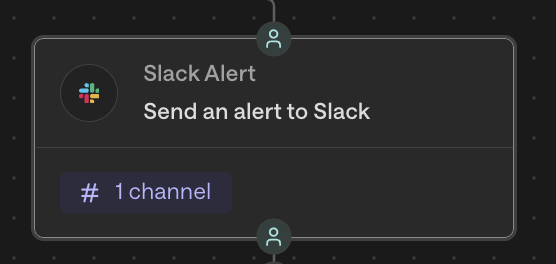
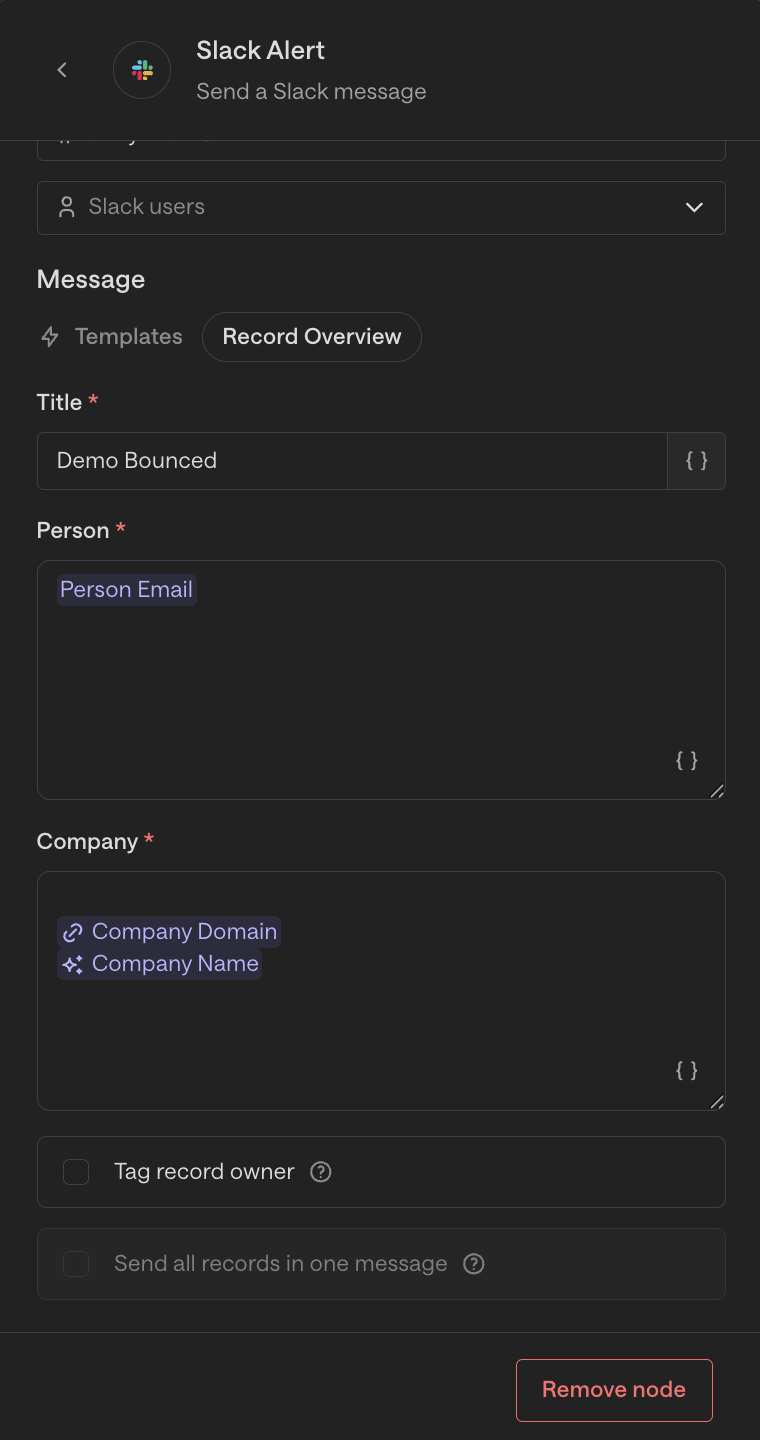
Add a "Slack Alert" node to your play
Configure the Slack channel and message content
Configure your Play's run frequency setting to control how often alerts fire for the same visitor or account. If set to "run once," you'll only receive one alert per visitor/account regardless of subsequent visits. To receive alerts for repeat visits, set the Play to run on a recurring schedule (e.g., "run every 7 days").
Note: Slack notifications will reveal company-level information only, not individual contact details, when notifying about website visits from contacts at tracked accounts.
For CRM Sync:
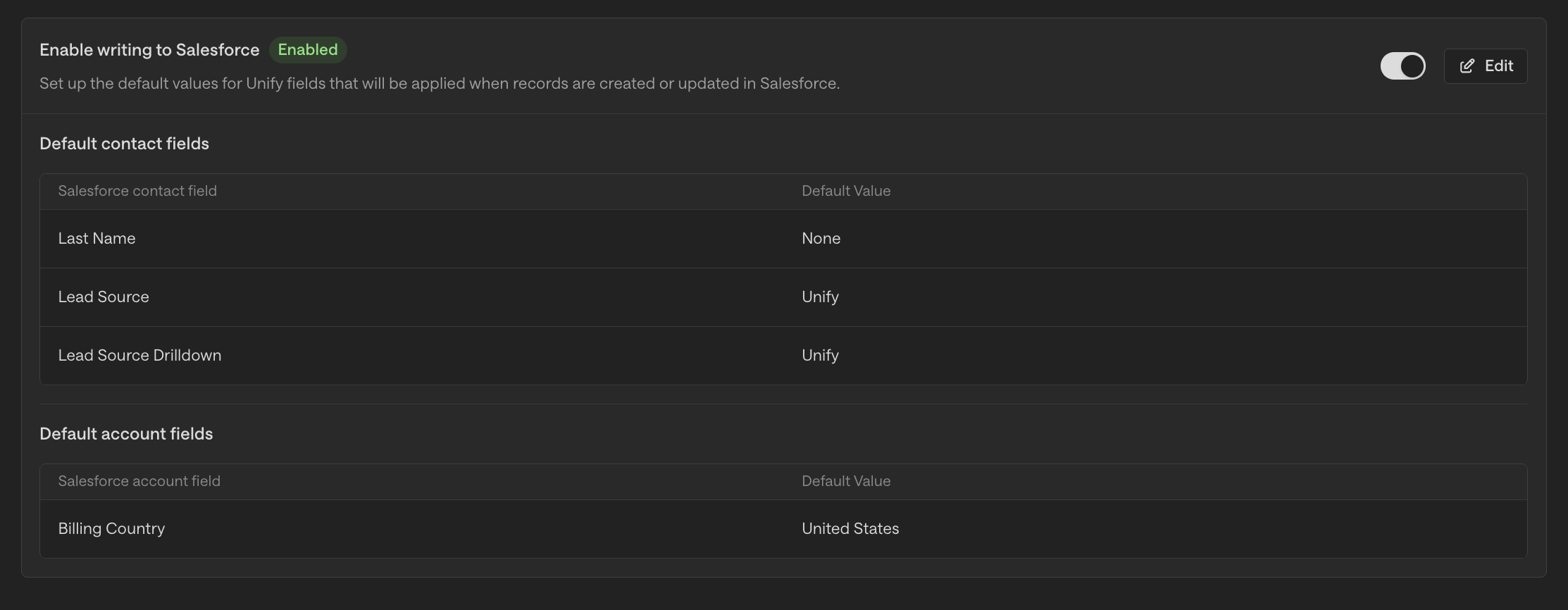
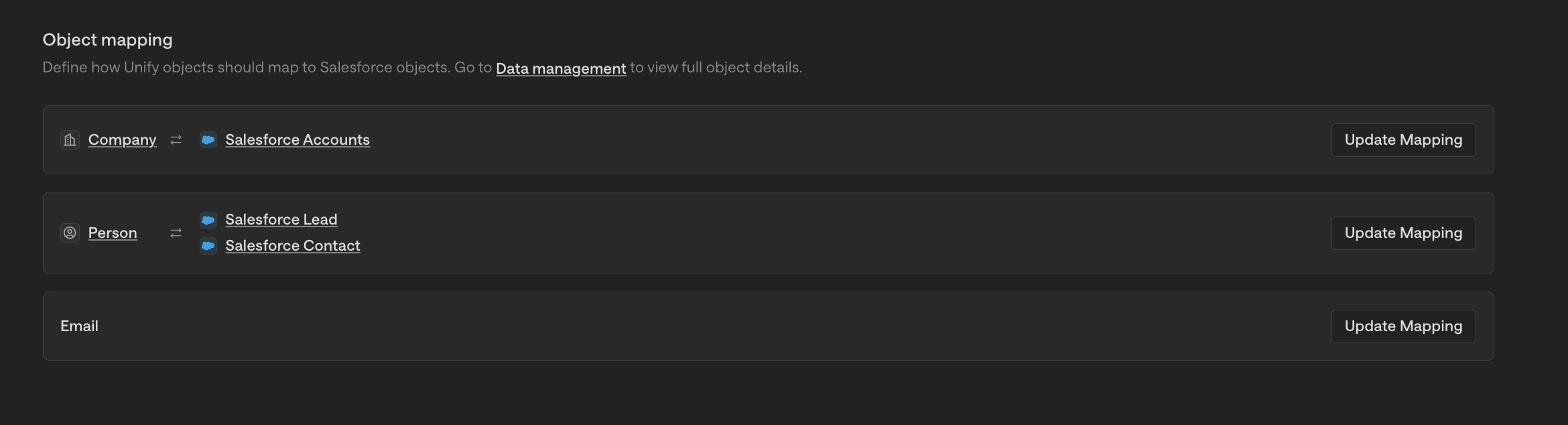
Add a CRM sync node to your play. You'll see either "Sync to Salesforce" or "Sync to Hubspot" depending on which CRM integration is active for your Play context (not both simultaneously)
Configure the Salesforce or Hubspot fields you want to update
Note: Email activity will automatically log to HubSpot even without a sync node. The sync nodes are primarily needed for syncing other contact and company data fields.
Important: Product usage data captured by the Unify web tag does not sync to Salesforce as activity records. While Unify tracks product page views and associates them with companies for prioritization, these website intent and product usage signals remain in Unify only. The Salesforce integration syncs contacts, accounts, and email messages from sequences, but not product usage activity.
For detailed instructions on configuring specific nodes:
Salesforce Reporting Limitation for Email Sync
Salesforce “Created By” Field Limitation: Emails logged to Salesforce from Unify will show “Created By: System User” rather than the individual rep. This is standard Salesforce behavior for records created via API integrations and cannot be changed.
Workaround for Accurate Reporting: Unify does pass the actual sender information in other fields such as Task Owner or your mapped rep fields. When building reports or dashboards, use these fields instead of the “Created By” field to accurately track activity by rep.
Salesforce Email Sync Configuration Requirements
When setting up email syncing to Salesforce through Plays, proper configuration is critical to ensure email replies sync with complete content and accurate timestamps.
Enable Email Message Writeback in your Salesforce integration settings
Verify that Salesforce Enhanced Email is turned on in your Salesforce instance
This configuration writes replies to the Salesforce
EmailMessageobject with complete email content and proper “Sent At” timestamps
When someone replies to an email, Unify creates a follow‑up task with a due date. These tasks sync bi‑directionally with Salesforce as separate Task records from the email message itself. Ensure task syncing is enabled in your integration settings so follow‑up tasks (with their due dates) appear correctly in Salesforce.
If email replies are syncing to Salesforce but missing content or showing incorrect timestamps, verify that both Email Message Writeback and Enhanced Email are properly configured. This is the most common cause of incomplete email sync data in Salesforce integrations.
HubSpot Sync Timing Expectations
When setting up HubSpot syncs via Plays, understand the timing expectations:
The HubSpot sync process involves two cycles:
Initial sync from Unify to HubSpot (~30 minutes)
Linking back from HubSpot to Unify (~30 minutes)
Allow up to 60 minutes for the complete sync and linking process
HubSpot Integration Prerequisites for Play Syncing
Required Integration Settings
Verify your integration settings at Settings → Integrations → HubSpot
Ensure the "Enable writing to HubSpot" toggle is enabled
Review your field mappings to confirm which properties Unify can write to HubSpot
Without proper integration settings, Play-level sync nodes will fail even if configured correctly
Troubleshooting Sync Failures
Check that "Enable writing to HubSpot" is toggled on in your integration settings
Verify field mappings exist for the properties you're trying to sync
Confirm the Play-level sync node configuration matches available mapped fields
HubSpot Sync Limitation
Unify cannot overwrite existing fields in HubSpot through sync nodes. Data will only be written to HubSpot fields on the first sync when the field is empty.
Company owner assignments cannot be updated if already populated
Contact properties with existing values won’t be modified
Deal fields with current data remain unchanged
Export the affected records from HubSpot
Clear the relevant fields in HubSpot that need updating
Re‑import the records into Unify to trigger a fresh sync
The Play will now be able to write to the previously populated fields
Test your sync logic with records that have existing data
Document which HubSpot fields are already populated before setting up Plays
Consider this limitation when designing automated workflows that depend on field updates
Best Practices:
Don't expect immediate sync results when testing HubSpot Plays
Plan your workflows accounting for the 60-minute sync window
Monitor both HubSpot and Unify to verify successful completion of both cycles
Slack notifications: Slack Alert documentation
Hubspot sync: Sync to Hubspot documentation
Salesforce sync: Sync to Salesforce documentation