How do plays run in order?
Last updated: May 1, 2026
Context
When running multiple plays, you may want to understand how the system prioritizes and orders them, particularly for both one-time plays and "always-on" plays like those targeting website visitors.
Answer
The order in which plays run depends on the type of play:
One-time Plays:
Plays run based on when you launch them
Actual email delivery timing depends on:
Existing mailbox backlogs
Send schedule rules
Always-on Plays:
Companies are enrolled when they meet the qualifying criteria (e.g., X page visits in the past 7 days)
The system will find eligible contacts who aren't already in sequence from other plays
Contacts may not be enrolled due to several factors:
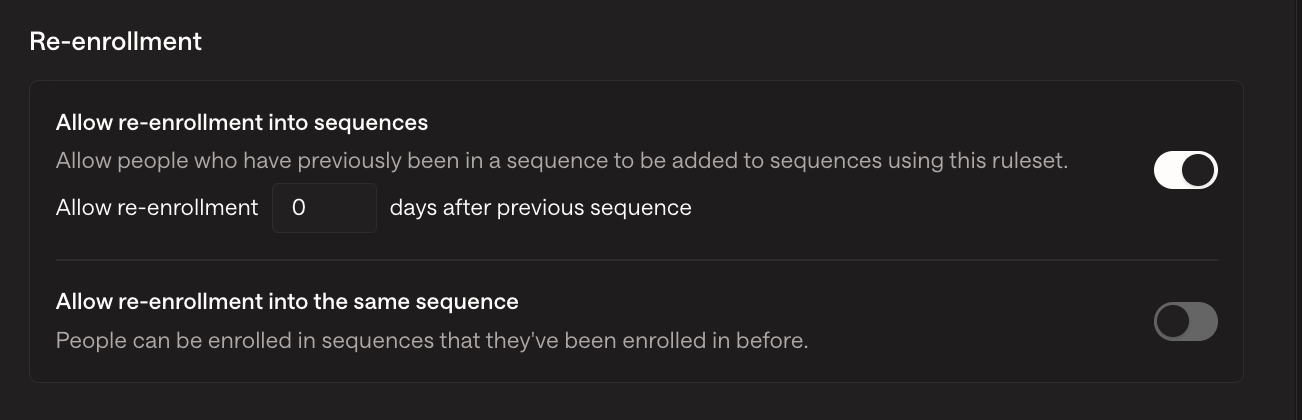
Recent enrollment restrictions: By default, contacts cannot be re‑enrolled in a new sequence for 75 days after their last enrollment
Opt-out status: Contacts who have opted out of communications will be excluded
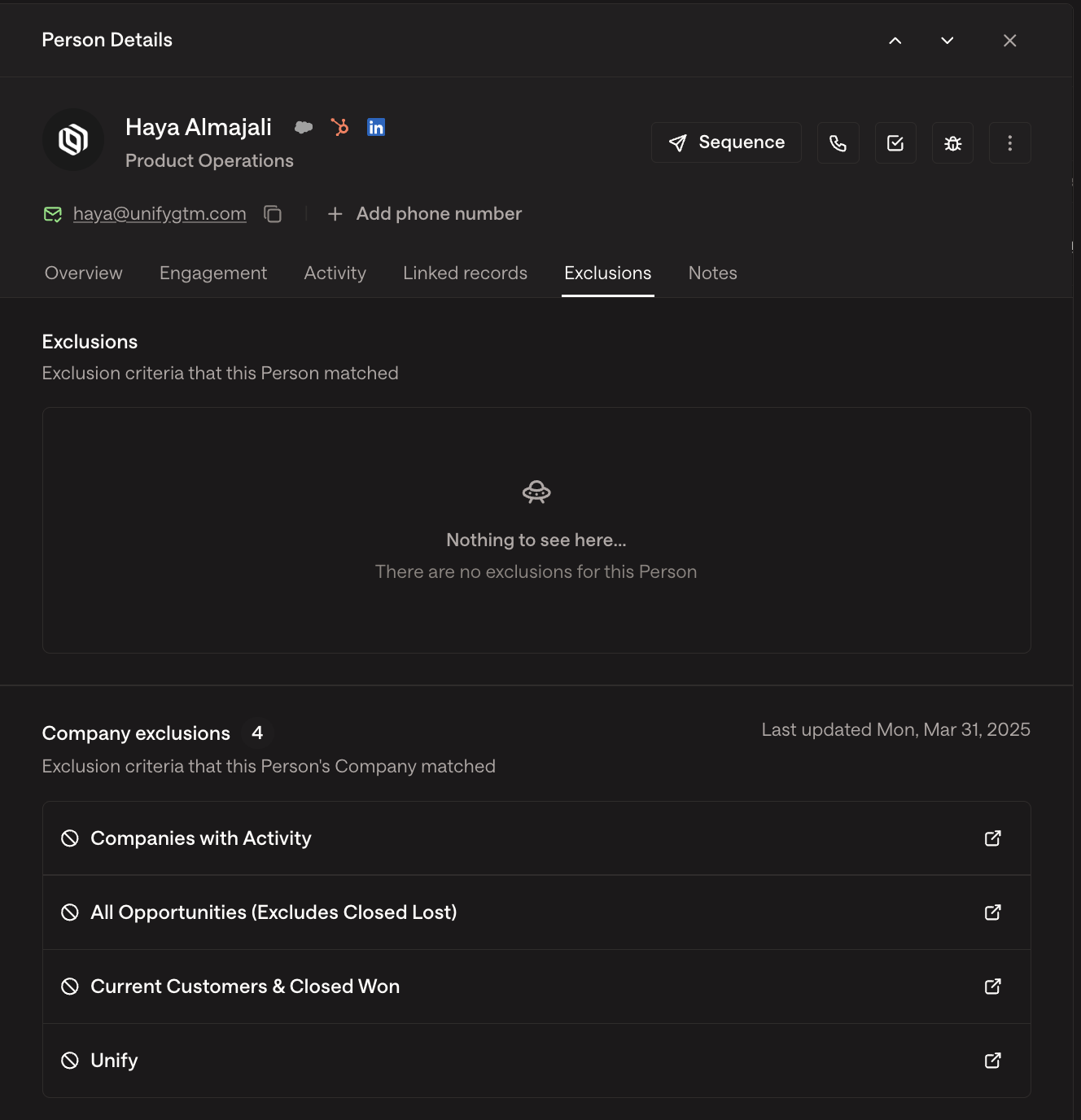
Exclusion rules: Contacts matching your organization's exclusion criteria will be filtered out
Already enrolled: Contacts currently active in other sequences will be skipped
Configuration issues:
If enrollment fails with "No routing target", this means the play's routing configuration is missing a valid path for the contact's persona or criteria. To resolve this, edit the play's sequence enrollment node, ensure routing is configured for all relevant personas, and consider adding a default "Everyone else" routing option to catch contacts who don't match specific personas
If the Prospect step returns "None found", no contacts matching your specified personas were found at the company, even though the company qualified for the play. This can occur when job titles at the company don't match your persona criteria, or when the company has limited data coverage. Review your persona title keywords and consider adding variations to improve matching
If contacts are returned “None found” despite having matching job titles, the cause is often overly restrictive persona targeting beyond simple title matching. Persona definitions that are too narrow in seniority levels, department combinations, or specific role requirements can block discovery. To resolve, broaden your persona criteria by relaxing seniority or department constraints, or use the recommended prospecting option to improve contact discovery.
Note: The default re‑enrollment restriction is 75‑90 days and can be customized in Settings > Organization > Sequences > Rulesets. Adjust the minimum days between enrollments or disable the restriction entirely.
When configuring re‑enrollment restrictions in Settings → Organization → Sequences → Rulesets, note that this protection applies only to Unify sequences and does not affect external HubSpot sequences. Consider whether bypassing these protections aligns with your outreach strategy before making changes.
Re‑enrollment is governed by two independent settings: a time‑based restriction (default 75–90 days) that blocks any new sequence enrollment for the specified period, and the “Allow re‑enrollment into the same sequence” toggle, which controls whether contacts can re‑enter a sequence they have already completed. Both settings must allow re‑enrollment for a contact to be eligible to re‑enter a sequence they have previously completed.
Only users with admin permissions can modify ruleset settings, including the “Allow re‑enrollment into the same sequence” toggle.
Simultaneous enrollment can be enabled or disabled independently of the re‑enrollment timeframe. To allow contacts to be in multiple sequences at the same time, adjust the “Allow enrollment into multiple Sequences” option in Settings > Organization > Sequences > Rulesets. For immediate remediation, clone the play and re‑run it after updating the settings.
Troubleshooting Play Enrollment Failures
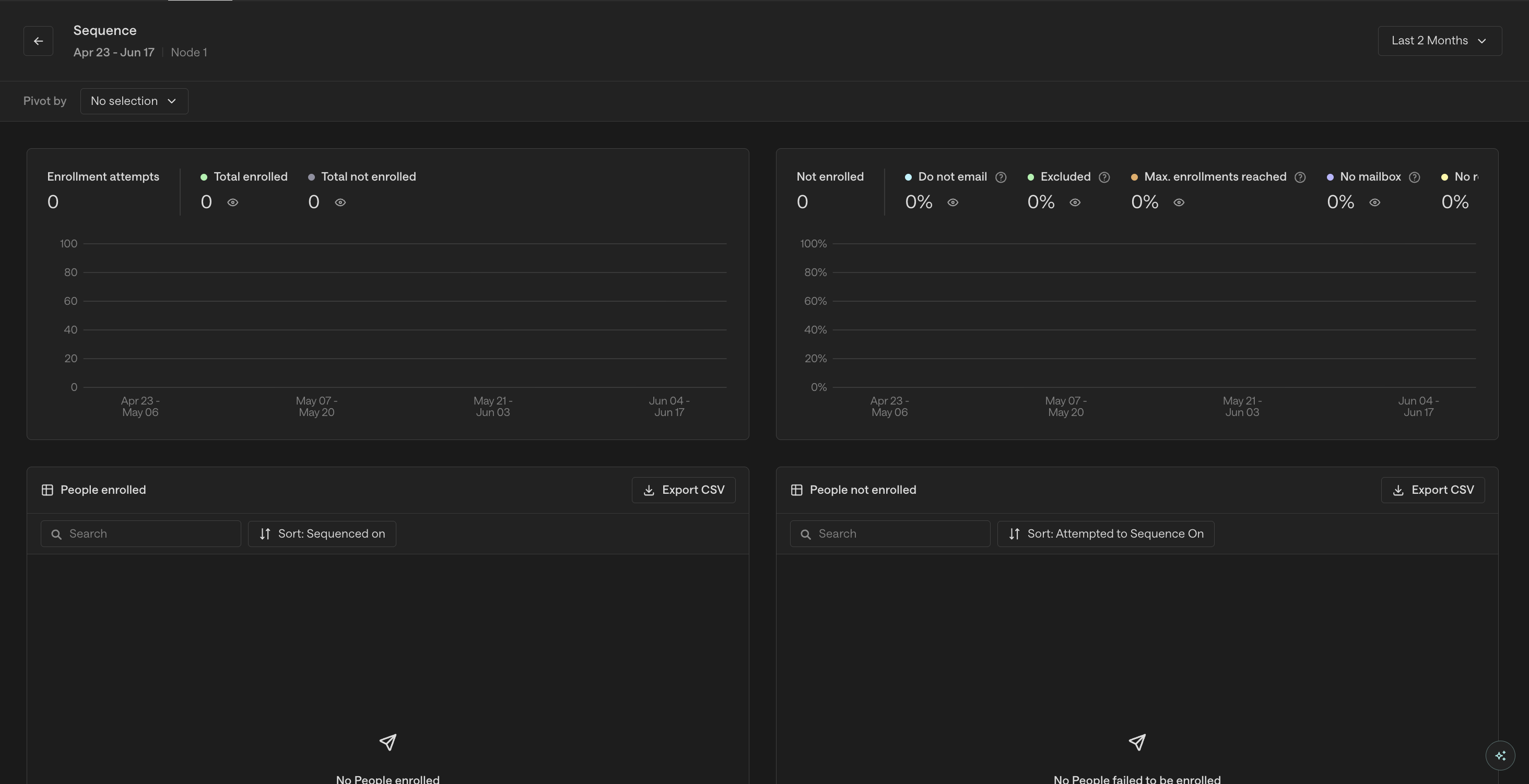
When contacts fail to enroll after launching a play or uploading a list, check the sequence's Enrollments tab for a Not Enrolled breakdown that shows the specific rule or limit blocking each contact. Note that enrollment counters can lag 30‑60 minutes during eligibility checks, so allow time for the system to complete evaluation before investigating discrepancies.
Reassigning Queued Enrollments to Different Mailboxes: If you need to change the outbox for contacts already queued in a sequence (for example, to bypass rate limiters or distribute load across mailboxes), navigate to Email Backlog → scroll to Reassign Sequence enrollments → click Reassign Enrollments for your sequence → select the new mailbox(es) and save. Note that this reassignment feature only works for queued enrollments, not for emails already sent or in progress.
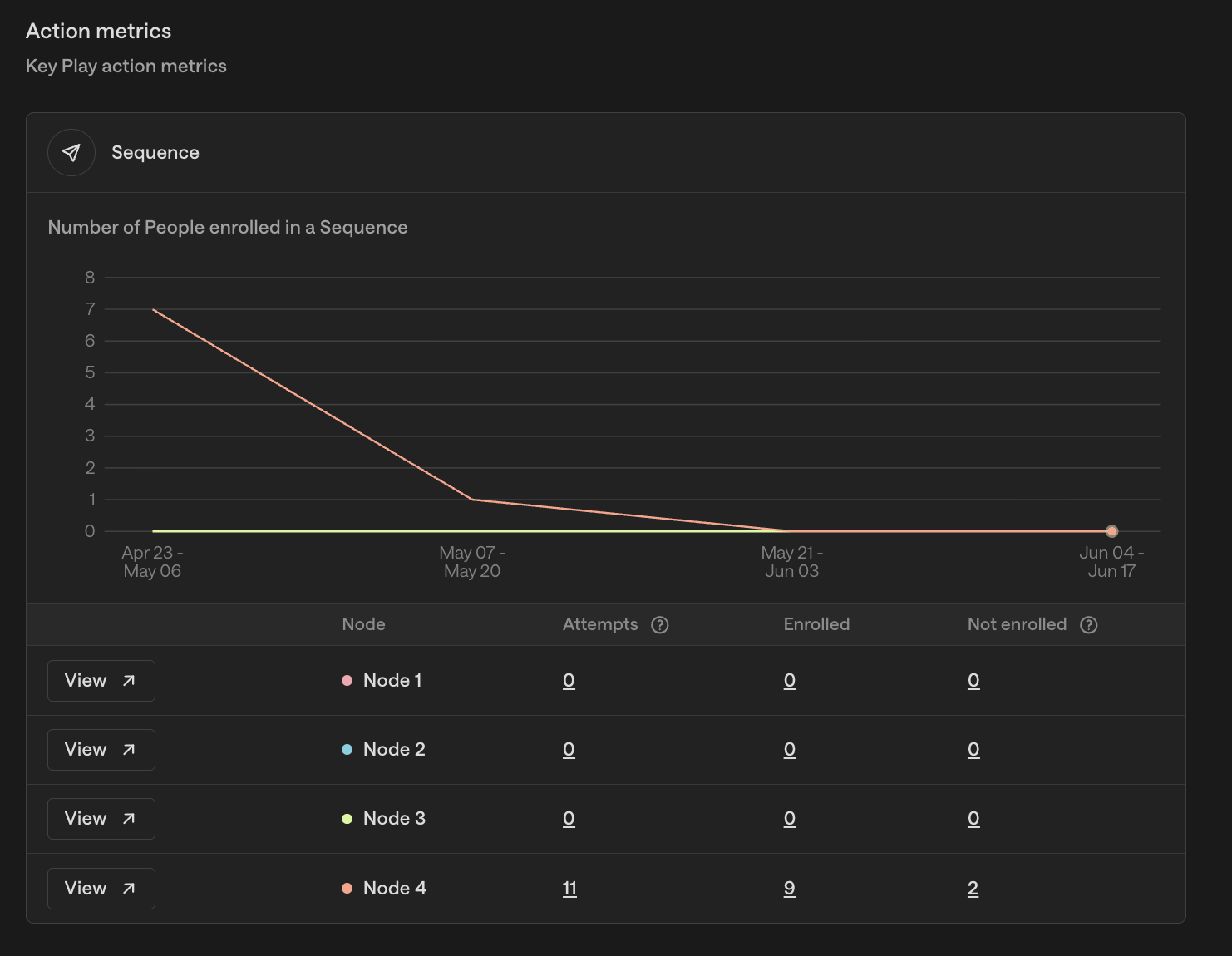
To diagnose why specific contacts weren’t enrolled in a play, open the play and navigate to Metrics → click the Sequence node (or the “Not Enrolled” count) to see who was enrolled versus not enrolled and the specific reason per contact. You can also review the Execution Logs in the Play Builder for detailed enrollment information.
When always-on plays aren't enrolling contacts as expected, several additional factors beyond basic configuration issues can cause enrollment failures:
Always-on Play Re-run Configuration
For always-on plays, you can configure them to re‑run every 30 days by enabling a specific toggle in the play’s settings. This allows the play to re‑evaluate and re‑enroll eligible contacts on a regular cadence, working in conjunction with your organization’s sequence re‑enrollment settings.
When re‑enrolling contacts into sequences, the enrollment behavior differs depending on whether you use the same sequence or a duplicate:
Enrolling into the same sequence: Contacts will resume from their next step in the sequence, not start over from step 1
Enrolling into a duplicated sequence: Contacts will start from step 1 of the new sequence
Choose the appropriate approach based on whether you want contacts to continue their journey or restart the entire sequence.
Open your always‑on play
Click the settings icon in the top right corner
Enable the re‑run toggle
This play‑level setting operates independently of your organization’s default 75‑day re‑enrollment restriction, giving you more granular control over how frequently your always‑on plays can re‑engage contacts.
Exclusion Conflicts: Exclusions operate at two distinct levels, and both must be configured correctly for successful enrollment:
Global exclusions (Settings → Organization → Exclusions): Each exclusion has an “Exclude from Sequences” toggle that blocks enrollment across all sequences when enabled
Ruleset-level exclusions (Settings → Organization → Sequences → Rulesets): Each ruleset has sequence‑specific toggles for exclusions
If contacts aren't enrolling despite meeting criteria, verify that both levels allow enrollment. Disabling exclusions only at the ruleset level is insufficient if the global “Exclude from Sequences” toggle remains enabled. To resolve enrollment issues caused by exclusions, disable the “Exclude from Sequences” toggle in Settings → Organization → Exclusions for the relevant exclusion rules, then wait 30 minutes before re‑running the play to allow the system to process the configuration change.
Exclusion Removal and Automatic Eligibility: Once a contact is removed from an exclusion list or no longer meets the exclusion conditions, they become eligible for enrollment again on the next sync (typically 15–45 minutes). No additional “Allow re‑enrollment into the same sequence” setting is needed for contacts who were never enrolled in the sequence.
Identifying Which Exclusions Are Blocking Enrollment: If you experience enrollment drop‑off (e.g., 40 contacts in your list but only 30 enrolled), you can identify which specific exclusions are causing the issue by navigating to the sequence's Enrollments tab to see the Not Enrolled breakdown, which shows which rules are blocking contacts. You can also toggle individual exclusions on/off at both the global level (Settings → Organization → Exclusions) and ruleset level (Settings → Organization → Sequences → Rulesets) to see how the enrollment count changes. This allows you to pinpoint exactly which exclusion rules (such as “Customers” or “Open Opps”) are filtering out contacts. Remember to wait 30‑60 minutes after making changes before re‑running the play for the system to process the configuration updates and complete enrollment evaluation.
Paused Sequence Blocking: Contacts remain enrolled in sequences even when those sequences are paused, so pausing a sequence will not free up contacts for enrollment in new sequences. To resolve this, contacts must be actively removed from their current sequences before they can be enrolled in new ones.
Re‑enrollment Timing Details: The default restriction is 75‑90 days and can be adjusted in Settings > Organization > Sequences > Rulesets. You may change the minimum days between enrollments or disable the restriction entirely. The system still tracks the original enrollment date, so attempts to re‑enroll before the configured window will fail. If contacts aren't enrolling in always‑on plays despite meeting criteria, verify your organization's actual configured re‑enrollment period in Settings > Organization > Sequences > Rulesets, as it may have been customized to a longer duration than the default (e.g., 100 days).
To pinpoint which exclusion is blocking a contact in an always‑on play, open the Contacts page, search for the contact by email, open their record, and review the Exclusion tab. The tab lists each active exclusion rule applied to that contact.
The behavior of each exclusion depends on the “Remove from active sequences” toggle:
When enabled: contacts matching the exclusion are removed from any active sequences immediately, even if they are mid‑sequence.
When disabled: the exclusion only blocks new enrollments; contacts already in sequences remain unaffected.
When to disable the toggle: Some exclusions should only block entry, not remove contacts mid‑sequence. For example, if you use a “last sales activity” exclusion to prevent enrolling contacts who are already being worked, you typically want to keep the toggle disabled. This is because when Unify sends emails, it creates sales activity records. If the toggle were enabled, contacts would be removed from the sequence as soon as Unify sends them the first email, making the sequence ineffective. In general, disable the toggle for exclusions where Unify’s own actions (like sending emails or creating tasks) would trigger the exclusion criteria.
Daily sending or company-level enrollment caps: Contacts may be queued if your organization has reached daily sending limits or company-level enrollment caps.
Sequence‑Specific Ruleset Assignment: When troubleshooting exclusion‑related enrollment failures, verify which ruleset is assigned to the sequence.
Open the sequence and navigate to Settings → Ruleset.
Check the assigned ruleset; an exclusion may be enabled there even if disabled elsewhere.
Toggle exclusions in the correct ruleset when testing.
Multi‑CRM Opportunity Evaluation: Opportunity‑based exclusions evaluate data from all connected CRMs (e.g., Salesforce and HubSpot). A contact may be excluded if an opportunity exists in any linked CRM.
Scroll down on the account record to see active opportunities from all sources.
Exclusions apply to play triggers, not to direct list uploads.
Understanding “Queued” vs. Excluded Status: Contacts matching exclusion criteria may appear as “queued” but will be automatically skipped at send time.
Exclusions are checked when the sequence attempts to send, not at enrollment.
No manual removal is required; they will be omitted automatically.