How to set default field values when a Play creates records in your CRM
Last updated: June 17, 2026
When Unify creates new records in Salesforce or HubSpot through a Play, you can set default field values on a per-Play basis instead of globally. This is useful when you need different defaults for different business verticals, segments, or campaigns.
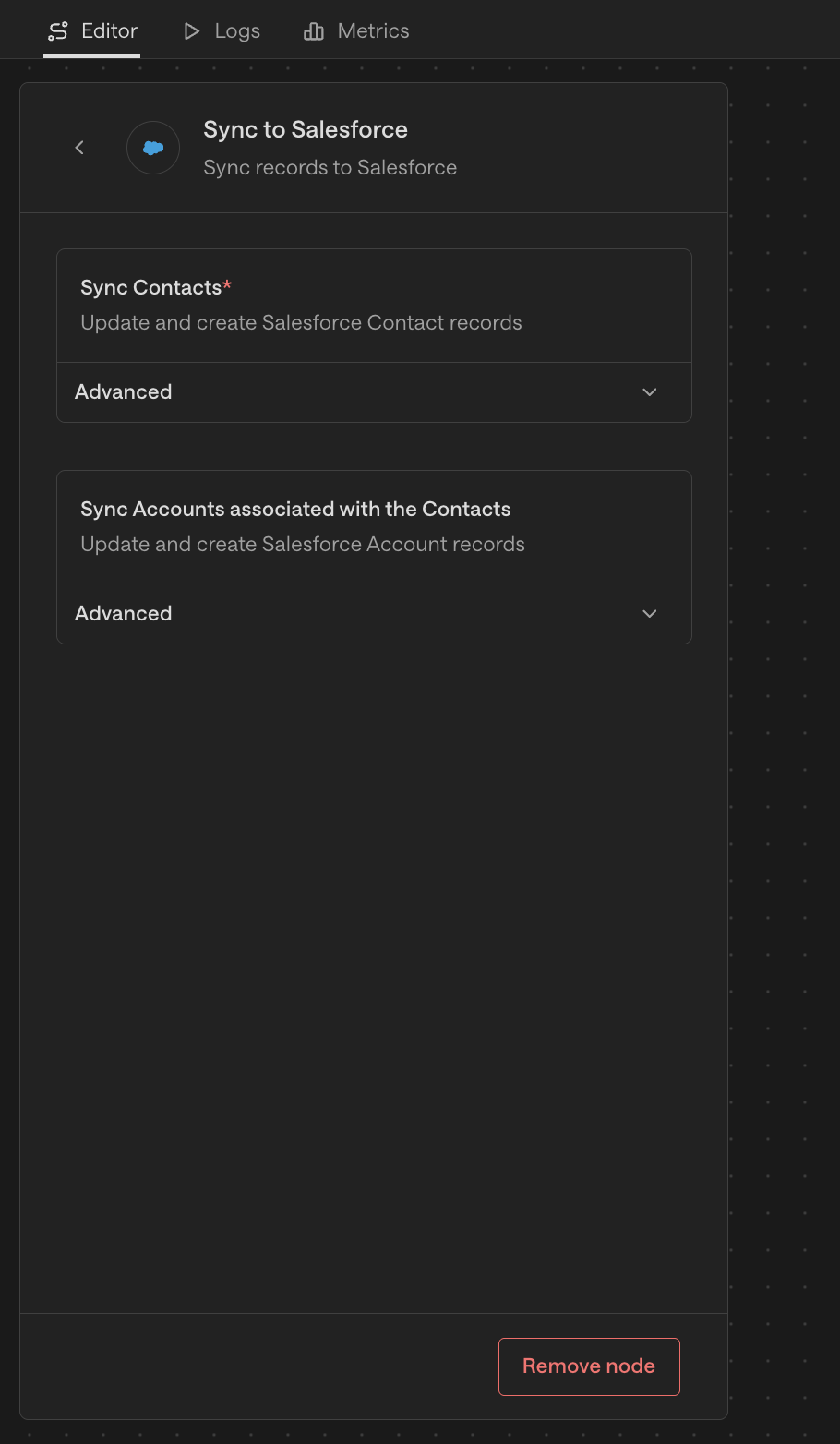
Where to set default values
Each Play that writes to your CRM uses a Sync to Salesforce or Sync to HubSpot action. Default field values are configured on that action:
Go to the Plays tab and open the Play you want to configure.
Locate the Sync to Salesforce or Sync to HubSpot action node in the Play.
Click the node to open its settings.
Find the Default values section in the node configuration.
Add the fields and default values you want applied to records created by this Play.
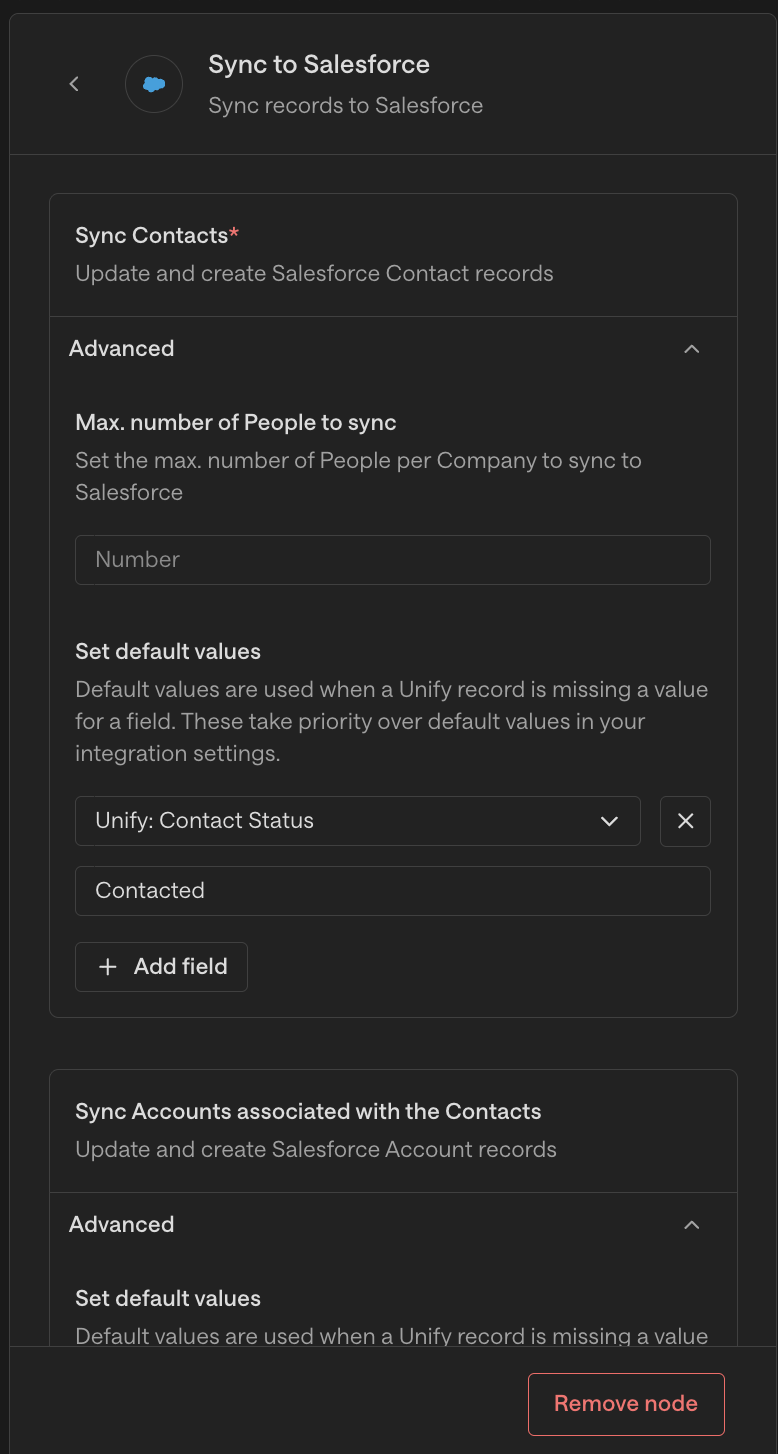
Save and publish.
What you can set
You can set defaults for any field on the target CRM object (Account, Contact, or Lead in Salesforce; Company or Contact in HubSpot). Common examples:
A static value (e.g.,
Lead Source = "Unify - Outbound Q3").A reference to a field already on the contact/account/lead object.
An
OwnerId(or HubSpot Owner) — useful for routing new records to a specific rep automatically.
When this is useful
Per-vertical defaults. Set
Industry,Account Tier, or campaign tags differently for each Play based on which vertical it targets.Campaign attribution. Tag records with the campaign name on creation so Salesforce reports attribute them correctly.
Default ownership. Assign new Accounts to a specific Salesforce User by setting
OwnerId— otherwise the Salesforce integration user may be assigned by default.Lifecycle stage. Set HubSpot lifecycle stage to a specific value when Unify creates new contacts.
A note about scope
Defaults set in a Play's Sync action only apply to records newly created by that Play. They do not retroactively update existing CRM records. If you need to update existing records, please contact Unify Support.