Random Snippets (Spintax)
Last updated: April 2, 2026
Goal: Rotate copy variants automatically to protect deliverability and keep outbound fresh.
Overview
Random Snippets (also called spintax) let you define multiple copy variants for a single snippet and randomly serve one per email at send time. When a sequence step uses a Random Snippet, each recipient receives a different version of that text — no two sends are identical.
This is especially useful for high-volume outbound, where sending the same copy to hundreds of contacts in a short window can trigger spam filters and push bounce rates above 80%. Random Snippets break that pattern by introducing natural variation at scale, without requiring you to manually duplicate and edit sequences.
When to use Random Snippets
Use Random Snippets when:
You're running high-volume sequences and seeing elevated bounce rates or spam flags
You want to rotate opening lines, CTAs, or sign-offs without managing multiple sequence versions
You previously relied on manual Smart Snippet workarounds to introduce variation
Creating a Random Snippet
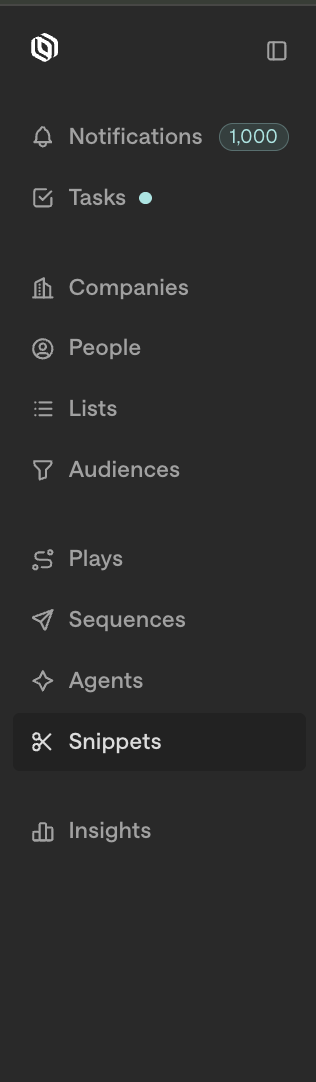
Navigate to Snippets in the sidebar.
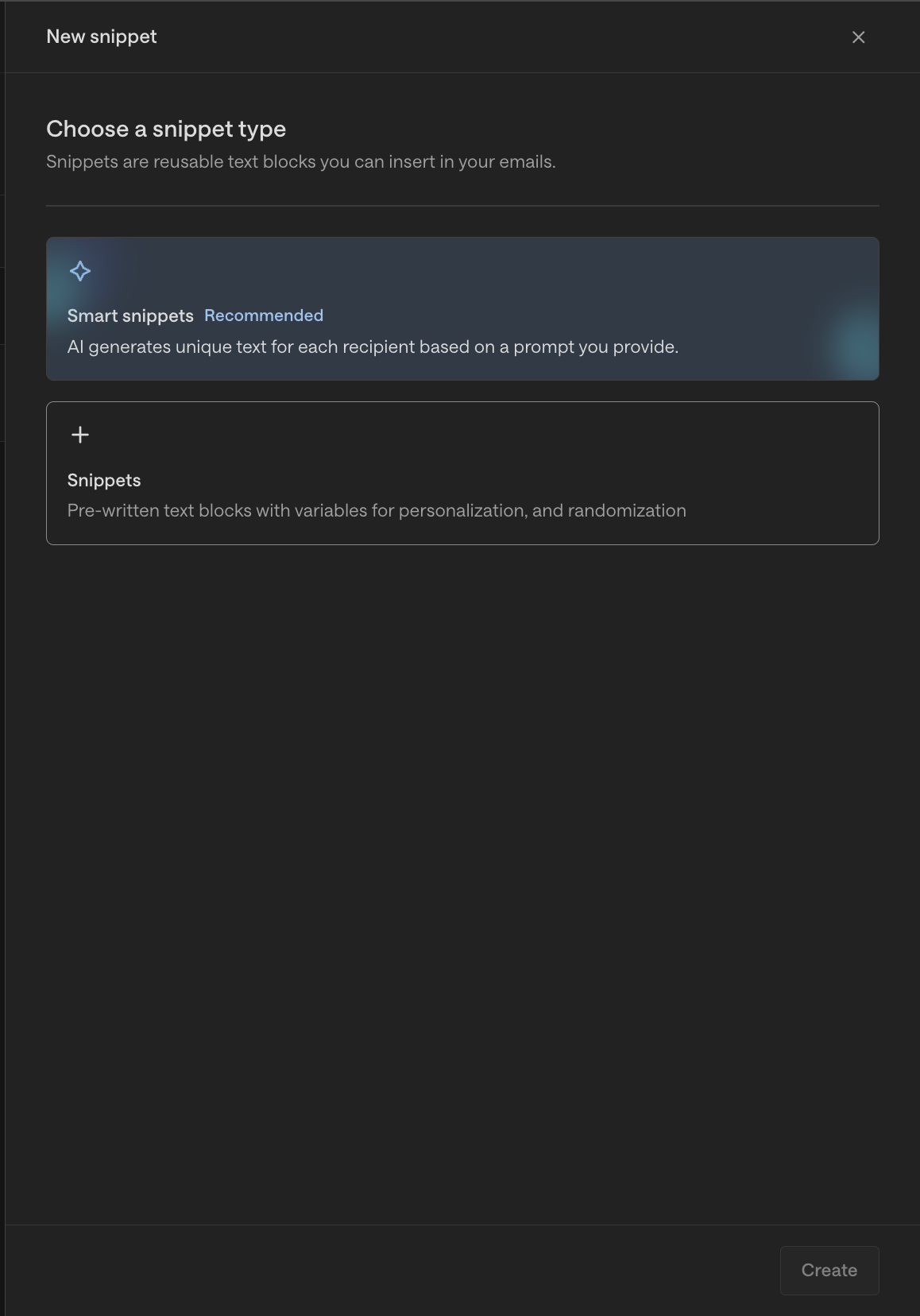
Click New Snippet and select Snippet as the type.
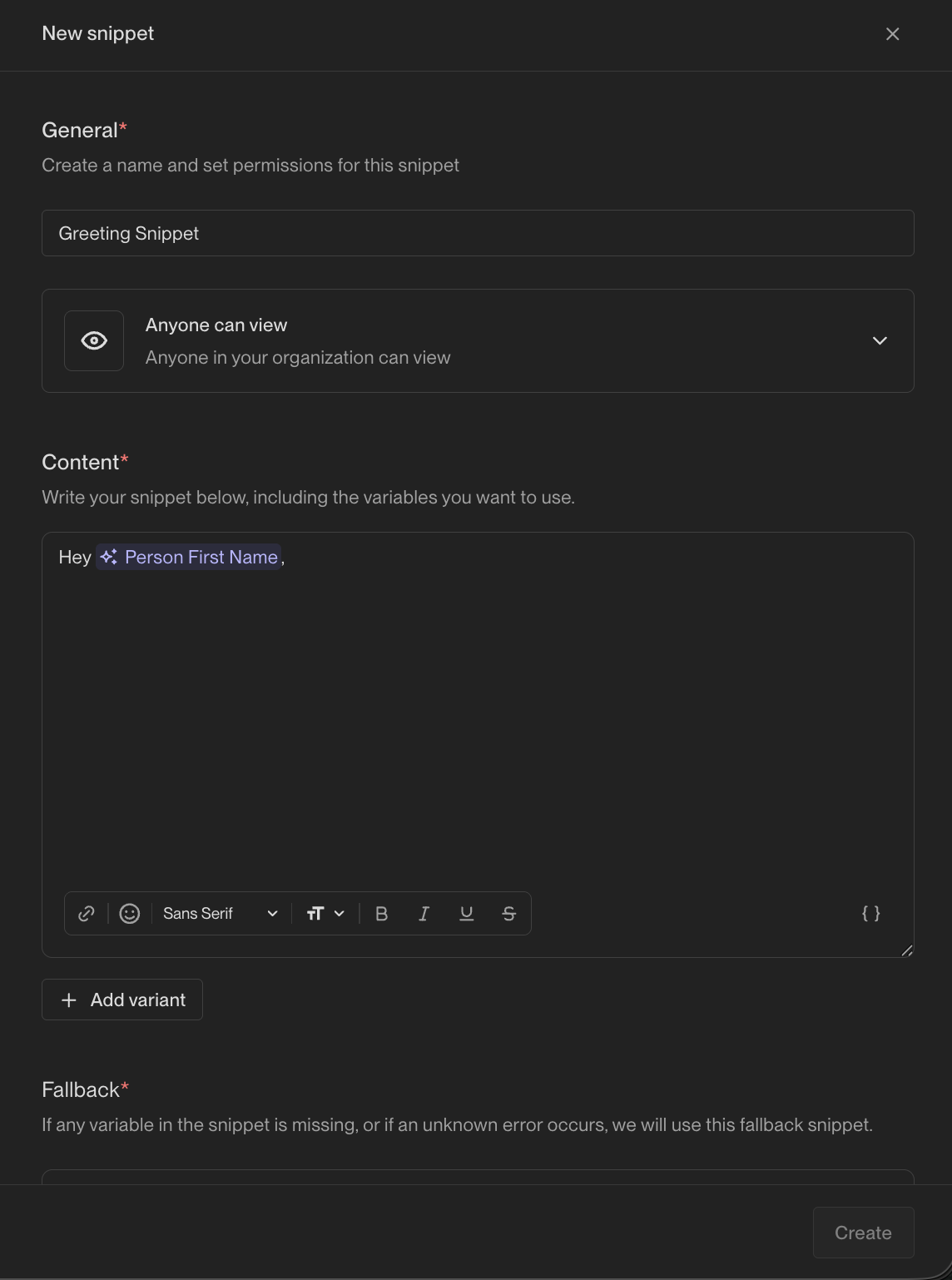
Enter your first variant in the text field.
Click Add variant to add a second version. You can add as many variants as you need — each can be multi-line.
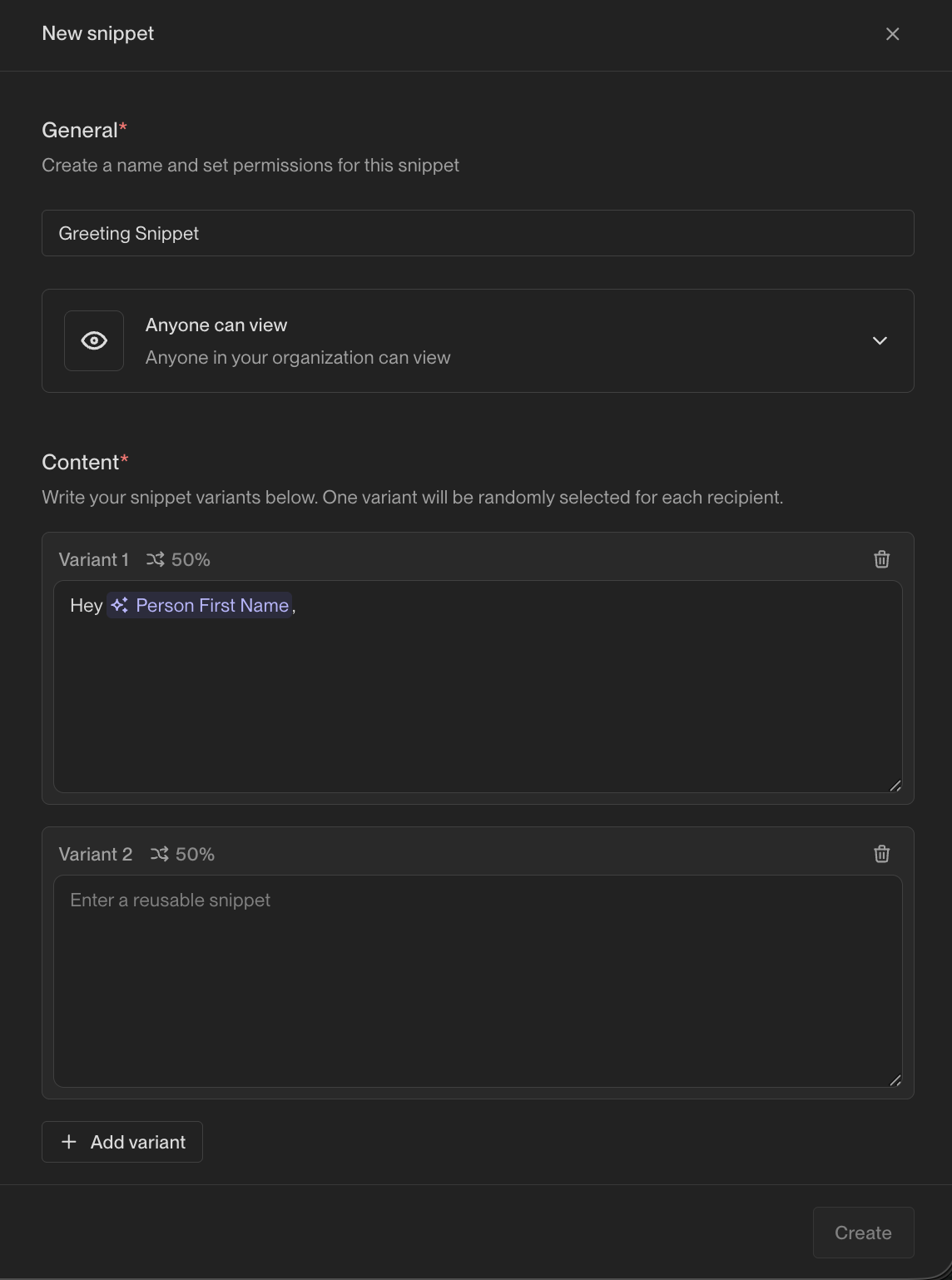
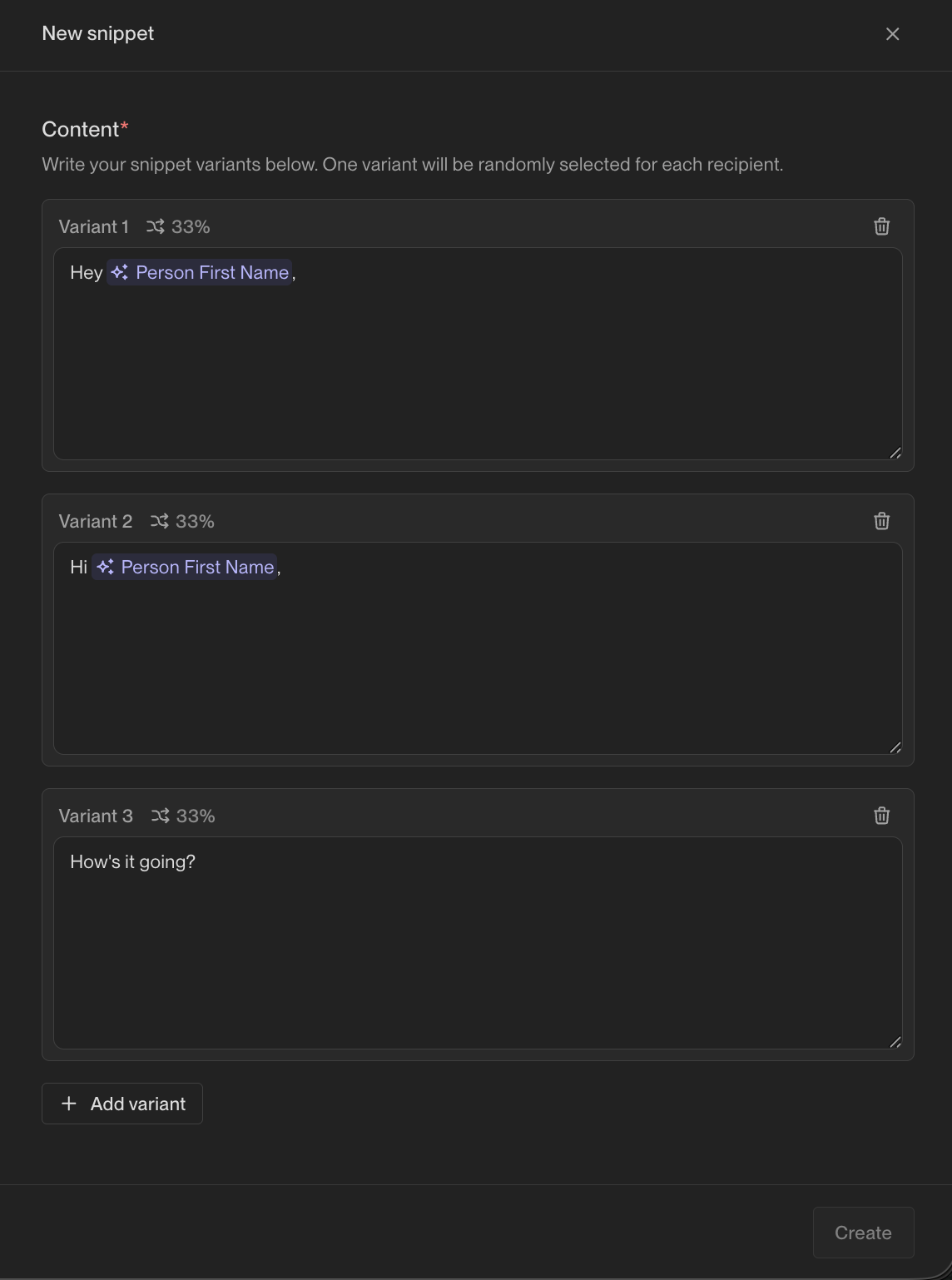
Give the snippet a descriptive name (e.g., Opening line — Q2 outbound) so it's easy to find later.
Click Save.
Tips for writing good variants:
Aim for 3–5 variants per snippet for meaningful rotation
Vary more than just a single word — different sentence structures signal more natural variation to spam filters
Good candidates: opening lines, hooks, CTAs, sign-offs, or any high-repetition phrase in your copy
Inserting a Random Snippet into a sequence
Open a sequence and click into the email step where you want to add the snippet.
Place your cursor where the snippet should appear.
Click the scissors icon in the bottom-right of the email editor.
Select Snippets, then choose your Random Snippet from the list.
The snippet token will appear inline in your email step.
To review your variants before sending, use the preview in the sequence editor — it cycles through one variant at a time. Check each variant to confirm they all read naturally in context.
How it works at send time
When a sequence sends an email that contains a Random Snippet, Unify randomly selects one variant for each recipient. Selection is independent per send — the same contact won't always receive the same variant if re-enrolled, and two contacts enrolled at the same time may receive different variants.
Random Snippets can be combined with Smart Snippets and template variables in the same email step.
FAQs
How many variants can I add?
There is no hard limit. In practice, 3–5 variants per snippet provides meaningful rotation without becoming difficult to manage.
Can I use a Random Snippet in multiple sequences?
Yes. Random Snippets work like any other snippet — create it once and insert it into as many sequence steps as you want.
Will the preview show all my variants?
The sequence preview cycles through variants one at a time. Use the preview controls to step through each variant and confirm they all look correct.
Does this work with Smart Snippets?
Random Snippets and Smart Snippets are different snippet types. You can use both in the same email step, but they are created and managed separately.
Can I tell which variant a contact received?
Not currently. Variant-level send analytics are not available at this time.