How to Manually Add or Enroll Contacts in Unify
Last updated: May 1, 2026
There are several ways to manually add contacts to an audience or enroll contacts into sequences in Unify, depending on whether the contact already exists in the system or not. Here's how you can handle different scenarios:
For Existing Contacts in Unify
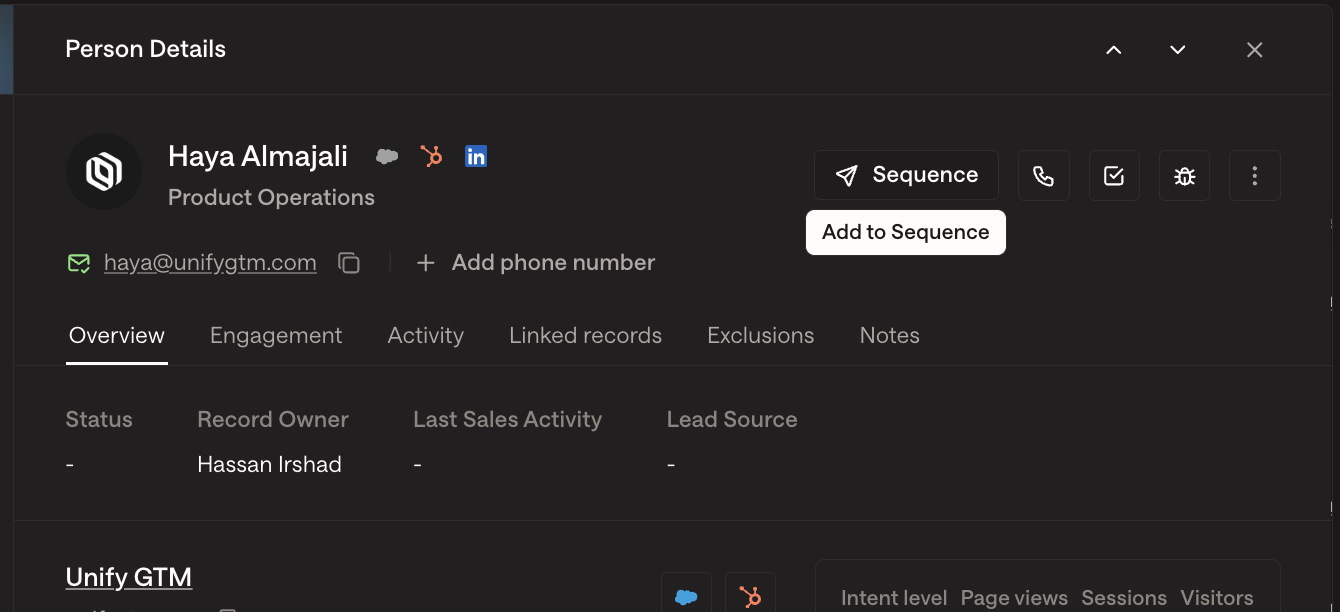
Search the contact in the People tab and click into the account record.
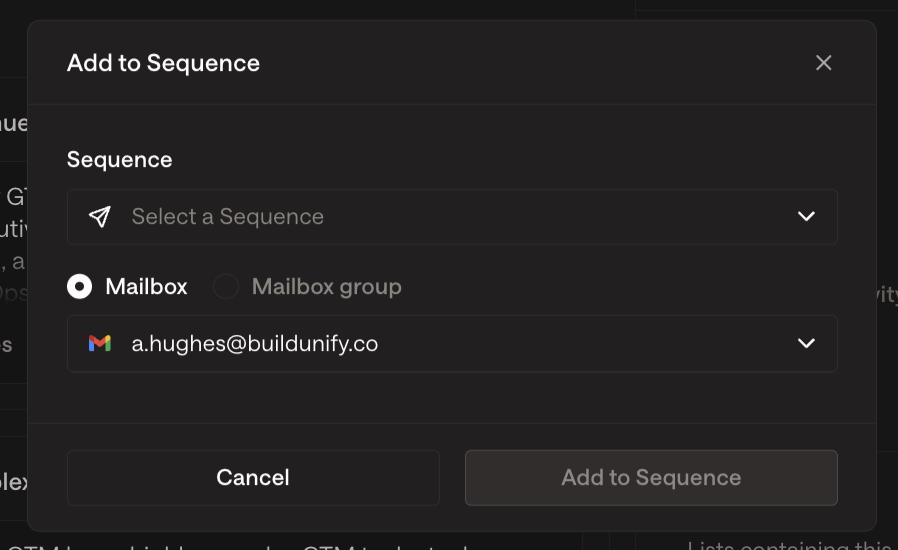
At the top right of the contact page, you can click into 'Sequence' to select the sequence to enroll the contact into and the mailbox the sequence should be sent from.

The contact will be scheduled for the next available slot. Note that this email may not be sent immediately depending on the existing backlog on that mailbox and your set send schedule. More details on why an email may be scheduled in the future can be found here.
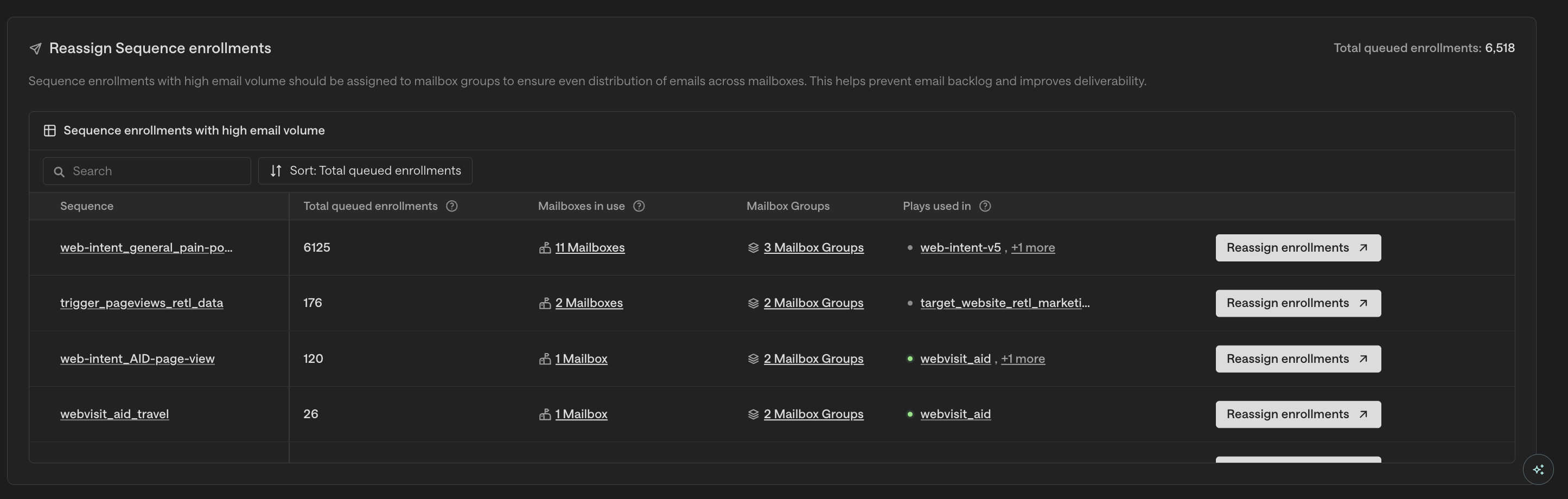
Changing outboxes for queued enrollments: If you need to change the outbox for contacts already enrolled in a sequence (for example, to bypass rate limiters or redistribute email load across mailboxes), you can reassign queued enrollments without unenrolling contacts:
Navigate to Email Backlog
Scroll to Reassign Sequence enrollments and click Reassign Enrollments for your target sequence
Select the new mailbox(es) and save
Note: This reassignment feature only works for queued (not yet sent) enrollments. Emails that have already been sent cannot be reassigned to a different mailbox.
Mailbox activation requirement: If you are using a newly configured mailbox for a sequence, make sure the mailbox owner has signed in to Unify to activate the mailbox before enrolling contacts. Emails cannot be sent from mailboxes whose owners haven’t completed their initial sign‑in, which can prevent enrolled contacts from receiving any emails.
Understanding mailbox warming periods and readiness verification: Beyond the initial sign‑in requirement, newly configured mailboxes require a warming period before they're ready to send at full capacity. Warming typically takes 1 week when changing a sender name (e.g., moving from one BDR to another) and 2–3 weeks when creating new mailboxes or domains from scratch. To verify if a mailbox is ready to send, check if it appears greyed out in the mailbox selection dropdown—greyed out mailboxes are not yet available for sequence enrollment. Note that the “warming status” field in the UI may not always be populated even when mailboxes are ready, so rely on whether the mailbox is selectable (not greyed out) rather than the warming status indicator when determining readiness.
Reconnecting unauthorized or disconnected mailboxes: If a mailbox shows as unauthorized or disconnected:
Navigate to Settings → Mailboxes
Select New Mailbox (or select the disconnected mailbox to re‑authenticate)
You’ll be redirected to Gmail’s authorization page—select the correct mailbox and click Allow
You’ll be returned to the mailbox settings page where you can confirm the status is connected
The mailbox owner must also sign in to Unify at least once to activate the mailbox before it will appear as a sending option in sequences
Understanding OAuth session timeouts: Google Workspace mailboxes can become disconnected when the OAuth session times out. This is normal OAuth expiration behavior, not due to platform changes, password changes, or permission revocations.
Reconnection timing: The mailbox re-authentication process takes approximately 30 seconds per mailbox. This timing is helpful to know when planning bulk mailbox reconnections or troubleshooting multiple disconnected accounts.
Automatic email resumption: Once the mailbox is successfully reconnected, queued emails will automatically resume sending according to their original schedule without manual intervention.
Important mailbox ownership distinction: The reconnection steps above apply to customer-owned mailboxes (on your company's own domain), which must be reauthorized by the customer who owns the Google account. Unify support cannot access these to reauthorize them. For Unify-managed mailboxes (on Unify-provided domains), Unify's mailbox operations team can reauthorize without customer action. If you're unsure which mailboxes are which type, share the list of unauthorized mailboxes with support to confirm ownership and get specific next steps for each.
Special case for Google Workspace domain changes or migrations: If your organization recently changed Google Workspace domains or migrated accounts, Google may have invalidated the prior authorization grant. In this case, use “Add New Mailbox” with the same email address to replace the broken connection, rather than using the standard reauthorization flow above. See the migration reconnection guide for detailed steps.
Note that when a mailbox disconnects, Unify automatically pauses sequence enrollments scheduled to send from that mailbox until it’s reconnected.
To include these entities in an audience, follow these steps:
Create a new audience based on
domain(for companies) oremail(for individuals).Add the relevant domains or emails to the newly created audience.
For New Contacts Not in Unify
If the contact doesn't exist in Unify, you have two main options:
Add the contact to your CRM: There may be a slight delay given sync records in two cycles, taking up to 60 minutes, though this can take longer under heavy load. Note: Contacts must have an email address in HubSpot to sync to Unify. If your contact doesn't have an email, use the CSV upload method instead with alternate identifiers (e.g. name + company domain)
Upload a CSV File in People tab: Create a CSV file containing the new contact's information and upload it in the People tab. Note: CSV uploads create Lists, not Audiences.
For a successful CRM‑to‑Unify sync, each contact must have a valid email address and its associated account must have a domain; missing either can cause the sync to fail.
You can also use the Unify Chrome extension to manually add and enrich individual contacts directly. HubSpot users can install the extension to enroll contacts in sequences straight from HubSpot while viewing a contact record.
If you need to update or enrich contact details (such as adding LinkedIn URLs, phone numbers, or other information), make these changes in your connected CRM (e.g., HubSpot). The updated information will sync to Unify within 15 minutes during the next sync cycle.
If you need to create filtered sub‑audiences from your uploaded CSV List:
Finding Valid Email Addresses for Contacts
CSV upload with email enrichment: When uploading a CSV file in the People tab, enable the “enrich email” option. Include at minimum the contact’s First Name, Last Name, and either Company Domain or LinkedIn URL. Unify will attempt to find a valid email address for contacts with missing or invalid emails.
Browser extension on LinkedIn: Use the Unify browser extension on the person’s LinkedIn profile to enrich and pull a new email into Unify.
Note: If a contact was previously unenrolled from a sequence due to an invalid email or bounce, you’ll need to manually re‑enroll them after obtaining a valid email address.
Upload your CSV in the People tab (this creates a List).
Navigate to Audiences and create a new audience.
Use the “exists in list” condition and select your uploaded List.
Add relevant filters to segment the contacts (e.g., by role, region, or other fields from your CSV).
Publish the audience.
Tip: To make filtering easier, include a “Status” column in your CSV with a unique identifier (e.g., “MASTER_Q1_2026”) for all contacts. Map this to the Unify Status field during import, then use it as a base filter when creating your audiences.
After uploading a CSV in the People tab:
Common CSV upload issues: after uploading a CSV, you may notice fewer contacts than expected in your List. This typically occurs because:
Duplicate emails are automatically removed—only one record per email is kept.
Global exclusions filter out contacts with personal email domains (e.g., Gmail, Yahoo) or other excluded criteria.
Missing required fields—contacts must include an email address and first name for People uploads; rows without these fields are silently excluded.
Processing delays—counts may appear low immediately after upload while background processing completes (wait 5–10 minutes and refresh).
If you need to include personal email addresses, add a Company Domain column mapping personal emails to their parent companies (e.g., Gmail → google.com, Yahoo → yahoo.com) before uploading.
Navigate to the newly created List (CSV uploads automatically create Lists)
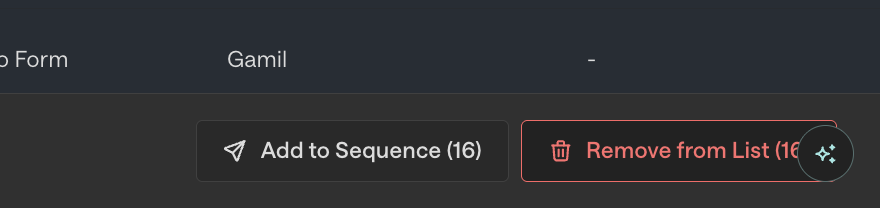
Mass select all the contacts you want to enroll
Click "Add to sequence" in the bottom right
Select your target sequence and mailbox
Troubleshooting Enrollment Issues
If you notice that fewer contacts than expected are enrolled in a sequence, this is typically due to automatic exclusions. Common reasons contacts may not be enrolled include:
Understanding bulk enrollment progress: When bulk enrolling contacts from a list or audience, the enrollment indicator shows “X / Y enrollments attempted” where the enrolled count (X) is significantly lower than the total selected (Y). This is expected behavior—not all selected contacts will successfully enroll due to the automatic exclusions listed below. The system evaluates each contact against eligibility rules, and the “attempted” number reflects contacts that were checked, while the enrolled number reflects those that passed all criteria. If progress appears stuck, check the sequence’s Enrollments or Not Enrolled breakdown for specific failure reasons before assuming there’s a system issue.
When bulk enrolling contacts from a list or audience, the enrollment counter may take 30–60 minutes to fully update while the system evaluates each contact’s eligibility. Allow time for this evaluation process to complete before troubleshooting enrollment issues, as the system needs to check each contact against all exclusion rules and eligibility criteria during this period.
Recently enrolled contacts: Contacts enrolled in the same sequence within the last 75 days (default re‑enrollment period). Note: This 75‑day period applies even if you manually unenroll a contact from their current sequence. If you need to immediately move contacts between sequences, adjust the re‑enrollment period in Settings > Sequences > Re-enrollment rules first.
Already enrolled contacts: Contacts currently active in another sequence (this includes paused sequences – contacts must be completely removed from a sequence, not just paused, to be eligible for enrollment in a new sequence)
Opted out contacts: Contacts who have unsubscribed from communications
Exclusion rules: Contacts that meet your organization's exclusion criteria. Note that exclusions can be set at multiple levels:
Audience‑level exclusions: Set when creating or editing an audience
Advanced settings exclusions: Additional organization‑wide exclusions that act as guardrails
Global exclusions: Found in Settings > Features > Exclusions, which can have sequence‑level toggles that override audience settings
Common examples where contacts continue receiving emails mid‑sequence include when an opportunity is opened for their account but the “open opportunities” exclusion doesn’t have the sequence enrollment toggle enabled.
Important: All exclusion levels must be checked and configured appropriately for contacts to enroll. Even if you disable exclusions at the audience level, contacts may be prevented from enrolling if advanced settings exclusions or global exclusions with sequence enrollment enabled are still active. Check audience‑level, advanced settings, and global exclusion settings when troubleshooting.
Common confusion: If you toggle an exclusion OFF at the audience level but the same exclusion is toggled ON at the global level (Settings > Features > Exclusions) with sequence enrollment enabled, contacts will still be excluded when they reach the sequence node. The global exclusion setting with sequence enrollment enabled overrides the audience‑level setting.
Company enrollment limits reached: The per-company sequence cap is shared globally across all plays. If other plays have already enrolled contacts from the same company up to your organization's limit, additional contacts from that company will be blocked from enrollment even if your individual play settings allow more contacts per account. Check your organization's per-company sequence cap settings and review enrollment counts across all active plays to identify if this limit is being reached.
Maximum enrollments reached: The sequence has hit its enrollment limit (often the "Maximum enrollments per company" limit, which is shared across plays)
Missing persona tracking: Certain sequence types (such as New Hire sequences) require persona tracking to be enabled in settings
Routing failures: Contacts whose title doesn't match any defined personas in your routing configuration, resulting in "no valid routing target" error
Note: For certain sequence types (such as New Hire sequences), you may need to enable persona tracking in your settings first. If you're experiencing 0 enrollments, check that the relevant personas are being tracked in your sequence-specific settings.
Navigate to the sequence’s Enrollments or Outbox tab, click into the metrics or enrollments view, and review the “Not Enrolled” breakdown to see per‑contact failure reasons (such as “recently enrolled,” “already in another sequence,” or specific exclusions).
If contacts are blocked due to maximum enrollments being reached, you can adjust the limit in Settings > Sequences. After increasing the limit, you’ll need to manually re‑enroll the affected contacts by either re‑running the play or duplicating and launching it again with the updated settings.
Understanding Linked Record Evaluation
When a company has multiple linked records in your CRM, Unify's enrollment logic evaluates qualification criteria (such as employee count, funding, or custom fields) across all linked records rather than just the primary record.
Diagnosing Unexpected Enrollments
Navigate to the company record in Unify
Check the “Linked records” tab to see if alternate records contain the qualifying data
Review qualification criteria across all linked records, not just the primary record
Blocked Enrollments Due to Missing Template Variables
When contacts show a "blocked" status in sequences, this is typically due to missing or invalid template variables in the sequence copy. This can occur even when the data exists in your CRM due to duplicate company records, domain‑based matching selecting the wrong record, or inconsistent data. Invalid variable syntax—such as using double curly braces (e.g., {{variable::team_or_function}}) instead of single braces—can also cause blocks.
Blocked enrollments appear in the sequence's Enrollments or Outbox tabs with a "blocked" status and the missing or invalid variables highlighted in orange in the contact drawer's "Engagement" tab.
Resolution Methods
Option 1: Manually unblock individual enrollments
Navigate to the sequence's Enrollments or Outbox tab
Click into each blocked enrollment
Edit the email – missing or invalid variables will be highlighted in orange
Fix or remove the invalid variable (use proper syntax like
{team_or_function}instead of{{variable::team_or_function}}, or replace with plain text)Replace any missing variable with the correct value and save
Once saved, the enrollment automatically unblocks and the step is rescheduled/sent
Option 2: Bulk unenroll and re‑enroll
In the Enrollments tab, filter to show only Blocked enrollments
Select all blocked contacts
Unenroll them from the sequence
Fix the underlying data issues in your CRM or update the sequence template with correct variable syntax
Re‑enroll the contacts
Additional cause of blocked enrollments: Skipped thread root emails If the first email in a threaded sequence is skipped, subsequent reply‑threaded emails cannot be sent because they depend on the initial email to establish the thread.
Skip all remaining email tasks for the affected enrollment.
Unenroll and re‑enroll the contact so the sequence restarts from step 1.
Send one‑off emails outside of the sequence if you still need to reach the contact.
Preventing Future Blocked Enrollments
Use snippets or variables with static fallback text for fields like Company Name in your email templates, so emails don't block if data is missing
Verify correct variable syntax (single curly braces like
{variable_name}) before publishing sequencesClean up duplicate or linked company records in your CRM to prevent domain‑based matching from selecting records with missing or inconsistent data
Review template variables before publishing sequences to ensure all referenced fields are reliably populated
Important: Do not restart sequences when encountering blocked emails. Instead, fix the template variables as described above to allow blocked enrollments to resume automatically.
Advanced Diagnostic Methods
Finding Specific Exclusion Details
To identify which specific exclusion applies to a contact, search for the person by email in the People tab, click their contact record, and check the "Exclusion" tab.
Understanding Enrollment Visibility Differences
Important visibility notes:
For manual enrollments: Exclusions due to recent sequencing will not appear in the activity log.
For Play-based enrollments: The activity log will show the Play run with a status of "not enrolled" and include the specific failure reason (such as "already enrolled" or "recently enrolled").
If a Play is configured to run only once per contact (in Play settings), contacts who previously ran through the Play will not trigger a new activity log entry, even if they meet the audience criteria again.
Understanding Exclusion Behavior: Prevention vs. Removal
Important: Exclusions can have two different effects depending on configuration:
When the sequence enrollment toggle is disabled for a global exclusion, contacts already enrolled in sequences will continue receiving emails, but new contacts meeting the exclusion criteria won't be able to enroll.
When the sequence enrollment toggle is enabled for a global exclusion, contacts who meet that exclusion criteria will be removed from active sequences mid‑sequence, not just prevented from enrolling. For example, if a contact is enrolled in a sequence and then a deal is created for their company, enabling the sequence enrollment toggle on the “open opportunities” exclusion will remove that contact (and all contacts from that company) from the sequence immediately, even if they have remaining emails scheduled.
Which exclusions should have the toggle enabled? Not all exclusions should have the sequence enrollment toggle enabled. For example, “last sales activity” exclusions should typically keep the toggle disabled because Unify’s own sequence activities (emails, tasks) will trigger this exclusion, which would immediately remove contacts from sequences and make the process ineffective. Enable the toggle primarily for business‑critical exclusions like open opportunities or closed‑won customers where you want to immediately stop outreach mid‑sequence. Evaluate each exclusion based on whether Unify’s own activities might trigger it.
Quick Exclusion Identification Technique
For a quick way to identify which specific exclusion is blocking a contact, create an audience based on the contact's email and toggle different exclusions on/off to see which one the contact falls into. Note that changes to exclusion settings or CRM fields may take 15-30 minutes to propagate before taking effect, so wait before re-running enrollment after making changes.
Multiple Diagnostic Locations
You can view enrollment history and exclusion information in these locations:
Contact-level activity log: Navigate to the contact's page and click the "Activity" tab to see their sequence enrollment history.
Exclusion tab: Check the "Exclusion" tab on the contact record for a direct view of which specific exclusion applies.
Play logs tab: Within the Play Builder, check the "Logs" tab for detailed run history and failure reasons.
If you see "no valid routing target" in the play logs, this means the contact's title didn't match any personas in your routing configuration. To prevent this, you can configure the sequence node to route "everyone else" to a default mailbox/sequence, ensuring all contacts are routed even if their title doesn't match a specific persona.
Navigate to your play in the Play Builder
Go to the "Metrics" section
Click on the "unenrolled" number to see a breakdown of exclusion reasons
Overriding Exclusions for Urgent Enrollments
Important Play trigger consideration: Plays with audience triggers only run when companies first meet the audience criteria. If you upload a CSV with many companies but only a few trigger your Play, the others likely already met the audience criteria previously and won't trigger again. This applies even when republishing a play - the UI preview may show all companies in your audience (e.g., "will run on 200 companies"), but only companies that haven't previously executed the play will actually run, unless you've configured a rerun interval. If you need all companies to run through an updated play version, duplicate the play instead of republishing, or use the Bulk Audience Enrollment Method described below.
Understanding transition-based play triggers: Plays with “Record matches criteria” triggers only fire when a record transitions into the matching state—meaning the record changes from not matching the criteria to matching the criteria. If a record already met all the trigger conditions before the play was activated or published, the play will not auto‑trigger for that record because there was no state transition for Unify to detect. For records that already met the criteria before the play launched, you need to manually trigger them using the Run/Send to Play action or create a new play. New records that transition to meeting the criteria after the play is live will auto‑trigger correctly.
Create a new play: Since you cannot set play re‑run intervals to 0 days (minimum is 1 day), create a new play with the same audience. Note: Duplicating the play is also the recommended approach when you need to re‑run a play on companies that have already executed it, as republishing an existing play won't retrigger on previously‑run companies. Alternative for outbox changes only: If you only need to change the outbox for already‑enrolled contacts without re‑running the entire play, use the “Reassign Sequence enrollments” feature in Email Backlog (see the “For Existing Contacts in Unify” section above).
Bulk Audience Enrollment Method
For enrolling entire existing audiences, use the Run/Send to Play action:
Create or duplicate your play and set the trigger to manual trigger (instead of automatic triggers like “record enters audience”)
Navigate to Audiences and open the audience you want to enroll
Use the Run/Send to Play action and select your play
Publish the play – all contacts in that audience will be enrolled
This method is particularly useful for backfill scenarios where you need to immediately enroll existing audience members while having a separate play handle new members with different timing or conditions.
Understanding Play Trigger Preview Count Discrepancies
If you notice that your Play trigger preview shows fewer contacts than your source List or Audience (for example, 64 contacts in the trigger preview vs. 92 in the List), this is expected behavior. The trigger preview applies all enrollment protections, exclusions, and filters before displaying the count, showing only contacts who would actually qualify for enrollment.
Common reasons for count discrepancies between your List/Audience and trigger preview:
Global exclusions: Contacts filtered out by organization‑wide exclusion rules (Settings > Features > Exclusions)
Enrollment protections: Contacts who are opted out, already in active sequences, recently enrolled, or have hit daily/company caps
Additional trigger filters: If your Play trigger uses filters beyond “exists in list,” only contacts meeting all criteria will appear in the preview
Audience‑level exclusions: Exclusions configured when creating or editing the audience
Previous play execution: When republishing a play, the preview may show all companies in your audience, but only companies that haven't previously run through the play (or are outside the rerun interval) will actually execute. The preview count doesn't account for play execution history.
To identify which factor is reducing your count, temporarily disable exclusions in your audience settings or check the Play’s “Not Enrolled” breakdown in the Metrics tab after running the Play.
Note: Sequence‑level exclusions are planned for future release, which will provide more granular control over exclusion rules.
If you need to override the 75-day re‑enrollment rule, you can adjust this setting in Settings > Sequences. However, evaluate excluded contacts on a case‑by‑case basis to ensure they're appropriate for outreach.
Advanced Re‑enrollment Configuration and Edge Cases
The re‑enrollment restriction period is configurable in your organization’s sequence rulesets, not fixed at 75 days. This is a global setting that applies to all sequences, so adjusting it will affect re‑enrollment behavior across all your sequences.
Contacts can never be enrolled in the same sequence twice, regardless of any waiting period settings – this is an absolute restriction that affects troubleshooting. Additionally, some organizations may have re‑enrollment completely disabled (not merely set to a waiting period), which prevents enrollment even for contacts who completed sequences weeks ago.
Note that sequence enrollment protections apply only to Unify sequences, not external HubSpot sequences.
Sequences are automatically marked as “complete” when any reply is received, including automated out‑of‑office responses. This completion status then prevents re‑enrollment in the same sequence, even if the reply was just an automated OOO message.
The re‑enrollment day setting only applies after a sequence completes. Contacts cannot be enrolled in multiple sequences simultaneously, even if the re‑enrollment period is set to 0 days. The simultaneous enrollment restriction is controlled by a separate setting in Settings > Sequences.
If previously unenrolled contacts still cannot be enrolled in new sequences, try cloning and re‑running the play to pick them up. Unenrolling a contact should remove enrollment blocks, but sometimes the system needs a fresh play execution to recognize their eligibility.
After updating a contact's email address in your CRM due to a bounceback, the updated information will sync from your CRM to Unify automatically. However, you'll need to manually re‑enroll the contact in any relevant sequences since they didn't receive the previous email steps.