How to manually enroll specific companies in a play
Last updated: April 1, 2026
You can create a play that targets specific companies by using a custom audience with manually added domains. Here's how:
Creating a manual enrollment play
Create a new audience with the filter "Company domain is one of"
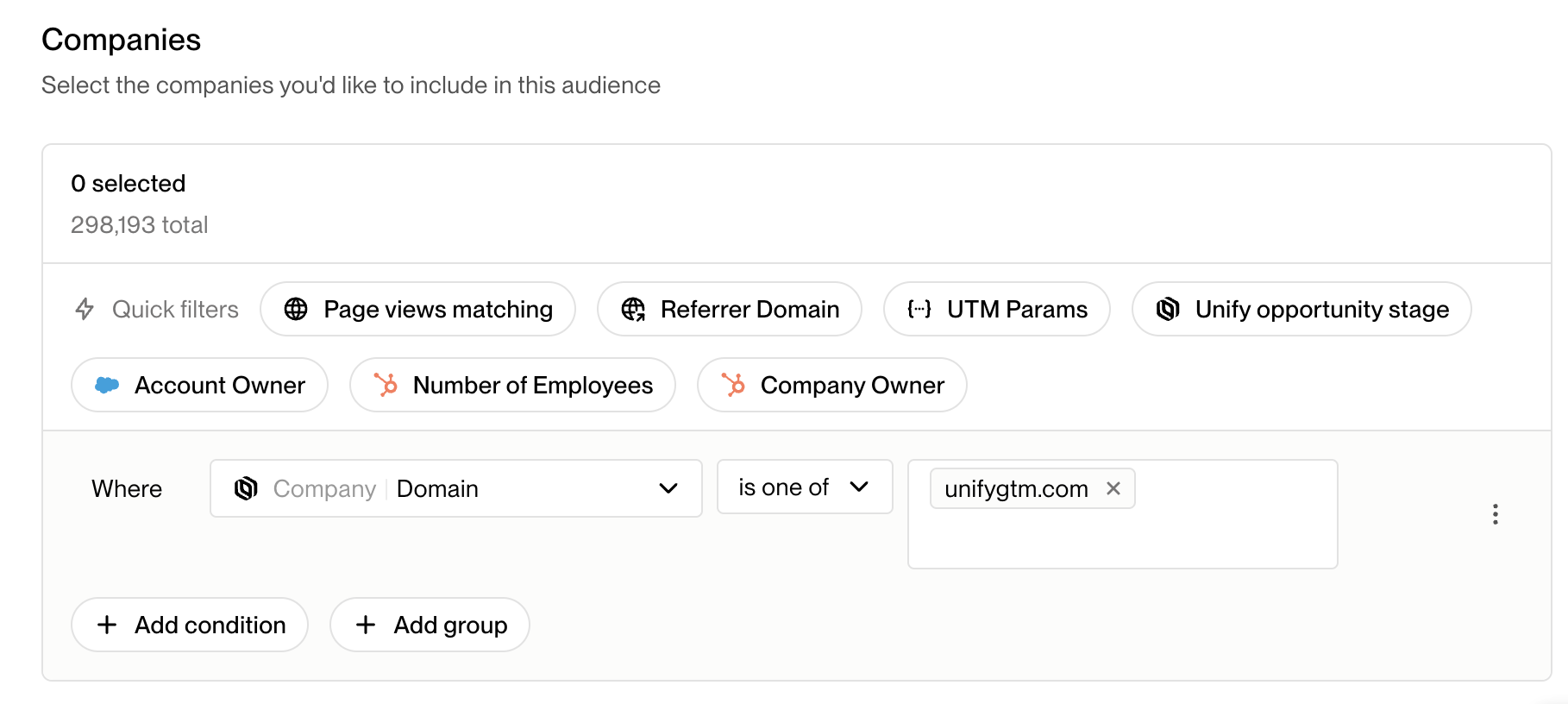
Add the desired company domains to this filter
Create a play and select this audience as the enrollment trigger
Any time you add new domains to the audience filter, those companies will automatically be enrolled in the play. This allows you to manually control which companies enter the play sequence, regardless of other qualification criteria.
This is particularly useful when you want to include specific companies that may have been disqualified by other criteria but are still considered good fits for your targeting.
Important: When you republish an existing play with new companies added to your audience, the play will NOT automatically re-run for companies that have already been through it, even if the publish preview shows those companies. The system respects re‑enrollment rules and the minimum 1‑day rerun interval. To enroll companies that have previously run through the play, either:
Duplicate the play to create a new version, or
Enable "allow re‑enrollment into the same sequence" in your sequence settings and wait for the rerun interval to pass
See the "Common enrollment limitations" section below for more details on troubleshooting enrollment issues.
Common enrollment limitations
Even with manual enrollment, some contacts in your audience may not be enrolled due to system rules:
Adding Companies to Existing Manual Enrollment Audiences
When you need to add more companies to an existing manual enrollment play, the process depends on how you originally created your audience:
Filter-based vs CSV-based Audiences
Filter-based audiences (using "Company domain is one of") can be edited at any time:
Edit the existing audience
Paste additional domains into the "Company domain is one of" filter
Save the changes
Newly added companies will automatically be enrolled in any plays using this audience
CSV-based audiences cannot be appended to:
You cannot add more companies to an existing CSV‑uploaded audience
Instead, you must upload a new CSV file (which creates a new audience)
Update your play to use the new audience
Best Practice Recommendation
For ongoing manual enrollment needs, use the "Company domain is one of" filter approach rather than CSV uploads. This allows you to easily add more companies over time without recreating audiences or updating play configurations.
To troubleshoot enrollment issues:
Check the play's Logs tab to see the exact path for specific contacts and identify which node blocked enrollment, then review the Metrics section to see aggregate "Not Enrolled" reasons
If contacts are blocked due to existing sequence enrollments, you can remove them from their current sequences to allow enrollment in the new play
Review your sequence rulesets in Settings if you need to adjust re-enrollment timing
Verify exclusion settings at both the universal and audience levels – check that universal exclusions haven’t been toggled off in your audience configuration
If contacts show "no valid routing target", either add their titles to your personas or enable "route everyone else" in the sequence node to ensure all records get routed to a mailbox
For exclusion-related enrollment failures:
Turn off audience-level exclusions
Disable advanced settings in your exclusion configuration
Check Settings > Features > Exclusions to review which exclusion rules have sequence enrollment enabled
Enable "allow re-enrollment into the same sequence" if needed
Create a new play rather than rerunning an existing one (minimum rerun interval is 1 day)
Wait 30 minutes after disabling exclusions before re-running the play to allow the system to process updates
Review sequence-level exclusion settings in Settings > Organization > Exclusions if contacts are being unexpectedly filtered out
Remember that exclusion settings must remain disabled throughout the entire sequence duration, not just during enrollment
Note: Sequence-level exclusions are planned for future release, which will provide more granular control over exclusion rules for specific plays.