CRM Error Page (Salesforce)
Last updated: April 2, 2026
Goal: Diagnose and fix Salesforce sync failures yourself — no ticket required.
Overview
CRM Error Pages give Salesforce admins a dedicated, searchable view of every sync failure between Unify and Salesforce. Each error includes the error type, the affected record, a plain English description, the raw Salesforce error message, and step-by-step remediation guidance. Write errors can be retried directly from the page — one at a time or in bulk.
Before this feature, a single sync error typically meant days of back-and-forth: the customer couldn't self-diagnose, so it escalated to ProdOps, then to an engineer who forced a retry. Now the admin who owns CRM integrations can diagnose and resolve most errors in minutes, without opening a support ticket.
Accessing the Errors Page
Go to Settings → Integrations → Salesforce.

Click the Error Log tab.
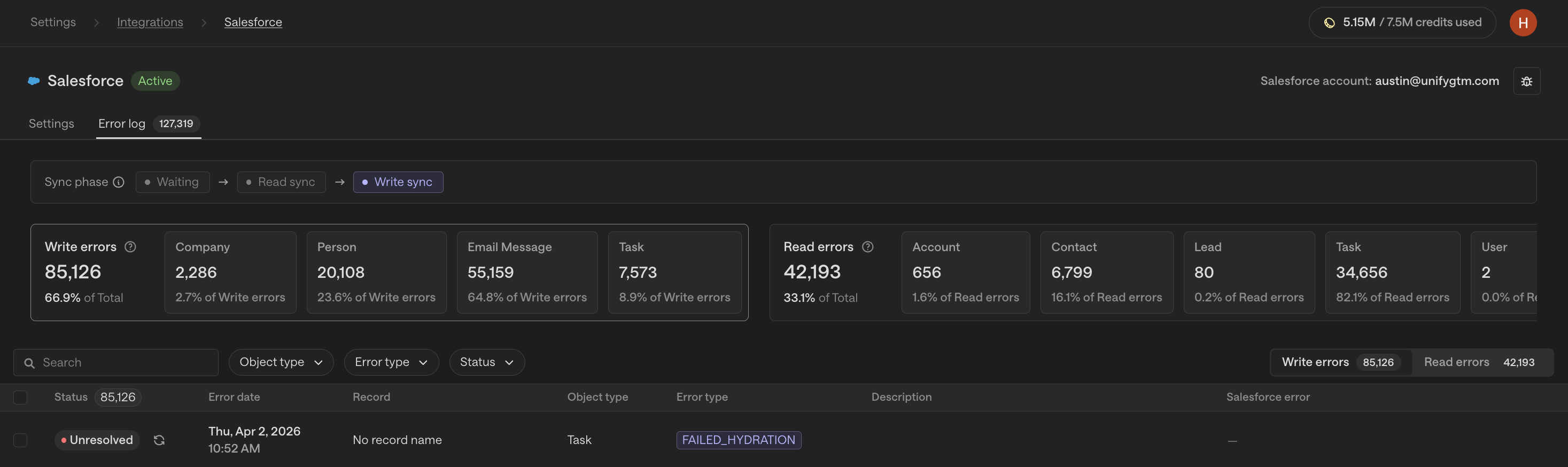
Use the Read and Write tabs to filter by sync direction.

Sort or filter by object type, error type, or date range to narrow down the list.
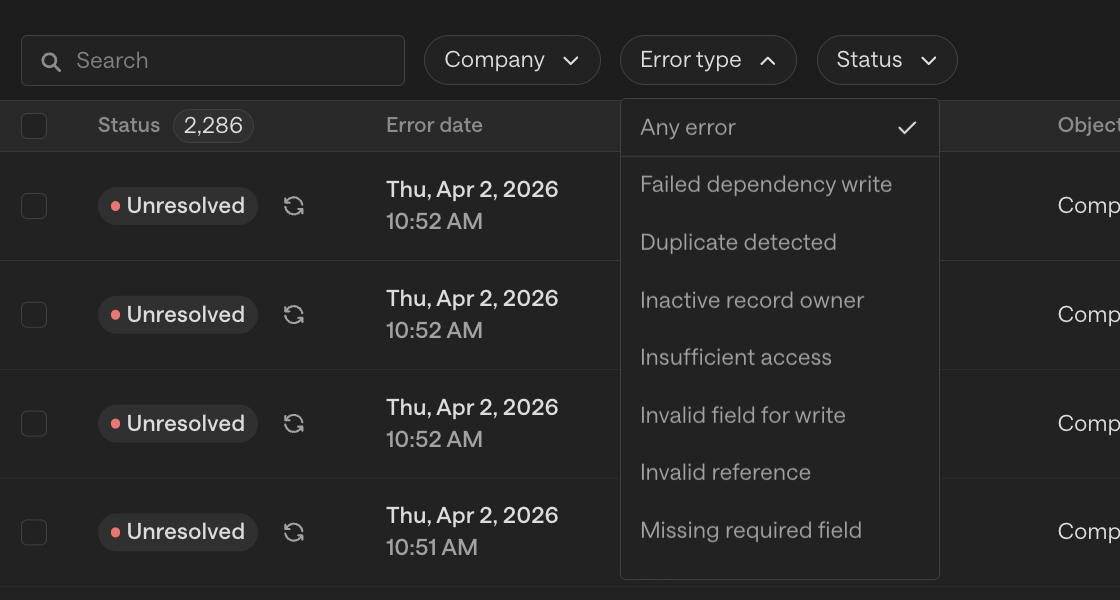
Understanding the errors table
The errors table shows all current sync failures. Each row displays:
Error type — a plain English label (e.g., Missing Required Field, Validation Error, Failed Dependency Write)
Object type — the Salesforce object affected (Contact, Company, etc.)
Affected record — a link to the specific record in Unify
Date — when the failure occurred
Click any row to open the detail drawer, which shows the full error description, the raw Salesforce error message, and step-by-step remediation guidance.
Read errors vs. Write errors
Read errors occur when Salesforce-to-Unify sync fails. These are automatically re-attempted on the next 15-minute sync cycle — no manual retry is needed or available.
Write errors occur when Unify-to-Salesforce sync fails (triggered by plays, sequence emails, or task updates). Write errors can be retried manually after you apply a fix.
Retrying write errors
After applying a fix in Salesforce or in Unify's integration settings:
Find the affected record(s) in the Write tab of the errors table.
Click Retry on a single record, or select multiple records and click Bulk Retry.
A status banner will show retry progress. Records that succeed are removed from the table.
Allow up to 15 minutes for the write sync cycle to complete.
Note: If a retry fails, the record remains in the table with an updated error status. Not all write errors are resolved by retrying alone — deleted or merged records in Salesforce require action there before a retry will succeed.
Dependency errors
A Failed Dependency Write means a record failed because a related parent record also failed. For example, a Contact may fail because its parent Company failed first.
To resolve dependency errors:
Open the detail drawer for the failing record.
Click the link to the parent record (e.g., the Company).
Identify and fix the root cause on the parent record.
Retry the parent record first, then retry the child record.
Tips for getting the most out of this feature
Start with the detail drawer. The plain English description and remediation steps resolve the majority of common errors without any additional research.
For unclear errors, copy the raw Salesforce error message from the detail drawer and search it directly, or paste it into an AI assistant for additional context.
Fix dependency errors from the top down. Always resolve the parent record before retrying child records — the full error cascade resolves in one shot.
Use bulk retry after making a configuration change that affects many records at once (e.g., updating a required field default in Unify's integration settings).
FAQs
After I click Retry, how long until I know if it worked?
Successful retries clear from the table quickly. If a retry fails, the record stays with an updated error status. Allow up to 15 minutes for the write sync cycle to complete.
Why can't I retry this error?
Retry is only available for write errors. If you have a read error selected, the retry option won't appear — read errors are automatically re-attempted in the next sync cycle.
Does this work for HubSpot?
Not yet. CRM Error Pages currently support Salesforce only. HubSpot support is planned for a future release.
I see a "Failed Hydration" error — what does that mean?
This error type may appear temporarily and is not customer-actionable. It will be suppressed in an upcoming update.
A write error isn't appearing in the errors page at all. What should I do?
If write-back failures are not showing up in the errors page, contact support. For all other errors, use the errors page to self-diagnose before opening a ticket.