Why Accounts, People, or Data Don’t Show Up
Last updated: May 1, 2026
Audience: Sales, RevOps, and anyone building or running plays in Unify
Goal: Quickly diagnose why accounts, people, or data are not behaving as expected and know exactly where to look first.
1. Accounts Not Showing Up in Your Audience
Symptoms
An account you expect to see is missing from your audience
The account exists in Salesforce/HubSpot but does not appear in Unify
Audience count is significantly lower than expected
How to Debug
Check CRM Requirements First:
Verify the account has a domain in your CRM (required for sync)
Confirm the account owner is properly assigned
Open the Linked Records tab on the account in Unify
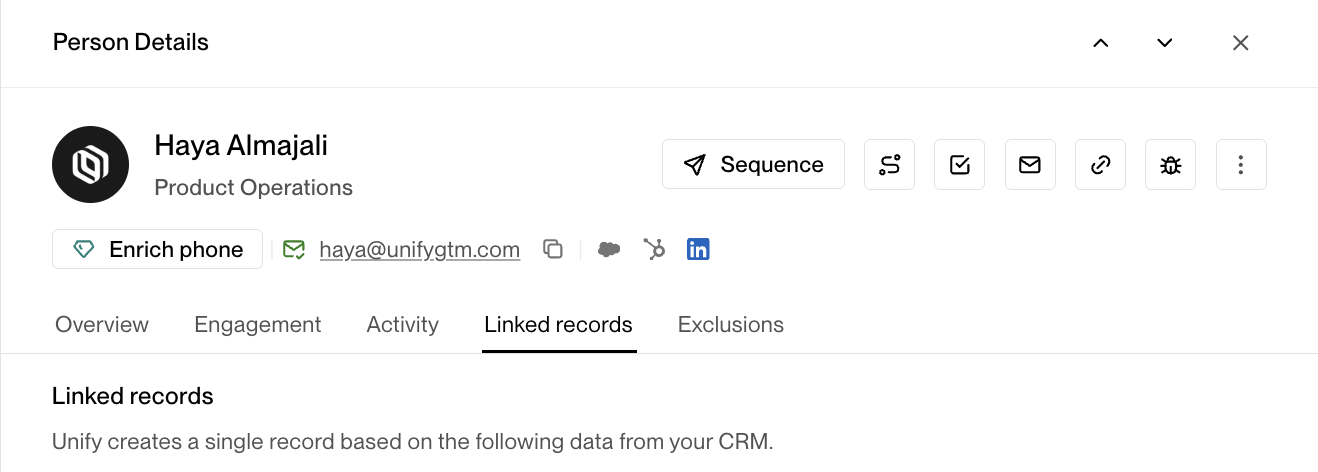
Check for duplicate linked records
If duplicates exist:
Do not attempt to resolve on your own
Defer to your CRM admin for proper merging and cleanup
⚠ Duplicates can silently block accounts from entering audiences or plays.
Understanding Duplicate-Related Audience Inclusion
When duplicate linked records exist, Unify may include an account in an audience even if the primary CRM record does not meet the filter criteria, because any linked record that matches the audience filters will cause the company to appear.
Open the Linked Records tab for the company in Unify.
Identify whether multiple CRM records are linked to the same domain.
Check the audience‑filter field values on each linked record; any record that matches will cause inclusion.
If a linked record that you don’t normally view matches the filters, the company will appear in the audience.
Work with your CRM admin to merge duplicate records and ensure the retained record contains all required field values for audience eligibility.
Check Sync Status
Allow 15-30 minutes for recent CRM changes to sync
Verify field mappings are correct between your CRM and Unify.
2. I ran a play & found 0 profiles
Symptoms
A prospecting play runs but returns no people
The account looks valid on LinkedIn, but Unify surfaces nothing
Large companies (500+ employees) return 0 prospects
How to Debug
Work through this checklist in order:
Confirm the recommended prospecting toggle is enabled.
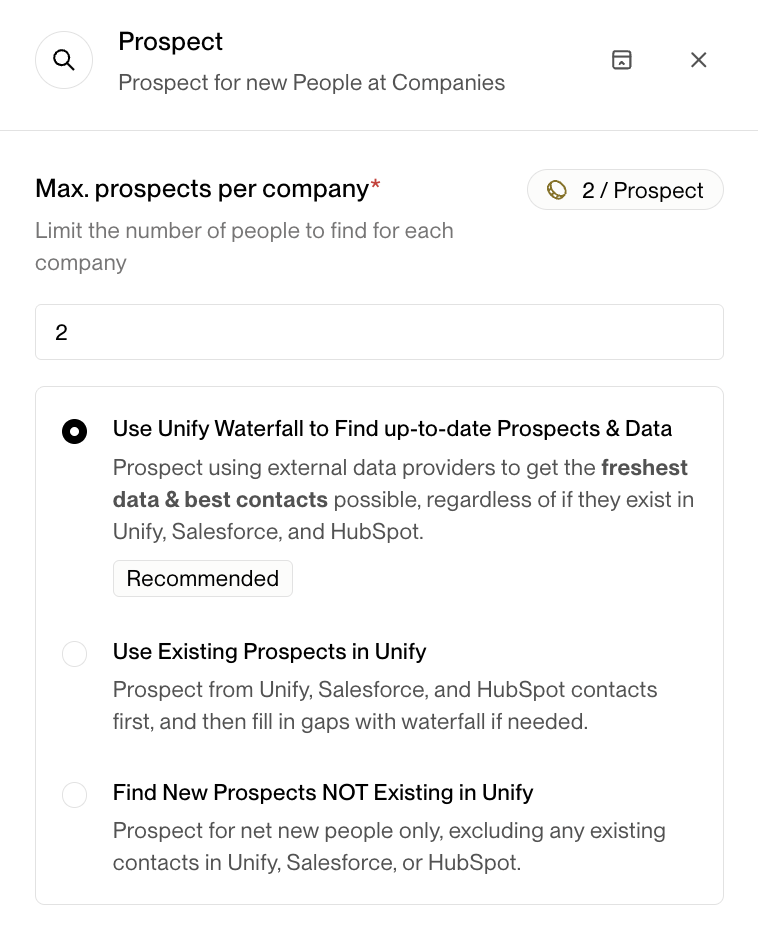
Verify the account domain
Domain in Unify must match the company’s real website
Watch for parent vs. subsidiary mismatches
Review Persona Configuration
Check if personas are too restrictive
Include title variations (e.g., "Director of Engineering" AND "Director Engineering")
Verify personas aren't excluding key terms (e.g., excluding "marketing" might filter out "Product Marketing")
Check Your Exclusions
Review if prospects are being filtered out by exclusions
Verify exclusion logic isn't too broad
Flag the issue
If all checks pass and results are still empty, contact Unify support with specific examples
You can react with the 🎫 Emoji or tag @UnifySupport if you get stuck !
3. Contact or Account Data in Unify Doesn’t Match LinkedIn
Symptoms
Job title, company, or role looks outdated or incorrect
LinkedIn shows newer information than Unify
Wrong company names in emails or sequences
How to Debug
Check the data in Salesforce (SFDC) / HubSpot (HS) first
1a. Understanding Company Name Display and Domain Routing
Unify matches and groups companies based on where a domain routes to at the DNS level, not just the domain name itself
If
goodkind.comredirects toniche.com(or vice versa), Unify treats them as the same company and groups contacts under whichever domain it resolved to firstThis commonly occurs when one company acquires another and the domains are connected at the DNS level
To fix company name display issues:
Update the company record in your CRM (HubSpot/Salesforce) — ensure the record displaying the wrong name is updated to show the correct company name, or merge it into the correct company record with the right domain
If the correct company record already exists in your CRM with the right name, Unify may be pulling from a different record because it has more associated contacts or was more recently modified
Clean up any duplicate company records in your CRM so the correct record is the clear primary
Allow 15-30 minutes for the sync to propagate and display the correct name in Unify
Check for deleted or orphaned CRM records
Open the Linked Records tab in Unify for the contact
Look for multiple linked records, especially any that may have been deleted from your CRM but still exist in Unify
If you find a deleted record with incorrect data, this may be causing the discrepancy
Contact @UnifySupport to clean up orphaned records that are no longer in your CRM
Update the record directly in your CRM.
Allow 15-30 minutes for sync to propagate back into Unify
For net-new prospects
Unify does not scrape or pull data directly from LinkedIn for prospecting
Unify uses a waterfall of other data providers for contact information, phone numbers, and emails
Use the Chrome extension to re-enrich contact data if needed
Upload a CSV with corrected information if needed
Note: You cannot directly edit contact info within Unify!
Note: Unify does not automate LinkedIn DMs or InMails. LinkedIn outreach can only be added as manual steps in sequences, which will create tasks for you to complete manually in your Task Dashboard. These manual tasks are not subject to automated send schedules like emails.
For accounts uploaded via CSV: You cannot edit company domains directly within Unify. To correct a domain typo, re‑upload a single‑row CSV containing the exact company name and the corrected domain (e.g., loq.us, not http://www.loq.us). Use column headers “Company Name” and “Domain”. Unify deduplicates companies by domain, so the corrected domain will update the existing record. See the CSV upload guide for detailed formatting requirements.
Your CRM is the source of truth. Unify will reflect whatever your CRM contains.
4. Browser Extension Error: “Record Cannot Be Enrolled Due to Exclusion”
Symptoms
Enrollment fails when using the Chrome extension
Error mentions exclusions
How to Debug
Open the Linked Record in Unify
Navigate to Linked Exclusions
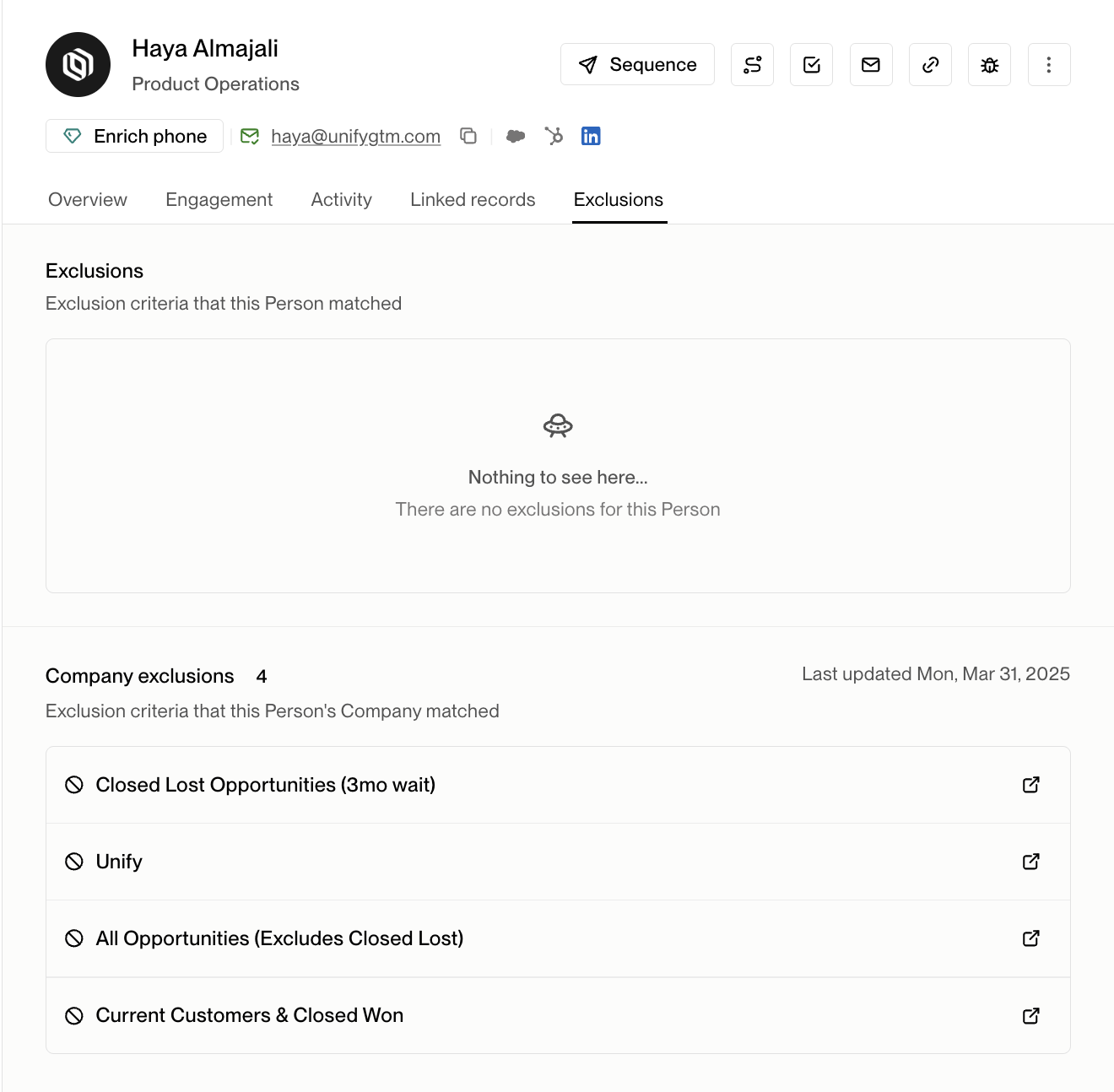
Identify which exclusion rule is blocking enrollment
Understanding Exclusion Behavior and Matching Logic
Sequence Exclusion Requirements
Important: For an exclusion rule to prevent contacts from being enrolled in sequences, you must enable the “Exclude from Sequences” toggle in the exclusion settings. Without this toggle enabled, the exclusion may block other actions but will not prevent sequence enrollment.
To verify your exclusion is configured correctly:
Navigate to Settings → Organization → Exclusions
Open the relevant exclusion rule
Confirm the “Exclude from Sequences” toggle is ON
Note: Marking a prospect as “Not qualified” does NOT automatically unenroll them from sequences. Unenrollment requires either manual action or an exclusion rule with “Exclude from Sequences” enabled.
Domain-Level Exclusion Matching
Company‑level exclusions require exact domain matches: If excluding
company.com, records withsubdomain.company.comwon’t match.Add each domain variant separately (e.g.,
harvard.edu,cs.harvard.edu,harvardbusiness.org).Verify the company record has the correct domain that matches your exclusion value.
Adding Companies to Exclusion Rules
Companies will only appear in the exclusion interface dropdown if they already exist in your CRM or have been deanonymized via web intent
If a company doesn't appear when you search for it, you can still add it manually by entering the domain directly
The exclusion will still work and block the company if it gets added to your CRM or appears via web intent in the future
When adding multiple domains to a single exclusion rule, enter them in the same field separated by commas (e.g.,
competitor1.com, competitor2.com, competitor3.io). Do not includehttp://orwwwprefixes—use root domains only.
Common Exclusion Failure Scenarios
Missing company associations: Contacts must be properly associated to their company record for company‑level exclusions to work.
Duplicate company records: Multiple company records can cause exclusion matching to fail.
Universal exclusions disabled: Check if universal exclusions have been disabled at the audience level in Advanced settings.
Wrong or missing domains: If the contact’s company has an incorrect or missing domain, the exclusion won’t match.
Advanced Exclusion Edge Cases and Troubleshooting
When a company has multiple domains in your CRM, verify which domain Unify is using as the primary domain (visible in the top left of the company record in Unify). Your exclusion must match the primary domain that Unify uses for matching, not necessarily the domain shown in your CRM as the website field. If the exclusion is configured for a different domain than what Unify is using, the exclusion will not trigger.
If your exclusion rule filters by a CRM field (e.g., “ARR - Enterprise” or “Customer Status”), the exclusion will fail if that field is empty or missing on the company or contact record in your CRM. Verify that the required field exists and has a value in Salesforce/HubSpot for the record you expect to be excluded.
Play triggers evaluate exclusions against data already synced from your CRM into Unify at the time of evaluation. Both CRM sync and play triggers run on ~15‑minute cycles, which can create timing gaps. If a CRM change occurs (like creating an opportunity) close to when a play fires, the exclusion data may not be in Unify yet when the play evaluates that person, resulting in contacts being enrolled despite meeting exclusion criteria.
This issue is particularly relevant to:
High‑priority plays that trigger frequently
Exclusions based on recently created CRM records (opportunities, deals, etc.)
Time‑sensitive workflows where CRM changes happen close to play execution
Workaround: Add a short delay node at the start of high‑priority plays to give CRM data more time to sync before exclusions are evaluated.
Note: Real‑time CRM sync is on the roadmap but not yet available.
Sequence‑Level Ruleset Override Issues
Each sequence has its own ruleset configuration that can override exclusion rules. If your sequence ruleset is set to “default” with all exclusions toggled off, no exclusion rules will apply to that sequence regardless of your organization‑level settings.
Navigate to the sequence → Settings → Ruleset
Confirm exclusions are enabled for that specific sequence
To change the default for all new sequences: Settings → Sequences → Ruleset
Diagnostic Steps for Complex Exclusion Failures
Check primary domain matching: Compare the domain shown in Unify’s company record (top left) with your exclusion rule configuration
Verify CRM field values: Ensure all fields referenced in exclusion rules have actual values in your CRM
Review sequence ruleset settings: Confirm the specific sequence has exclusions enabled, not just organization‑level settings
Consider timing factors: For recently created CRM records, allow 15‑30 minutes for sync before expecting exclusions to take effect
Test with delay nodes: For high‑frequency plays, add a short delay at the start to prevent timing race conditions
5. Contacts Not Syncing to CRM
Symptoms
Prospected contacts appear in Unify but not in Salesforce/HubSpot
Play shows "synced" but records are missing from CRM
How to Debug
1. Check sync permissions:
Verify Unify integration user has proper WRITE permissions
Confirm required fields are mapped correctly in your CRM Integration Settings

2. Review play configuration:
Ensure "Sync to CRM" action is included in the play
Check if audience filters conflict with sync requirements.
3. Monitor credit usage:
Insufficient credits can prevent syncing operations
4. If none of the above resolves the issue:
Capture screenshots
Note the account ID / person ID
Tag @UnifySupport or react to your message with a 🎫 emoji to get support's eyes on your problem!
Salesforce Sync Requirements
Salesforce contacts have additional requirements beyond the generic CRM checks.
Email address requirement: Salesforce contacts must have a valid email address to sync to Unify.
Check that validation rules aren't preventing the integration user from accessing records.
Integration Credential Troubleshooting
Navigate to Settings → Integrations → Salesforce.
Look for connection or credential warnings.
If credentials have expired, select “Change User” to reconnect.
Allow 15–30 minutes for full sync after reconnecting.
Extended Sync Timing for Salesforce
Initial connections can take up to 24 hours to complete.
Large data changes may extend sync cycles temporarily.
Bulk Salesforce changes require extra processing time.
CSV Workaround for Time‑Sensitive Situations
Export contacts via a Salesforce report, then upload the CSV to create an audience in Unify and proceed with outreach while the automatic sync completes.
Salesforce‑Specific Escalation Criteria
Credentials are valid but sync has been broken for 2 + hours.
Multiple users report the same Salesforce sync delays.
Email addresses and permissions are verified but records still won’t sync.
5. Blocked Sequence Enrollments and Steps
Symptoms
Enrollments or steps show "blocked" status in sequence
Error message: "This email contains invalid or missing variables"
"Step blocked" notifications while Mailboxes tab shows green/healthy status
Company Name or other variables appear as missing even though data exists in CRM
Multiple enrollments or steps blocked after launching a play
Emails appear complete but sequence won't progress
Bulk Enrollment Failures from Lists
When bulk adding contacts from a list to a sequence, you may see the error "Sequence attempt was blocked — Failed to add all People to Sequence." This is expected behavior when some contacts don't meet enrollment eligibility rules. There may be a short delay before you can retry while eligibility checks complete.
To identify which contacts failed and why:
Open the target sequence
Navigate to the Enrollments tab
Review the Not Enrolled section for per-contact blocking reasons
Common reasons for bulk enrollment failures:
Contact already enrolled in another active sequence (only one sequence at a time)
Recent enrollment cooldown period (re‑enrollment timing rules)
Global/audience exclusion rules or opted‑out contacts
Company‑level enrollment caps reached
Missing/invalid template variables in sequence emails
For detailed guidance on enrollment rules, see Why wasn't my contact enrolled in a sequence from a play?
How to Debug
Identify Missing or Unresolved Variables:
Navigate to the sequence's Enrollments or Outbox tab
Filter to show blocked enrollments or steps
Click into a blocked enrollment to view the email
Click "See variables breakdown" to view all variables in the step
Missing, invalid, or unresolved variables will be highlighted in orange
Look for any unresolved placeholders or double bracket syntax issues:
{{variable}}or{INSERT ...}
Blocked status is a step/enrollment status, not a mailbox health status. Your mailbox can appear healthy (green) while individual steps remain blocked due to variable or template issues.
Manual email tasks within sequences can also show “blocked” status. The same variable resolution and template syntax rules apply; check manual tasks for missing variables or unresolved placeholders.
Fix Individual Blocked Enrollments or Steps:
Click into each blocked enrollment or step
Replace the orange‑highlighted variable with the correct value, or remove unresolved placeholders and extra brackets
Click Save
The enrollment or step automatically unblocks and is rescheduled/sent
Click "Upgrade all enrollments" to apply fixes to all affected enrollments
If Blocked Due to Skipped Thread Root Email:
If the first email in a thread sequence was skipped, you have three options:
Skip all remaining email tasks for this enrollment and move on
Unenroll and re‑enroll the contact so the sequence starts fresh from step 1
Send one‑off emails outside of the sequence if you still want to reach this person
Note: There is no way to retroactively fix this for existing enrollments since the thread root email cannot be sent after being skipped.
Bulk Fix for Many Blocked Enrollments:
If you have many blocked enrollments (50+), consider this faster approach:
In Enrollments, filter to Blocked status
Select all blocked enrollments
Click Unenroll to remove them from the sequence
Fix the sequence template (see prevention steps below)
Re‑enroll the contacts after fixing the template
If Blocked Due to Paused Mailbox:
When mailboxes are paused by the Mailboxes Team due to high bounce rates:
Check mailbox status in the Mailboxes tab for paused mailboxes associated with your domain.
Understand the remediation timeline:
All mailboxes on the affected domain will be paused.
Typical monitoring period is one week to assess if bounce rates persist.
Once cleared, mailboxes will be unpaused and daily send limit reset to 25.
Update your sequence copy before reactivation:
Review and revise the sequence content that caused high bounce rates.
Making changes to sequence copy is critical to prevent recurring bounces when mailboxes are reactivated.
If mailboxes are turned back on without changes, the risk of additional bounces increases significantly.
Enrollments will auto-resume:
Enrollments showing "blocked: mailbox" status will automatically restart from where they stopped once mailboxes are reactivated.
No manual intervention needed to resume these enrollments after mailbox reactivation.
Why This Happens:
Unresolved template variables in subject lines, signatures, or links prevent steps from queuing
Double bracket syntax issues like
{{variable}}or stray placeholder notes like{INSERT ...}block step progressionDuplicate or linked company records can cause Unify's domain‑based matching to select a company record that's missing the Company Name field
The contact has a company in your CRM, but Unify matched to a different company record (often a duplicate) that lacks the required data
Check the Linked Records tab for the contact to identify duplicate company associations
Pending manual tasks that gate later automated emails can block step progression
Mailbox sending limits set too high can cause enrollments to block. Verify your mailbox daily sending limit is set to a maximum of 25 (recommended) rather than higher values like 100.
Mailbox re‑authentication may be needed after enrollment if credentials expired
First email in thread sequence was skipped: If the initial email in a sequence (which acts as the thread root) was skipped for any reason, subsequent emails configured as replies in that thread will be blocked because they have no parent email to attach to. This cannot be fixed retroactively for the existing enrollment.
Prevent Future Blocks:
Use snippets with fallback text for company references and other variables in your sequence templates:
Instead of using
{{company.name}}alone, use a snippet with static fallback textExample:
{{company.name | fallback: "your company"}}Note: Fallback text must be static (no variables)
Check template syntax before launching sequences:
Remove any double brackets
{{ }}or placeholder notes like{INSERT ...}Verify all variables in subject lines, signatures, and links are properly formatted
Clean up duplicate company records in your CRM to prevent mismatches
Test sequences with a small batch before large enrollments to catch variable issues early
Note: There is no bulk “fill missing variables and unblock all” action. Each blocked enrollment or step requires individual editing, or you can bulk unenroll and fix the template. Sometimes status can get stuck in a “blocked” state even when the email is ready to queue—if you’ve verified all variables are correct and the step still shows blocked, contact @UnifySupport to refresh the enrollment status.
6. Sequence/Task Assignment Issues
Symptoms
Tasks assigned to wrong person
Multiple reps getting tasks for same company
How to Debug
Check routing logic
Verify mailbox assignments in play configuration
Avoid routing by company owner (use direct assignment instead)
Review exclusions:
Check if prospects are excluded after enrollment
Verify exclusion timing and criteria
Quick Reference: When to Contact Support
(tag @UnifySupport in your message or react to it with a 🎫 emoji!)
1. Immediate escalation needed:
Sync completely broken (no records syncing for 1+ hours)
Duplicate account creation in your CRM
Mass blocked enrollments due to system issues (if variable data exists in CRM and no duplicates are present)
Mass incorrect data (wrong company names across multiple records)
2. Can troubleshoot yourself first:
Individual missing records (check duplicates/domains first)
Prospecting returning low results (review personas/exclusions)
Recent CRM changes not reflected (wait 30 minutes)
Blocked sequence enrollments with missing variables
3. Always provide when contacting support:
Specific record IDs or company names
Screenshots of expected vs. actual results
Timeline of when issue started
Steps already taken to troubleshoot