Understanding Email Tracking and Syncing with Salesforce and Hubspot in Unify
Last updated: May 4, 2026
Email Syncing with Salesforce
Unify syncs emails to Salesforce using two different methods:
Email Message Writeback: Syncs the fully rendered email content (with all variables populated) as an email message in Salesforce. The timestamp of the reply will be captured accurately in the "Sent At" field.
Task Writeback: Logs email activity as a task in Salesforce. This method stores the template text, so variables like
{{person.firstName}}will appear as-is rather than showing the actual values. Timestamps may also appear slightly different from the actual send time.
When a client replies to an email sent through Unify, the reply will be synced to Salesforce using the same writeback method configured for outbound emails. If Email Message Writeback is enabled, replies sync with full content visible in Salesforce; if only Task Writeback is configured, replies sync as tasks without the email content visible.
Tracking Email Interactions
Unify offers several ways to track email interactions, which can be synced to Salesforce:
1. Email Opens
To track email opens, you can use the following fields:
Track Opens: The number of times an email is opened.
Email Replies: Indicates whether a contact has responded to an email (True/False).
2. Link Clicks
Unify tracks link clicks in emails by default. To sync this information to Salesforce, map the following fields:
Click Count: This field records the number of clicks on links within the email message.
Clicked At: This field stores the timestamp of the first link click.
Note: For Unify to track clicks, the links must be on the domain where the web tag is attached (e.g., yourcompany.com).
Understanding Email Open vs Click Tracking Discrepancies
Email opens and clicks use different tracking mechanisms, which can lead to data discrepancies that confuse users. Understanding these differences helps interpret your email engagement data correctly.
Why Clicks May Show Without Opens
Email opens rely on tracking pixels that can be blocked or missed by email clients, while clicks are tracked independently through link redirects. This means an email can be viewed and clicked without an open being recorded.
Common scenarios where this occurs:
Email clients with image blocking enabled
Privacy‑focused email clients that strip tracking pixels
Recipients who have images disabled by default
Interpreting Your Data
If you see click data without corresponding opens, this is normal behavior and indicates the recipient did view your email. The click itself is proof of engagement, even without a recorded open.
Best practices for data interpretation:
Consider clicks as a more reliable indicator of actual engagement
Use open rates as a minimum baseline rather than absolute engagement measure
Focus on click‑through rates for measuring email effectiveness
Configuring Salesforce Integration
To set up email tracking and syncing with Salesforce:
Navigate to the Salesforce integration settings in Unify.
Map the relevant fields:
"Track Opens" for email opens
"Click Count" for the number of link clicks
"Clicked At" for the timestamp of the first link click
"Sent At" for the timestamp of email replies
Important: Unify can only write to empty fields in Salesforce and cannot overwrite existing data. If a field already contains a value in Salesforce, Unify will not update it, even if the integration is properly configured. This limitation also applies when using Plays to sync status values - ensure target fields are empty or handle overwrites using Salesforce-side triggers.
Additional clarification on Salesforce field writeback behavior:
Unify-specific fields (e.g., “Most Recent Play”, “Track Opens”, “Click Count”): These will auto‑writeback for existing contacts when mapped, regardless of existing values.
Non‑Unify fields (e.g., standard Salesforce fields like “Lead Source”): Unify can only write to empty fields and cannot overwrite existing data.
Record status behavior: New records have all mapped fields auto‑written if Unify has values (email, first name, last name, title, LinkedIn URL). Existing records: non‑Unify fields only write if the target field is blank.
Default values configuration: Specify defaults either in the Salesforce integration settings under “Default Values” or in individual “Sync to Salesforce” nodes under Advanced Settings → Default Values.
Overwrite limitations: Unify does not support selective field overwriting; the limitation applies uniformly to all non‑Unify fields.
If you need to update existing field values, you may need to:
Clear the existing values in Salesforce first, or
Set up custom triggers in Salesforce to handle field updates from Unify
Sync Timing and Operational Details
Sync Frequency: Unify syncs data from Salesforce approximately every 15–30 minutes. The initial connection may take up to 24 hours to complete the first full sync, and large recent data changes can temporarily extend the sync cycle.
Salesforce Field Propagation Timing
When setting up email tracking and syncing with Salesforce, users need to be aware of field propagation delays that can affect the configuration process.
Field Availability Timing: Newly created Salesforce fields typically appear in Unify within 30 minutes. If fields don't appear after 30 minutes, try doing a hard refresh of your browser, ensure the integration user has proper permissions to the new fields, and verify the field mapping has been saved in Unify settings.
Custom Field Support: Unify automatically pulls in custom lead and contact fields from Salesforce and makes them available as variables in email sequences and manual compose. These custom fields can be used in message templates the same way as standard fields (e.g., {{contact.customField}}).
Note: During initial setup or when field mappings are changed, sync delays may occur and can take longer than the standard 15‑minute interval. If custom fields are not appearing as expected, wait for the next sync cycle to complete.
This timing consideration is particularly important when:
Creating custom fields specifically for Unify email tracking data
Setting up new integrations with freshly created Salesforce instances
Troubleshooting why expected fields are not appearing in the mapping interface
Modifying field mappings, which may require additional sync time beyond the standard 15‑minute interval
Best Practice: Create any required custom Salesforce fields at least 30 minutes before attempting to configure the field mapping in Unify to ensure a smooth setup process. Allow extra time beyond the standard 15‑minute sync interval when you recently add or modify field mappings.
Contact Sync Requirements: Salesforce contacts must have a valid email address to sync to Unify. Contacts without email addresses will not appear in Unify.
Duplicate Record Handling: If multiple Contacts or Leads exist in Salesforce with the same email address, Unify will update only the most recently modified record.
Enhanced Troubleshooting and Diagnostics
Connection Issues:
Check Settings → Integrations → Salesforce for any connection or credential warnings.
If prompted, select “Change User” to reconnect expired credentials.
Sync Timing Considerations:
Allow 15–30 minutes for newly created contacts to appear in Unify.
Initial connections may take up to 24 hours for complete sync.
Diagnostic Tools:
Navigate to Settings → Salesforce Integration → Skipped Records to review contact write errors for detailed failure reasons.
Time‑Sensitive Workaround: If you need immediate access to a contact while waiting for sync to complete, export the contact via a Salesforce report and upload the CSV to create an audience in Unify.
Enabling Email Message Writeback
To ensure emails sync with fully rendered content and accurate timestamps:
Before enabling Email Message Writeback, ensure that Enhanced Email is enabled in your Salesforce org, as it is required for Email Message Writeback to function properly.
Navigate to the Salesforce integration settings in Unify
Enable the "Email Message Writeback" option
Note: Email Message Writeback only applies to automated sequence emails. Manual emails will always sync to Salesforce as Tasks, regardless of this setting.
If Email Message Writeback is not enabled, Unify falls back to Task Writeback, logging only the template text. Additionally, when a contact replies, Unify creates a follow‑up task with a due date; the reply itself syncs as an EmailMessage (if enabled) while the task syncs separately. Ensure task syncing is enabled in the Salesforce integration settings if you need due dates.
Navigate to the Salesforce integration settings in Unify.
Map the relevant fields:
"Track Opens" for email opens
"Click Count" for the number of link clicks
"Clicked At" for the timestamp of the first link click
"Sent At" for the timestamp of email replies
Advanced Status Mapping with Plays
For more sophisticated mapping scenarios, you can use Plays to conditionally sync Unify sequence statuses and reply classifications to Salesforce fields.
Available Unify Sequence Status Values:
In progress: Queued, Engaged, Blocked, Paused
Finished: Completed, Completed: Replied, Bounced, Bounce Stopped, Canceled, Excluded
Reply Classification Values:
Positive
Willing to meet
Needs more info
Bad Timing
Has solution
Neutral
Left Job
Updated contact info
Referral
Negative
NSFW
Opt out
OOO
Soft Bounce
Hard Bounce
Automated
Mapping Multiple Unify Values to Single Salesforce Values: The standard field‑mapping interface doesn't support collapsing multiple source values into one target value. Instead, use Play logic with branching and “Sync to Salesforce” actions:
Create a Play that triggers on sequence status changes
Add branches based on Unify status and/or reply classification
Use “Sync to Salesforce” actions in each branch to write the appropriate Salesforce status value
Example mapping scenarios:
`Completed: Replied` + `Willing to meet` → Set Salesforce Status = “Replied”
`Completed: Replied` + `Bad Timing` → Set Salesforce Status = “Nurturing”
`Completed: Replied` + `Not interested` → Set Salesforce Status = “Unqualified”
Auto‑updating Status on Sequence Enrollment:
Add a “Sync to Salesforce” action at the enrollment step in your sequence or Play
Set the Salesforce Status field to your desired value (e.g., “Contacted”)
Ensure the target Salesforce field is empty, as Unify only overwrites empty non‑Unify fields
Field Type Support and Picklist Configuration
Supported vs Unsupported Field Types: Unify supports most standard Salesforce field types including text, number, date, and picklist fields. The following field types are not supported and will cause sync failures if mapped:
Multi-select picklists
Campaign and CampaignMember fields
Lookup fields (cannot be directly referenced in Sequences or Smart Snippets; convert to text format if needed)
Choosing Between Text Fields and Picklists: For fields with finite, structured outputs (like reply classifications and sequence statuses), using Salesforce picklists instead of free‑form text fields enables cleaner reporting and data consistency. Avoid multi‑select picklists, which are not supported.
Picklist Default Value Requirement: When mapping to Salesforce picklists, you must set a default value in the Unify→Salesforce field mapping – Unify cannot write to a picklist without a default configured.
Reply Classification Field Mapping Guidelines:
Ideal Picklist Candidates: Fields that output one of a finite set of values, such as Unify Initial Reply Classification and Unify Most Recent Reply Classification, should be mapped to picklists (not multi‑select). Values include: Positive, Objection/Negative, Neutral, Automated, Negative.
Additional Classification Values (may appear): Willing to meet, Needs more info, Bad Timing, Has solution, Left Job, Updated contact info, Referral, NSFW, Opt out, OOO, Soft Bounce, Hard Bounce.
Text Field Recommendations: Unify Initial Reply Tags and Unify Most Recent Reply Tags are comma‑separated text fields that can contain multiple tags and should be mapped to text fields in Salesforce.
Sequence Status Picklist Setup: Sequence status values are finite and structured, making them ideal for Salesforce picklists (not multi‑select). Create picklists with the exact status values and set a default value in the Unify→Salesforce mapping.
Best Practices for Field Type Selection:
Use picklists for finite value sets (reply classifications, sequence statuses) to enable better reporting and data consistency.
Use text fields for dynamic content (reply tags, custom messages) that may contain varying or multiple values.
Always set default values when mapping to picklists to prevent sync failures.
Avoid unsupported field types (multi‑select picklists, Campaign fields, lookup fields) to prevent integration errors.
Test your field mappings with a small dataset before rolling out to ensure proper sync behavior.
Using Audience Filters for Email Interactions
You can use Unify's audience filters to segment contacts based on their email interactions:
Go to the Audience section in Unify.
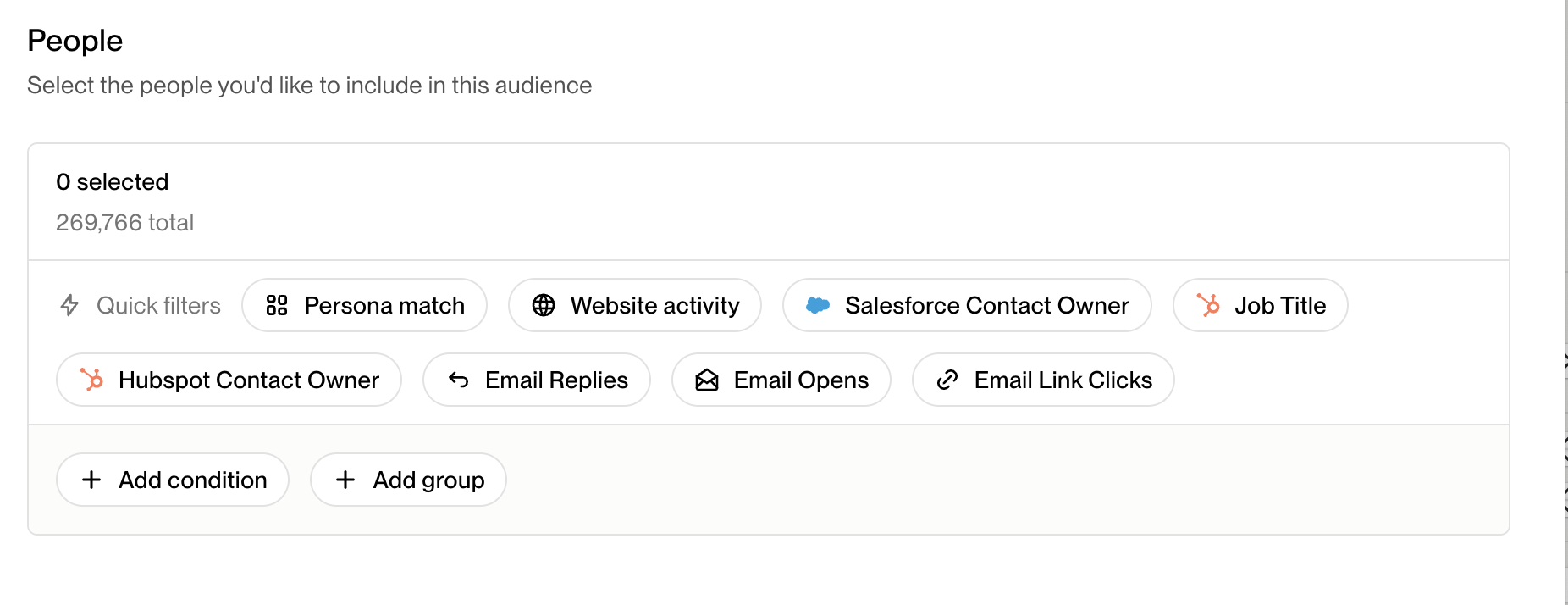
Use the filters to select contacts based on email opens, replies, or link clicks.
Set the desired time frame for these interactions.
Note: When filtering for contacts who replied to emails, toggle off exclusions to see all replies including filtered ones (such as automated/OOO replies). With exclusions enabled, filtered replies won't appear in the audience count.
HubSpot Email Tracking and Syncing Integration
While the main article covers Salesforce integration in detail, HubSpot integration follows the same patterns and limitations. This section provides HubSpot‑specific guidance and clarifications.
HubSpot Field Mapping and Limitations
Field Overwrite Behavior: Like Salesforce, Unify can only write to empty fields in HubSpot and cannot overwrite existing data. If a field already contains a value in HubSpot, Unify will not update it, even if the integration is properly configured.
Temporal Limitations: Newly mapped email tracking fields only apply to email activity going forward from the time of mapping – Unify does not retroactively backfill historical email data into newly mapped fields. This applies to both Salesforce and HubSpot integrations.
Available HubSpot Email Tracking Fields
Track Opens: Number of email opens
Email Replies: Boolean indicating if contact responded
Click Count: Number of link clicks in emails
Clicked At: Timestamp of first link click
Sent At: Timestamp of email replies
Handling Historical Data and Existing Field Values
For HubSpot users needing to update existing field values or backfill historical data:
Clear Existing Values:
Use HubSpot's bulk edit functionality to clear target fields before mapping
Export data first as backup before clearing
Historical Data Backfill Options:
Export email tracking data from Unify and import directly into HubSpot using CSV import
Use HubSpot's API or workflows to backfill historical engagement data
Leverage HubSpot's Operations Hub for advanced data sync scenarios
Custom Workflow Setup:
Create HubSpot workflows that trigger on Unify field updates
Set up conditional logic to handle field overwrites when needed
Use HubSpot's calculated properties to combine Unify data with existing values
Troubleshooting
If you notice that email replies are not syncing to Salesforce, ensure that:
The Salesforce integration is properly configured.
The email sequence or play associated with the email is still active.
The reply is an in‑thread response - out‑of‑thread replies (emails not sent as direct responses to sequence emails) will not appear in the Unify UI and require the original sender to respond directly.
The target fields in Salesforce are empty - Unify cannot overwrite existing field values.
If issues persist, contact Unify support for further assistance.