How do email tracking metrics sync with Salesforce?
Last updated: September 29, 2026
Context
When using Unify's email sequences with Salesforce integration, you may want to track various email engagement metrics such as opens, clicks, and replies in your Salesforce database.
Answer
Unify automatically syncs several email engagement metrics to Salesforce when Salesforce mapping is set up. Here's what metrics are available and how they work:
Link Clicks
Click Count: Tracks the number of times a recipient clicks links within your email
Clicked At: Records the timestamp of the first link click
Note: Only links on your configured domain with the web tag will be tracked
Email Opens
Open Count: Tracks the number of times an email is opened
Track Opens: Field to enable open tracking
Viewing Opens: Create a list in Unify with criteria filtering for contacts who opened your email (e.g., "opened +1 or more times") to view and segment leads based on email engagement
Reporting on Total Opens and Clicks
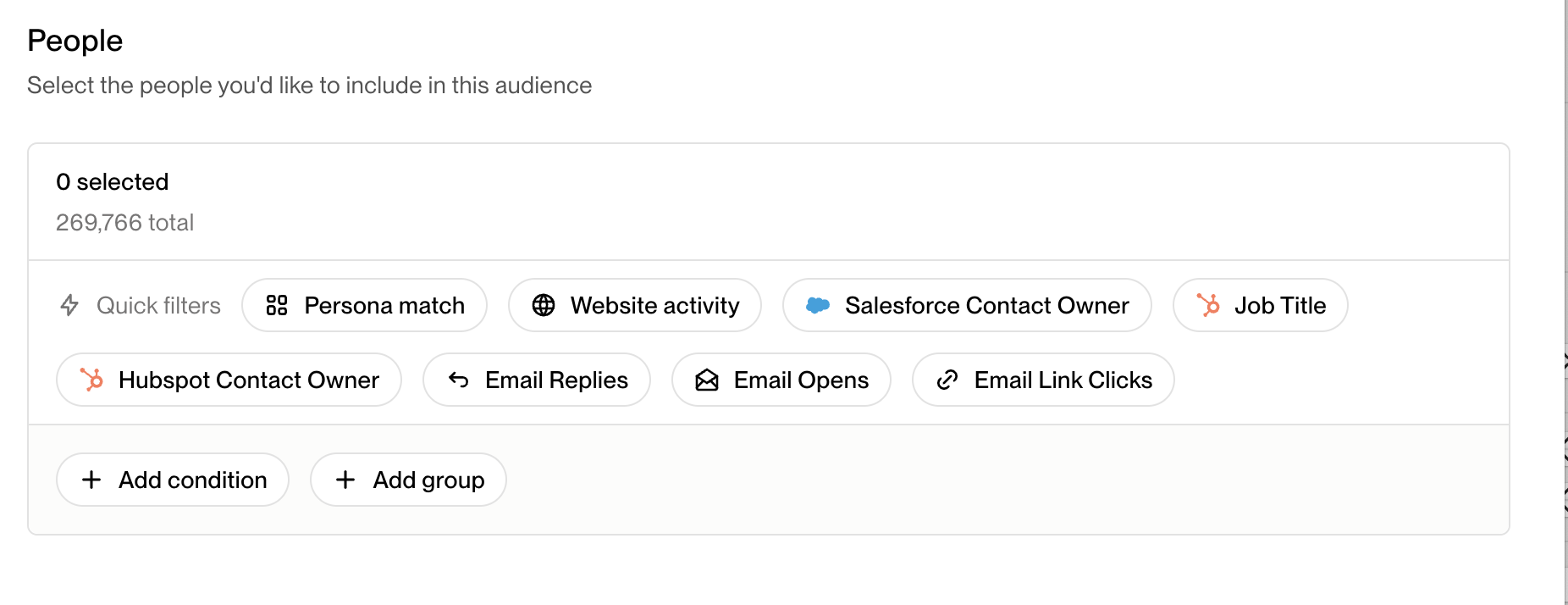
Navigate to the Audiences section in your Unify dashboard
Click “Create New Audience”
Add conditions for email interactions such as:
Number of email opens within a specific time frame
Number of link clicks within a specific time frame
The audience will automatically update to show the total number of contacts meeting your criteria
This allows you to track your most engaged contacts and view total engagement metrics across your email campaigns.
Important: When reviewing aggregate engagement data, you may notice link clicks without corresponding email opens. This is normal and expected. Open tracking relies on tracking pixels which can be blocked or filtered by email clients, so opens may not always be recorded even when an email is viewed. Clicks without recorded opens indicate the prospect engaged with your email despite the open not being tracked, and should be considered valid engagement signals.
Understanding Email Tracking Metric Discrepancies
Users often notice that link clicks can be recorded without corresponding email opens in their Salesforce data. This happens because email opens and link clicks use different tracking mechanisms:
Why Clicks May Show Without Opens
Email opens rely on tracking pixels that can be blocked or missed by email clients, while link clicks are tracked independently through URL redirects. This means an email can be viewed and clicked without an open being recorded. Since link clicks are tracked independently from email opens, you may see clicks recorded even when no open is shown for the same email. This is normal behavior and doesn't indicate a tracking problem.
Key Takeaway
Don't be concerned if your click metrics appear higher than your open metrics – this discrepancy is expected due to the different tracking methods used. Your click data remains accurate and reliable for measuring engagement.
Email Replies
Replies are automatically synced to Salesforce as new email messages
Configuration Requirements: To sync replies with full email content and accurate timestamps, you must enable Email Message Writeback in your Salesforce integration settings and ensure Salesforce Enhanced Email is turned on. Without these settings enabled, replies may sync as Tasks without content instead of EmailMessages with full content.
The reply timestamp is captured in the "Sent At" field of the new message
You can track reply status at the contact level using:
Unify Most Recent Sequence Status: Shows if sequence is finished due to reply
Unify Most Recent Sequence Step At: Shows the last email sent
- Follow-up Workflow: When a prospect replies to a Unify email, it automatically creates a manual task in the "tasks" section for the sender to respond within the same email thread
- Task Auto-Completion Limitation: Tasks are only auto‑closed when replies are received on the same Unify‑managed mailbox/thread that initiated the sequence email. If a prospect replies from a different email address or outside the tracked thread, Unify will not recognize that reply, and you will need to manually complete the task and unenroll the contact from the sequence to prevent further outreach.
- Out-of-Office Replies: By default, automated out-of-office replies can create tasks in your workflow. You can adjust this behavior in your task settings to prevent automated replies from creating tasks.
- Replied Out of Sequence: When a prospect sends a message to your Unify‑connected mailbox that is not in direct response to a sequence email (such as replying to a different thread or sending a new message), this is classified as "replied out of sequence." This will automatically end the active sequence to prevent continued messaging to an already‑engaged prospect. You can locate these messages through the Unify mailbox team if needed.
Important: Unify only syncs email activity to Salesforce if the email was sent from Unify or is a direct reply to an email sent from Unify. This means:
Replies sent from external email clients (Gmail, Outlook, Superhuman, etc.) will not sync, even if sent from your connected email address
Replies sent outside of the sequence thread (e.g., replying to a different address or starting a separate thread rather than directly replying to the Unify‑sent email) will not meet the sync criteria and won't log to Salesforce
- Viewing and Managing Replies: You can view and respond to replies directly in Unify through:
The Lagging Dashboard → Replies section
The Tasks Dashboard
Replying to Contacts After Sequence Cancellation
When a contact responds after their sequence has been cancelled, you can still engage with them manually.
Key Points
Cancelled sequences don't prevent replies: You can safely reply to contacts who respond after their sequences have been cancelled. Cancelled enrollments only stop future automated steps and do not prevent manual replies.
Always reply within Unify: Reply directly in Unify rather than from your personal email client to ensure the message stays in‑thread and is properly tracked in the system.
Salesforce Email Tracking Prerequisites and Limitations
Prerequisites for Email Syncing
Email syncing only occurs for contacts that already exist in Salesforce OR are created via a "Sync to Salesforce" node in a Play. Email syncing alone will not create new contacts in Salesforce.
Email Message Writeback Configuration: To ensure email replies sync with full content to the Salesforce EmailMessage object, enable Email Message Writeback in your Salesforce integration settings. Without this enabled, replies may appear in Salesforce as Tasks without email content or accurate timestamps.
Field Update Limitations
When syncing email tracking metrics to Salesforce, be aware of these important limitations:
Field Overwriting: Unify cannot overwrite existing filled fields in Salesforce. It can only populate empty fields for existing contacts or create fields for new contacts.
Reply Tags: Unify Initial Reply Tags and Unify Most Recent Reply Tags are comma‑separated text fields that can contain multiple tags (e.g., “Ready to meet, Needs more information”). Because the tag set is not a fixed finite list and can evolve, these should be mapped to text fields in Salesforce rather than picklists.
When mapping Unify fields to Salesforce picklists (including reply classification and sequence status fields), you must set a default value in the Unify→Salesforce field mapping. Unify cannot write to a Salesforce picklist without a default value configured.
Note: Opt-out status can be written back from Unify to Salesforce, which is an exception to the field overwriting limitation.
Complete Sequence Status Values
When mapping sequence status fields to Salesforce, the possible values include:
Active
Paused
Finished: Completed
Finished: Replied (includes both direct sequence replies and "replied out of sequence" scenarios where the prospect messaged your Unify-connected mailbox outside the sequence context)
Finished: Bounced
Finished: Unsubscribed
Finished: Do Not Contact
Tip: When mapping these fields to Salesforce, create picklist fields with these exact values rather than using open text fields for better data consistency and reporting.
Email Forwarding: All emails sent to your Unify-managed mailbox are automatically forwarded to your primary email address (the forwarding email you set during mailbox setup), including both replies to sequences and new inbound emails. Note that automated replies are not forwarded. If replies are being forwarded to the wrong recipient, contact Unify support with the mailbox name(s) and the correct email address that should receive replies.
Spam Filtering: Forwarded replies may be filtered to your spam folder by email providers like Gmail, which can flag them as phishing when they detect similar sender names or companies between your Unify mailbox and the actual sender. To prevent this, whitelist your Unify mailbox domains in your email settings and mark any filtered replies as "not spam" when you find them.
Known Limitation: Out-of-thread replies, when prospects reply from a different email address than the one originally contacted, may fail to forward automatically to your inbox, even when forwarding configuration is set up correctly. If you're missing expected replies in your inbox, check the engagement/activity tab in Unify, as Unify will still capture these replies even if automatic forwarding fails.
Secondary Forwarding Addresses
The process for adding secondary forwarding addresses depends on your mailbox type:
Connected mailboxes: Navigate to Mailbox Settings → Advanced to add additional forwarding email addresses beyond your primary forwarding email.
Unify-managed mailboxes: Secondary forwarding must be configured by Unify support on the backend and cannot be set up directly in the UI. Contact Unify support with the mailbox name(s) and the email address(es) that should receive forwarded replies.
Teams where multiple people need to monitor replies
Delegating inbox management to someone other than the original sender
Ensuring backup coverage for reply monitoring
Note: For Unify-managed mailboxes, secondary forwarding settings are configured on the backend and will not be visible in the Unify UI after setup. To confirm forwarding is working, check your inbox (and spam folder) for new replies.
Note: Like primary forwarding, automated replies are not forwarded to secondary addresses either.
Tracking Reply Rates
To calculate reply rates for sequences:
View directly in the Unify sequences dashboard
Or filter contacts by Sequence Status = "Finished: Replied" to calculate rate by enrollment