How do I sync Unify email activity to Salesforce?
Last updated: March 24, 2026
Context
When tracking email communications in Unify, you may want to sync activity data to your Salesforce instance to maintain comprehensive records of customer interactions.
Answer
To sync email activity from Unify to Salesforce, you'll need to set up field mappings between the two systems. Follow these steps:
Important: Before setting up the sync, ensure that all Salesforce contacts you want to sync have an email address populated in their contact record. Contacts without email addresses will not sync to Unify, even when the integration is properly configured.
Navigate to Salesforce Integration Settings > Email Mappings
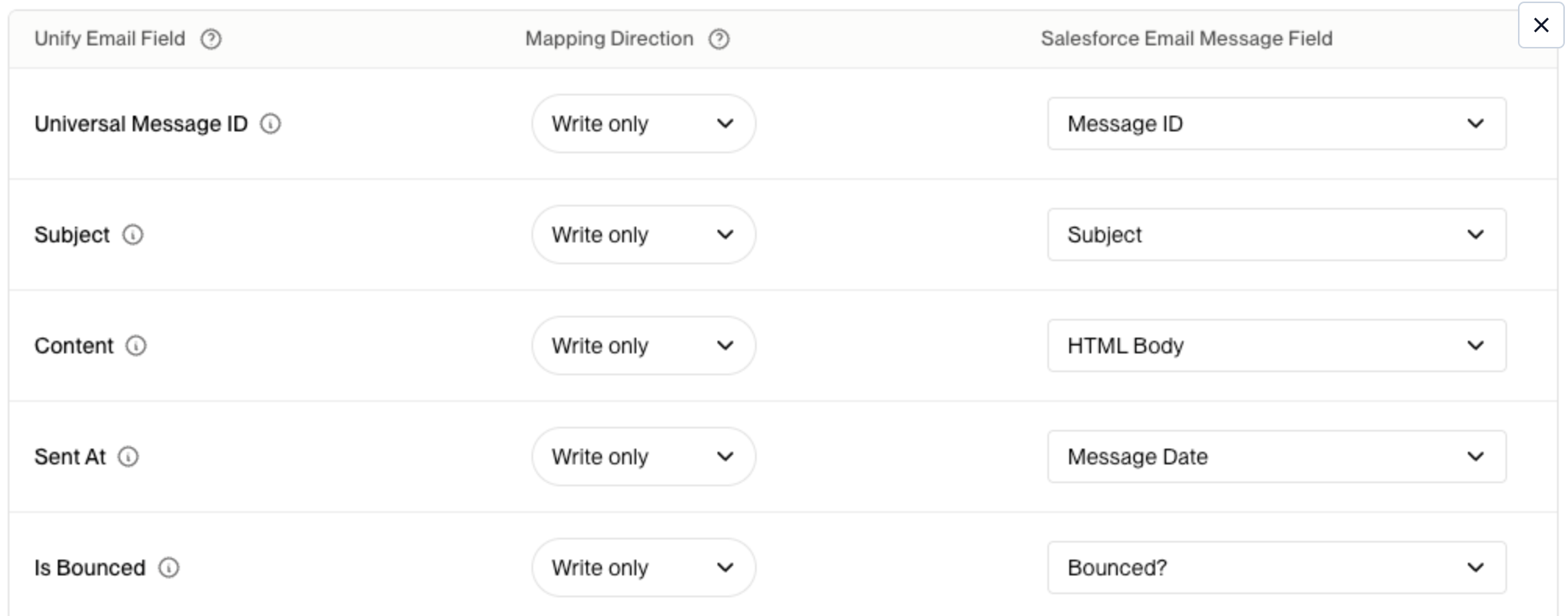
Map the relevant Unify email fields to their corresponding Salesforce email object fields
Save your mapping configuration
Here's an example of typical email field mappings:
Prerequisites for Email Syncing
Before email activity will sync to Salesforce, ensure you meet these critical requirements:
The contact must already exist in Salesforce, OR
The person must pass through a Unify Play that includes a “Sync to Salesforce” node
Important: Email syncing alone will not create new Contacts in Salesforce. Email activity will only be written back to existing Contact records.
Key Clarifications About Email Sync Behavior
Automatic Sync by Default – Email activity from Unify should automatically sync to Hubspot and Salesforce by default, so you may not need to set up mappings unless you want to customize them.
More Specific Navigation Path – To access email sync settings: Go to Settings and integrations → Select Salesforce → Scroll to the bottom to find Email mapping.
Data Protection Assurance – Unify will not overwrite existing data in your Salesforce instance. The system only writes to fields when creating new records or when the field value is null/blank in Salesforce.
Advanced Field Mapping Guidance
Sequence Status Field Configuration – When mapping status fields like “Sequence status” for Leads & Contacts, you can create Salesforce picklists instead of open text fields by using Unify's predefined status values. For a complete list of sequence status values and their meanings, see What do the Unify most recent sequence status values mean?.
Email Address Flexibility – Emails will automatically map to the appropriate Salesforce contacts regardless of which email address they originate from in Unify, as long if the contact exists in your Salesforce instance.
Understanding Email Sync Methods and Advanced Configuration
Email Sync Methods: Task vs Email Message Writeback
Unify supports two methods for logging emails to Salesforce: task writeback and email message writeback. Task writeback logs the email template text (showing variables like {{person.firstName}} instead of actual values) and may have less accurate timestamps. Important: When email replies are logged as tasks instead of email messages, they will appear in Salesforce with no content visible. Email message writeback logs the fully rendered email content with all variables populated and accurate timestamps. For comprehensive email records, ensure email message writeback is enabled in your Salesforce integration settings and that Salesforce Enhanced Email is turned on in your Salesforce instance. This writes emails to the Salesforce EmailMessage object with full content.
Unify automatically records manual emails as tasks and automated emails as email objects. This behavior is fixed and cannot be modified by users.
Critical Field Mapping Limitations
Multi‑select picklist fields: Do not map to multi‑select picklist fields (e.g., Billing State/Province) as these are not currently supported and will cause sync failures.
Country field mapping: For Country fields, map to “Mailing Country Code” instead of “Mailing Country”.
Created By field behavior: Synced email activities will show “Created By: System User” in Salesforce due to Salesforce API behavior, regardless of which rep actually sent the email.
Troubleshooting Sync Failures
If you experience sync failures after setting up your mappings, check whether any mapped fields are multi‑select picklists. Remove these fields from your mapping configuration and contact support to request a re‑sync.
Reporting Considerations
For reporting on email activity by rep, use the Task Owner field or your mapped rep fields in Salesforce dashboards instead of the “Created By” field, which will always show “System User” due to Salesforce API limitations.
Bidirectional Sync Details
The sync between Unify and Salesforce is bidirectional. If you update contact information in Salesforce (such as correcting an email address after a bounceback), those changes will automatically sync back to Unify during the next CRM sync cycle, which typically occurs every 15 minutes but may take up to 30 minutes under heavy load.
Once the mappings are saved, Unify will automatically begin logging all email activity to your Salesforce instance moving forward.