Updating mailbox routing once mailboxes have warmed
Last updated: May 1, 2026
How do I know when my mailboxes are warmed?
If you click into an individual mailbox, you can preview the created date and estimated warmup completion date:
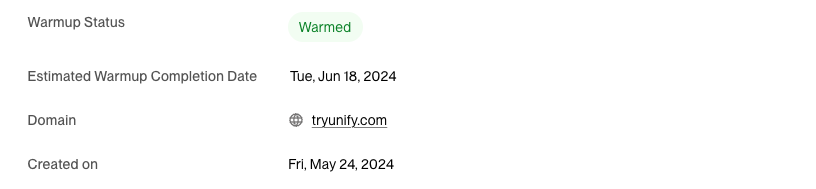
If the mailbox is still warming, it will display a blue "Warming" status. If you check in the day the mailbox warming will be completed and the status is still warming, it will likely warm later in the day. We calculate the warming completion based on 21 days exactly from the time you created the mailbox.
How do I start to send emails from my new mailboxes?
We do not automatically start routing emails from your new mailboxes once warmed. To update this, you will need to go directly into your play settings and update the mailbox routing in the sequence node. The mailboxes will only show up as a selectable mailbox option once warmed.
Choosing your routing method: When updating mailbox routing, you have two options:
Manual mailbox selection: Select specific warmed mailboxes to use round robin distribution across all enrollments
Owner-based routing: Select "Use a mailbox associated with the company/person record owner" to ensure each contact sends from their record owner's assigned mailboxes only
Use owner-based routing when you need to maintain consistent sender identity based on account ownership (e.g., ensuring leads owned by a specific AE only send from that AE's mailboxes). For this to work, mailboxes must be assigned to users in Settings > Deliverability > Mailboxes.
Important: If you're using owner-based routing, ensure that "Manually assign tasks" is disabled in your sequence settings. When manual task assignment is enabled, it will override owner-based routing and assign all tasks to the manually selected user instead of the record owner. To check this setting, go to your sequence configuration and look for the task assignment options.
Important for sequences with manual tasks: When using round robin distribution with manual tasks (e.g., LinkedIn connection requests), ensure task steps are set to "Assign to: Sender" rather than "Assign to: Mailbox owner" in your sequence settings. If set to "Mailbox owner", the task will always be assigned to the mailbox owner while the email rotates across your mailbox pool, creating an assignee mismatch. Setting it to "Sender" ensures the task is assigned to whoever sent the email for that contact.
Once you publish the updated play, new enrollments will be routed from your warmed mailboxes. For existing enrollments:
Contacts who haven't received the first email yet (queued status): You have two options to re‑assign these to your new warmed mailboxes:
Select "upgrade to latest version" when publishing the updated play to automatically upgrade queued enrollments to use the new mailbox routing. Important limitation: When you select this option, any queued emails that have not yet been sent are reset back to your To‑Do list as tasks.
Manually filter to "queued" contacts in the sequence, bulk select them, and re‑assign them to your new mailboxes
Wait until all queued emails have sent before upgrading the sequence.
Or be prepared to re‑queue these emails manually after upgrading.
Consider using the manual bulk reassignment method instead for queued contacts to avoid this reset behavior.
Contacts who have already received the first email (mid‑sequence): The mailbox sending emails cannot be changed for these contacts. However, you can reassign pending tasks and emails:
Queued emails (Step 1 only): Bulk reassign via Dashboard > Leading > Email Backlog > Reassign Sequence Enrollments. See How to reassign emails in the backlog for details.
Mid‑sequence scheduled emails: Cannot be bulk reassigned and must be updated manually.
What happens when I select multiple mailboxes in a sequence?
We will round robin all emails across the selected mailboxes. This means each new enrollment is assigned to the next mailbox in rotation, and that mailbox sends all sequence steps for that contact.
Important: Round robin is a simple rotation system, not a "primary then backup" approach. There is no automatic fallback to other mailboxes when a mailbox reaches its send limit. If you need emails to always come from the record owner's mailbox, set routing to "use a mailbox associated with the company/person record owner" instead of selecting specific mailboxes. This ensures leads owned by specific users will only send from that user's assigned mailboxes.
Important limitation for Company Owner routing: If you're using "Company Owner" routing in your play and the account owner changes mid‑sequence, contacts will be automatically unenrolled from the sequence. The system maintains consistency by unenrolling contacts rather than switching senders partway through. To re‑enroll these contacts after an ownership change, create a CSV of the unenrolled contacts, upload it into a new audience, duplicate the original play with the new audience as the trigger, and enable re‑enrollment in sequence settings with an appropriate waiting period.
Note that this round robin is distributed on a contact-level. If there are multiple contacts from a company queued up in a sequence, this does not guarantee they will come from the same mailbox.
Prioritizing certain sequences: If you need specific sequences to send before others, create a dedicated mailbox group used only for those high‑priority sequences. Then use the Email Backlog page to reassign queued enrollments from lower‑priority mailboxes to that dedicated group. This effectively controls which sequences send first when managing mailbox capacity.