Warming mailboxes
Last updated: May 5, 2026
How long does warming take?
The warming process typically takes 1-3 weeks depending on the type of mailbox setup and is initiated on the day the mailbox is created. New mailboxes or domains generally require 2-3 weeks of warming, while changing sender names on existing mailboxes (such as reassigning from one team member to another) typically takes 1 week. You must actually create the mailboxes to kick off this period. To do this, navigate to Settings > Mailbox tab, where you’ll find the option to add and buy mailboxes in the top right corner. After the warming period completes, a mailbox can start sending at full capacity If you click into an individual mailbox, you can preview the created date and estimated warmup completion date:
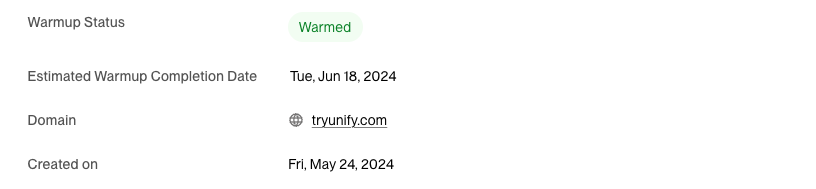
Note: If you need to reassign an existing warmed mailbox to a different user (changing the sender name), the reassignment process takes 1 week instead of the full 2-3 week warming period required for new mailboxes. This can be a faster alternative when you need mailboxes for additional team members and already have warmed mailboxes available.
Mailbox Reassignment Process and Prerequisites
Before reassigning a mailbox:
Cancel or reassign any in‑flight enrollments from the mailbox to prevent disruption to active sequences
Determine whether the mailbox should be reassigned to another user or shut off entirely
What happens during reassignment:
The mailbox will be temporarily disconnected from Unify
All existing enrollments on that mailbox will be canceled or reassigned
The mailbox will rewarm for 1 week after the name change
Important: Contact support to initiate the mailbox reassignment and rewarming process.
What happens during the warming process?
During the warming process, our warming provider is coordinating a series of automated emails from your mailbox to build reputation. These emails will be filtered out of your actual inbox and will not forward to associated user email.
Can I send emails before my mailboxes are warmed?
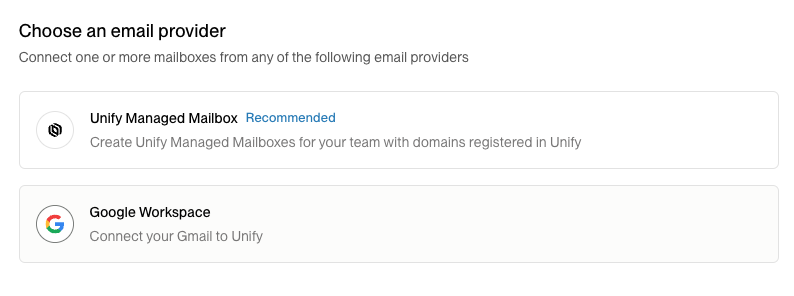
You cannot send emails on your Unify managed mailboxes during 1-3 week warming period. However, you can start to send emails through Unify by connecting a mailbox from your primary domain or any existing Gmail inboxes. You can do this by navigating to the Mailboxes tab, creating a mailbox, then selecting the second option 'Google Workspace'. You can start sending from these emails right away at 25 sends/day with the default email schedule settings enabled.
Navigate to Settings → Mailboxes in Unify
Click the "New Mailbox" button
Select the "Google Workspace" option
You will be directed to your Gmail login page - select the mailbox you want to connect
Choose "Allow" on Gmail's authorization page to grant permissions
You'll be redirected back to the mailbox settings page where you can see your newly connected mailbox status
How do I activate warmed mailboxes for sending?
Once your mailboxes have completed the warming period, they must be manually added to your sequence routing to be used for sending. Warmed mailboxes are not automatically activated in your campaigns.
Navigate to your Play Builder
Click on the sequence node in your play
Edit the routing settings
Select the warmed mailboxes you want to include
Save your changes
Adding more mailboxes to your sequence routing will increase your total sending capacity by distributing emails across multiple mailboxes.
Mailboxes must be assigned to mailbox groups that are actively used by your sequences; merely adding them to sequence routing is not enough—they need to belong to groups referenced in the sequences for their capacity to count.
If a mailbox is removed from all groups but still has queued emails, it will continue sending those backlogged messages until the queue clears, which can appear as though the mailbox is still active.
Note: Forwarded replies may land in spam because Google flags messages where the sender and recipient look very similar, which can appear phishing, and because early forwarded replies are not yet trusted by the provider. If this happens, move the emails out of spam and mark them as “Not spam” to train your provider and reduce future occurrences.
Mailbox Sending Limits: Unify-Managed vs Customer-Owned
Understanding the sending limits for different mailbox types helps you plan your daily sending capacity.
Fixed limit of 25 sends per day per mailbox
This limit cannot be increased; to scale capacity, add more mailboxes
The 25‑send‑per‑day limit for Unify‑managed mailboxes is calculated on a rolling 24‑hour window per mailbox, not reset at midnight. For example, if 20 emails are sent between 2 pm‑5 pm on Monday, those 20 slots become available again between 2 pm‑5 pm on Tuesday, which can cause natural daily fluctuations in send volume.
Start at 25 sends per day by default
Can be increased to 65 sends per day upon request (contact support)
Add More Unify-Managed Mailboxes – each adds 25 emails/day
Upgrade Customer-Owned Mailboxes – connect Google Workspace mailboxes and request increases to 65 sends/day per mailbox
Customer-owned mailboxes offer higher per‑mailbox limits and can send immediately
Unify-managed mailboxes require a 3‑week warming period before sending
Choose the mix that balances flexibility, speed, and capacity for your campaigns
You can add only one customer‑owned mailbox to your primary domain; additional mailboxes must be on other domains or be Unify‑managed.
Manual Email Sending Beyond Automated Limits
Note: The 25‑send‑per‑day limit applies only to automated sequence sends. Manual one‑off emails sent directly from contact records are not subject to this limit, so you can send additional emails as needed.
Create an email filter for messages containing specific identifiers (like 'A6133FE' or 'wuI') in the subject line
Mark these emails as spam to help your email provider automatically filter future warming messages
If filtering issues persist, the system may need adjustment to properly handle the warming emails. This troubleshooting information addresses cases where the automatic filtering doesn't work as intended.
Note about UI Status Display: The "Warmed" status column may not always accurately reflect the actual warming status due to limitations with certain warming providers. In some cases, the warm-up status may appear blank in the UI even when your mailboxes have completed the warming period. If your mailbox shows a blank status or inaccurate warming information but has passed the expected warming period (1-3 weeks depending on setup type), your mailbox is likely fully warmed and ready to send at full capacity. Your mailboxes will be warmed according to the expected timeline (1-3 weeks) regardless of what the status column displays.