Connecting Unify to Zapier via Webhooks
Last updated: June 23, 2026
Use a Unify Webhook node to push Play data into Zapier, then let Zapier route it to any of the 6,000+ apps it supports. Best for non-technical teams who want a 20-minute, no-code setup.
Prerequisites
A Zapier account (the free tier works for low-volume use; paid tiers unlock more tasks and faster polling)
A Unify Play you want to add the Webhook action to
The destination tool you ultimately want to send data into (e.g. Outreach, Google Sheets, Slack)
Step-by-step setup
1. Create a new Zap in Zapier
Go to Zapier → Create Zap
For the Trigger, search for and select Webhooks by Zapier
Choose event: Catch Hook, click Continue
2. Copy the Catch Hook URL
Zapier will generate a unique webhook URL (looks like
https://hooks.zapier.com/hooks/catch/12345/abcdef)Copy this URL — this is what you'll paste into Unify
3. Add a Webhook node to your Unify Play
Open your Play in Unify
Add a Webhook action node where you want the data to be sent
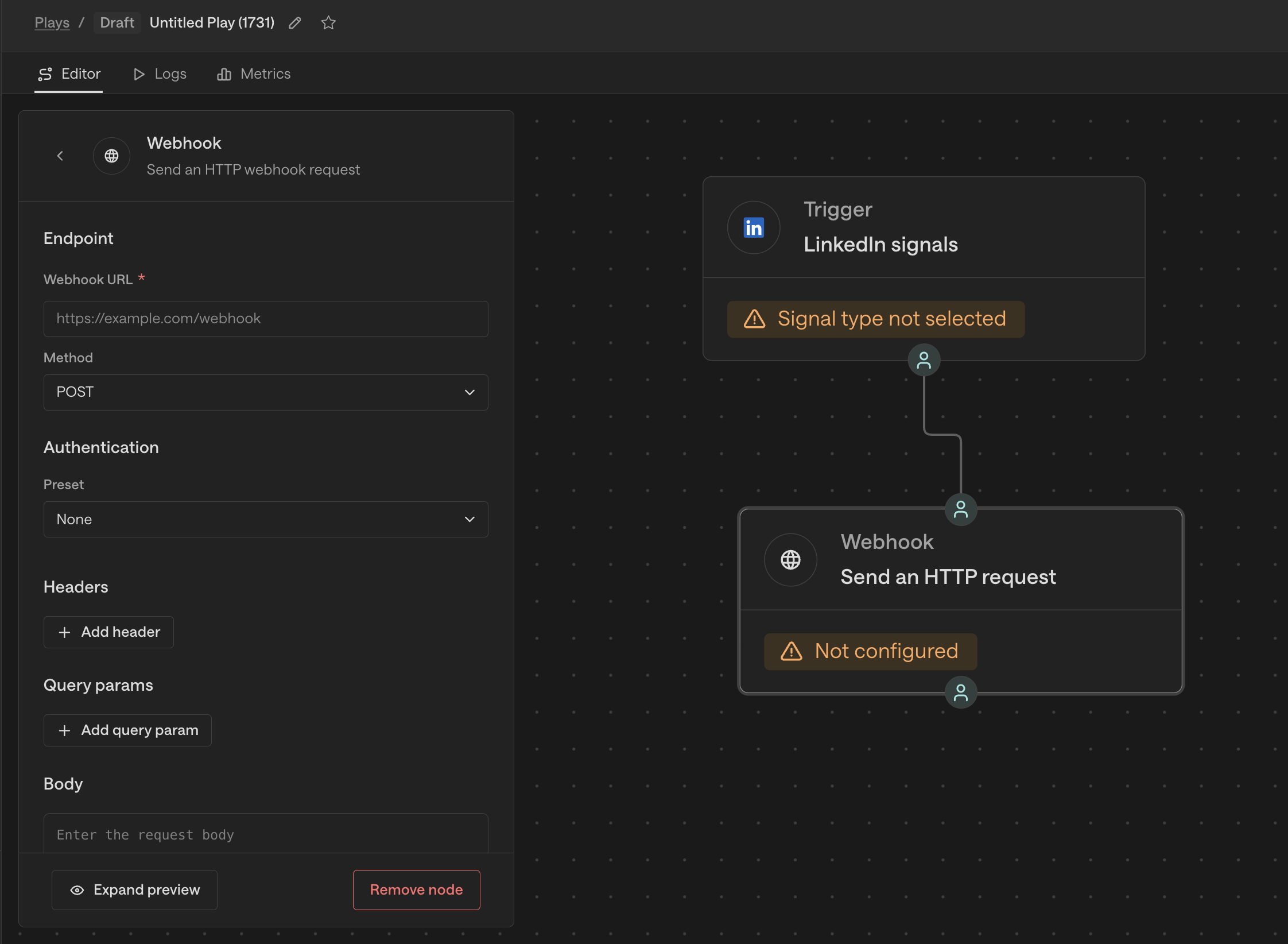
Paste the Zapier URL into Webhook URL
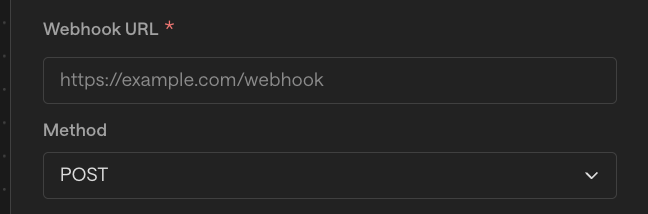
Set Method to
POSTSet Authentication to
None(Zapier doesn't require auth; the URL itself is the secret)
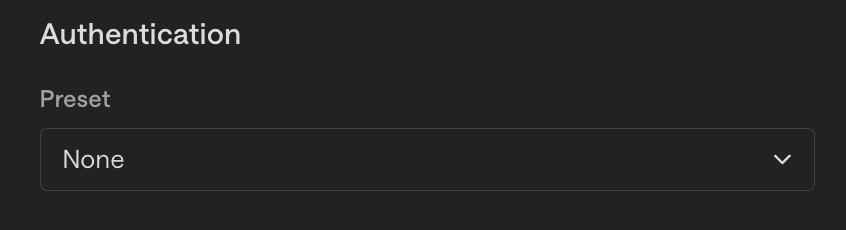
Add
Content-Type: application/jsonunder Headers
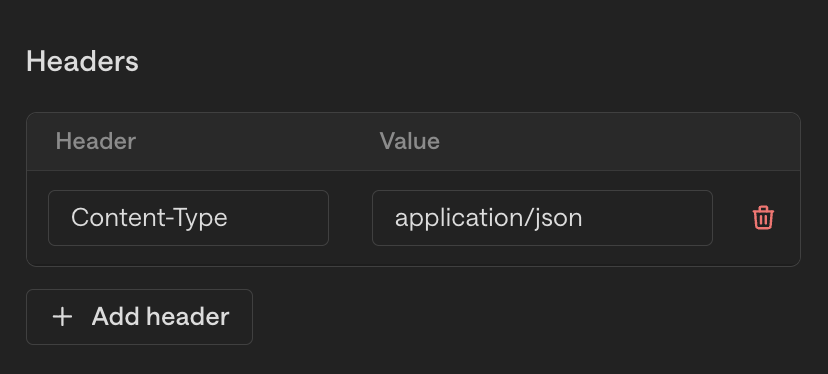
In Body, choose
JSONformat and add the fields you want to send, using Unify template variables:
{
  "email": "{{ person.email }}",
  "first_name": "{{ person.first_name }}",
  "last_name": "{{ person.last_name }}",
  "company_name": "{{ company.name }}",
  "title": "{{ person.title }}"
}
4. Send a test from Unify
In the Webhook node, click Expand preview to see the payload that will be sent for a real record

Trigger the Play once (or use a test record) so Zapier receives a request
In Zapier, click Test trigger — you should see the test payload appear
5. Build the action in Zapier
Click + to add the next step (the destination)
Choose your destination app (Outreach, Google Sheets, Slack, etc.)
Map the Unify fields from your test payload into the destination app's fields
Test the action, then turn the Zap On
That's it — the Play will now push data to your destination every time it fires.
Example Zaps
Unify → Google Sheets (log every triggered record)
Trigger: Webhooks by Zapier → Catch Hook
Action: Google Sheets → Create Spreadsheet Row
Map
email,first_name,company_nameetc. into the sheet columnsUse case: A running log of every record that went through a Play, for reporting or RevOps review
Unify → Slack (alert on high-value signals)
Trigger: Webhooks by Zapier → Catch Hook
Action: Slack → Send Channel Message
Format the message with the Unify fields: "🚨 {{first_name}} at {{company_name}} just triggered [signal]"
Use case: Real-time alerts to your sales channel for high-intent signals
Unify → Outreach (push to a call sequence)
Trigger: Webhooks by Zapier → Catch Hook
Action: Outreach → Add Prospect to Sequence (or Create Prospect)
Map Unify fields to Outreach prospect fields, choose the sequence
Use case: Auto-enroll qualified prospects into Outreach call sequences without going through Salesforce
Tips
Always test with webhook.site first. Paste the webhook.site URL into Unify before connecting Zapier, fire a test, and verify the payload looks right.
Task usage scales with volume. Each Play execution that hits the Webhook = 1 Zapier task. Estimate your Play volume against your Zapier plan.
Zapier polls every 1–15 minutes on the free tier. For near-instant routing, you'll need a paid Zapier plan.
Troubleshooting
Problem | Likely cause |
|---|---|
Zap never fires | Webhook URL was copied incorrectly, or the Zap is turned off |
Fields show up blank in Zapier | Template variable name doesn't match Unify's field — check the Expand preview in the Webhook node |
Zapier shows "task limit reached" | You've exceeded your plan's task quota for the month |
Unify retries every time | The destination is returning a non-2xx status; check Zapier's task history |