Connecting Unify to n8n via Webhooks
Last updated: September 24, 2026
Use a Unify Webhook node to push Play data into n8n, then let n8n route it to any system you can reach via an API. Best for technical teams who want full control and don't mind getting hands-on.
Prerequisites
An n8n instance — either:
n8n Cloud (managed, paid) — simplest option, recommended for most teams
n8n Self-Hosted (free, open source) — full control, but you manage the infrastructure
A Unify Play you want to add the Webhook action to
The destination tool or API you want to send data into
Step-by-step setup
1. Create a new workflow in n8n
Go to n8n → Workflows → New
Click + to add a node, search for Webhook
Select the Webhook trigger node
2. Configure the Webhook node
HTTP Method:
POSTPath: any name you choose (e.g.
unify-leads)Authentication: pick one:
None — easiest; the URL itself is the secret
Header Auth — adds a required header (e.g.
X-Auth-Token)Basic Auth — username + password
Respond:
Immediately(so Unify gets a fast 200 back; the heavy work happens downstream)Click Listen for Test Event to put the node in listening mode
3. Copy the n8n Webhook URL
The node shows a Test URL and a Production URL — copy the Test URL for now
After you activate the workflow, you'll switch to the Production URL
4. Add a Webhook node to your Unify Play
Open your Play in Unify
Add a Webhook action node
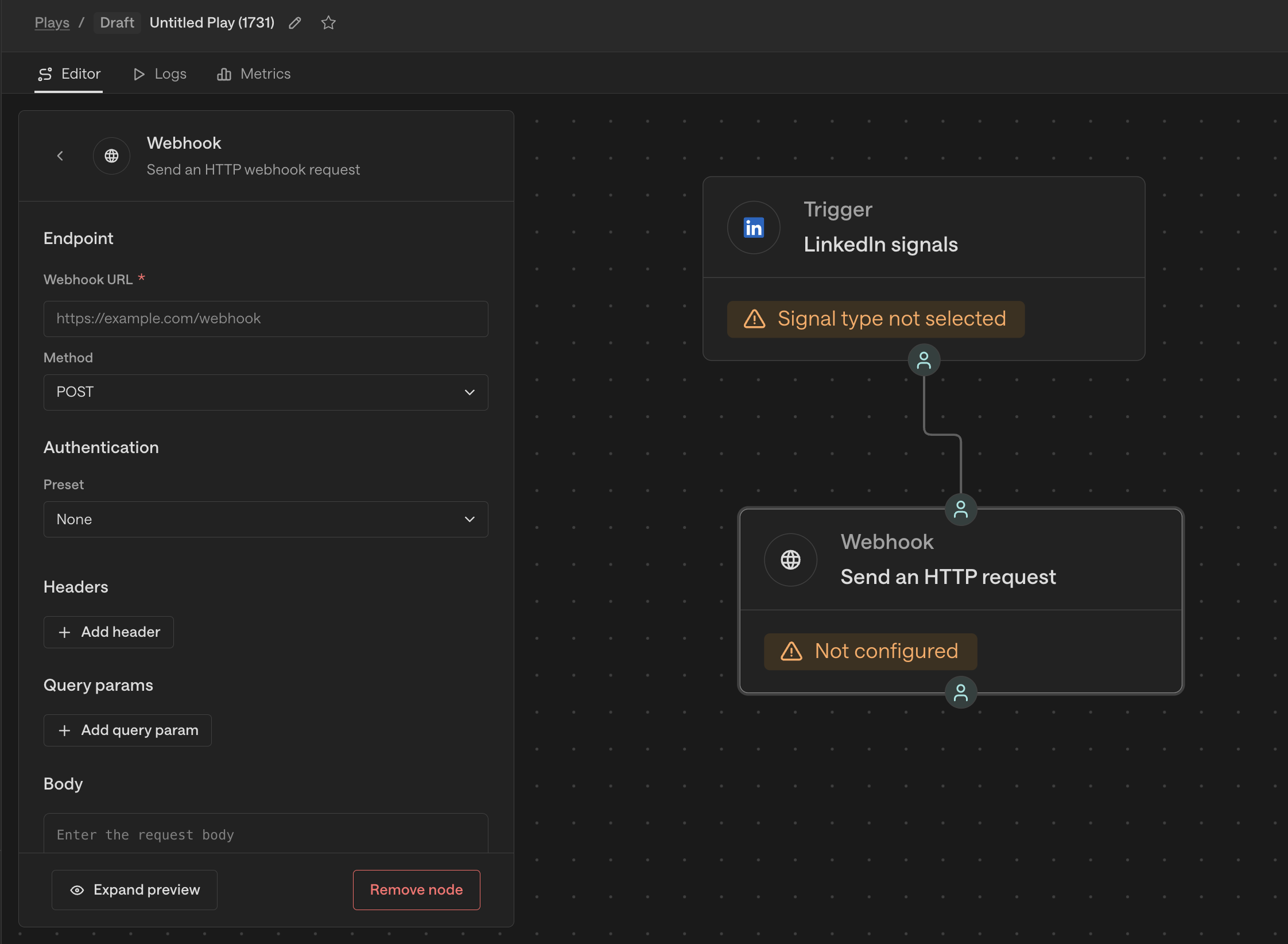
Paste the n8n Test URL into Webhook URL
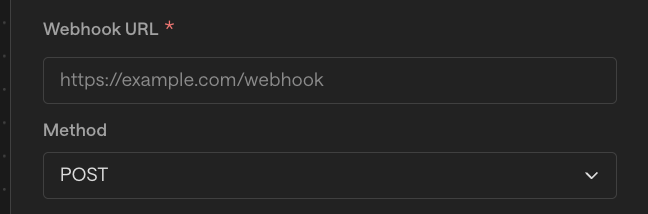
Set Method to
POSTSet Authentication to match whatever you configured in n8n (None, Header, or Basic)
Add
Content-Type: application/jsonunder HeadersIn Body, choose
JSONformat and add the fields you want to send:
{
  "email": "{{ person.email }}",
  "first_name": "{{ person.first_name }}",
  "last_name": "{{ person.last_name }}",
  "company_name": "{{ company.name }}",
  "company_domain": "{{ company.domain }}",
  "title": "{{ person.title }}"
}
5. Send a test from Unify
Trigger the Play (or use a test record)
n8n should receive the request and show the payload in the Webhook node
You can now see the exact JSON structure for use in downstream nodes
6. Build downstream nodes in n8n
Add the next node — could be an HTTP Request, a database insert, a Slack message, etc.
Reference the Unify fields with n8n's expression syntax:
{{ $json.email }},{{ $json.company_name }}Wire up the destination logic
7. Activate the workflow
Click Active in the top right of the workflow
Swap the Unify Webhook URL from the Test URL to the Production URL
Save the workflow
That's it — Unify will push to n8n every time the Play fires, and n8n will run your downstream automation.
Example workflow
Unify → n8n → Custom CRM
Trigger: n8n Webhook node (Auth: Header Auth with
X-Auth-Token)Step 2: HTTP Request node → POST to your CRM's API with the Unify payload
Step 3: IF node → check the CRM response status; on failure, post to Slack
Step 4: Slack node → notify a channel on success or failure
Use case: Push leads to a CRM that doesn't have a native Unify integration, with built-in error handling
Cloud vs. self-hosted
n8n Cloud | n8n Self-Hosted | |
|---|---|---|
Setup time | Minutes | Hours (server + Docker setup) |
Cost | Per-execution pricing | Free (you pay infra) |
Maintenance | None | You patch and monitor |
Best for | Most teams | Teams with strict data residency or compliance needs |
If you're starting out, use n8n Cloud. Move to self-hosted only if you have a clear reason.
Tips
Always test with webhook.site first. Verify the Unify payload structure before pointing at your n8n URL.
Use the Test URL during development, then switch to the Production URL only when the workflow is active.
Header Auth is the simplest secure option. It's a single header, much easier than full Basic Auth for most internal automations.
Troubleshooting
Problem | Likely cause |
|---|---|
n8n never receives the request | Wrong URL (Test vs. Production), or workflow isn't active |
401/403 on the n8n side | Auth mismatch between Unify and n8n — verify the auth preset and credentials match |
Workflow fires once then stops | Workflow is in test mode; activate it for continuous use |
Downstream node fails | Use n8n's execution log to see the exact payload n8n received and where the failure happened |