Why are my Salesforce email activity records not syncing to Unify?
Last updated: May 4, 2026
Context
When using Unify's email integration with Salesforce, users may notice that email activities are not properly syncing between the two systems. This can manifest as missing open counts, missing email records, or activities not appearing in Salesforce.
Answer
There are several common reasons why email activities may not sync properly between Unify and Salesforce:
1. Email Origin Requirements
Unify only syncs emails to Salesforce if they meet specific origin criteria:
The email was sent directly from Unify, OR
The email is a direct reply to an email that was sent from Unify
Common scenarios where emails will NOT sync:
Emails sent from your regular email client (Gmail, Outlook, etc.) outside of Unify
Contact replies to a different email thread rather than directly replying to the Unify-sent email
Contact replies to a different email address than the one used in the Unify sequence
2. Check for Sync Errors
Go to Settings → Integrations → Salesforce → Errors/Skipped Records
Look for any write errors on the email activity records in question
Review the error messages to identify the specific cause (e.g., permission issues, validation rules, required fields)
3. Sync Settings
Email Message Writeback: By default, Salesforce may log email replies as Task records rather than EmailMessage objects, which can result in missing email content and timestamps. To ensure full email content syncs properly, enable Email Message Writeback in your Salesforce integration settings. Additionally, verify that Salesforce Enhanced Email is turned on in your Salesforce org. This combination ensures replies are written to the EmailMessage object with complete content and accurate "Sent At" timestamps.
Note: Field mapping changes only apply to new email activities going forward. Existing Salesforce records and historical emails will not be retroactively updated. If you need to populate newly mapped fields for historical data, you’ll need to backfill directly in Salesforce using tools like Flow, Data Loader, or CSV import.
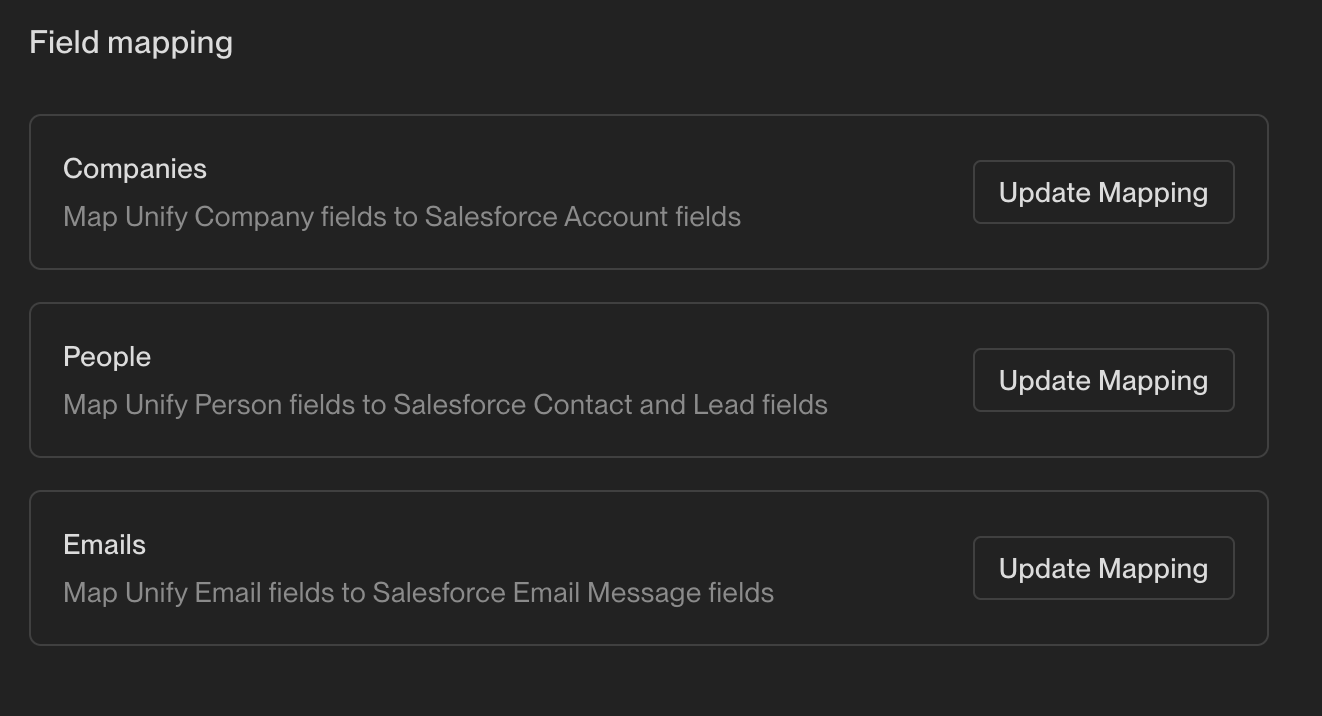
Field Permission Requirements: If Salesforce has validation requirements for certain fields (like required fields), ensure those fields are set to “read & write” rather than “read only” in your field mappings to prevent sync failures.
4. User Email Matching
The email address used in Unify should match the user's Salesforce email address
If no match is found, Unify will still record the email but may not link it to a Salesforce user
The Salesforce contact record must have an email address populated - contacts without email addresses in Salesforce will not sync to Unify, preventing email activity association
When troubleshooting missing email activities or records in Unify, verify that Salesforce Lead records have email addresses populated.
Missing Lead records in Unify
Email activities not associating with Lead records
Incomplete sync data for sales teams working with Leads
5. Permission Requirements
Access to the EmailMessage object
Edit permission on the EmailMessage object (required for Email Message Writeback to function properly)
Edit permission on all relevant EmailMessage fields
View All Records access for Contacts
Edit Tasks permission (as Salesforce creates Task records for emails)
6. Sync Delays
Salesforce API rate limits restrict how quickly data can be read from their system. Large batches of changes may take several hours to process (potentially 4+ hours for very large volumes).
Unify pauses outgoing updates to your CRM while an incoming sync is in progress. This protective measure ensures data integrity by preventing duplicates or accidental overwrites, guaranteeing that Unify works from the most current snapshot of your data before making any changes.
Once the incoming sync completes, email activities and other outbound updates will resume automatically.
Salesforce Email Activity Sync Timing Expectations
When troubleshooting email activity sync issues, it's important to understand normal sync timing to avoid unnecessary escalation. Normal Sync Frequency: Unify syncs from Salesforce approximately every 15-30 minutes under normal conditions. Newly created records or activities may take up to 30 minutes to appear in Unify before being considered a sync issue.
7. Expired Integration Credentials
Go to Salesforce integration settings in Unify
Click “Change User”
Follow the instructions to reconnect your Salesforce integration
If activities are still not syncing after verifying these settings, contact Unify support for further assistance. They can help investigate specific sync issues and ensure proper configuration of the integration.