How to opt out contacts and accounts
Last updated: May 5, 2026
How do I opt out a contact or company in Unify?
When opting out contacts, consider the urgency and scope of your needs. For immediate action to stop queued emails, unenrolling the contact from the sequence is recommended. For permanent opt-outs with retroactive effect, creating exclusions with the setting to proactively unenroll contacts from existing sequences is advised.
Opt out the contact or company in your CRM. In the CRM settings page for Hubspot or Salesforce, you can set up mapping so that your CRM opt out fields reads into the Unify opt out field.

The above example shows the mapping option at both the lead and contact level - you would select the appropriate field on your lead or contact object that can read and/or write to the Unify "Email Opt Out" field.
Understanding Salesforce Opt-Out Fields: When mapping opt-out fields from Salesforce, you may encounter both “Email Opt Out” and “Do Not Email” fields. “Email Opt Out” is a standard Salesforce field on Lead/Contact objects and serves as a global suppression flag. “Do Not Email” is often a custom or marketing‑specific field used for particular campaign types. For Unify mapping, use the field your team treats as the master suppression flag—typically “Email Opt Out” for most organizations.
Critical CRM Field Mapping Configuration: Ensure your field mapping is set to “read & write” rather than “read only” so that opt‑out status syncs bidirectionally between Unify and your CRM.
Go to your CRM settings page in Unify.
Check that your opt‑out field mapping shows “read & write” permissions.
If set to “read only”, update to “read & write” to enable bidirectional synchronization.
Manually remove a contact from the sequence. This method is ideal for single contacts requiring urgent opt-out. For instructions on manual unenrollment, see here.
Note: This will only remove the contact(s) from the indicated sequence but will not permanently opt them out of future Unify sequences.
Manual enrollment cannot bypass exclusions. All exclusions (global, sequence‑level, and audience‑level) apply to both automated and manual enrollments, and there is no per‑contact or per‑sequence override capability for global exclusions.
Company‑level exception: Add an “AND” condition with
domainis not equal to[specific domain]to the exclusion rule.Contact‑level exception: Add an “AND” condition with
emailis not equal to[specific email]to the exclusion rule.
Disable the specific exclusion rule globally (this affects all sequences).
Wait approximately 30 minutes for the change to propagate.
Enroll the contact, then re‑enable the exclusion.
Re-enrollment Timing After Manual Unenrollment
When manually unenrolling contacts from sequences, it's important to understand how re‑enrollment exclusion periods work. If your sequence has a re‑enrollment exclusion period (e.g., 7 days), the exclusion timer starts from the unenrollment date, not from the date of their last sequence action. This means manually unenrolled contacts may still be excluded from re‑enrollment even if their last sequence step occurred more than 7 days ago.
Practical Impact: If you manually unenroll a contact who last received an email 10 days ago, they will still be subject to the full 7‑day re‑enrollment exclusion period starting from when you unenrolled them, not from their last email date. This can cause confusion when trying to quickly re‑enroll contacts after manual removal.
Workaround: To avoid re‑enrollment delays when manually managing contacts, consider using exclusions with the proactive unenrollment setting instead of manual unenrollment, as this provides more predictable timing control for re‑enrollment scenarios.
When performing bulk unenrollments from sequences, the operation processes in batches of approximately 100 contacts at a time. For large volumes (500+ contacts), allow 10‑15 minutes for the operation to fully complete.
Important Clarification: Pausing or deleting a sequence does not automatically unenroll contacts—you must use the Unenroll action to remove them from the sequence.
Bulk Unenrollment Steps:
Open the sequence and go to the Enrollments tab.
Use the Status filter to select contacts (e.g., In progress, Not started).
Select all contacts in the filtered view.
Click Unenroll to remove them from the sequence.
Any Unify user can opt out contacts—admin privileges are not required. This means users can handle opt-out requests directly without needing to escalate to administrators.
Unsubscribe link in emails: All Unify emails include an unsubscribe link that directs prospects to an opt‑out page where they can click “opt out” to be removed from all future communication. When someone uses this link, they are automatically opted out and this information syncs back to your CRM’s “Email Opt Out” field.
Email replies with “unsubscribe”: If a prospect replies to an email with “unsubscribe,” the sequence will stop automatically. However, a team member will need to manually opt out the contact in Unify to ensure they are excluded from future sequences.
When a contact replies to a sequence, only that individual is automatically unenrolled; other contacts at the same company remain enrolled and will continue receiving emails.
A single reply does not create a company-wide opt‑out.
Other employees at the same company will continue receiving sequence emails.
If you want all contacts at a company removed when one person responds, set up company‑level exclusions with proactive unenrollment enabled.
Best Practice: Set up company‑level domain exclusions with proactive unenrollment enabled before launching your sequences so that a reply from any contact removes the entire company from active sequences.
Add the company's domain or contact email to an exclusion. Important: Contact-level exclusions only prevent emails to the specific contacts you exclude. Other contacts at the same company can still be emailed unless you create a company-level exclusion. If you need to prevent all outreach to a company, use a domain-based company exclusion instead. When creating exclusions, consider enabling the setting to "proactively unenroll anyone in existing sequences that fall under the exclusion criteria" for permanent opt-outs with retroactive effect. This approach is recommended for multiple contacts from the same company or for company-wide opt-outs. For the company level exclusion, we recommend adding a filter on Domain and using the "contains one of" statement to add the domain. This will ensure that all contacts associated with this company domain will excluded moving forward.
Critical Warning: When toggling an exclusion from company-level to people-level (or vice versa), all exclusion filters are reset. This can cause unintended mass exclusions. For example, if you change from company to person exclusion type and the criteria becomes "any person whose email is not [specific email]", this will match everyone except that one person, potentially excluding and unenrolling all contacts if the exclusion is used in sequence rulesets. Always review and reconfigure your filter criteria after changing exclusion types.
Multiple Domain Entry Format: When adding multiple domains to a single exclusion rule, separate them with commas in the same field (e.g., competitor1.com, competitor2.com, competitor3.io). You do not need to include http:// or www—just enter the root domains. There is no need to create separate field entries for each domain.
When using exclusions with the retroactive unenrollment setting enabled, the system also removes contacts that are already queued for sending, preventing those emails from being sent even if they were processed into the email queue before the exclusion was created. This ensures complete opt‑out coverage for contacts who may have already been processed for upcoming email sends.
When creating company‑level exclusions, you can filter on Unify Opportunity fields to access Salesforce or HubSpot opportunity/deal data (such as opportunity stage) directly in your exclusion criteria.
Important Limitation of Deal/Opportunity‑Based Exclusions: Unify's native deal/opportunity‑based exclusions work at the company level only. Creating an exclusion using Unify Opportunity fields (e.g., deal stage) will exclude all contacts at companies with matching deals, not just the contacts directly associated with those deals.
Important Clarification: The “Max enrollments per company” setting limits the number of contacts contacted but does not consider deal status or CRM lifecycle stage. To prevent enrollment based on active opportunities, create a company‑level exclusion using opportunity fields with the “Exclude from Sequences” toggle enabled.
Best Practice: Use company‑level exclusions with opportunity stage filters instead of relying solely on the max enrollments setting to ensure outreach respects active sales conversations.
Create a contact‑level custom field in HubSpot (e.g., “Has associated deal in stage X”).
Use a HubSpot workflow or list membership to populate that field for contacts tied to deals in the relevant stages.
Sync that custom field to Unify through your HubSpot integration.
Create a people‑level exclusion in Unify that filters on your custom contact field.
Note: When creating domain-based exclusions, companies may not appear in the dropdown or autocomplete interface if they don’t already exist in your CRM or haven’t been deanonymized via web intent. You can still add these domains to your exclusion criteria, and the exclusion will automatically apply when those companies are added to your system in the future.
Navigation: To create company exclusions, go to Settings → Organization → Exclusions and select "Companies" when creating a new exclusion.
Note: Company-level exclusions automatically exclude all contacts within those companies from being added to sequences. You do not need to create separate people-level exclusions for individual contacts within excluded companies.
Important: Company-level domain exclusions use exact matching and do not support wildcards or partial matching. The exclusion must match the complete domain value stored in your CRM's company domain field. For example, an exclusion for ".edu" will not catch ".edu.br" or ".edu.uk" domains—you must add each domain variant explicitly. If a contact's company has domain variations (e.g., "company-name" vs "companyname") or international extensions (e.g., ".edu" vs ".edu.br", ".edu.au"), add all variations to your exclusion to ensure complete coverage. Alternatively, create a person-level exclusion that filters on email domains to catch variations automatically.
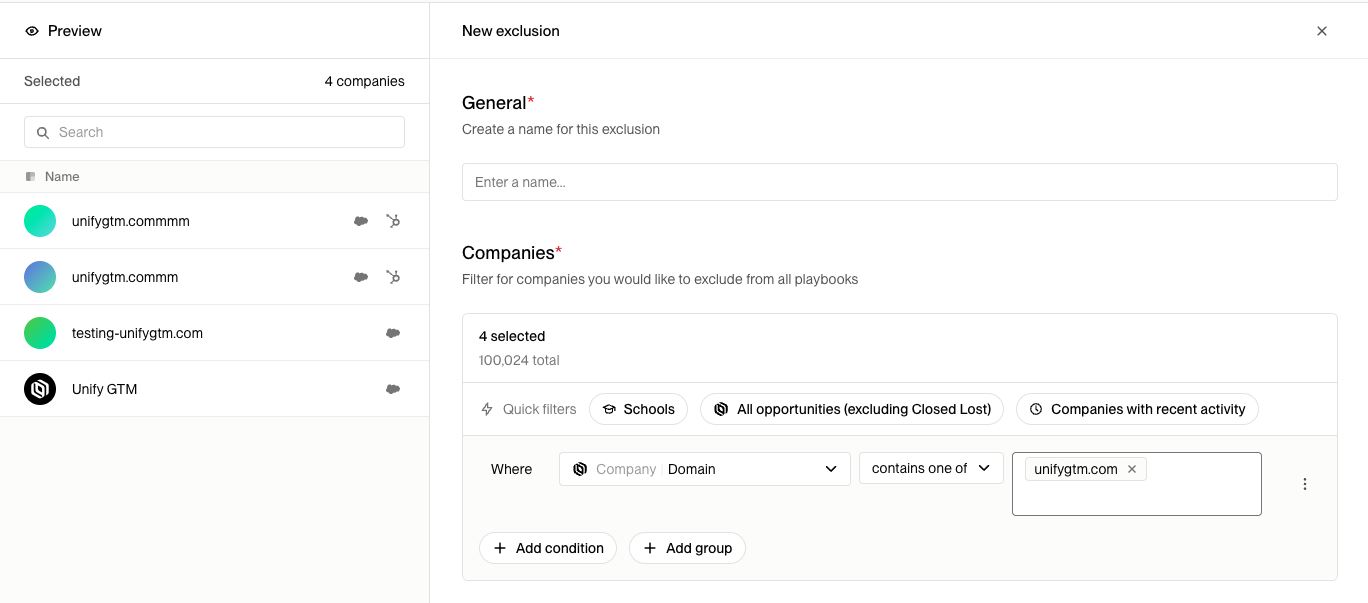
You can also toggle on a setting in the exclusion to proactively unenroll anyone in existing sequences that fall under the exclusion criteria.
Best Practice: Use this option for permanent company-wide opt-outs or when excluding multiple contacts from the same company.
When you modify exclusions (adding or removing contacts or domains), changes can take 30‑45 minutes to propagate due to system caching. If you have recently removed a contact or domain but still see enrollment errors, wait for the cache to update before attempting enrollment again.
This means that upon saving the exclusion, Unify will look for contacts in your existing sequences that match the criteria and remove them from active sequences.
Essential Toggle Setting: When creating exclusions, ensure the “Sequences” toggle (also called “Exclude from Sequences”) is enabled within the exclusion settings. This toggle allows the exclusion to proactively block and unenroll contacts from sequence enrollments. Without it, the exclusion may not prevent sequence enrollments as expected.
Continuous Monitoring Behavior: Exclusions are continuously monitored throughout sequence execution, not just at enrollment. If a contact meets exclusion criteria at any point during an active sequence, they will be automatically unenrolled. CRM‑based exclusions (such as opportunity creation) typically update every 15 minutes, so there may be a slight delay between when criteria are met and when contacts are removed from sequences. This 15‑minute sync delay can also affect initial enrollment decisions—if a CRM field changes (such as an opportunity being created) close to when a Play trigger evaluates, the exclusion data may not have synced into Unify yet, allowing contacts to be enrolled despite meeting exclusion criteria.
Workaround for CRM-Based Exclusion Timing: For high‑priority plays using CRM‑based exclusions (such as opportunity stage or creation date), consider adding a short delay node (5‑10 minutes) at the start of your sequence. This gives CRM data additional time to sync into Unify before exclusion criteria are evaluated, reducing the risk of enrolling contacts who should be excluded due to recent CRM changes.
Understanding Exclusion Hierarchy:
Sequence-level exclusions (set in universal exclusions with the “Sequences” toggle enabled) take highest precedence and will always apply.
Audience-level exclusions can override universal exclusions – when creating or editing an audience, you can selectively disable universal exclusions for that specific audience.
Universal exclusions are applied by default to all audiences, but can be toggled off at the audience level.
Sequence-level exclusion settings: Exclusions must be enabled both globally and at the sequence level to take effect. Sequences use "rulesets" to control exclusion behavior—if a sequence is set to a ruleset that has exclusions toggled off (such as the default ruleset), contacts can be enrolled even if they meet exclusion criteria. To verify or change a sequence's ruleset, go to the sequence, then navigate to Settings → Ruleset and confirm exclusions are enabled. You can also modify the default ruleset by going to Settings → Sequence → Ruleset. Sequence-level settings always take precedence over global exclusions; if an exclusion is disabled on a specific sequence's ruleset, contacts can be enrolled in that sequence even if they meet the exclusion criteria.
After creating exclusions, verify that each individual sequence has exclusions enabled in its advanced settings. Navigate to each sequence’s advanced settings and confirm the exclusions configuration is turned on – this step is required for the exclusion to take effect on that sequence.
Technical Limitation: When using CRM-based exclusions that rely on activity fields (such as "last activity date"), be aware that Unify's email writeback can trigger CRM automations that update these fields. This may cause contacts to be excluded from the same sequence that just sent them an email, even when your CRM field mapping is set to "read only". To prevent this, either toggle off "Exclude from Sequences" for activity‑based exclusions or adjust your CRM automation settings.
Preventing Initial Enrollment with Activity-Based Exclusions: To block contacts with recent activity from being enrolled in sequences without triggering the writeback issue, create an activity‑based exclusion (e.g., "Last activity date" within 90 days) but toggle OFF the "Exclude from Sequences" setting for that specific exclusion rule. This prevents initial enrollment when recent activity exists while avoiding mid‑sequence unenrollment caused by Unify's own email sends updating the activity field.
Navigate to Settings → Organization → Exclusions
Create a new people‑level exclusion
Set filter criteria for your activity field (e.g., "Last activity date" within 90 days)
Important: Toggle OFF the "Exclude from Sequences" setting
Save the exclusion
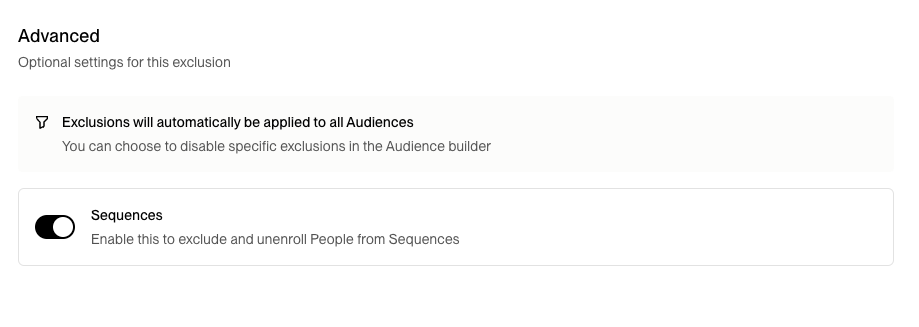
You can create a similar exclusion at the contact level by creating a people exclusion that filters for specific emails you input. Note that this will only exclude the specific contacts listed and will not prevent emails to other contacts at the same company.
Bulk Exclusions via CSV Upload: Upload a CSV list to create bulk exclusions. This method is ideal when you have a pre‑existing list of specific contacts to opt out. To implement this:
Navigate to People (for contacts) or Companies and upload your CSV file.
During the mapping process, map a column to a field like Status with a value such as "Exclude".
Go to Settings → Exclusions and create a new exclusion.
Set the filter criteria to match your mapped field (e.g.,
Status = Exclude).Enable the "proactively unenroll anyone in existing sequences" setting if you want to remove these contacts from active sequences.
Once saved, all contacts in the uploaded CSV will be excluded from future sequences.
Checking your CRM to confirm the contact's status has been updated
Reviewing active sequence reports to ensure the company no longer appears in active sequences
Confirming the exclusion was processed correctly
Troubleshooting: If the exclusion isn't working as expected, verify that:
The correct domain is listed in the exclusion criteria (and all domain variations are included)
The proactive unenrollment toggle is enabled (if you want to remove contacts from existing sequences)
Contacts are properly associated with the company record in your system
For activity‑based exclusions, check that CRM automations aren't updating the exclusion field when emails are sent
The “Sequences” toggle is enabled in your exclusion settings
The exclusion hasn't been disabled at the audience level
The sequence's ruleset has exclusions disabled (check sequence → Settings → Ruleset to verify exclusions are enabled)
For CRM‑based exclusions, account for the 15‑minute update delay
To verify which exclusions are currently active and applied, navigate to any audience and scroll down to view all exclusions affecting that audience. This provides a quick way to confirm your exclusion setup is functioning as intended.
Important Clarification: Changing a contact's status in your CRM or marking them as "Not qualified" in a play does NOT automatically unenroll them from sequences. Unenrollment only occurs through manual action or when an exclusion rule with the "Exclude from Sequences" toggle enabled matches the contact.
For both these options, Unify will apply the exclusion globally across all audiences and sequences moving forward. However, you can turn off specific exclusions for individual audiences if needed. Additionally, if a contact or company is later removed from an exclusion list, they can be re‑enrolled in sequences if they meet the audience criteria for actively enrolling sequences.
Tip: You can also prevent unwanted contacts from being enrolled by configuring exclusion criteria in your Personas settings. In the Personas settings tab, exclude specific words in job titles (like "sales") or other irrelevant terms to filter out contacts before they enter your sequences.
Filtering Personal Email Domains: To prevent personal email addresses (such as @gmail.com, @yahoo.com, @hotmail.com) from being enrolled in sequences, create a people-level exclusion with the filter email ends with @gmail.com (and repeat for other personal domains). This helps conserve credits and send capacity by excluding contacts who are unlikely to be valid business prospects.