How to view and manage sequence enrollments
Last updated: May 4, 2026
Context
When managing sequences, you may need to view all enrolled participants and remove specific individuals from the sequence queue.
How to view sequence enrollments
To view and manage sequence enrollments:
Navigate to the "Sequence" tab
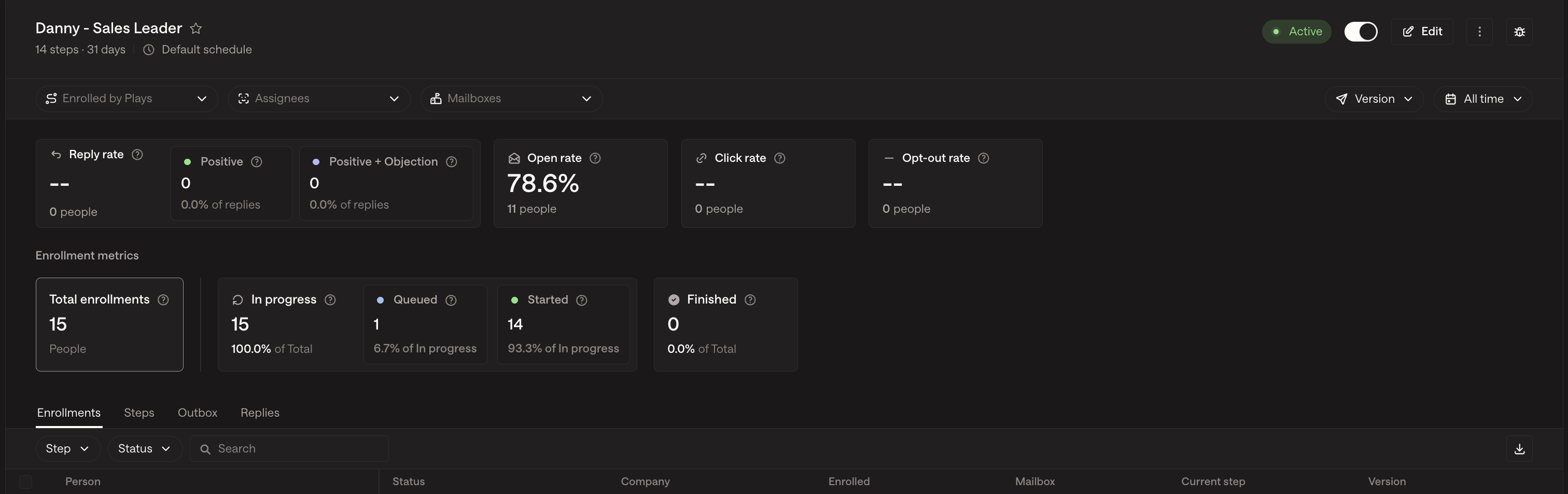
Click on "Enrollments" to see a list of all enrolled participants
Use the search field at the top to search for specific participants by name
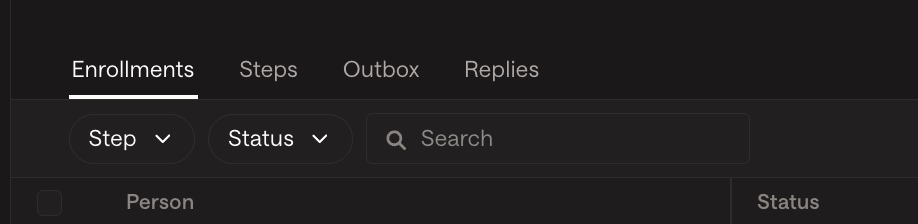
To remove someone from the sequence:
Locate the participant in the list
Select the unenroll option for that individual
When viewing sequence enrollments, you may notice that the number of enrolled participants is lower than the audience count in the Play that triggered the enrollment. This discrepancy is normal because the Play count represents all contacts evaluated by the Play, while the sequence enrollments show only those actually eligible after applying re‑enrollment rules, global exclusions, and sequence‑specific criteria.
Troubleshooting why contacts didn’t enroll
To diagnose enrollment issues, use these approaches:
Before troubleshooting enrollment failures, be aware that Plays don’t enroll contacts in real time. Play triggers run on approximately 15‑minute polling intervals, and audience/criteria updates can take 15–30 minutes to fully propagate (longer after large changes or bulk enrollments). This means there may be a natural delay between when a contact enters an audience and when they appear in sequence enrollments.
Check the Not Enrolled tab: In the Enrollments view, click on the “Not Enrolled” tab to see a breakdown of failure reasons for each contact that didn’t successfully enroll.
Check individual contact exclusions: Navigate to the person’s profile in Unify and go to the Exclusions tab to see which exclusions apply to them. This requires checking each person one by one.
Review all active exclusions: Check Settings → Features → Exclusions to identify which global and sequence‑level exclusions might be blocking enrollments.
Common enrollment failure reasons include:
Already enrolled in another active sequence or within a re‑enrollment cooldown windowExclusions at the sequence or organization level (global exclusions override audience/list settings)Opted out, missing/invalid template variables, or persona/routing mismatchesMailbox/sequence sending limits or company enrollment caps causing queued/blocked enrollments
- Company-level exclusions that automatically exclude all associated contacts (if you see higher exclusion counts than expected, check if company exclusions are pulling in more contacts than anticipated)
Note: After bulk enrollment, enrollment counters may lag during eligibility checks. Allow 30‑60 minutes for the system to fully process and update; the Not Enrolled list will finalize once evaluation completes.
Understanding multi‑level exclusion settings
Exclusions operate at multiple levels that can cause confusion:
Organization level: At Settings → Organization → Exclusions, each exclusion has an “Exclude from Sequences” toggle that applies globally across all sequences.
Ruleset level: At Settings → Organization → Sequences → Rulesets, exclusions can be toggled on/off for specific rulesets.
Audience level: Exclusions can also be toggled at the audience level.
Important distinction between company and people exclusions: When you create a company-level exclusion, Unify automatically excludes all people associated with those companies, not just the companies themselves. This means your excluded count will include every contact at the excluded companies, which can result in much higher numbers than the company count alone. If you only want to exclude specific contacts at certain companies (rather than everyone at those companies), use a people-type exclusion for that subset instead of a company-level exclusion.
The “Exclude from Sequences” toggle at the organization level can block enrollments even when ruleset‑level exclusions are turned off. Verify that this toggle is disabled at Settings → Organization → Exclusions, not just at the ruleset level.
Formatting domain exclusions: When entering multiple domains in a domain-based exclusion field, separate them with commas (e.g., competitor1.com, competitor2.com, competitor3.io). You don’t need to include http:// or www prefixes—just the root domains work best.
Important timing note: After changing any exclusion settings, wait approximately 30 minutes before re‑running plays to ensure the changes take effect.
How exclusions affect queued enrollments: Contacts who match exclusion criteria may still appear with a "queued" status in your sequence enrollments. This is expected behavior—exclusions are evaluated at send time, not at enrollment time. When the sequence runs, any contacts matching your exclusion criteria (such as competitor companies or excluded job titles) will be automatically skipped and will not receive emails.
Exclusions vs. list-based triggers: Exclusions do not apply to static lists themselves, but they do apply at the play trigger level when the play runs. This means contacts in a list may still be excluded from enrollment when the play executes if they meet exclusion criteria at that time.
Multi-CRM opportunity exclusions: If using opportunity-based exclusions, verify that the contact's company doesn't have active opportunities in any connected CRM system (e.g., both Salesforce and HubSpot). Exclusions evaluate opportunities from all integrated systems, so a contact may be excluded due to an opportunity that exists in a secondary CRM even if it's not visible in your primary system. To view all active opportunities associated with a company account, scroll down on the account record to see opportunities from all connected sources.
How to reassign queued emails and tasks
If you need to reassign emails or tasks that are already queued in a sequence (for example, after changing mailbox assignment rules in your play):
Reassigning queued emails (Step 1 only):
Navigate to Dashboard > Leading > Email Backlog
Select “Reassign Sequence Enrollments” for the specific sequence
Choose the new owner/mailbox assignment
Note: Only queued emails in Step 1 can be bulk reassigned via the Email Backlog. Mid‑sequence scheduled emails cannot be bulk reassigned and must be updated manually on each contact record. Additionally, once Step 1 has already sent, mailboxes cannot be switched mid‑sequence to avoid inconsistent sender experience for recipients.
Reassigning tasks:
Navigate to the Tasks tab
Use filters to find the relevant tasks (you can create a list to filter by specific contacts)
Select all tasks you want to reassign
Choose “Assign Owner” and select the new owner
Important: Reassigning task ownership does not change the mailbox owner. Task ownership and mailbox ownership are independent—emails will continue to send from the current mailbox owner while reassigned tasks will appear under the new owner's task list.
Note: If you see a grayed-out “Assign to” button with the message “manual email tasks created by plays will be automatically assigned to the enrollment mailbox owner,” this indicates that task assignment for sequence‑generated tasks must be controlled at the sequence level or via the Tasks tab bulk reassignment method described above, not from individual task screens.
To reassign an individual task, open the task and change the assignee in the “Assign To” field. Note that reassigning a task only changes who is responsible for completing it—it does not change the mailbox used for any associated emails in the sequence.
Routing new tasks without changing mailbox ownership:
Open the sequence and click Edit
Navigate to Advanced Settings
Enable “Manually assign tasks” and select the desired task owner
Save the sequence
This will assign all new sequence‑generated tasks (including call tasks) to the selected owner, while emails continue to send from the existing mailbox owner. Note that this only affects new enrollments—existing enrollments will keep their current task assignments.
Preventing task misassignment
If tasks are being assigned to the wrong person (for example, tasks going to a different user when the account owner should receive them), check these common causes:
Task assignment settings in sequence steps: When configuring manual tasks (such as LinkedIn connection requests or phone calls), you can choose how the task is assigned:
Assign to Sender: Assigns the task to whoever sent the email in that sequence enrollment (recommended when using mailbox pools with rotation)
Assign to Mailbox owner: Assigns the task to the owner of the mailbox, regardless of who the email sender is
Assign to Record Owner: Assigns the task to the person record's owner field (typically synced from your CRM)
When using a mailbox pool with rotation in your Play's routing settings, set manual tasks to “Assign to Sender” to ensure the same user handles both the email and the task. If you use “Assign to Mailbox owner” or “Assign to Record Owner” instead, you may see mismatches where one person sends the email but another person receives the task.
Sequence task assignment settings: If “Manually assign tasks” is enabled in the sequence settings, all tasks will go to the selected user regardless of record ownership. To fix this, either disable manual assignment or set it to assign to the mailbox owner if you want owner‑based routing.
Mailbox ownership configuration: If the sequence uses multiple mailboxes, reply tasks can round‑robin between mailbox owners. Ensure the sequence is configured to use the mailbox associated with the company/person record owner if you expect routing by owner. Verify that the intended owner has an assigned mailbox in Settings → Deliverability → Mailboxes.
Timing of enrollment: If task assignment settings were changed after contacts were enrolled, existing enrollments may keep the prior assignment behavior. You’ll need to reassign existing tasks using the methods above.
Note: Changing the task assignment setting on a sequence step only applies to new enrollments going forward. Contacts already enrolled before the change retain their original task assignee. To fix existing misassigned tasks, use the bulk reassignment process described above.
Updating the sequence’s task assignment setting will fix future task assignments but won’t retroactively reassign existing tasks.
For more details on configuring task assignment, see How to fix incorrectly assigned sequence tasks and configure task assignment and FAQ: Reply tasks.
When a contact is unenrolled from a sequence, all tasks associated with that contact are automatically deleted, ensuring no lingering tasks remain.
For more details on reassigning emails in the backlog, see How to reassign emails in the backlog.
Note: The search functionality currently only supports searching by participant name. To remove participants based on other criteria (such as title), you will need to manually review the enrollment list.
Important: When you unenroll a contact from a sequence, they will be immediately removed from all queued/scheduled sends and no further sequence steps will be sent to them. This makes unenrolling useful as a way to prevent queued emails from being sent if you need to stop a sequence step before it goes out.
Important: If you delete a sequence without first unenrolling contacts, those contacts will remain in an ‘enrolled’ state and cannot be enrolled in new sequences. Similarly, pausing a sequence using the switch at the top right does not unenroll contacts—contacts who have not completed all sequence steps will remain enrolled in the paused sequence, which will block them from being enrolled in any future sequences. Note that pausing a sequence pauses it for all enrolled contacts globally; there is no way to pause a sequence for specific individual contacts only. To allow contacts to enter new sequences, you must manually unenroll them from incomplete sequences.
To move contacts from a deleted or paused sequence to a new one:
Option A - Using enrollment history:
Create an audience: Person Enrolled in "[Old Sequence]" (Anytime) where Status = Canceled
In Settings > Organization > Sequences > Rulesets, enable “Allow re‑enrollment into Sequences” and set the wait to 0 days
Create a Play that enrolls the audience into your new sequence
Option B - Using CSV upload:
Export a CSV of the contacts you want to move
Upload the CSV as a new audience
Enable re‑enrollment rules as above
Create a Play that enrolls the new audience into your sequence
Re‑enrolling previously blocked contacts: If you want to re‑enroll contacts who were previously blocked due to enrollment in another sequence, clone and re‑run the play. Additionally, ensure the re‑enrollment setting is enabled in Unify to allow these contacts to enter the new sequence.
Automatic Unenrollment via Exclusions: Contacts can also be automatically removed from active sequences when they meet exclusion criteria (such as when a deal/opportunity is created for their company). To proactively remove contacts from active sequences when they meet certain criteria (such as submitting a sales form or booking a meeting), configure the exclusion in Settings > Exclusions with the "Remove from active sequences" toggle enabled, rather than only adding the exclusion at the play level—play-level exclusions only prevent new enrollments but won't remove contacts already in sequences. This automatic removal only occurs if the "Remove from active sequences" toggle is enabled for the exclusion in Settings > Exclusions. Note that exclusions can be toggled off at the audience level but still be toggled on at the sequence level—when this happens, contacts will be excluded from sequence enrollment when they reach the sequence node, even if the audience-level exclusion appears disabled. If this toggle is disabled, the exclusion will only prevent new enrollments but won’t remove contacts already in sequences.
How do I unenroll a contact from my sequence?
Important: Marking a task as “finished” only advances the contact to the next step in the sequence—it does not unenroll them or end the sequence. If you want to stop a contact from receiving further sequence steps, you must manually unenroll them using one of the methods below rather than just marking their tasks as finished.
Navigate to the sequences tab.
Click into the sequence the contact is enrolled in.
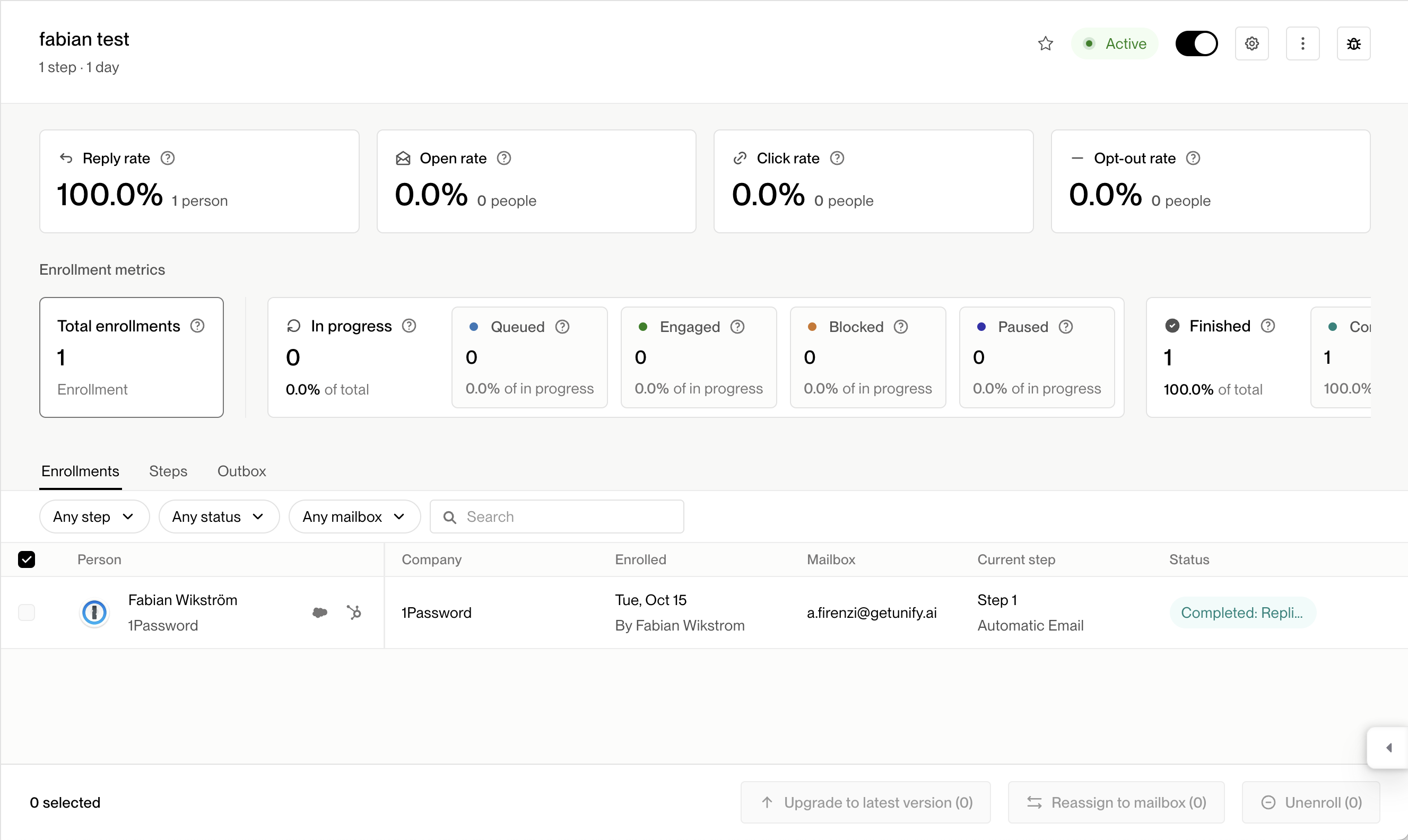
Navigate to the enrollments tab and select the contact to unenroll. Click on the 'Unenroll' button at the bottom right - this should indicate the number of contacts you're unenrolling. You can use the step and status filters to bulk select specific contacts - for example, you may want to unenroll all contacts with Status = Blocked.
You can also use the mailbox filter in addition to step and status filters to quickly narrow down contacts for bulk operations.
When bulk unenrolling contacts, the system processes them in batches of approximately 100 at a time in the background - you only need to trigger the unenrollment once, and the full queue will process automatically within 10-15 minutes.
Blocked enrollments that won’t clear: In some cases, an enrollment may remain stuck in “blocked” status even after you’ve resolved the underlying issue (such as fixing template variables or re‑authenticating a mailbox). If you’ve confirmed that the email content is complete and all variables are properly resolved, but the enrollment still shows as blocked, contact support to refresh the enrollment status. This will move valid enrollments from blocked to queued status.
If you refresh the page and search the contact again, they should no longer be queued up in the sequence. They will no longer be searchable in the enrollments tab or outbox, will be removed from all scheduled sends, and will not receive any further sequence steps.
Bulk unenrolling must be performed from the sequence enrollments tab; it cannot be done from individual task views. When you bulk unenroll contacts, they are removed from all steps in the sequence, not just from individual tasks.
Use unenroll when you want to remove a contact from a specific sequence only. If you need to prevent a contact from receiving all future Unify emails across all sequences, use the opt‑out function instead.
There are two ways contacts can be opted out:
Troubleshooting Blocked Sequence Enrollments
Check the exact reason per enrollment: Navigate to the sequence Enrollments tab or Outbox and filter to Status = Blocked. Open an affected enrollment and click “See variables breakdown”. Missing or invalid variables will be highlighted in orange.
Resolve variable issues: Edit the email subject/body/signature/links to replace or remove unresolved placeholders. Ensure variables use the correct syntax (avoid double curly braces like
{{first_name}}and stray {INSERT ...} text). Save your changes—the step will automatically reschedule and clear from Blocked status.Apply fixes to multiple enrollments: After fixing the template, click “Upgrade all enrollments” to apply the fix broadly. Alternatively, bulk select Blocked enrollments → Unenroll → re‑enroll after fixes are complete.
If the issue is mailbox-related: Re‑authenticate the sending mailbox connected to the sequence, then retry the step.
If the enrollment is blocked due to thread dependency: If the first email in your sequence (which acts as the thread root) was skipped for an enrollment, subsequent emails configured as replies in that thread cannot send. This will cause the enrollment to remain blocked even if all variables are correct. To resolve this:
Skip all remaining email tasks for the affected enrollment and move on, OR
Unenroll and re‑enroll the contact so the sequence starts fresh from step 1, OR
Send one‑off emails outside of the sequence if you still want to reach this contact
Automatic opt-out: When a contact clicks the unsubscribe link in an email, they are automatically opted out of all future Unify emails. This opt-out can sync back to your CRM via the mapped "Email Opt Out / Is Opted Out" field.
Manual opt-out: When a contact replies with "unsubscribe" or "please remove me," Unify classifies these as "Opt out" replies, but you must manually opt them out by opening their contact record in Unify and clicking the “Opt Out” button at the top of the contact tab.
Alternatively, you can unenroll an individual contact directly from their contact record:
Search for the contact in the “People” page or within the sequence itself.
Click on the contact’s name to open their contact tab.
Click the “Unenroll” button at the top right of the contact tab.
Visibility of re‑enrollment exclusions: If a contact is excluded from enrollment due to sequence re‑enrollment rules, what you see in the activity log depends on how they were enrolled. For manual enrollments, you will not see any indication that the contact was excluded. For Play‑triggered enrollments, if the Play allows re‑runs, the activity log will show the contact ran through the Play and was “not enrolled” with a failure reason such as “already enrolled” or “recently enrolled.” However, if the Play itself does not allow re‑runs, no new activity will be logged and you will only see the previous enrollment.
Important: Non‑email responses require manual action. If a contact responds via LinkedIn or other non‑email channels, they will not be automatically unenrolled from the sequence. Manually unenroll them to prevent further steps.
Note: Sequence deactivation vs. unenrollment. Deactivating a sequence only prevents new participants from being added; existing enrollments continue. To stop all emails, manually unenroll participants using bulk selection.