Understanding Email Tracking and Syncing with Salesforce in Unify
Last updated: May 4, 2026
Email Syncing with Salesforce
Unify automatically syncs email replies to Salesforce, but only under specific conditions. When a client replies to an email sent through Unify, the reply will be synced as a new email message in Salesforce. The timestamp of the reply will be captured in the "Sent At" field in Salesforce.
By default, emails sync to Salesforce as Task records. However, you can configure Unify to sync automated sequence emails as Email Message records instead, which provides fully rendered emails with populated variables and accurate timestamps.
To sync automated sequence emails as Email Messages:
Enable Enhanced Email in your Salesforce org
In Unify, navigate to Settings > Integrations > Salesforce
Scroll to the Email Mapping section
Click "Create Mapping" and map the Unify email fields to your Salesforce Email Message fields
Note: Manual emails will always sync as Task records, regardless of your Email Message configuration. Only automated sequence emails can be synced as Email Messages.
Important: Email syncing will only occur if the contact already exists in Salesforce OR if the contact is created through a Play that includes a “Sync to Salesforce” node. Email syncing alone will not create new contacts in Salesforce.
Tracking Email Interactions
Unify offers several ways to track email interactions, which can be synced with Salesforce:
1. Email Opens
To track when recipients open your emails, use the "Track Opens" field. This will record the number of times an email is opened.
2. Link Clicks
Unify automatically tracks link clicks in emails. To sync this information with Salesforce, map the following fields:
Click Count: Records the number of clicks on links within the email.
Clicked At: Captures the timestamp of the first link click.
Note: For click tracking to work, the links must be on the domain where your Unify web tag is attached.
Configuring Salesforce Integration
To set up email tracking and syncing with Salesforce:
Navigate to the Salesforce integration settings in Unify.
Map the relevant fields:
"Track Opens" for email opens
"Click Count" for the number of link clicks
"Clicked At" for the timestamp of the first link click
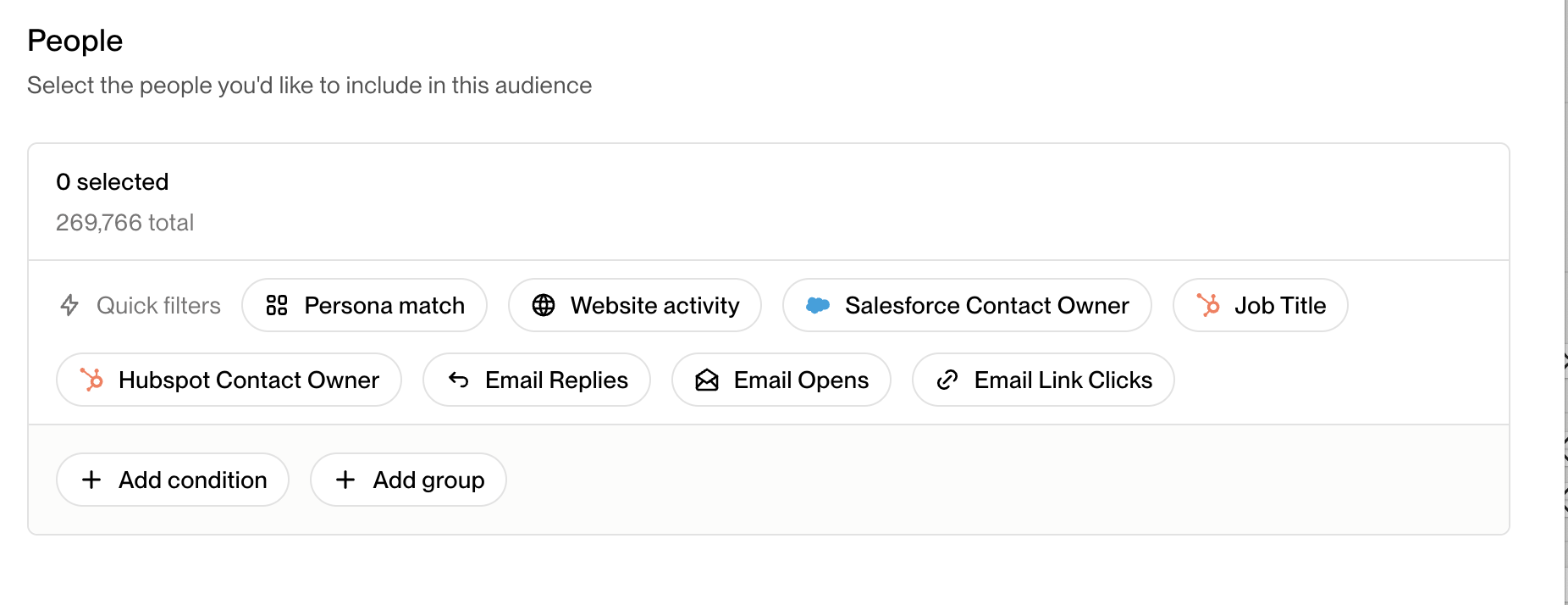
Using Audience Filters
You can leverage audience filters in Unify to segment contacts based on their email interactions:
Additional Information
If you need detailed information about link click dates that isn't available in Unify's interface, you can request a manual CSV export of contacts and their link click dates from the Unify support team.
Email opens and link clicks are tracked separately. An email can be opened without any links being clicked, and vice versa.