Turning off email sending for specific days
Last updated: May 4, 2026
Can I disable sending on specific days?
Yes, we recommend temporarily pausing your sequences and resuming them when ready. You can pause the sequences by navigating to the sequences tab and clicking into each sequence. There is a toggle you can click on the top right to switch the sequence to a paused state. Once you switch the toggle back to active, this will automatically reschedule any previously queued emails and start sending them again. We also recommend pausing your plays if you would to stop new contacts from being enrolled in the sequence. If you plan to duplicate the play, ensure all contacts have finished un‑enrolling before duplicating and republishing to prevent enrollment conflicts that could delay sending. Note that if a new contact is enrolled while the sequence is paused, no emails will be sent but that contact will be queued to be scheduled in the future.
Alternative approach: Adding delays to sequences Another way to control when emails start sending is to add a delay at the beginning of your sequence. This method is often preferred over adding delays in plays because you can still see play progress while emails remain unsent. To do this, edit your sequence and add a delay step before the first email. This approach gives you more granular control over timing while maintaining visibility into your play performance.
Alternative Approach: Using Custom Send Schedules with Skip Dates For planned blackout periods, you can create a Custom Send Schedule with Skip Dates instead of manually pausing sequences. This automatically prevents emails from being sent on specific dates without requiring you to toggle sequences on and off.
Create a Custom Send Schedule and specify the dates you want to skip (e.g., holidays, company events, or specific blackout periods)
Apply this send schedule to your sequences
Emails will automatically be blocked on those skip dates and rescheduled to the next available sending day
Important: Contacts can only be enrolled in one sequence at a time. Even when a sequence is paused, contacts remain “in” that sequence and cannot be enrolled in another sequence. If you need to move contacts to a different sequence, you must remove them from their current sequence first, not just pause it.
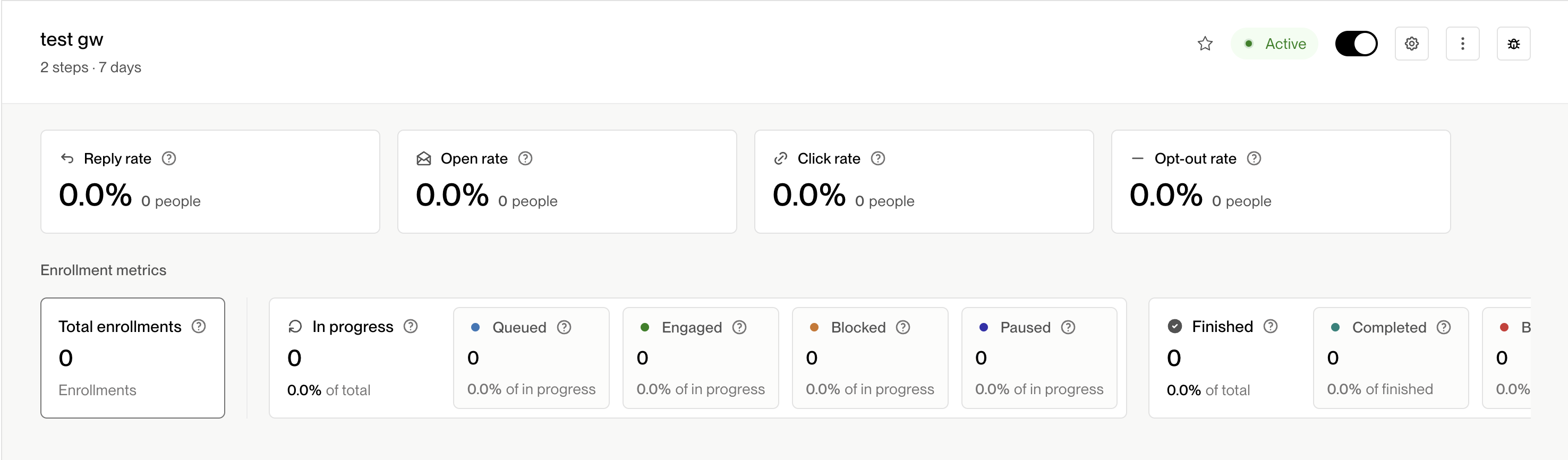
Note that if you turn the toggle back on outside of your sending schedule (i.e. let's say your schedule is 9-4 PT and you resume the sequence at 6 PT), it will not start sending your emails immediately and schedule them for the next available slot in the send schedule.
What if I pause the sequence but I do not pause the play?
If you pause your sequence but do not pause the play that is enrolling contact into that sequence, we will still find new contacts based on the play criteria. New contacts will still enroll in the sequence but none will be sent emails while the play is paused. Given the sequence is in a paused state, it will not schedule a time for the sequence step to be sent immediately. When you resume the sequence, all the queued enrollments will be scheduled in the next available slot in the email queue on the associated mailbox. Remember that contacts already enrolled in other sequences (even paused ones) will not be enrolled in this sequence, as each contact can only be in one sequence at a time.This same scheduling logic applies to new enrollments - if a contact is enrolled in an active sequence outside of your sending hours, their emails will be queued for the next available slot in your send schedule rather than sending immediately.
Troubleshooting: Can't Find the Pause Toggle? The toggle is specifically located on the top right of the sequence dashboard view, not when you're in edit mode for the sequence. This distinction is important because the toggle is only visible from the main sequences dashboard, not from within the sequence editing interface. Quick tip: If you can't find the pause toggle, make sure you're viewing the sequence from the main dashboard rather than having clicked into edit the sequence content.
Understanding Email Scheduling Outside Configured Days
If emails are scheduled for days outside your configured sending schedule (for example, weekends when you have set weekdays‑only), the system automatically reschedules them to the next available sending day. The UI may show these non‑sending days, but no emails are actually dispatched until the next configured sending day.
Managing Email Backlogs
If your sequence is active within your sending schedule but emails aren't being sent immediately, an email backlog on your associated mailbox may be causing delays. Each mailbox can send up to 25 emails per day with a 4-8 minute throttle between sends, and emails are sent in FIFO (first-in-first-out) order across all sequences sharing that mailbox. Backlogs can extend delivery times beyond the normal schedule even when the sequence is active and within sending hours.
How to Check and Resolve Backlog Issues
Click into a “queued” email to view its scheduled send date.
Check the email backlog status in the dashboard.
Reassign enrollments to inboxes with lower backlog numbers to improve delivery speed:
Navigate to Email Backlog in your dashboard
Scroll to Reassign Sequence enrollments
Click Reassign Enrollments for your sequence
Select the new mailbox(es) and save
Note: This can only be done for queued enrollments, not emails already sent or currently sending
If your sequence includes a manual task as the first step, ensure it is completed before automated emails can send.
Preventing backlogs through sequence optimization: limit your sequences to 3‑4 emails and tighten play entrance criteria to reduce enrollment volume. Shorter sequences keep sending capacity available for manual outreach and help avoid backlog buildup.
Add additional mailboxes and route the sequence to them to increase daily sending capacity
Temporarily pause lower-priority sequences that share the same mailbox to free up capacity