Resequencing contacts
Last updated: May 4, 2026
Will a contact emailed from Unify ever receive multiple sequences?
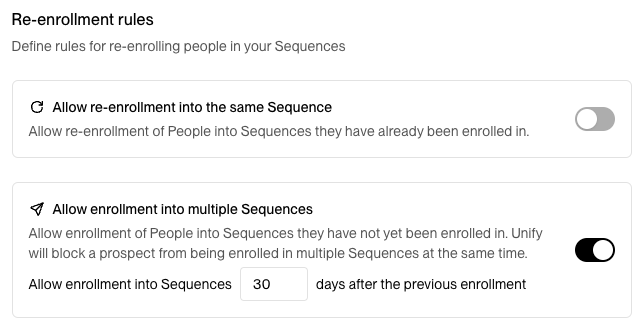
By default, we do not allow a contact that has already received a Unify sequence to receive multiple sequences. This means that contact cannot be re-enrolled in the same or different sequence after receiving the first sequence. However, you can customize this settings here to reset your re-enrollment rules.
How can I set rules to allow contacts to be resequenced?
To adjust re-enrollment settings, navigate to Settings > Sequences > Rulesets. Open the ruleset applied to your sequences, then in the Re-enrollment section, you'll find "Allow re-enrollment into sequences" with a field to set the number of days between enrollments. Update the number and click Update to save your changes.
Note: Only organization admins can modify re‑enrollment settings and rulesets. If you cannot access these settings, contact an admin in your organization.
Re‑enrollment settings are global and apply organization‑wide to all sequences in your organization.
Contacts cannot be enrolled in more than one sequence at the same time; they will not enroll if they are currently in another sequence or if the required waiting period has not passed.
Re-enrollment vs. First-time Enrollment: The "Allow re-enrollment into the same sequence" setting is only required if a contact was previously enrolled in that specific sequence. If a contact was blocked by exclusions but never actually enrolled, they will automatically enroll once they meet the audience criteria and exclusions no longer apply—no re-enrollment setting needed.
Important: When contacts are re‑enrolled in a sequence, they resume at their next step in the sequence, not from the beginning.
The contact is not currently enrolled in any active sequence.
The specified waiting period has passed since their last enrollment ended.
To manually re‑enroll an individual contact:
Go to People and open the contact's profile
Click Enroll and select the desired sequence
Remember that the contact will resume at their next step, not restart from the beginning
OOO Reply Impact: Out‑of‑office replies will stop active sequences by default, as they are treated as automated replies. This means contacts who send OOO replies will exit their current sequence and won’t automatically continue or re‑enroll once they return.
Manual Re‑enrollment Required: While you can manually re‑enroll contacts after their OOO period ends using the standard re‑enrollment rules, automatic re‑enrollment after OOO replies is not currently available but is being developed based on customer feedback.
Planning for OOO Scenarios: When designing your resequencing strategy, consider that contacts who send OOO replies will need manual intervention to resume sequences. Monitor your sequence metrics for contacts stopped by OOO replies and plan to re‑enroll them manually once appropriate.
Moving contacts from deleted sequences
Important: When you delete a sequence, the contact enrollments remain active and will block re-enrollment into new sequences. You'll need to manually move these contacts using one of the methods below.
Option A - Using enrollment history (recommended):
Create an audience: Person Enrolled in "[Old Sequence Name]" (Anytime) where Status = Canceled
In Settings > Organization > Sequences > Rulesets, enable "Allow re-enrollment into Sequences" and set the wait to 0 days for immediate re-enrollment
Create a Play that enrolls into the new sequence, set the audience from step 1 as the trigger, and publish it
Option B - Using CSV upload:
Export or compile a CSV of the contacts you want to move
Upload the CSV as a new audience and wait for processing
Enable re-enrollment rules as above (set wait to 0 days if needed)
Create a Play that points to the new audience and enrolls into the new sequence
If contacts still won't enroll, check the Play's Sequence metrics > "Not Enrolled" breakdown to see the specific reason (re-enrollment wait, already in another sequence, exclusions, opt-outs) and adjust your settings accordingly.
Managing Engaged Companies in Sequences
How do I prevent further emails to companies that have already engaged?
When someone replies to a sequence in Unify, all following steps for that contact are automatically cancelled. To ensure no one else from that company receives further emails after someone replies, you can set up company-level exclusions:
Use your CRM to assign a property (e.g., "Engaged") to the company when someone replies
Ensure this property syncs with Unify
Create a company-level exclusion in Unify based on this property
Enable the "Exclude from Sequences" toggle to proactively unenroll contacts from active sequences
Note: Exclusion criteria work at two levels: entry-level (preventing contacts from enrolling) and exit-level (removing contacts already enrolled). The "Exclude from Sequences" toggle controls exit-level behavior. While this is useful for criteria like opportunity status or customer status, you may want to keep it disabled for criteria like "last sales activity" - otherwise, when Unify itself triggers a sales activity, it would retroactively remove the contact from the sequence, defeating the purpose of the outreach.
You can also add play‑level exclusions for additional protection against overlapping campaigns:
Add an exclusion rule such as "Person enrolled in any sequence in the last X days"
Use company‑level exclusions to prevent targeting contacts from organizations already in active sequences
Learn more about opt-out settings
What's the difference between max prospects and max sequence enrollments per company?
Max prospects per company: Controls how many people you prospect for in the current sequence
Max sequence enrollments per company: Controls total enrollments across ALL sequences for that company