Connecting a Gmail inbox
Last updated: June 30, 2026
How do I connect a Gmail inbox?
Navigate to the Mailboxes tab.
Click into the " New Mailbox" button

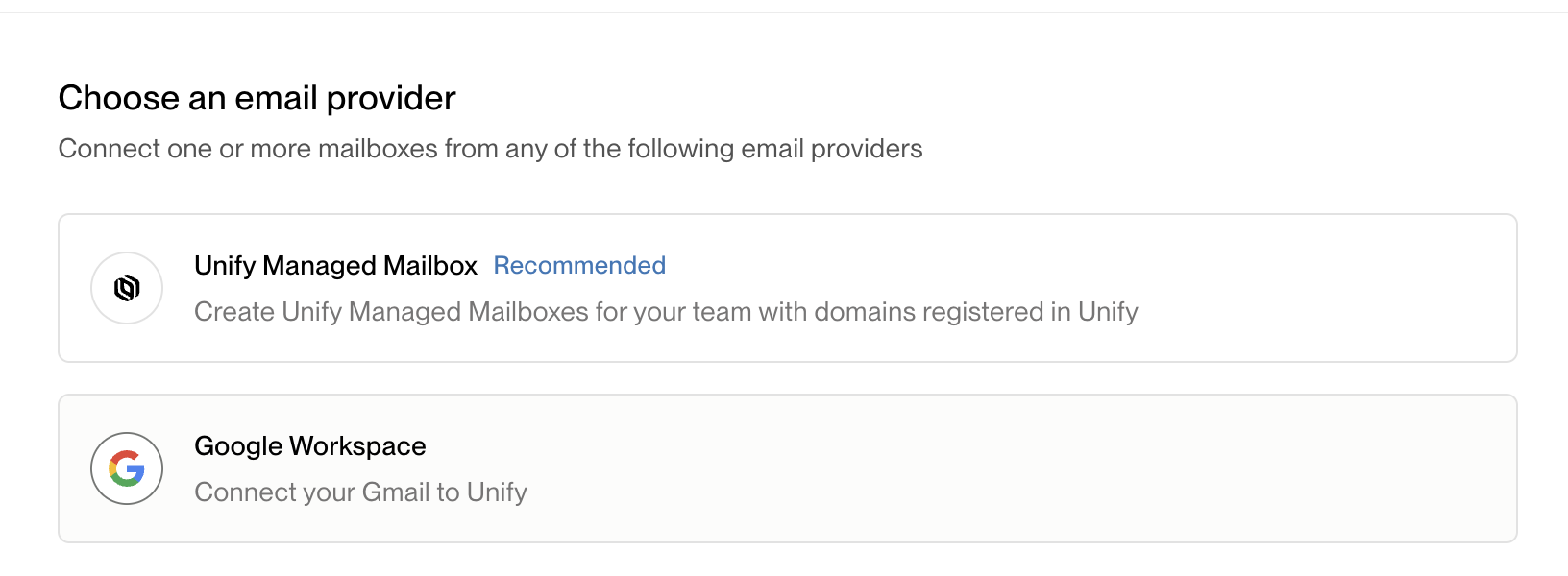
Select the "Google Workspace" option
You will be directed to your Gmail login. Select the mailbox you would like to connect to Unify.
Confirm permissions and connect your mailbox. This will enable us to send from Unify and forward positive replies to this mailbox. Note that out-of-office and other automated replies will not be forwarded.
Note: Forwarded replies may occasionally land in your spam folder if Google detects the same sender and recipient name, as this can trigger phishing detection. To proactively prevent this, consider whitelisting your Unify mailboxes in your Google settings. This does not impact your domain reputation. If emails do land in spam, move them out of spam to reduce the likelihood of future occurrences.
Note: Emails sent through Unify sequences will not appear in your Gmail sent folder. However, all replies to your sequences will be forwarded to your connected Gmail inbox.
When selecting the "Google Workspace" option in step 3 of the connection process, note that this works for any Gmail inbox, including those purchased through third‑party providers like Instantly, as long as you have the username and password. The connection method is the same regardless of where your Gmail inbox was originally purchased.
Each Gmail inbox must be connected individually through the Google OAuth process. There is currently no bulk upload option available for connecting multiple mailboxes at once, so plan accordingly if you need to connect several inboxes to your Unify account.
When you connect your Gmail inbox to Unify, be aware of the following reply visibility behaviors:
Out-of-thread replies: Emails from contacts that aren't direct replies to your sequence emails will be forwarded to your connected Gmail inbox but will not appear in the Unify UI. You'll need to respond to these emails directly from Gmail.
Replies sent from external email clients: Unify only tracks replies sent through Unify's UI. If you reply to a contact from external email clients (Outlook, Gmail, Gong) outside of Unify, those replies will not be tracked in the Unify task view.
Reply All scenarios: Replies will appear in Unify's UI when the Unify-managed mailbox is included on the thread, such as when someone uses "Reply all" and the Unify mailbox address is included. If a reply happens entirely in Outlook or Gong without the Unify mailbox on the message, it won't appear in Unify.
Note that all replies to your Unify mailbox will still be forwarded to your primary inbox regardless of whether they appear in Unify's UI. This ensures sensitive emails are only visible to the intended recipient, but it's important to understand when you'll need to check your Gmail inbox directly versus managing responses through Unify's interface.
How many emails can I send from a Gmail inbox?
You can send up to 150 emails per day from a single Gmail inbox. Unify-managed mailboxes have the same daily limit once warmed. New mailboxes start lower and ramp up as they warm, and your limit isn't raised to 150 automatically — set the daily max you want (up to 150) on the email settings page.
Sending limits by mailbox type:
Both your own Gmail inboxes and Unify-managed mailboxes share the same limit: up to 150 emails per day once warmed.
You can raise or lower each mailbox's daily limit yourself on the email settings page — no need to contact support. Increase gradually so your deliverability stays healthy.
Options for Increasing Send Capacity:
Request a limit increase to 65/day for customer‑owned Gmail inboxes through support.
Connect additional existing Gmail inboxes to your account.
Purchase additional Unify‑managed mailboxes for more overall capacity.
When considering options for increasing send capacity, note that Unify‑managed mailboxes cannot be provisioned on your primary domain; they are created on separate domains provided by Unify. This limitation impacts capacity‑planning decisions and should be taken into account when scaling your email outreach campaigns.
When to Request an Increase: If you're experiencing task backlog due to send limits on your primary company domain, contact support to request a limit increase to 65/day for those specific customer‑owned mailboxes.
Important: The 25‑email limit has been optimized for deliverability, so increases should be requested thoughtfully and only when needed for operational requirements.
Rolling 24‑Hour Send Window
Unify tracks send limits using a rolling 24‑hour window for each connected mailbox rather than resetting at midnight. For example, if a mailbox sent 20 emails between 2 pm – 5 pm yesterday, those 20 “slots” become available again only between 2 pm – 5 pm today. This causes natural fluctuations in daily send volume, even when the number of connected mailboxes remains constant.
Mailbox Group Assignment Requirements
Only mailboxes that are assigned to the mailbox groups used by your active sequences contribute to daily send capacity. Mailboxes that are not part of a group will not receive sends and therefore will not count toward the 25‑email‑per‑day limit.
Troubleshooting “In Use” Status After Mailbox Removal
If a mailbox has queued emails in its backlog, it will continue to appear as “in use” even after you remove it from all mailbox groups. The “in use” count reflects mailboxes with pending sends, not current group membership. Once the queued emails are either sent or reassigned to another mailbox, the removed mailbox will no longer be listed as “in use”.
All emails in a sequence, including follow‑ups, count toward the 25‑email‑per‑day limit. If the total number of scheduled emails exceeds your daily capacity, Unify will spread them across multiple days, which can delay follow‑up messages and affect overall sequence timing.
Email Capacity Planning Framework
Calculate total daily capacity: number of connected mailboxes × each mailbox's daily limit (up to 150 emails)
Factor in every step of your sequence when planning campaign timing
Consider adding more mailboxes if you need faster campaign completion
Monitor your email queue to avoid unexpected delays in follow‑up timing
Immediate Testing with Connected Gmail Inboxes
Start with 10-15 emails per day for testing purposes. You can send up to 150 emails per day from a single Gmail inbox, but raise this limit gradually because sudden high send volumes significantly increase the risk of mailbox suspension by Gmail, which can permanently damage your mailbox and domain reputation.
Monitor delivery rates and engagement before scaling up
Gradually increase volume based on performance metrics
Use the email settings page to adjust daily limits
Will the reputation of my primary domain be impacted if I send through Unify?
Because daily sending is capped per Gmail inbox and you ramp volume gradually, there should be no significant impact to the reputation of the domain those mailboxes are hosted on. If you have faced previous deliverability issues with that domain, we recommend keeping the daily send limit low. We also recommend following best practices in your sequence copy to optimize for deliverability, more tips can be found here.
Reply Management Optimization
Set up Gmail filters to organize campaign replies into specific folders
Create labels for different campaign types or sequences
Use Gmail's priority inbox feature to highlight important responses
Consider setting up auto‑responses for common reply types
Troubleshooting Gmail Connection Issues
Authentication Problems:
Ensure you're logged into the correct Google account
Check that less secure app access is enabled if using older Gmail accounts
Verify admin permissions for Google Workspace accounts
Permission Errors:
Confirm all requested permissions are granted during OAuth flow
Re‑authenticate if permissions were partially denied
Contact your Google Workspace admin if organizational policies block third‑party apps
Manual Email Task Issues:
When you enroll contacts into a sequence, their emails will show a “Queued” status. Queued emails will only send if the sequence is active (not paused). Emails don’t send immediately upon enrollment – they are scheduled based on your sequence timing settings and daily send limits.
Identifying Manual Email Task Issues:
If your sequence includes Manual Email tasks (especially at Step 1), you must complete each manual email task before emails will schedule and send.
Emails will remain in “Queued” status until manual tasks are fully completed, even if you’ve approved sending.
Check Outbox > Scheduled and open a queued item – if there’s no concrete scheduled send time, the manual email task needs to be completed.
Completing the manual task actually queues the email to send according to your daily limits and sending windows.
Manual Email Workaround for Send Limit Constraints
When you need to send urgent or time‑sensitive emails that would exceed your daily automated send capacity, you can bypass the 25 emails/day limit by sending manual one‑off emails directly from individual contact records.
How to Use Manual One‑Off Emails
Navigate to the specific contact record in your Unify dashboard
Use the manual email option to send individual messages
These emails are not counted against your automated sequence send limit
Ideal for urgent communications like event invitations or time‑sensitive follow‑ups
When to Use This Workaround
Your automated sequences have reached the daily 25‑email limit
You have urgent communications that can't wait for the next day's send capacity
Time‑sensitive opportunities that require immediate outreach
Event invitations or deadline‑driven communications
Important Considerations
Manual emails still contribute to your overall Gmail sending reputation
Use this feature strategically rather than as a regular workaround
Consider the recipient's time zone and business hours when sending manual emails
Track manual email responses separately from your automated sequence metrics
Other Common Causes of Queued Emails:
Sequence is paused – paused sequences keep emails in “Queued” status indefinitely.
Daily send limit exceeded for connected mailboxes.
Contacts not properly enrolled in the sequence.
Sequence timing settings affect when queued emails are scheduled to send.
Resolution Steps:
Verify that your sequence is active and not paused.
Navigate to your sequence and identify any Manual Email tasks.
Complete all pending manual email tasks in the sequence.
Verify that queued emails now show concrete scheduled send times.
Monitor your outbox to confirm emails are properly scheduling within your daily send limits.
Advanced Gmail Integration Tips
Maximizing Deliverability:
Warm up newly connected inboxes gradually over 2‑3 weeks
Maintain consistent sending patterns rather than sporadic bursts
Monitor your Gmail account's sending reputation through Google Postmaster Tools
Organizational Setup:
Use different Gmail accounts for different campaign types or audiences
Implement a naming convention for campaign‑specific Gmail accounts
Consider time zone optimization when scheduling sends from multiple Gmail inboxes
Do you support providers besides Google Workspace (i.e. Outlook)?
We only support connecting Gmail inboxes today and will be building an integration with Outlook in the near future.