Salesforce Error Log — Common Errors & Resolutions
Last updated: June 4, 2026
Overview
This article covers the most frequently encountered errors when working with Salesforce CRM and how to resolve them.
Finding the Salesforce Error Log in Unify
Before troubleshooting any of the errors below, locate the Salesforce integration's Error Log inside Unify — this is where Unify surfaces errors returned from Salesforce, along with plain-English descriptions and recommended fixes.
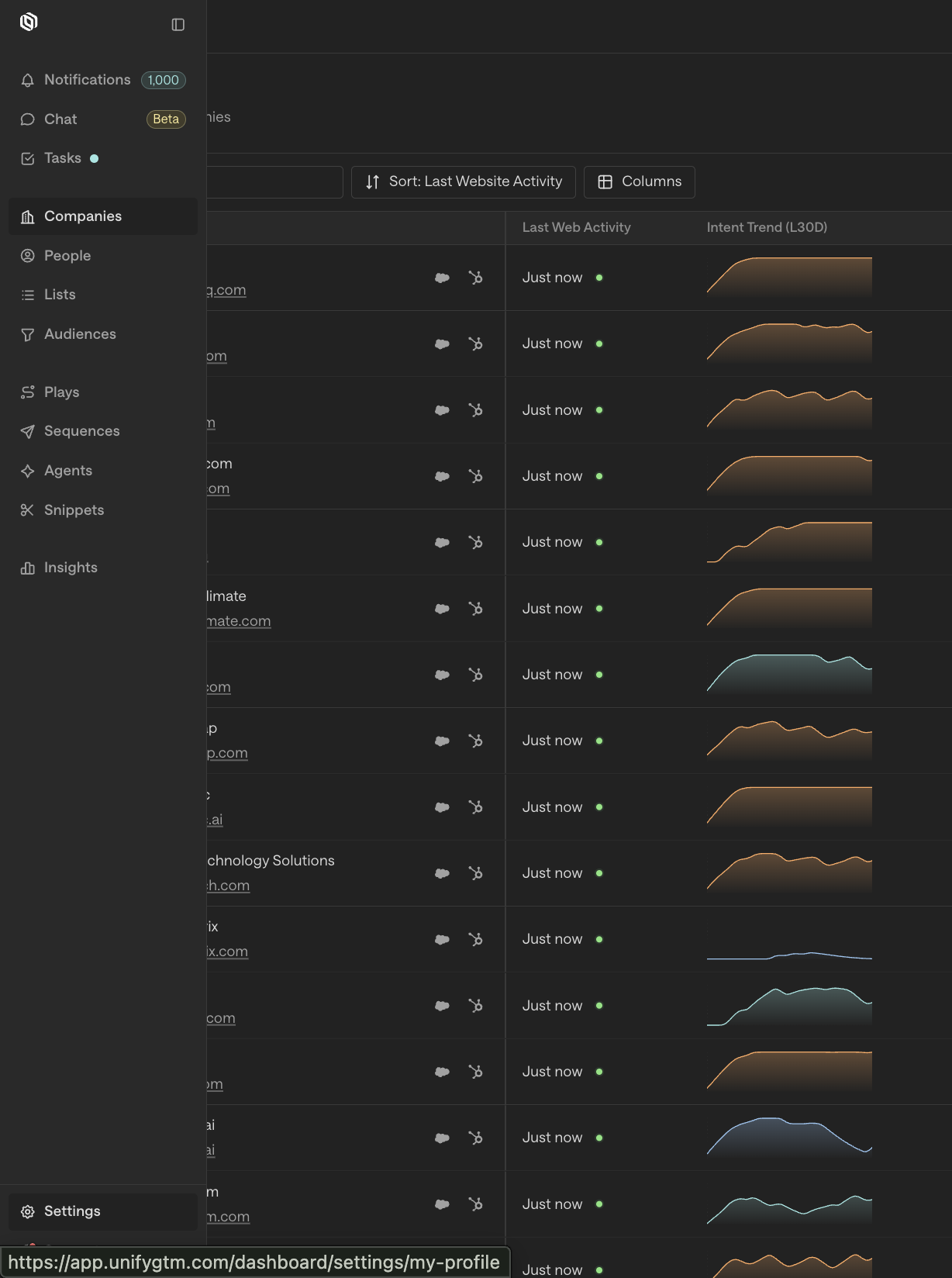
In Unify, click Settings in the left sidebar.
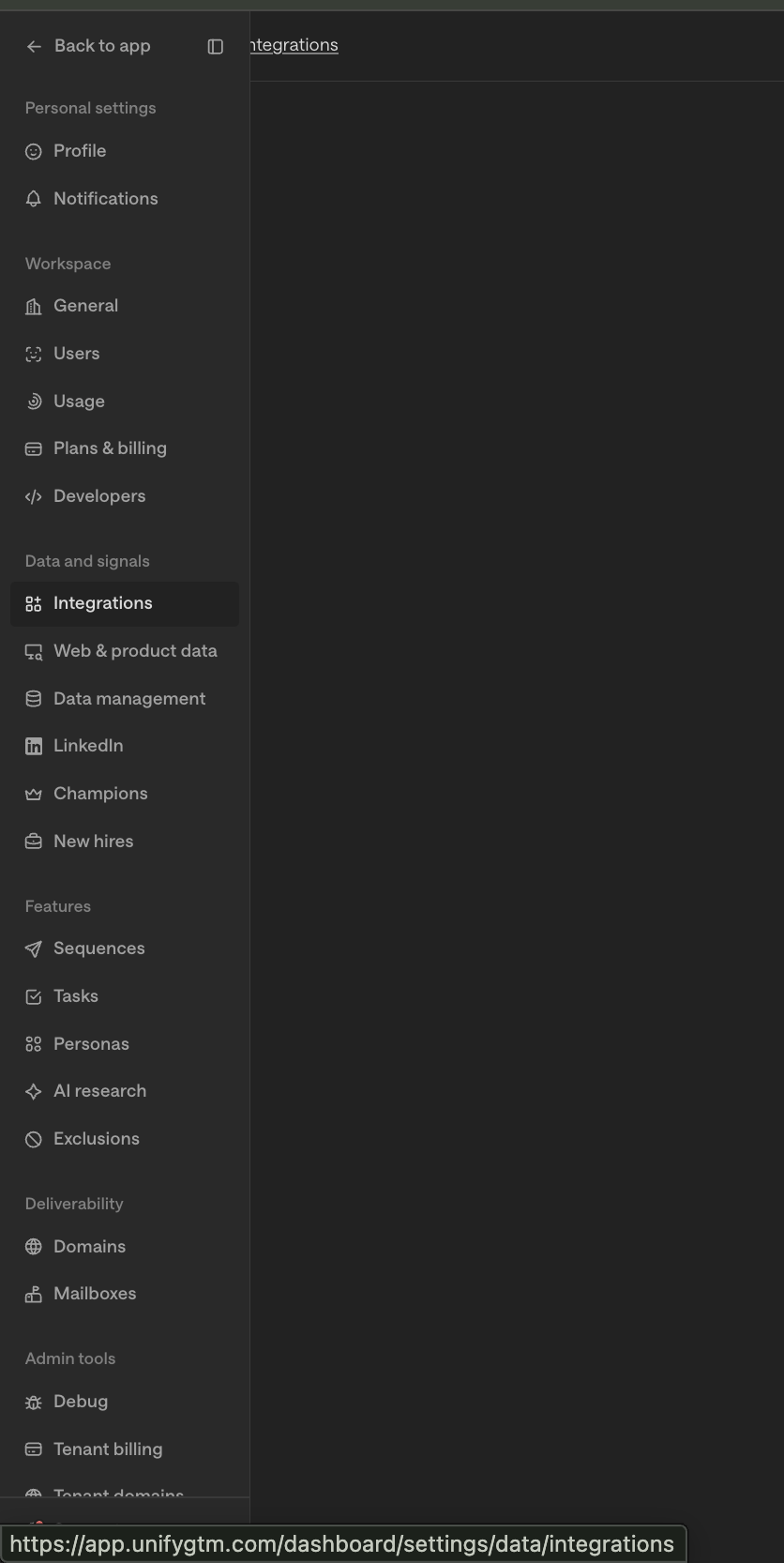
Under Data & Signals, click Integrations.
Click into your Salesforce integration.
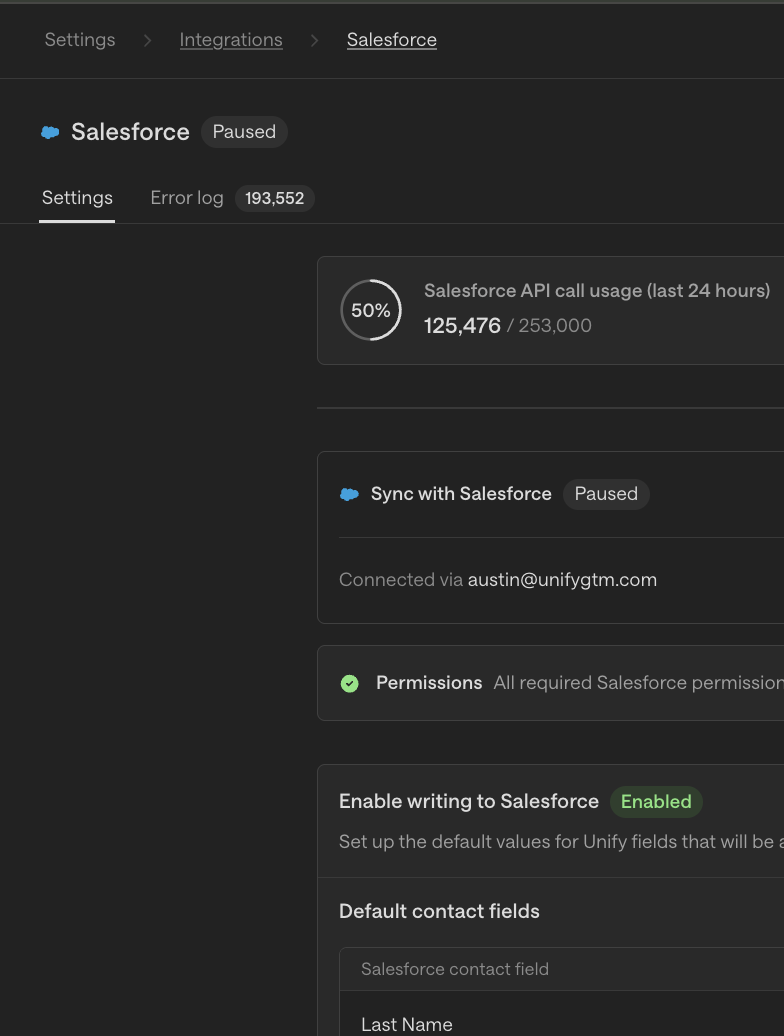
Open the Error Log tab at the top of the integration detail page.
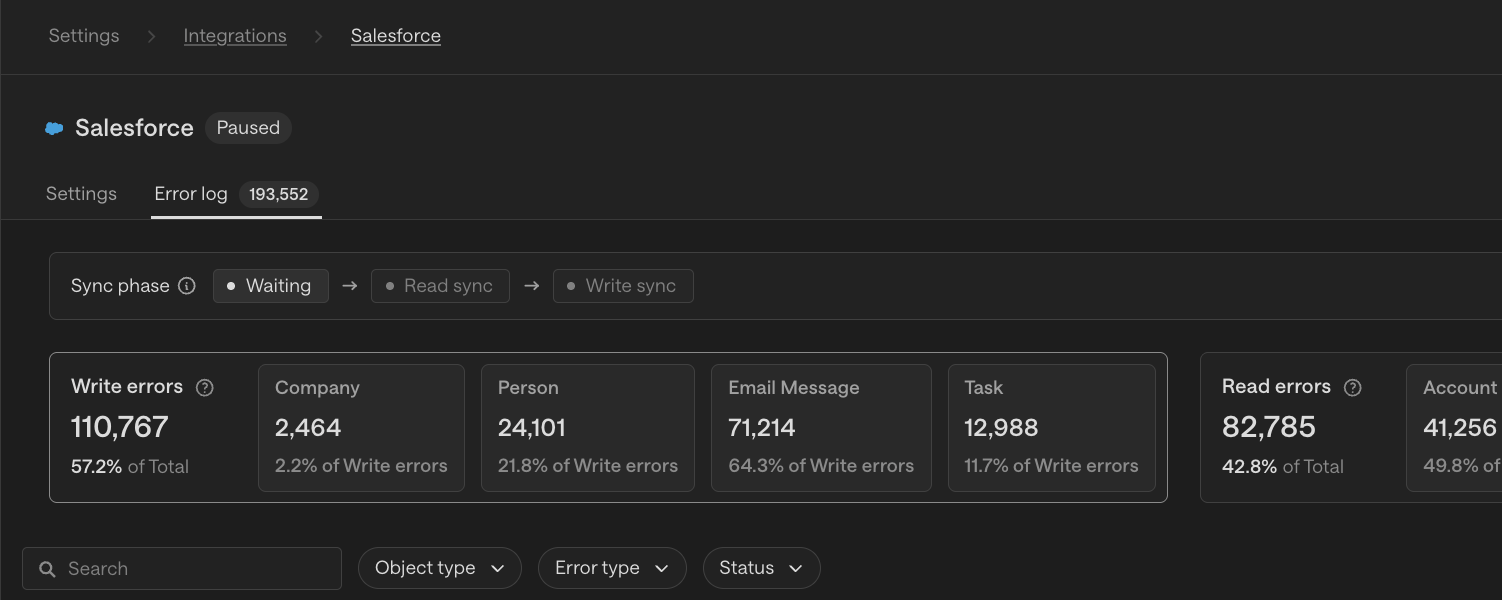
Use the error name in the log to find the matching section below for resolution steps.
Authentication & Connection Errors
Error: INVALID_SESSION_ID / Session expired or invalid
The Salesforce OAuth session token has expired or been revoked.
Resolution: Re-authenticate the Salesforce connection. OAuth tokens in Salesforce can expire due to inactivity, IP restrictions, or a password reset on the connected user's account. Reconnect under your integration settings.
Error: API_DISABLED_FOR_ORG
API access is not enabled for the Salesforce org.
Resolution: API access is only available on Professional (with add-on), Enterprise, Unlimited, and Developer editions. Contact your Salesforce admin to confirm your edition supports API access and that it is enabled.
Error: REQUEST_LIMIT_EXCEEDED
Your Salesforce org has hit its daily API request limit.
Resolution: Salesforce enforces daily API call limits based on org edition and user licenses. Review your usage under Setup → System Overview → API Usage. Consider optimizing queries to use bulk APIs or reducing unnecessary polling.
Record & Field Errors
Error: REQUIRED_FIELD_MISSING
A required field on the Salesforce object was not included in the request.
Resolution: Check the object's required fields in Salesforce under Setup → Object Manager → [Object] → Fields & Relationships. Fields marked required at the page layout or validation rule level must be included. Update your field mappings to include all required values.
Error: FIELD_CUSTOM_VALIDATION_EXCEPTION
A validation rule in Salesforce is blocking the record from being saved.
Resolution: Review the validation rules on the affected object under Setup → Object Manager → [Object] → Validation Rules. The error message often includes the rule name. Adjust the data being sent to satisfy the rule criteria, or ask your Salesforce admin to update the rule if it is overly restrictive.
Error: INVALID_FIELD
A field name in the request does not exist on the Salesforce object.
Resolution: Field API names in Salesforce are case-sensitive and must match exactly. Verify the API name (not the label) in Setup → Object Manager → [Object] → Fields & Relationships. Custom fields end with __c.
Error: STRING_TOO_LONG
A text value exceeds the maximum character length defined for a Salesforce field.
Resolution: Check the field's character limit in Setup → Object Manager → [Object] → Fields & Relationships. Truncate or trim the value before sending, or ask your admin to increase the field length if applicable.
Error: DUPLICATE_VALUE
A record with the same unique field value already exists in Salesforce.
Resolution: Salesforce enforces duplicate rules on fields marked as unique (e.g., Email on Contact, or custom unique fields). Review active duplicate rules under Setup → Duplicate Management → Duplicate Rules. Either update the existing record or adjust the duplicate rule if merging behavior is desired.
Relationship & Lookup Errors
Error: INVALID_OR_NULL_FOR_RESTRICTED_PICKLIST
A value being written to a restricted picklist does not match any active picklist values.
Resolution: Retrieve the available picklist values from Setup → Object Manager → [Object] → Fields → [Picklist Field] → Values. Only active values are accepted; inactive or deleted values will fail. Update your value mappings to use current active options.
Error: ENTITY_IS_DELETED
The record you are attempting to reference or update has been deleted in Salesforce.
Resolution: The record may be in the Recycle Bin or permanently deleted. Check App Launcher → Recycle Bin to restore if needed, or update your system to no longer reference the deleted record ID.
Error: INVALID_CROSS_REFERENCE_KEY
A lookup or relationship field references a record ID that does not exist or is not accessible.
Resolution: Verify the referenced record ID exists and that the connected Salesforce user has read access to it. This commonly occurs on OwnerId, AccountId, or custom lookup fields. Confirm the ID is correct and the record has not been deleted or transferred to a restricted sharing group.
Permissions & Sharing Errors
Error: INSUFFICIENT_ACCESS_ON_CROSS_REFERENCE_ENTITY
The connected user does not have permission to read or write a related record.
Resolution: Salesforce uses a sharing model to control record visibility. Ask your Salesforce admin to review the sharing rules, role hierarchy, and object-level permissions for the connected integration user under Setup → Users → [User] → View Profile.
Error: FIELD_INTEGRITY_EXCEPTION
A field value violates an integrity constraint — often a picklist dependency or status/stage transition rule.
Resolution: Salesforce can enforce dependent picklist rules (e.g., LeadStatus dependent on Industry). Review field dependencies in Setup → Object Manager → [Object] → Fields & Relationships → [Field] → Field Dependencies and update the values to satisfy any parent-child picklist constraints.
Bulk & Governor Limit Errors
Error: UNABLE_TO_LOCK_ROW
Salesforce cannot obtain a row lock — typically caused by concurrent updates to the same record or parent record.
Resolution: This usually resolves on retry. If it occurs frequently, investigate whether multiple processes are updating the same record simultaneously (e.g., triggered workflows, Process Builder, or other integrations). Stagger updates or reduce concurrency.
Error: TOO_MANY_SOQL_QUERIES / EXCEEDED_MAX_SIZE_REQUEST
Governor limits have been hit in a synchronous Apex context triggered by your integration.
Resolution: This is often caused by Salesforce Apex triggers, workflows, or flows that fire as a side effect of your API call. Contact your Salesforce admin to review and optimize triggered automation that runs on the affected object.