How do I get Slack notifications for sequence replies?
Last updated: May 4, 2026
Context
When running outbound sequences, you may want to be notified in Slack when prospects reply to your messages. While the default Slack integration shows notifications for sequence enrollments, you can also set up alerts for replies.
Answer
To receive Slack notifications when someone replies to your sequence:
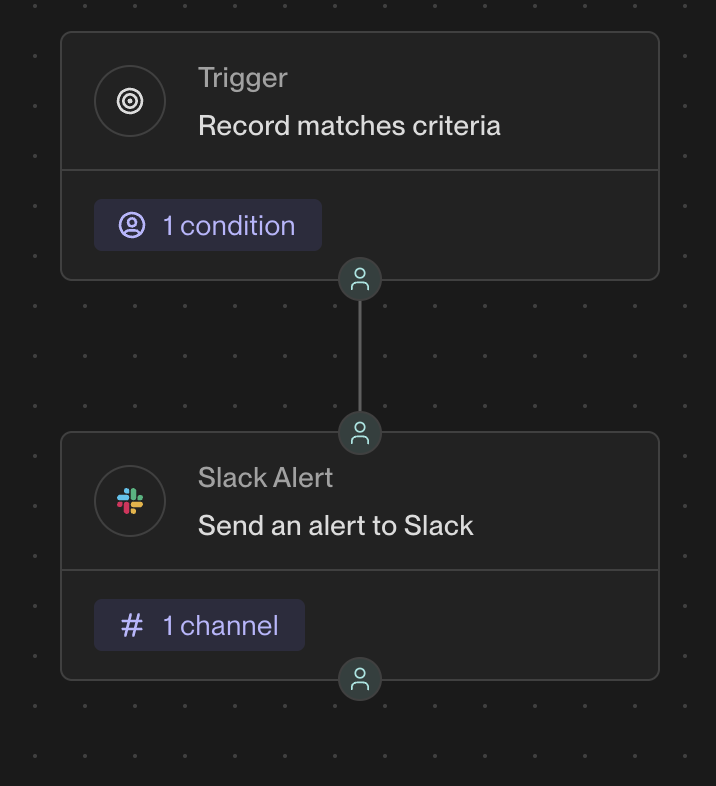
Create a new Play in the Play Builder
Set the audience to include contacts who have replied to a sequence
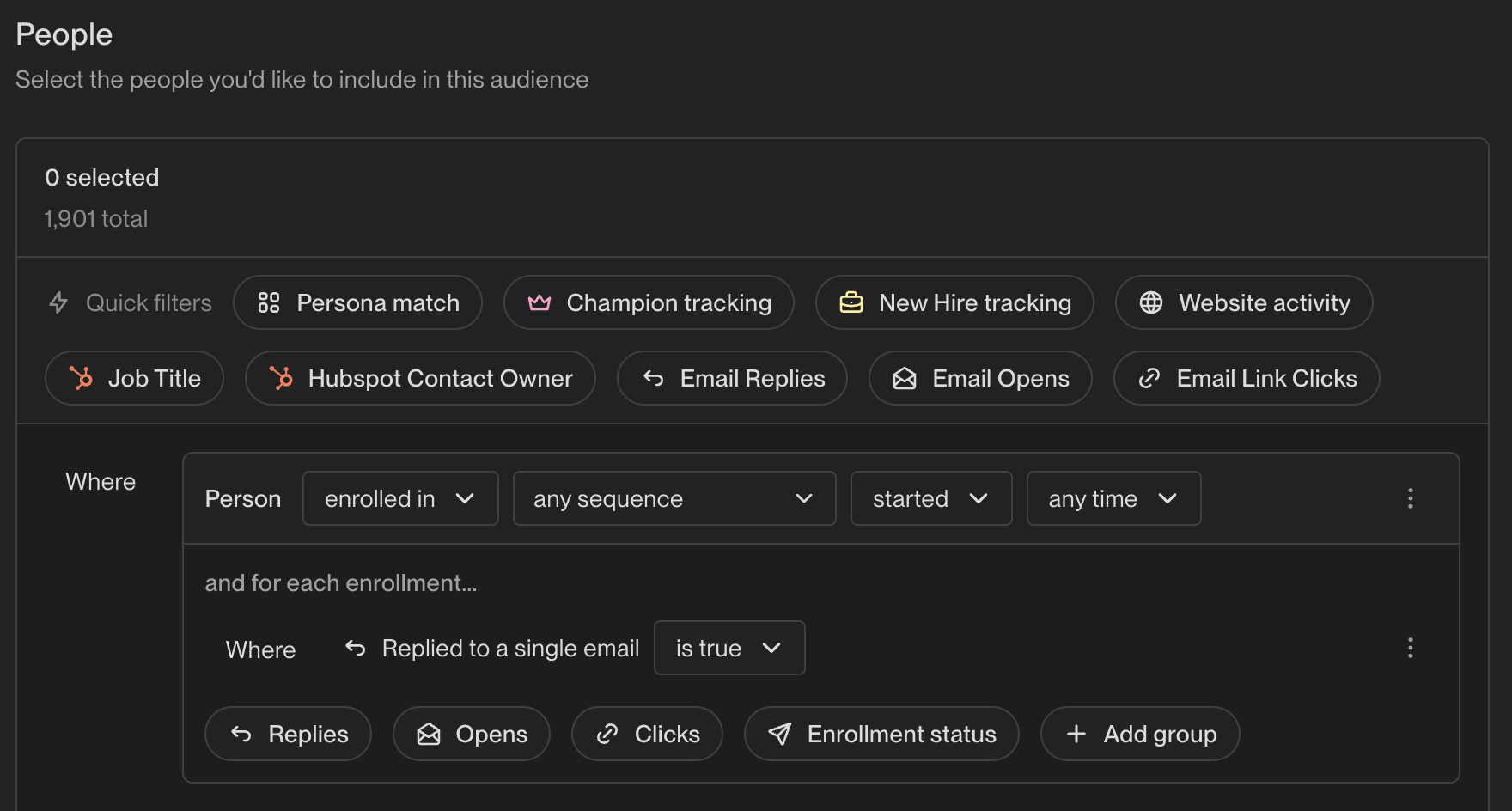
Add a Slack notification action to the Play
This will trigger a Slack alert each time a new reply is received from your sequence.
When configuring the Slack notification action, you can send notifications to either a personal direct message or a shared channel. To allow multiple team members to see sequence reply notifications, create or select a Slack channel (public or private) (e.g., #sequence-replies) and configure the Play's Slack action to post to that channel. Then add all relevant team members to the Slack channel. Note that this configuration must be set up individually for each Play—there is no global setting to route all sequence notifications to a single channel.
Note: To post to a private channel, make sure the Unify Slack app has been added to it first.
Slack notifications for sequence replies will trigger for any reply from a contact enrolled in a sequence to your connected mailbox, even if the reply is to an email sent outside of Unify. When this happens, the sequence will automatically stop to prevent continued outreach while a conversation is happening elsewhere.
If a prospect replies outside the original sequence thread (starting a new email conversation), Unify will mark the sequence as replied and pause outreach, but the reply content won't appear in the Unify UI. These out-of-thread replies must be managed directly from your email inbox.
Managing Replies
Once you receive Slack notifications about sequence replies, you can view and respond to them in two ways:
For the most direct access to in‑thread sequence replies, navigate to Sequences → Replies in the app. This dedicated section allows you to read, classify, and respond to all in‑thread replies in one centralized location, providing better context and functionality than the general Tasks or Lagging dashboard options. Note that replies sent outside the original sequence thread will not appear in this view and must be handled directly from your email inbox.
Important: If you're using Unify-managed mailboxes and can see Slack notifications for replies but cannot view or respond to them in Unify, this is because replies to Unify-managed mailboxes are forwarded to a configured email address rather than being accessible in the platform. The forwarding configuration is set up by support on the backend and does not appear anywhere in the Unify UI. Check the forwarding inbox directly to access these replies.
In your email inbox: Replies are automatically forwarded to the email address you set as forwarding during onboarding, regardless of which sending inbox received the reply (automated replies are not forwarded). If you don't see forwarded replies in your inbox, check your spam/junk folder. If replies are being forwarded to the wrong email address, contact support to update your mailbox forwarding configuration. Note that forwarding settings for Unify-managed mailboxes can only be configured by support and will not be visible in the Unify UI—even after configuration, you won't see the forwarding address displayed in Settings. This is why you may see Slack notifications for replies but be unable to view or respond to them within Unify when using Unify-managed mailboxes.
Within Unify: You can view and respond to all replies directly in the platform by:
Going to the Tasks dashboard, or
Navigating to Lagging dashboard > Replies section
This allows you to manage all sequence replies in one place, whether you prefer to work from your email client or stay within the Unify platform.
Verifying Reply Forwarding
If you're unsure whether reply forwarding is working correctly (especially when using secondary sending inboxes), you can verify by:
Check the Lagging dashboard > Replies section to see if any non-automated replies have been received
Filter by user if checking for team members
Compare the replies shown in Unify with what appears in your primary email inbox
If replies exist in Unify but aren't appearing in your primary inbox, contact support to troubleshoot your forwarding configuration
For Unify-managed mailboxes specifically: Remember that forwarding configuration is not visible in the UI, so you cannot verify the forwarding address through Settings. The only way to confirm forwarding is working is to check whether replies are arriving in the expected inbox.
This allows you to confirm that all real replies are being properly forwarded to your primary email address as expected.
Important: When you reply from within Unify, the system ensures your response is sent using the mailbox that originally received the message and tracks the reply properly. However, replies sent from external email clients (outside of Unify) won't be tracked in the system.