Sequence Rulesets
Last updated: September 30, 2026
What Are Sequence Rulesets?
Sequence Rulesets are a modular grouping of settings that control how a sequence behaves — who it's sent to, which exclusions apply, and how enrollments are handled. Every sequence now has a ruleset associated with it. Rulesets can be created once and reused across many sequences, so reps don't have to manually reconfigure settings each time they build something new.
Before Rulesets, exclusions were global — if a rule blocked outreach to customers or open opp accounts, it blocked it everywhere. Rulesets solve this by letting teams override specific exclusions on a per-sequence basis without touching global settings.
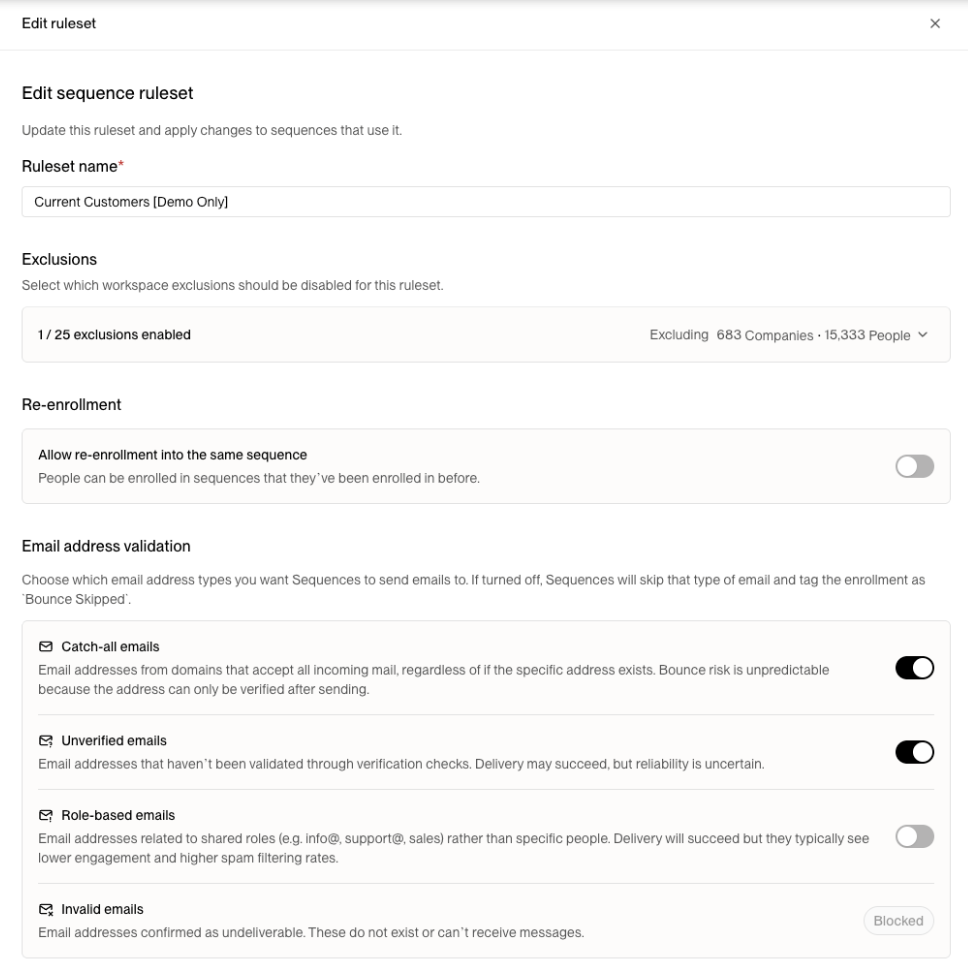
What You Can Do
Apply reusable rulesets to sequences: Standardize exclusions, eligibility, and settings with rulesets that can be shared across sequences.
Establish a default ruleset: Define standard sequence behavior so reps don't have to configure settings from scratch every time.
Create rulesets for non-standard use cases: Allow expansion, lifecycle, or post-sales teams to run outbound to audiences that would normally be excluded (e.g., current customers, open opportunities).
Run outbound to any audience: Target customers, PLG users, or open opp accounts without changing global workspace rules.
Select which exclusions apply per ruleset: When creating an exclusion, you can now choose which rulesets it applies to — and see estimated unenrollment counts before confirming.
Control re-enrollment timing globally: Configure a re-enrollment window that prevents contacts from enrolling in any sequence within a specified timeframe after completing a step in any other sequence.
What's New (vs. Before)
Several improvements shipped alongside Rulesets:
When creating an exclusion, you can select which rulesets it applies to and see estimated un-enrollment numbers to inform the decision
The excluded badge on the enrollments table now shows the timestamp, which helps with troubleshooting
The sequence builder has new navigational tabs (Editor and Settings) with a refreshed settings UI
You can rename a sequence directly from the nav, just like Plays
When manually enrolling someone, the system now prevents selecting sequences the person would be excluded from
How to Use Sequence Rulesets
Flow 1: Create Rulesets for Targeted Segments (Settings → Sequences → Rulesets)
Configure rulesets based on the common exclusion groups your team needs to work around.
Go to Settings → Sequences → Rulesets
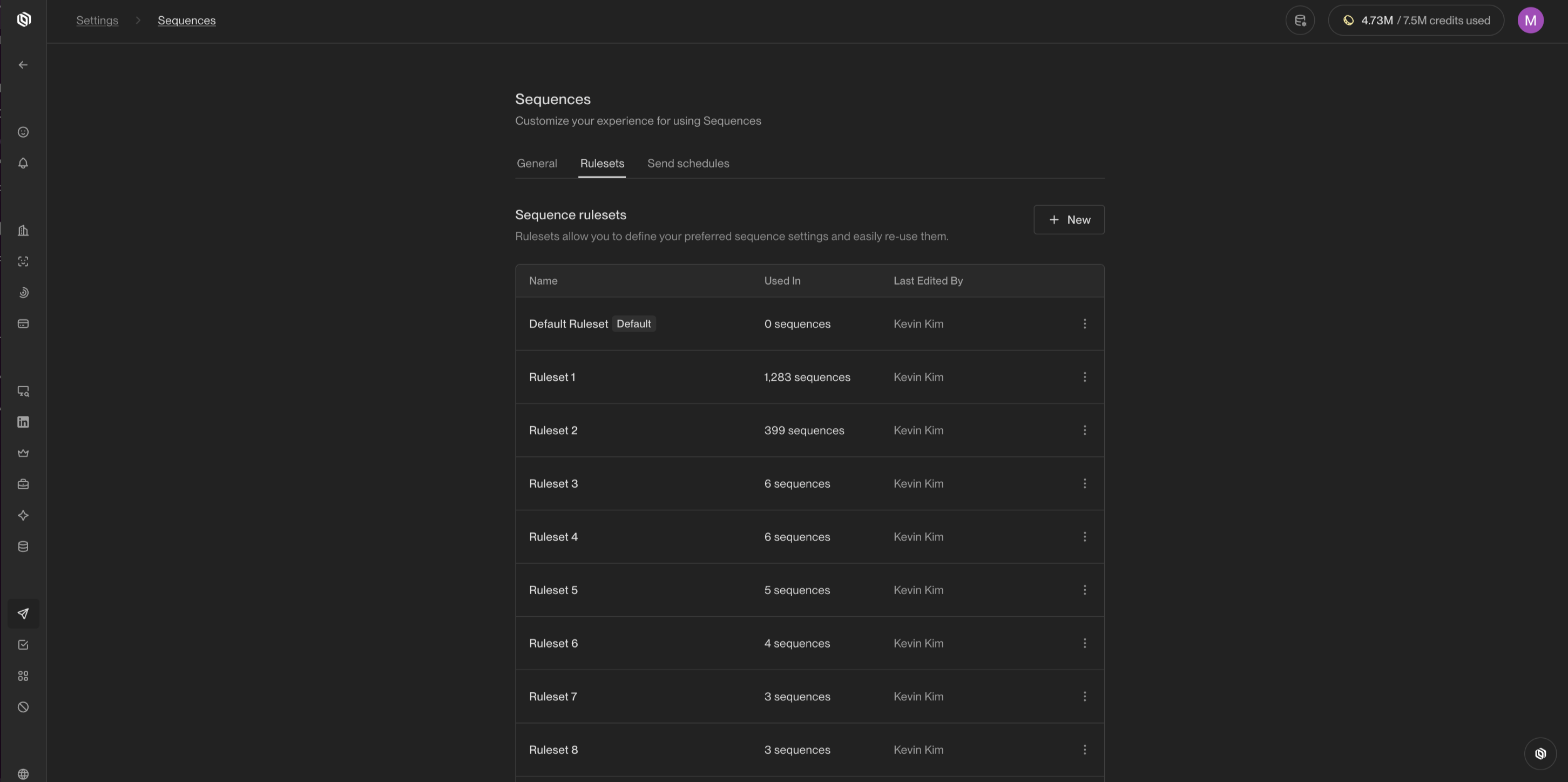
Click + New to create a new ruleset
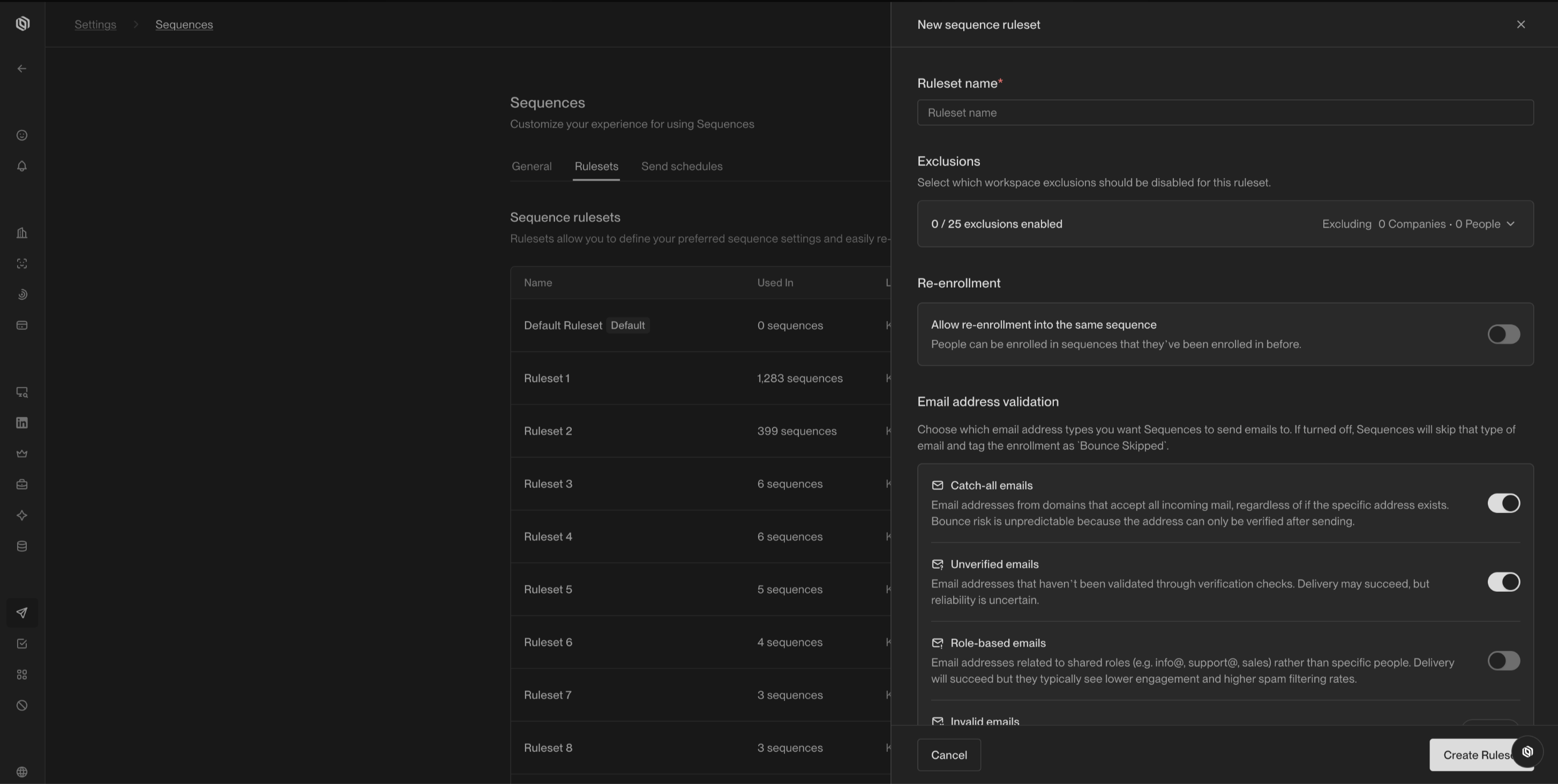
Name the ruleset to reflect the use case (e.g., "Open Opportunities," "Current Customers," "Closed Lost Early Re-engagement")
Select which workspace exclusions should be disabled for this ruleset
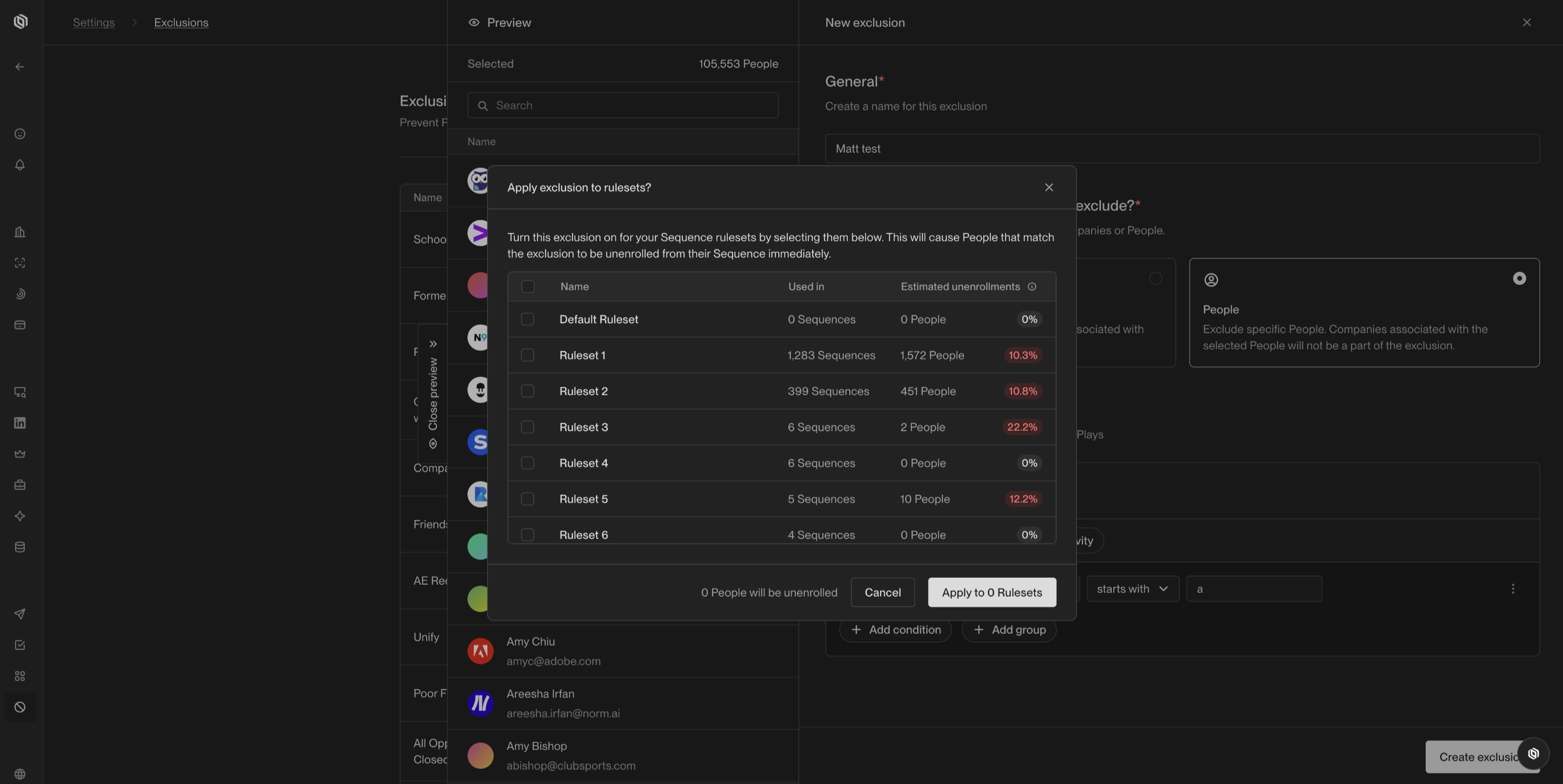
Review the estimated companies and people that will be affected
Save — the ruleset is now available to apply to any sequence
💡 Pro tip: Start by creating rulesets for your most common exception cases: open opps, active customers, and closed lost. These cover the vast majority of non-standard outbound motions.
Flow 2: Apply a Ruleset to a Sequence (Sequence → Settings tab)
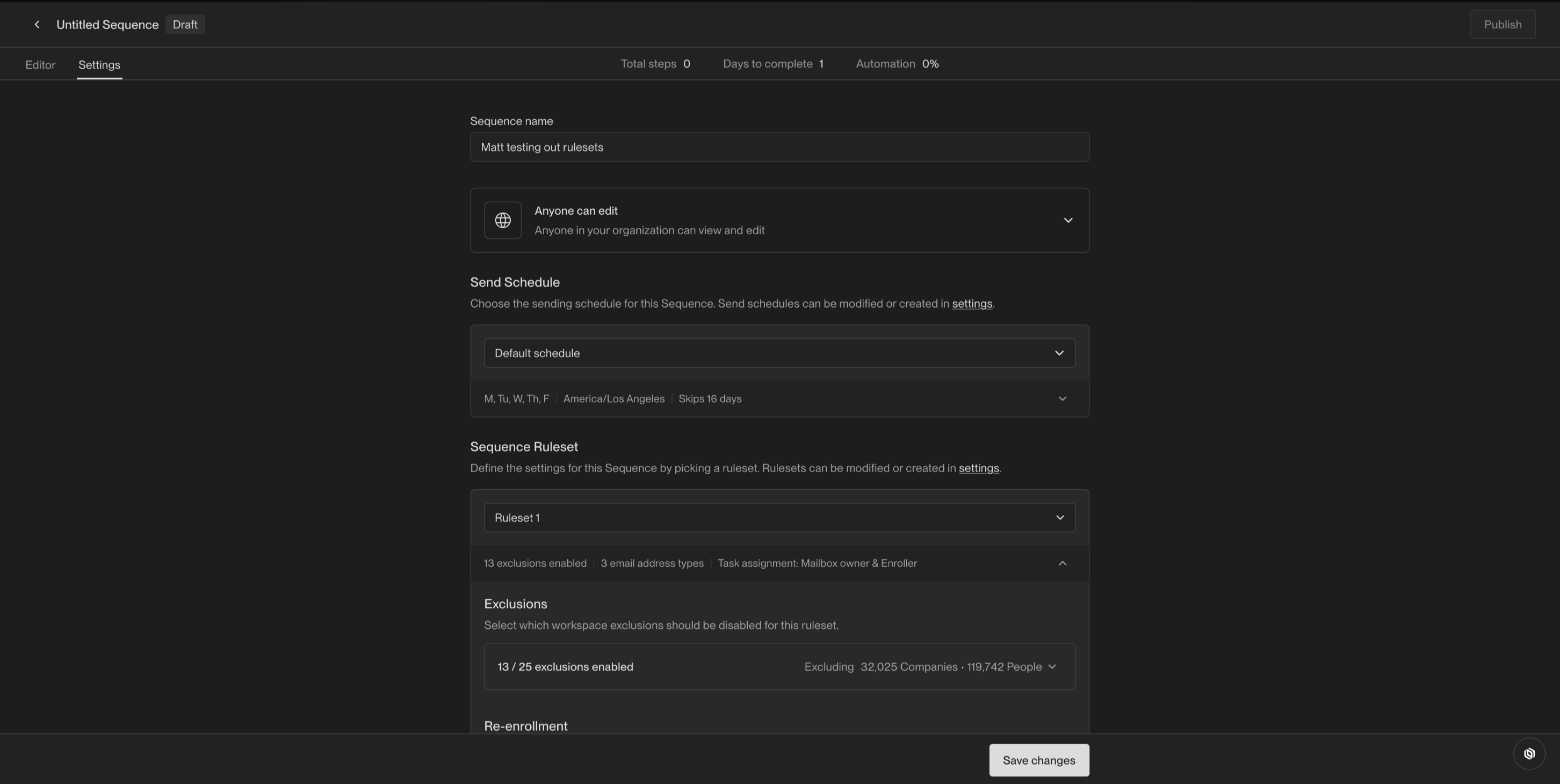
Open any sequence and click the Settings tab
Under Sequence Ruleset, select the ruleset that applies to this sequence
The ruleset's exclusion settings will now govern who gets enrolled — overriding global defaults where specified
Save
💡 Pro tip: Reps can now safely run outreach to whoever they need without worrying about breaking global rules. The Outbound Quarterback (RevOps/admin) controls which rulesets exist; reps just pick the right one.
When to Use Rulesets
Open opportunity multi-threading — Sequence additional stakeholders on active deals to build alignment and reduce single-thread risk. Previously blocked by global exclusions.
Customer expansion outreach — AMs and CSMs can sequence additional stakeholders at existing customers to drive upsell and cross-sell conversations.
Meeting no-show re-engagement — Run targeted outreach to prospects or customers who no-showed, even if they're associated with open opportunities.
Event attendee follow-up — Send follow-ups to webinar registrants or event attendees regardless of their audience type or CRM status.
PLG signal follow-up — Sequence product users who show high intent signals (feature adoption, pricing page visits) even if they're existing customers.
Lifecycle marketing campaigns — Lifecycle and growth teams can run outbound campaigns to customers based on product usage or lifecycle stage.
Best Practices for Ruleset Creation
By persona:
Sales (AEs) — ruleset with no exclusions or minimal restrictions for targeted outreach
BDRs — standard ruleset with core exclusions intact
Growth/Marketing — lifecycle-friendly ruleset that allows customer outreach
Account Management/Customer Success — ruleset enabling customer and open opp sequencing
By audience:
Open Opportunities
Active Customers
Recent Closed Lost
Partners
Disqualified Accounts
FAQ
What happened to my existing sequence settings?
Your existing sequence settings were automatically preserved and moved into Rulesets. A new ruleset was generated for each of your sequences to match the prior configuration. You won't experience any disruption — you can modify or switch rulesets as needed.
Who can create and manage rulesets?
Rulesets are managed in Settings and are typically owned by an admin or RevOps ("Outbound Quarterback"). Non-admins (BDRs, AEs, AMs, Growth/Marketing) can apply existing rulesets to their sequences but cannot create new ones without admin access.
Can I apply the same ruleset to multiple sequences?
Yes — that's the core benefit. One ruleset can govern as many sequences as needed. Any edits to the ruleset automatically apply to all sequences using it.
Can I still enroll someone manually if they'd be excluded?
The system now prevents you from selecting a sequence for manual enrollment if the person would be excluded by that sequence's ruleset. This reduces accidental enrollments.
How do I know how many people will be unenrolled when I create an exclusion? When creating an exclusion, you can now select which rulesets it applies to and will see estimated unenrollment counts before you confirm. This helps you make informed decisions about the impact.
What's the difference between a global exclusion and a ruleset exclusion?
Global exclusions apply across all sequences by default. Rulesets let you selectively disable specific global exclusions for particular sequences — so teams running non-standard motions (expansion, lifecycle) aren't blocked by rules designed for cold outbound.
How does the re-enrollment window work?
The re-enrollment window setting, found under Settings → Sequences → Rulesets → Reenrollment, applies globally across all sequences. When a contact completes any step within the configured re-enrollment window, they are blocked from enrolling in any sequence during that period. The window is based on any completed step, not just emails. If no re-enrollment window is configured, completed sequences can block re-enrollment indefinitely. Newer rulesets default to 0 days.