Allowing Forwarded Email in Google Workspace
Last updated: October 9, 2026
If you want every message from certain domains delivered to your inbox (such as forwarding emails from a secondary domain to primary domain), you'll want toadd those domains to your Approved senders list in Google Workspace.
Steps
Sign in to the Google Admin console as an administrator.
Go to Apps > Google Workspace > Settings for Gmail > Spam, phishing and malware.
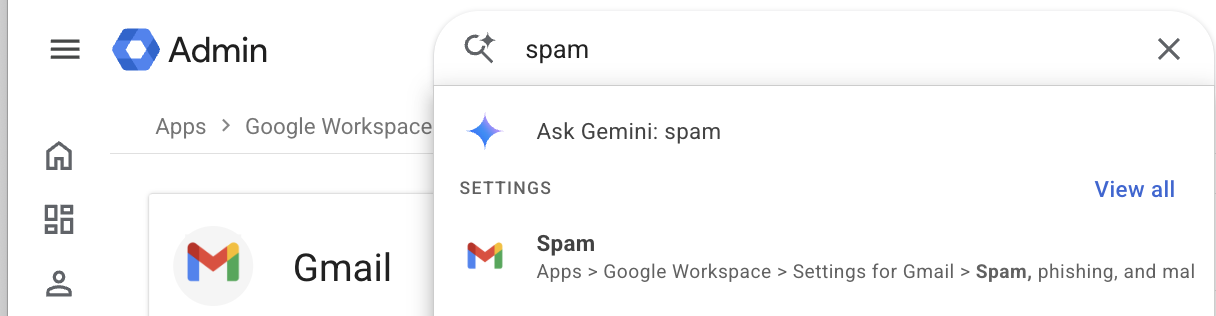
Under the Spam setting, create an approved senders list and add the domains you want to receive all mail from.
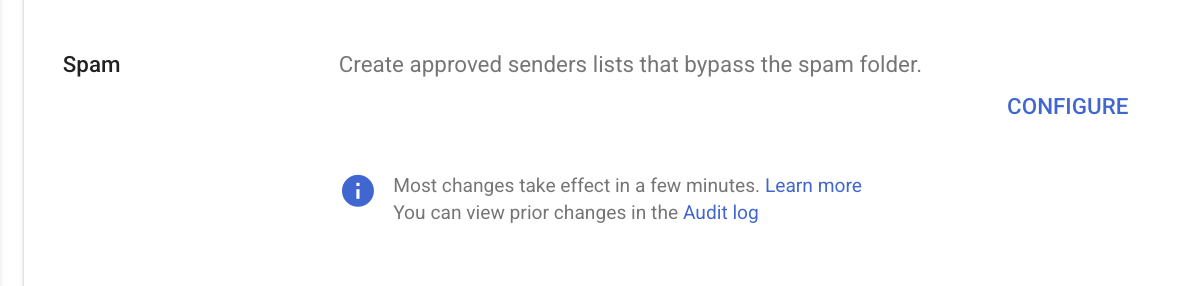
Turn on the option to bypass spam filters for messages from that list, then save.

Changes can take up to an hour to apply.
Verify
Have the sender (or yourself) send a test message through the forwarding path - such as emailing your secondary mailbox.
In Gmail, open the message and choose Show original. DKIM, or ARC, should show PASS.
If you have access to the Google Admin console, you can use Reporting > Email Log Search to confirm the message was delivered and not quarantined.
Best practice
List only domains you trust, and review the list quarterly. Approved senders skip spam filtering.
List the domain shown in the message's From address. If forwarding rewrites it, list the forwarding domain instead.
If a security filter such as Mimecast or Proofpoint sits in front of your Google Workspace, add the domains there as well.
If mail still goes to spam, check the Show original headers. A failed DKIM check usually means the forwarder modified the message.