Blocked sequence enrollments
Last updated: May 5, 2026
Why are my sequence enrollments blocked?
There are a few reasons your sequence enrollments can be blocked:
Active enrollment in another sequence: Contacts cannot be enrolled in multiple sequences at the same time. If a contact is already actively enrolled in any sequence, Unify will block new sequence enrollments for that contact until the current enrollment completes. Note that the "Allow enrollment into multiple Sequences" setting only controls re‑enrollment timing after a sequence finishes—it does not override the restriction on simultaneous active enrollments.
Disconnected mailbox: If you have queued emails to go out from a mailbox and that mailbox gets disconnected after the initial enrollment, Unify will block all sequence enrollments that were scheduled to send from that mailbox.
Mailbox assigned to inactive user: If a mailbox is assigned to a user who is not active in Unify (e.g., a former team member or a placeholder account), sequence enrollments will be blocked even if the mailbox connection itself is valid. You can verify mailbox assignments in Settings > Deliverability > Mailboxes. To resolve this, reassign the affected mailboxes to an active user in your organization, then re-run the play to enroll the previously blocked contacts.
Contact falls into preset exclusions: If a contact is included in your organization's exclusion settings (such as being marked as a customer, competitor, or other excluded category), Unify will block them from being enrolled in sequences. You can check your exclusion settings in Settings > Organization > Exclusions.
Exclusion criteria met: If a contact meets exclusion criteria (such as having an open opportunity, booked meeting, or custom exclusion rules), they may be enrolled in a sequence but prevented from receiving emails. Additionally, if the "remove from active sequences" toggle is enabled for an exclusion in Settings > Exclusions, contacts will be removed from sequences mid‑sequence when they meet the exclusion criteria.
Incomplete manual tasks: If your sequence contains manual tasks (e.g., LinkedIn tasks or manual calls), all automated email steps that follow are blocked until those manual tasks are completed. Each step must be finished before the next, so pending manual tasks can prevent automated emails from sending.
Important timing behavior: When a manual task is completed late (after its original due date), subsequent automated steps will respect the sequence delay timing from when the task was actually completed, not when it was originally due. For example, if a phone call task was due on March 19 but completed on April 7, and your sequence has a 2-day delay between steps, the next email won't send until April 9 (2 days after completion). This can make tasks appear "stuck" or "not sending" when they're actually queued with the expected delay.
Company enrollment limits reached: If a maximum number of sequence enrollments per company is set and that limit has been reached, Unify blocks additional enrollments for contacts from that company. This limit applies across all plays and can block enrollments even when all other conditions are satisfied.
Important distinction for Manual Email tasks: Simply “approving” a manual email is not the same as completing it. The manual email task must be fully completed to actually queue the message for sending. If emails remain in “Queued” status after approval, the manual task has not been fully completed yet. To verify completion status, check Outbox > Scheduled and open one of the queued items—if there’s no concrete scheduled send time displayed, the manual email task isn’t fully completed.
Company Enrollment Limits: Global Quota Management
Advanced Quota Monitoring Strategies
When troubleshooting blocked enrollments due to company limits, create a systematic approach to track quota consumption:
Audit all active plays – Document the company enrollment limits set in each play and current enrollment counts.
Identify quota consumers – Determine which plays are consuming the most company slots to understand where adjustments may be needed.
Prioritize play importance – When quotas are reached, decide which plays should take priority for company enrollments.
Common User Confusion Scenario
Users often see “0.9 enrollments” in a play with a limit of 10 people per company and assume there’s room for more enrollments, not realizing that other plays have already consumed 9.1 slots from that company’s global quota.
Strategic Quota Management
Quota Allocation Strategy
Set higher limits on your highest‑priority sequences.
Use lower limits on experimental or secondary plays.
Reserve quota capacity for urgent, high‑value prospects.
Prevention Through Planning
Critical Limitation of Company Enrollment Limits: the limit counts contacts across all sequences without considering CRM lifecycle stage, deal status, or active conversations. To avoid contacting additional prospects when an active deal exists, use company‑level exclusions driven by your CRM opportunity fields rather than relying solely on the enrollment limit.
Strategic Integration: combine company enrollment limits with deal‑based exclusions to ensure outreach pauses when open opportunities are present, providing both volume control and deal‑aware outreach management.
Before launching multiple plays targeting the same companies, calculate total potential enrollments across all plays to ensure your company limits accommodate your full outreach strategy rather than discovering conflicts after enrollments are blocked.
Additional Causes of Blocked Enrollments
Variable syntax errors: Variables must use single curly braces
{variable_name}rather than double curly braces{{variable_name}}. Double curly braces will cause Unify to block the enrollment even if the variable has a value.Curly brackets in email content: Any curly brackets ({ }) in your email copy that aren't proper variable syntax will trigger blocks. This includes placeholder text like
{INSERT MICROSITE}or{COMPANY PAIN POINT}that you intended as reminders to customize later.
When troubleshooting blocked enrollments due to missing variables, use the “See variables breakdown” feature to quickly identify which specific template variables are missing or invalid before editing the sequence copy.
Advanced Resolution Methods
CSV re‑upload for missing data: If blocked enrollments are due to missing contact information, re‑upload your CSV with the missing data populated. Note: This may not automatically unblock existing enrollments — you may still need to manually resolve them using other methods.
Upgrade sequence version after content fixes: When you’ve removed problematic curly brackets or fixed variable syntax in your sequence copy:
Publish the updated sequence to create a new version
Navigate to blocked enrollments in your sequence
Upgrade the blocked enrollments to the most recent sequence version
This will unblock and resume sending with the corrected content
Important limitation: Updating contact data after enrollments are already blocked may not automatically resolve the blocked status. You may need to manually unblock enrollments or contact support for assistance in these cases.
Prevention Tips
Always use single curly braces for variables:
{first_name}not{{first_name}}Replace placeholder curly brackets with parentheses or brackets: "(INSERT MICROSITE)" instead of
{INSERT MICROSITE}Test sequences with a small batch first to catch syntax issues before large enrollments
Preventing Blocked Enrollments with Smart Variable Handling
Understanding CRM Data Sync Timing
Unify syncs data from your CRM every 15 minutes and hydrates variables at the time of enrollment. If you recently updated a variable in your CRM (within the last 30 minutes), the data may not have synced to Unify yet, which can cause enrollments to be blocked even though the variable appears filled in your CRM. To prevent this, wait up to 30 minutes after updating CRM data before enrolling contacts.
Variables can also be missing even when data appears complete in your CRM (e.g., HubSpot shows a company name but Unify can't populate the {companyName} variable). This typically occurs when duplicate or linked company records exist, and domain‑based matching selects a company record that's missing the specific field. Clean up duplicate company records and merge them in your CRM to prevent this mismatch.
Diagnosing Missing Variables
You can identify which specific variables are missing by going to the “Engagement” tab in the contact drawer and looking for variables highlighted in orange.
Proactive Prevention with Snippets and Fallback Text
Instead of using variables like {companyName} directly in your sequence, create a snippet or smart snippet that includes the variable and define static fallback text. If the variable is missing, Unify will use the fallback text instead of blocking the enrollment. This is especially important for critical variables like company name, so emails don't block if data is missing.
Important fallback text limitations:
Fallback text must be static and cannot contain variables
If a snippet includes multiple variables and any one is missing, the entire fallback text will be used
Learn more in Template Variables and Smart Snippets
This preventive approach eliminates the need for reactive fixes like editing copy in the outbox or unenrolling contacts after blocks occur. Note that a bulk “Refresh variables” action is now available, allowing you to automatically unblock enrollments once missing variable data is populated—individual editing is only needed for other block reasons.
Bulk Refresh Variables Action
How to use the refresh variables action:
Navigate to the sequence's Enrollments tab
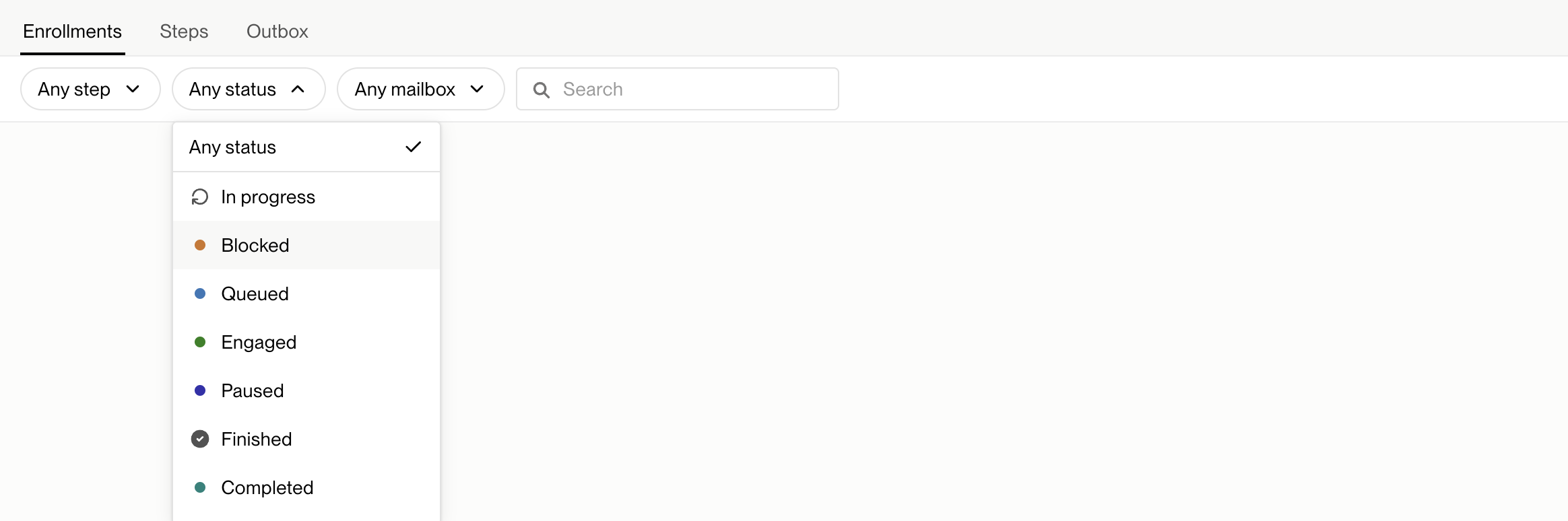
Filter by “Blocked” status to view all blocked enrollments
Select the enrollments you want to refresh (or select all)
Click the “Refresh variables” button at the bottom right of the page
Unify will re‑check variable data and automatically unblock enrollments where variables are now populated
Important limitations:
This action only works for enrollments blocked due to missing variables
Enrollments blocked for other reasons (syntax errors, disconnected mailboxes, exclusions, etc.) will remain blocked
Contacts without required data (e.g., missing first names) will remain blocked even after refreshing
It provides a simpler alternative to CSV re‑upload, upgrading sequence versions, or individual editing when the issue is missing variable data
Valid hydration issues require manual resolution: Some blocked emails may be due to valid hydration issues where the system cannot properly process or retrieve variable data, even when the underlying field appears populated. These represent legitimate blocks that cannot be resolved by refreshing variables and indicate actual data problems (such as formatting issues, data type mismatches, or CRM sync errors) that need to be addressed manually. The refresh action only works for straightforward missing data that has been populated—not for underlying data quality or processing issues.
When to use this vs. other methods:
Use Refresh variables when you've populated missing data in your CRM or through CSV re‑upload
Use sequence version upgrades for syntax errors or curly‑brace issues
Use individual editing or bulk unenroll/re‑enroll for blocks caused by other reasons
When Enrollments Remain Blocked After Troubleshooting
In rare cases, enrollments may remain in a “blocked” state even after you’ve fixed all identifiable issues (variables, syntax, mailbox connection, etc.). If you’ve verified that the email content is complete and properly formatted, but the enrollment still shows as blocked, contact support for assistance. Support can manually refresh the enrollment status using internal tools to move it to “queued” status.
Advanced Variable Location Troubleshooting for Blocked Sequences
Hidden Variable Locations Often Missed:
UTM parameters in tracking links
Custom redirect URLs with personalization
Social media links with dynamic parameters
Calendar booking links with contact‑specific tokens
Landing page URLs with personalized parameters
Advanced Content Areas:
Image alt text with personalization
Button text and CTA copy with variables
Footer DISCLAIMERS with dynamic content
Conditional content blocks
Advanced Troubleshooting Method:
Use your browser's search function (Ctrl+F or Cmd+F) to search for your variable syntax (e.g., {{variable_name}}) across the entire sequence step content. This catches variables embedded in UTM parameters or tracking links that users typically miss when focusing only on visible email text.
Prevention Strategy:
Before enrolling contacts in variable‑heavy sequences, run a comprehensive audit by searching for your variable syntax across all sequence steps to identify every location where variables are used, then verify data completeness for those specific fields. This prevents blocks from occurring in the first place by catching missing data before enrollment.
How do I unblock my enrollments?
Monitoring for Stalled Enrollments
To proactively identify contacts stuck in sequences without recent activity:
From the Sequences view: Navigate to Sequences > [Select sequence] > Enrollments and filter by status (e.g., Active/Blocked), then sort by Last activity to find older, inactive enrollments that may need attention.
From the People view: Filter for contacts who are in an active sequence and have no recent activity to identify stalled enrollments across all sequences.
Once identified, you can skip pending tasks to move enrollments forward or unenroll contacts as needed.
Reconnect your mailbox - You can go into Mailboxes tab and re-authenticate your Google Workspace mailbox by following these steps:
Re-enter your Gmail credentials when prompted
Select the mailbox you want to reconnect
Click "Allow" on Gmail's authorization page to complete the process
Important: The mailbox owner must complete the Gmail OAuth "Allow" step and also sign in to Unify at least once to activate the mailbox. Until the owner signs in, the mailbox won't appear as a sending option in sequences.
Adjust company enrollment limits - If enrollments are blocked due to company limits, follow these steps:
Duplicate the affected play.
Increase the maximum enrollment number per company in the play settings.
Re-run the play with the updated limits to enroll the previously blocked contacts.
Advanced Reauthorization Workflows
Standard reauthorization procedure using the Reauthorize button:
Go to Settings → Mailboxes and open the unauthorized mailbox.
Click Reauthorize and complete the Google sign‑in flow.
Click “Allow” to grant the required permissions.
Have the mailbox owner sign in to Unify once so the mailbox appears as a sending option again.
Critical Mailbox Ownership Distinctions
There are two types of mailboxes with different reauthorization procedures:
Customer‑owned mailboxes (on your company’s own domain): These must be reauthorized by the customer who owns the Google account. Unify support cannot perform the reauthorization.
Unify‑managed mailboxes (on Unify‑provided domains): These can be reauthorized by Unify’s mailbox operations team without customer action.
If you’re unsure which mailboxes are which type, share the list of unauthorized mailboxes with support to confirm ownership and receive specific next steps for each.
Special Case: Google Workspace Domain Changes
When standard reauthorization won’t work: If your organization recently changed Google Workspace domains or migrated accounts, Google may have invalidated the previous authorization grant.
In this scenario, use “Add New Mailbox” with the same email address to replace the broken connection rather than attempting the standard reauthorization flow. This approach accounts for the altered Google account structure that renders the old token permanently invalid.
When to Contact Support vs. Self‑Service
Self‑service reauthorization: Customer‑owned mailboxes on your domain.
Support assistance required: Unify‑managed mailboxes or complex migration scenarios.
Clarification needed: When you’re unsure of the mailbox ownership type.
Re‑enrollment restrictions: If you try to add a contact to a new sequence within 90 days of their previous enrollment completing, Unify will block the enrollment by default. Go to Settings > Organization > Sequences > Rulesets and adjust the minimum number of days to wait between enrollments to a lower value or remove the restriction entirely. This setting only applies after a sequence completes—it does not affect the restriction on simultaneous active enrollments in multiple sequences.
Same‑sequence restriction: The “Allow re‑enrollment into the same sequence” toggle in Settings → Organization → Sequences → Rulesets also blocks re‑enrollment even when the day‑based setting is 0. Enable this toggle to permit contacts to be re‑enrolled in the identical sequence after they have completed it.
Paused sequence: If your sequence is paused, all enrollments remain queued and won’t send until you reactivate it. Check the toggle switch at the top right of the sequence page and ensure it is turned on.
Mailbox sending limits reached: Each mailbox can send up to 25 emails per day. When this limit is reached, new enrollments queue and appear stuck in “Queued” status until capacity is available. Distribute sends across multiple mailboxes or wait for the next day.
Understanding Sequence States vs. Enrollments
Before exploring unenrolling methods, it’s important to understand the difference between sequence states and enrollment behavior:
Inactive/deactivated sequences continue sending emails: When you deactivate a sequence, it stops accepting new enrollments but allows existing enrollments to complete their remaining steps. This is normal behavior, not a blocked enrollment issue.
To stop all activity immediately: If you want to completely halt all emails from a deactivated sequence, you’ll need to unenroll all remaining contacts using the methods described below.
Blocked enrollments are different: These occur due to technical issues like missing variables or disconnected mailboxes, preventing emails from sending at all.
Exclusion Toggle Levels: A Critical Distinction for Blocked Enrollments
Quick Exclusion Diagnostics
Fastest Method to Identify Blocking Exclusions
When contacts are blocked due to exclusions, the fastest diagnostic approach is to open the contact record and check the Exclusions tab. This immediately shows which specific exclusion rule(s) the contact matches, saving time compared to manually reviewing all organization-level or sequence-level settings.
When troubleshooting blocked sequence enrollments due to exclusions, it's important to understand that exclusion toggles exist at two levels: audience‑level and sequence‑level. This distinction often causes confusion when users see contacts being blocked from enrollment even though their audience‑level exclusion settings appear disabled.
Key Issue: Even if an exclusion is toggled off at the audience level, it may still be toggled on at the sequence level, which will block enrollments when contacts reach the sequence node.
Where to Check:
Audience‑level exclusions: Settings > Organization > Exclusions
Sequence‑level exclusions: Within the individual sequence settings
Troubleshooting Steps:
First verify your audience‑level exclusion settings in Settings > Organization > Exclusions
Then check the sequence‑level exclusion toggles within the specific sequence where enrollments are blocked
Ensure both levels are configured consistently for your intended enrollment behavior
Why This Matters: Users frequently assume that disabling an exclusion at the audience level will resolve all blocked enrollments, but sequence‑level exclusions operate independently and can continue blocking contacts even when audience‑level settings suggest they shouldn't be excluded.
Understanding Play Evaluation vs. Enrollment Counts
When contacts are evaluated by a Play but don't enroll in the sequence (e.g., 68 plays but only 57 enrollments), this gap is expected behavior. The Play evaluates everyone, but only those who pass eligibility checks actually enroll.
To diagnose why specific contacts didn't enroll:
In the Play, open Metrics and click the Sequence node or the Not Enrolled count to see per-contact reasons
In the Sequence, check Enrollments → Not Enrolled for the exact rule that blocked each contact
Duplicate Contact Records and Independent Exclusion Status
Understanding Email-Based Contact Identification
Unify uniquely identifies contacts by email address, which means duplicate contact records with different emails are treated as completely separate contacts with independent exclusion statuses. This can create confusing scenarios where one record appears as "Excluded" while another record for the same person is successfully enrolled.
Troubleshooting Duplicate-Related Exclusion Issues:
If a contact appears excluded but you cannot identify the blocking rule, check for duplicate records in your CRM
Look for the same person with different email addresses (work email vs. personal email)
Verify which email address was used for the enrollment attempt
Merge duplicate records in your CRM to consolidate exclusion status
Individual Exception Workarounds
Bypassing Exclusions for Specific Contacts
When you need to enroll a specific contact who matches an exclusion rule you want to keep active, you can add a filter to that exclusion rule with "email is not [contact's email]" to bypass the exclusion for that individual while maintaining the rule for everyone else.
Use Cases for Individual Exceptions:
High-value prospects who technically meet exclusion criteria but warrant special outreach
Contacts who were incorrectly flagged by automated exclusion rules
Strategic accounts that need personalized engagement despite matching standard exclusion filters
Implementation Steps:
Navigate to Settings > Organization > Exclusions
Edit the relevant exclusion rule
Add an additional filter: "email is not [specific contact email]"
Save the updated exclusion rule
Re-enroll the contact in the sequence
Additional Blocked Enrollment Scenarios and Advanced Troubleshooting
Zapier‑Specific Blocking Issues
If a sequence contains a Zapier step that is mis‑configured—such as no Zap selected or the linked Zap has been deleted—enrollments will be blocked when they reach that step. Even after fixing the Zap, blocked enrollments may not upgrade to newer sequence versions.
Because there is no bulk “skip this step” action, you can either manually advance each affected enrollment one‑by‑one, or clone the sequence without the problematic Zapier step and reenroll the contacts into the clone.
Critical Exclusion Timing Behavior
Exclusions are re‑evaluated every 15 minutes at each step of a sequence, not only at the moment of enrollment. Consequently, a contact may successfully enroll and send the first email (updating their last‑activity date), but then be excluded from subsequent steps because the exclusion rule is applied again.
Warming Mailbox Routing Risk
Mailboxes that are being warmed are not automatically excluded from sequence routing. If “record owner” routing is used and the owner’s account includes warming mailboxes, those mailboxes can be selected for sending, potentially harming the warming process. To mitigate this, pause warming mailboxes in Settings > Deliverability > Mailboxes, or reassign them to a non‑owner account until warming completes. Setting a maximum of 1 email per day reduces but does not fully eliminate the risk.
Enhanced Support Capabilities
When contacts are excluded mid‑sequence due to exclusion rules, support can un‑exclude them and roll the sequence back to the last completed step, allowing the contact to resume from where they left off. This helps recover contacts that were unintentionally blocked by exclusion logic.
Skipped Thread Root Email
Skipped thread root email: If the first email in a threaded sequence is skipped, all subsequent emails configured as replies will be blocked from sending. Threaded sequences require the initial email to establish the conversation thread before reply emails can be sent. Once the first email is skipped, there is no way to retroactively fix the enrollment. You must either skip all remaining email tasks for that enrollment, unenroll and re‑enroll the contact to start fresh from step 1, or send one‑off emails outside of the sequence if you still need to reach the contact.
Why this happens: Threaded sequences depend on the first email creating the conversation thread that subsequent reply emails reference. Without this foundation email being sent, the email system cannot establish the proper threading relationship for follow‑up messages.
Resolution options:
Skip remaining email tasks - Mark all blocked reply emails as skipped to complete the enrollment
Unenroll and re‑enroll - Remove the contact from the sequence and enroll them again to restart from step 1
Send one‑off emails - Use individual email sends outside the sequence if you still need to contact the prospect
Prevention: Avoid skipping the first email in threaded sequences unless you're prepared to handle the downstream blocking of all reply emails in that enrollment.
Important: Sequence edits only apply to new enrollments and queued enrollments that have not yet started step 1. Enrollments that are on or past step 1 remain on the previous sequence version and cannot be upgraded to receive your changes.
Task View vs Sequence View: Bulk Action Limitations
Important UX clarification: When working with enrollments, bulk unenroll actions are only available from the sequence view (Enrollments tab), not from the task view. This is a common source of user confusion.
Why this matters: Users often attempt to perform bulk operations from their task list, which doesn't support these actions, leading to frustration and wasted time. Always navigate to the specific sequence's Enrollments tab to access bulk unenroll functionality.
How to bulk unenroll contacts: In the Enrollments tab of your sequence, you can use filters and search to select contacts for bulk unenrollment. For example, select the "Blocked" status to mass select all blocked enrollments, or filter by persona, company, or other shared traits to select contacts that were enrolled by mistake. At the bottom right of the page, you can select the 'Unenroll' option. When performing bulk unenrollments, the system processes contacts in batches of approximately 100 at a time automatically in the background—you do not need to re-run the job, and the full queue will complete within 10-15 minutes.
Business reasons for manual unenrollment
Wrong contact fit: Prospect doesn't match your ideal customer profile
Incorrect job title: Contact's role isn't decision-maker level
Company changes: Prospect changed companies or roles
Timing issues: Contact requested to be contacted later
Duplicate enrollments: Same contact enrolled multiple times
Post-unenrollment contact management best practices
Document reasons: Add notes in the contact record explaining why they were unenrolled
Update contact status: Mark contacts as "Not Qualified" or "Wrong Fit" to prevent future enrollments
Review before re-enrollment: Ensure contact information is updated before enrolling again
Managing unenrolled contact data
Unenrolling from completed sequences removes contacts from sequence history, making them eligible for re-enrollment without waiting for the standard 90‑day restriction period. This is particularly useful when contacts were enrolled with outdated information that has since been corrected.