Updating enrollments to latest sequence version
Last updated: May 4, 2026
Updating Enrollments in Modified Sequences
When you update and publish a new version of your sequence, the following occurs:
New enrollments after the newest version of the sequence was published will receive the new sequence
Existing enrollments that are queued on step 1 will automatically receive the new version when their first email is scheduled to send. Queued emails are preserved when you republish a sequence and are not deleted.
Enrollments that have moved past step 1 (whether emails have been sent or not) will continue with the old version of the sequence and cannot be upgraded
Upgrading Eligible Enrollments
To upgrade (or mass upgrade) eligible enrollments to the most recent version of the sequence:
Navigate to the Enrollments tab of the sequence.
Filter for contacts on Step 1 using the "Any step" filter.
Select all eligible contacts.
Use the 'Upgrade to latest version' bulk action to upgrade them to the current version of the sequence.
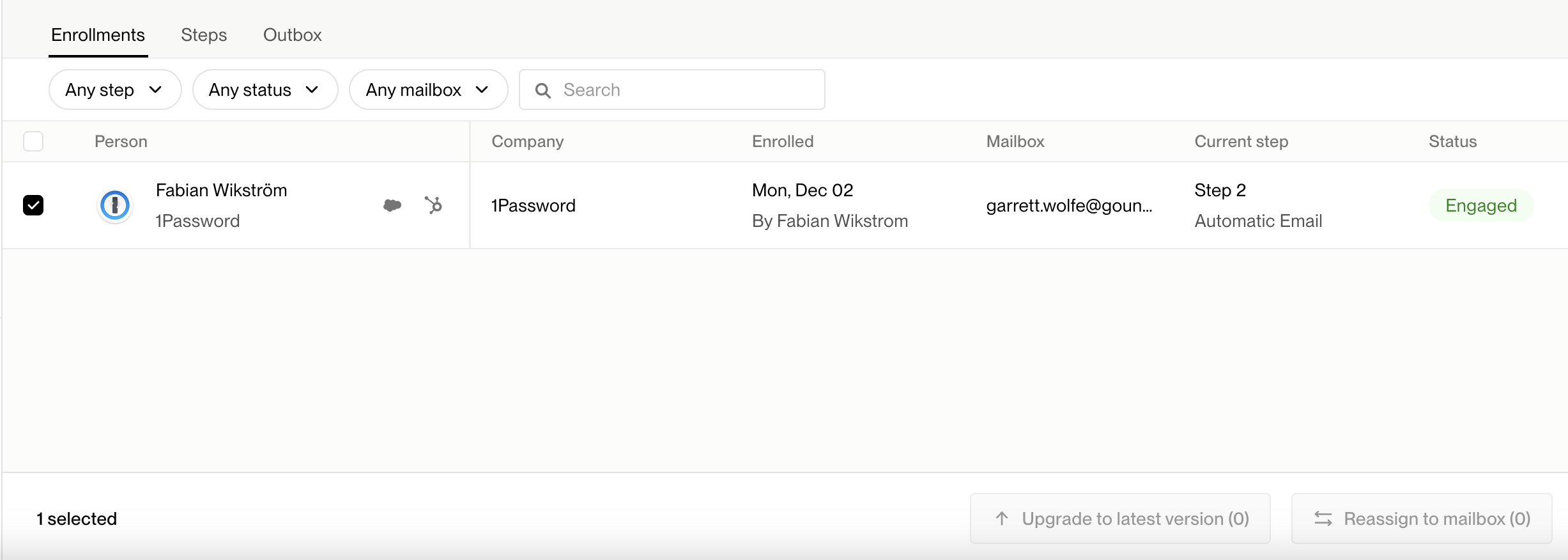
This means that contacts who are on step 2 or later cannot be upgraded even if they haven't received any emails yet (for example, if they're waiting for a delay or manual step). Only enrollments that are still queued on the first step are eligible for automatic version upgrades. If you want to upgrade these contacts before their scheduled send time rather than waiting for the automatic upgrade, you can use the manual upgrade feature described in the “Upgrading Eligible Enrollments” section.
Note: Only contacts who are queued on step 1 will automatically receive the newest version. Once an enrollment moves past step 1, it cannot be upgraded regardless of whether emails have been sent. Queued emails are preserved during republishing and will be upgraded automatically. You can also manually upgrade eligible enrollments before their scheduled send time using the upgrade feature.
Handling Contacts Who Cannot Be Upgraded to Latest Sequence Version
When contacts have already received emails from a sequence and cannot be upgraded to the latest version, you have two practical workarounds:
Option 1: Manual Outbox Updates
For contacts with pending emails in your outbox, you can manually update the email copy to reflect your latest sequence changes. This allows you to send updated content without disrupting the enrollment.
Option 2: Re‑enrollment Strategy
Unenroll the contacts from the current sequence and enroll them in a new sequence starting at the appropriate step. This gives you full control over the content they receive moving forward.
These approaches provide flexibility when you need to ensure all contacts receive your updated messaging, even when automatic version upgrades aren’t possible.
Additional Considerations for Sequence Version Upgrades
Impact on Email Scheduling and Delays
When upgrading enrollments that are currently in delay periods or waiting on manual steps, the upgrade will preserve their current position in the sequence timeline. This means if a contact was scheduled to receive their next email in 3 days, they’ll still receive it in 3 days after the upgrade, but with the updated content from the new sequence version.
Bulk Upgrade Limitations and Best Practices
While you can now upgrade contacts on any step, consider the following when performing bulk upgrades:
Review content changes: Ensure the updated sequence content makes sense for contacts who have already received previous emails
Check for step count changes: If your new sequence version has fewer steps than the original, contacts beyond those steps will need special handling
Monitor engagement: Upgraded contacts may experience different engagement patterns due to content changes mid-sequence
Handling Sequence Length Mismatches
If your updated sequence has fewer steps than the original version, contacts currently on steps that no longer exist will require manual review. Consider creating a separate workflow to handle these edge cases before performing bulk upgrades.
Important: If you need to send additional emails to contacts who have completed a sequence, you must create a new sequence. Note that your workspace may have a configurable restriction (commonly set to 30, 60, or 90 days) that prevents contacts from being enrolled in new sequences immediately after completing one. To modify this setting, navigate to your sequence settings and adjust the enrollment restrictions to allow for quicker re-targeting.
Handling Completed Sequences and Follow-up Communications
Completed Enrollments Cannot Receive New Steps
Contacts who have completed the sequence entirely are no longer enrolled and cannot receive new steps added after completion. Adding new steps to a published sequence only affects future enrollments and active enrollments still in progress.
Manual Reply Limitations
You cannot manually reply to your own sent email to create a threaded follow‑up outside of the sequence structure. Follow‑up must be configured as sequence steps to maintain proper email threading.
Follow-up Strategy for Completed Sequences
For contacts who have completed a sequence and need additional follow‑up, use the following steps:
Create a new sequence with your follow‑up content.
Re‑enroll the contacts in the new sequence.
Note that this will start a new email thread rather than continuing the original thread.
Be aware of the 90‑day enrollment restriction that may need to be disabled first.